
Sengled E11-N1EAWA
Sengled Smart LED Color Changing A19 E26 Light Bulb User Manual
Model: E11-N1EAWA
1. Introduction
This manual provides essential information for the installation, operation, and maintenance of your Sengled Smart LED Color Changing A19 E26 Light Bulb. This smart bulb offers versatile lighting options, including 16 million colors and tunable white light, controllable via voice commands or the Sengled Home app. A compatible smart hub is required for functionality.

Image 1: Sengled Smart LED Color Changing A19 E26 Light Bulb.
2. Product Features
- Hub Required: Compatible with Amazon Echo built-in hub, SmartThings, Wink, Hubitat, or Sengled Hub. The Sengled Smart Hub connects to your home router via Ethernet.
- Multi-color Modes: Access 16 million colors and tunable white light from soft white (2700K) to bright daylight (6500K).
- Voice & Remote Control: Control your bulb using voice commands with Amazon Alexa, Google Assistant, or through the Sengled Home app. Adjust brightness, color, and turn lights on/off.
- Timer & Dimmable: Schedule automatic on/off times and utilize pre-set light recipes like 'Sunrise' mode. Smoothly dim the light to your preference.
- Energy Efficient: This 8.6W LED bulb is equivalent to a 60W incandescent bulb, saving up to 80% energy.
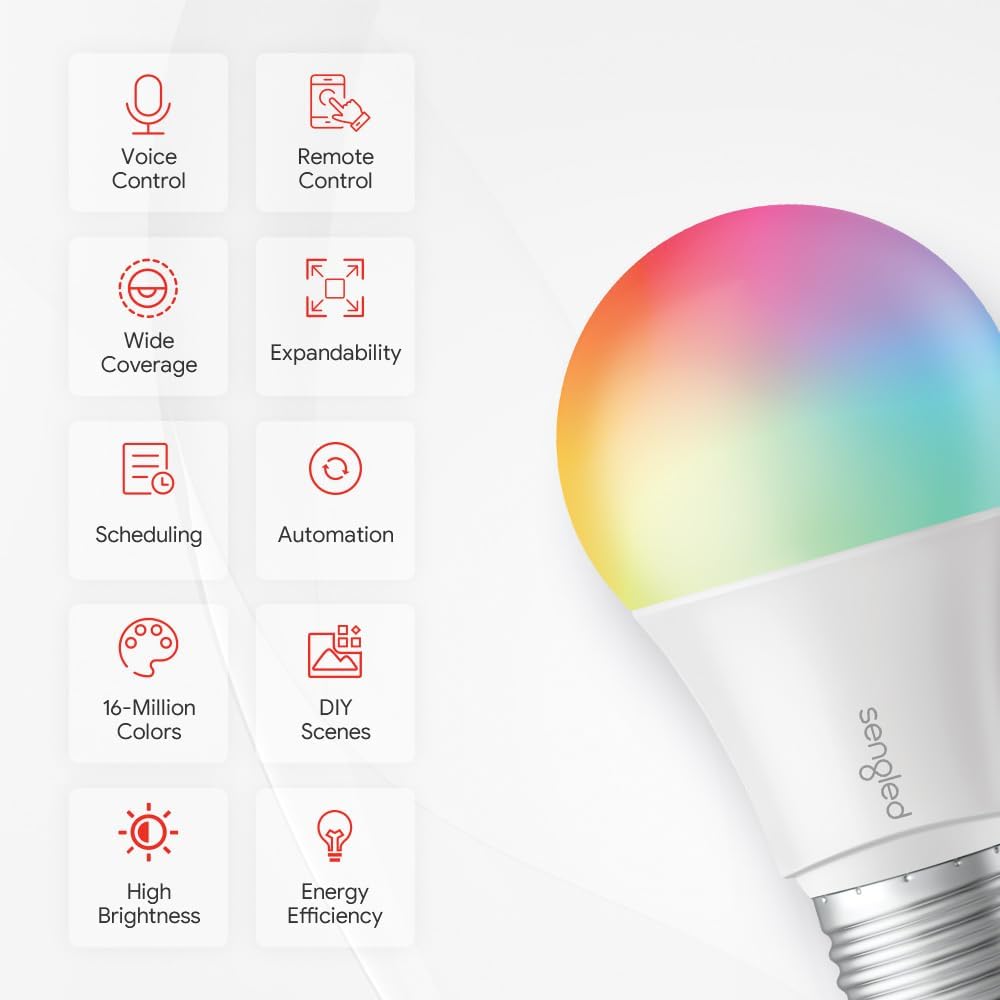
Image 2: Overview of Sengled Smart LED Bulb features including voice control, remote control, wide coverage, expandability, scheduling, automation, 16 million colors, DIY scenes, high brightness, and energy efficiency.

Image 3: Illustration of smart control options, showing a couple interacting with smart lighting and icons for Alexa, Google Home, Apple HomeKit, and SmartThings.
3. What's in the Box
The Sengled Smart LED Starter Kit typically includes:
- Sengled Smart LED Color Changing A19 E26 Light Bulbs (quantity may vary by pack)
- Sengled Smart Hub
- Power Adapter for Hub
- Ethernet Cable for Hub
- User Manual
Note: The specific contents may vary based on the purchased package (e.g., 1-count bulb vs. starter kit).
Video 1: This video provides an overview of the Sengled Smart Light Bulb, demonstrating its features and compatibility with Alexa and Google Assistant. It also shows the typical contents of a starter kit, including bulbs, hub, and necessary cables.
4. Setup Instructions
Follow these steps to set up your Sengled Smart LED Light Bulb:
- Ensure WiFi Availability: Verify your home WiFi network is active and accessible.
- Download Sengled Home App: Download the 'Sengled Home' app from the Apple App Store or Google Play Store. Register an account and log in.
- Connect the Hub: Connect the Sengled Smart Hub to your home router using the provided Ethernet cable and plug in the power adapter. Wait for the indicator lights to show a stable connection.
- Install Bulb: Screw the Sengled smart light bulb into a standard E26 socket and turn on the power switch.
- Add Bulb via App: Open the Sengled Home app. Scan the QR code located on the bulb or its packaging, then follow the in-app instructions to add the smart light bulb. The bulb should connect within one minute.
- Personalize: Once connected, you can assign the bulb to a room and customize its settings.

Image 4: Visual representation of the 4-step user-friendly setup process: Hub Setup, App Registration, Installation, and Personalization.

Image 5: A person installing a Sengled smart bulb into a light fixture, illustrating the physical installation step.
Video 2: This video demonstrates the step-by-step process of setting up a Sengled Multicolor Smart Bulb Starter Kit, including hub connection and bulb pairing.
5. Operating Instructions
5.1. Voice Control
Once connected to a compatible voice assistant (Alexa, Google Assistant), you can control your bulb using simple voice commands:
- "Alexa/Hey Google, turn on [Light Name]."
- "Alexa/Hey Google, turn off [Light Name]."
- "Alexa/Hey Google, dim [Light Name] to 50%."
- "Alexa/Hey Google, change [Light Name] to blue."
- "Alexa/Hey Google, set [Light Name] to warm white."

Image 6: A couple using voice control to adjust smart lighting, with a voice assistant device visible, highlighting hands-free operation.
5.2. App Control (Sengled Home App)
The Sengled Home app provides comprehensive control over your smart bulbs:
- On/Off: Toggle lights directly from the app.
- Brightness Adjustment: Use the slider to adjust brightness from 1% to 100%.
- Color Selection: Choose from 16 million colors or adjust white light temperature (2000K-6500K).
- Scenes: Create custom scenes for different moods or activities (e.g., 'Movie Night', 'Reading').
- Schedules & Timers: Set schedules for lights to turn on/off automatically at specific times or with sunrise/sunset.
- Groups: Group multiple bulbs to control them simultaneously.

Image 7: A person using the Sengled Home app on a smartphone to personalize lighting settings, demonstrating scene creation and scheduling.
6. Maintenance
To ensure optimal performance and longevity of your Sengled Smart LED Light Bulb:
- Cleaning: Disconnect power before cleaning. Use a soft, dry cloth to wipe the bulb. Avoid liquid cleaners or abrasive materials.
- Handling: Handle the bulb with care. Avoid dropping or subjecting it to strong impacts.
- Environment: Use the bulb in dry, indoor environments within the specified operating temperature range. Avoid exposure to water or extreme temperatures.
- Firmware Updates: Regularly check the Sengled Home app for firmware updates to ensure your bulb has the latest features and security enhancements.
7. Troubleshooting
If you encounter issues with your Sengled Smart LED Light Bulb, try the following steps:
- Bulb Not Responding:
- Ensure the light switch is in the ON position.
- Check if the bulb is securely screwed into the socket.
- Verify your Sengled Hub is powered on and connected to your router.
- Confirm your mobile device is connected to the same WiFi network as the hub.
- Cannot Connect to App:
- Restart your router and the Sengled Hub.
- Ensure the bulb is in pairing mode (power cycle the bulb 5 times: ON-OFF-ON-OFF-ON).
- Try scanning the QR code again or manually adding the device in the app.
- Voice Control Issues:
- Ensure your voice assistant device (e.g., Amazon Echo, Google Home) is properly set up and linked to your Sengled account.
- Check the device name in the Sengled Home app and use that exact name in your voice commands.
- Verify internet connectivity for both the hub and the voice assistant device.
- Flickering or Dimming Issues:
- Ensure the bulb is not connected to a traditional dimmer switch, as this can cause compatibility issues.
- Check for loose connections in the light fixture.
8. Specifications
| Feature | Specification |
|---|---|
| Brand | Sengled |
| Model Number | E11-N1EAWA |
| Light Type | LED |
| Bulb Shape Size | A19 |
| Bulb Base | E26 |
| Wattage | 8.6 Watts |
| Incandescent Equivalent | 60 Watts |
| Brightness | 800 Lumens |
| Color Support | 16 Million Colors |
| Color Temperature | 2000K - 6500K |
| Voltage | 100V - 120V |
| Control Method | Voice, App |
| Average Life | 25,000 Hours |
| Indoor/Outdoor Usage | Indoor use only |
| Product Dimensions | 2.3"W x 4.25"H |
9. Warranty and Support
9.1. Warranty Information
This Sengled Smart LED Light Bulb comes with a 3-year warranty from the date of purchase. Please retain your proof of purchase for warranty claims. The warranty covers defects in materials and workmanship under normal use.
9.2. Customer Support
For further assistance, technical support, or warranty inquiries, please visit the official Sengled website or contact their customer service department. You may find additional resources, FAQs, and contact information on their support pages.
Online Resources: Sengled Support Website
Related documentsE11-N1EAWA


Ask a question about this manual
Ask about setup, troubleshooting, compatibility, parts, safety, or missing instructions. Manuals+ will review the question and use this page’s manual context to help answer it.