
1. Product Overview
This manual provides instructions for the Charter Universal 4-Device Remote Control, designed to operate your cable converter, television, DVR, and other auxiliary devices. This remote is pre-programmed for Charter cable boxes and offers universal control capabilities for up to four devices.
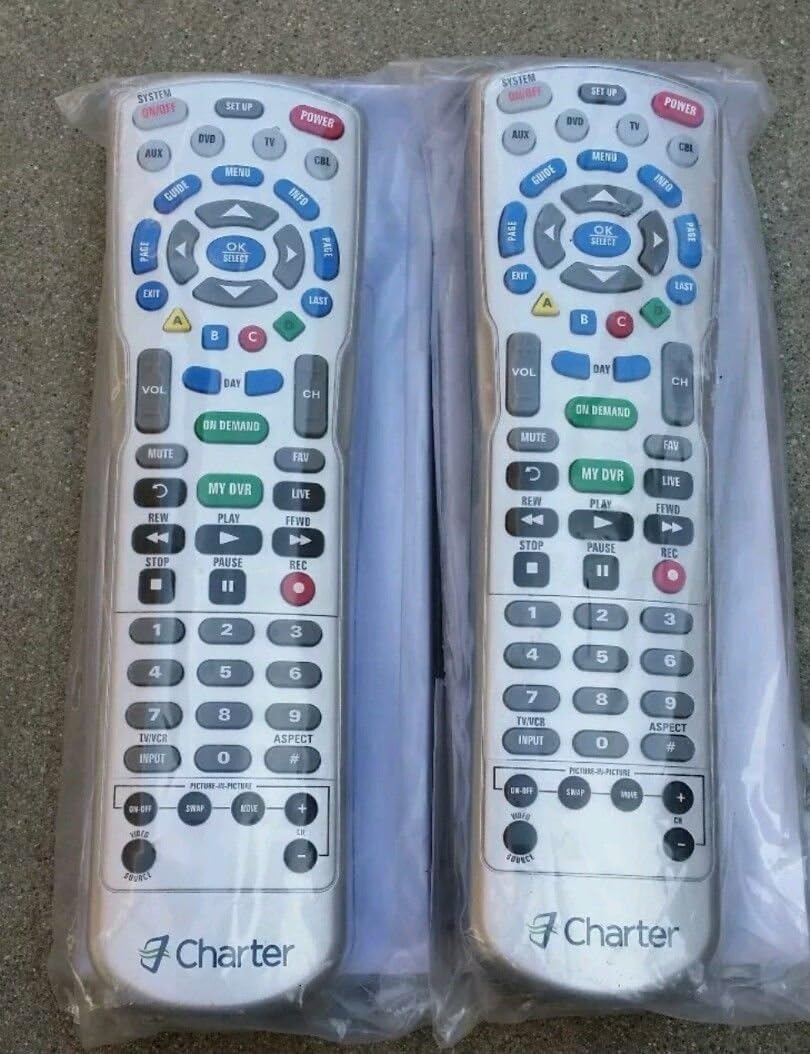
Image: Two Charter Universal 4-Device Remote Controls, showing the button layout and design.
Key Features:
- Pre-programmed for Charter cable converters.
- Dedicated keys for DVR/PVR functions.
- Programmable Master Power key for simultaneous on/off control of multiple devices.
- Color-coded keys for quick function identification.
- Extensive code library for various video and audio devices.
- Volume Lock feature to maintain volume control on a single device or individual modes.
2. Setup and Programming
2.1 Battery Installation
The remote control requires two (2) AA batteries. To install:
- Remove the battery compartment cover on the back of the remote.
- Insert two AA batteries, ensuring correct polarity (+ and -).
- Replace the battery compartment cover.
2.2 Programming for Television Control
Follow these steps to program your remote control to operate your television:
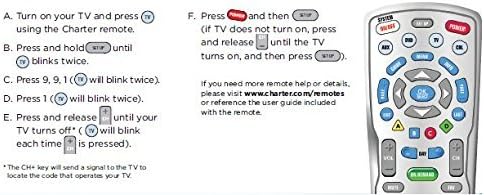
Image: Step-by-step visual guide for programming the Charter remote to control a television.
- Turn on your TV and press the TV button using the Charter remote.
- Press and hold the SETUP button until the TV button blinks twice.
- Press the number keys 9, 9, 1. The TV button will blink twice.
- Press the number key 1. The TV button will blink twice.
- Press and release the CH+ button repeatedly until your TV turns off. The TV button will blink each time CH+ is pressed. (The CH+ key sends a signal to the TV to locate the code that operates your TV.)
- Once the TV turns off, press the SETUP button to save the code. If the TV does not turn on, press and release the CH- button until the TV turns on, then press SETUP.
For additional remote help or details, reference the user guide included with the remote or visit the manufacturer's support website.
2.3 Programming for Other Devices (DVR/AUX)
The remote is typically pre-programmed for Charter cable boxes. For other devices such as a DVR or auxiliary equipment, you may need to use specific device codes. Refer to the code library provided with your remote or consult the manufacturer's support resources for detailed instructions and codes.
3. Operating Instructions
This section outlines the general use of the remote control's functions.
- System On/Off: Powers on or off the selected device.
- Power: Powers on or off the selected device.
- Device Buttons (CBL, TV, DVD, AUX): Select the device you wish to control.
- Menu/Guide/Info: Access on-screen menus, program guides, and information.
- Navigation Pad (OK Select, Arrow Keys): Navigate through menus and select options.
- Volume Up/Down: Adjusts the volume.
- Channel Up/Down: Changes channels.
- Mute: Silences the audio.
- DVR/PVR Controls (Rew, Play, Ffwd, Stop, Pause, Rec): Control playback and recording functions for your DVR/PVR.
- Number Pad: Directly enter channel numbers or codes.
- Color-Coded Keys (A, B, C, D): These keys are often used for specific functions within menus or applications, as indicated on-screen.
- Programmable Master Power Key: This feature allows you to program a single power button to turn multiple devices on or off simultaneously. Consult the full user guide for programming this function.
- Volume Lock: This function allows you to lock the volume control to a specific device (e.g., your TV) regardless of which device mode the remote is currently in. This prevents accidental volume changes on other devices.
4. Maintenance
4.1 Battery Replacement
When the remote's performance degrades or buttons become unresponsive, it is likely time to replace the batteries. Follow the battery installation steps in Section 2.1.
4.2 Cleaning
To clean your remote control:
- Ensure the remote is powered off (if applicable) and remove batteries.
- Use a soft, slightly damp cloth to wipe the surface.
- Avoid using harsh chemicals or abrasive cleaners.
- Do not allow moisture to enter the battery compartment or other openings.
5. Troubleshooting
If you encounter issues with your remote control, consider the following:
- Remote Not Responding: Check if the batteries are correctly installed and have sufficient charge. Replace batteries if necessary.
- Device Not Responding: Ensure you have selected the correct device button (e.g., TV, CBL, DVD, AUX) before pressing function keys.
- Programming Issues: If a device does not respond after programming, try repeating the programming steps. Ensure you are using the correct codes for your specific device model.
- Line of Sight: Ensure there is a clear line of sight between the remote control and the device you are trying to control. Obstructions can block the infrared signal.
6. Specifications
| Item Model Number | LYSB0014A50GE-ELECTRNCS |
| Brand | Charter |
| Max Number of Supported Devices | 4 |
| Compatible Devices | Television, DVR, Cable Box, Auxiliary Devices |
| Special Feature | Universal |
| Batteries Required | 2 AA batteries |
| Item Weight | 6 ounces |
| Package Dimensions | 11.26 x 7.28 x 3.11 inches |
7. Warranty and Support
For warranty information, technical support, or to obtain a complete list of device codes, please refer to the documentation included with your purchase or contact Charter customer service directly. Keep your purchase receipt for warranty claims.


