
1. Introduction
The Vgate VS890S is a versatile diagnostic scan tool designed to read and clear trouble codes from your vehicle's On-Board Diagnostics (OBD-II) system. It supports all OBD-II protocols, including CAN, J1850 PWM, J1850 VPW, ISO9141, and KWP2000. This manual provides detailed instructions for the proper use and maintenance of your VS890S scanner.
2. Safety Information
Always observe safety precautions when working on a vehicle. Improper use of diagnostic tools can lead to personal injury or damage to the vehicle. Ensure the vehicle is in a safe, well-ventilated area. Do not wear loose clothing or jewelry when working near moving engine parts. Keep the scanner away from water and extreme temperatures.
3. Product Overview
The Vgate VS890S features a user-friendly interface with a clear LCD display and intuitive button layout. Familiarize yourself with the device's components before operation.
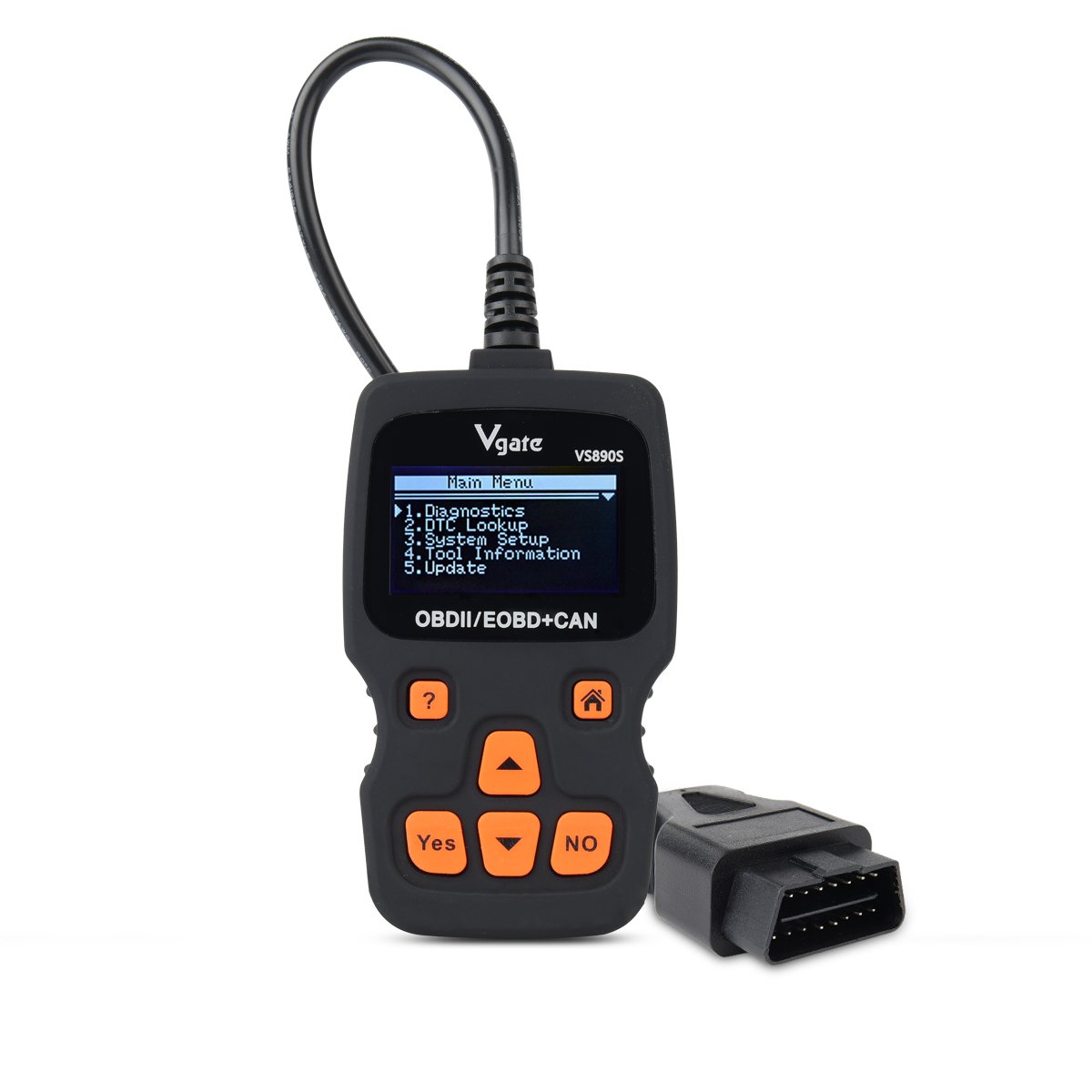
Figure 3.1: Vgate VS890S device with labeled buttons and dimensions. The image shows the front view of the scanner with its display and control buttons, along with a side profile indicating its thickness.
3.1. Controls and Indicators
- Help Button (?): Provides on-screen assistance or information.
- Home Button (House Icon): Returns to the main menu.
- Yes Button: Confirms selections or actions.
- No Button: Cancels selections or actions.
- Roll Up (Up Arrow): Navigates upwards through menu options or increases values.
- Roll Down (Down Arrow): Navigates downwards through menu options or decreases values.
4. Setup
Follow these steps to prepare your VS890S scanner for use.
4.1. Connecting the Device
- Locate the vehicle's 16-pin Data Link Connector (DLC). This is typically found under the dashboard on the driver's side.
- Ensure the vehicle's ignition is in the OFF position.
- Firmly plug the VS890S connector into the vehicle's DLC.
- Turn the vehicle's ignition to the ON position (engine off). The scanner will power on automatically.
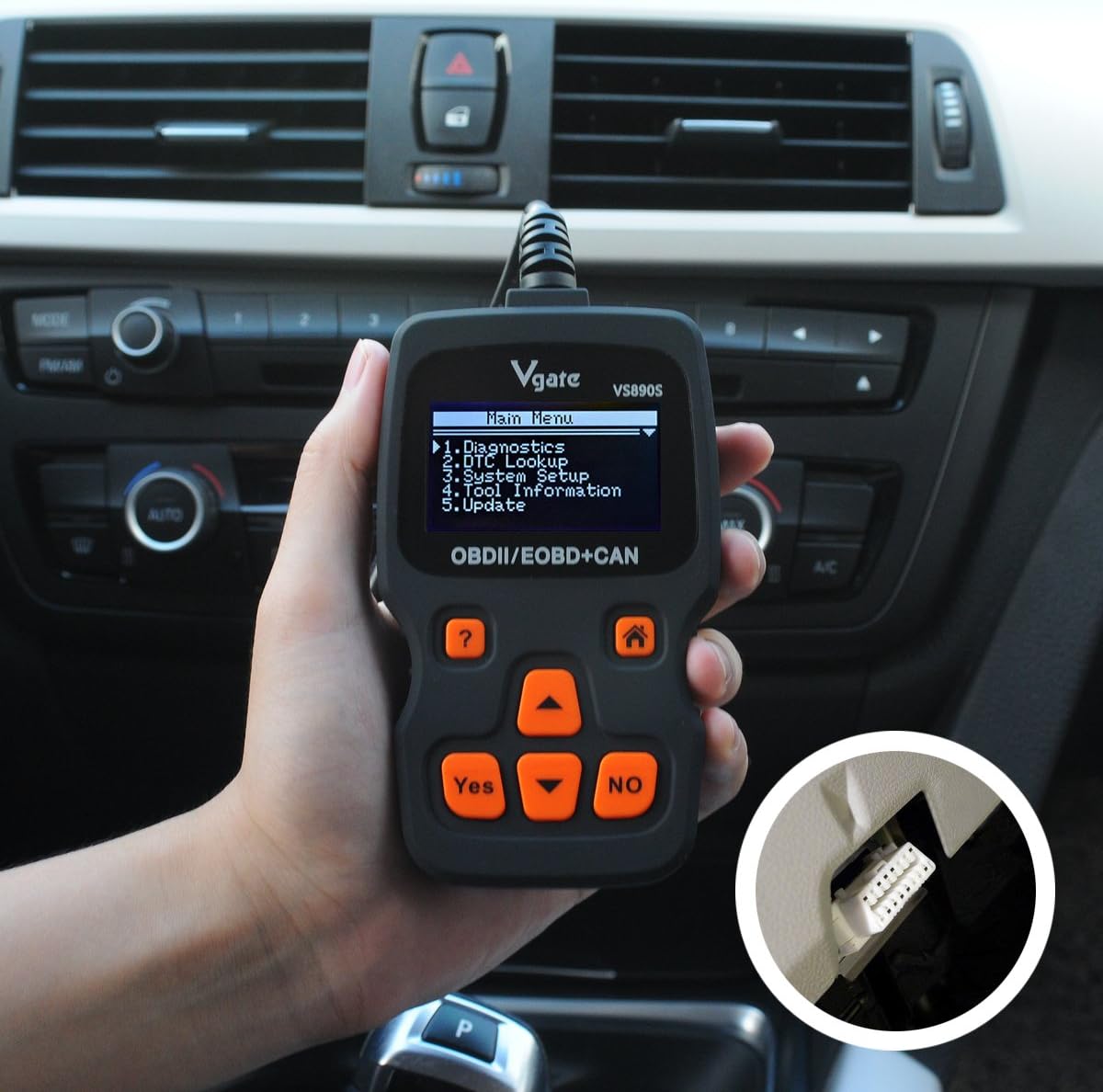
Figure 4.1: The Vgate VS890S scanner connected to a vehicle's OBD-II port, located under the dashboard. The image shows a hand holding the scanner with its cable plugged into the car's diagnostic port.
5. Operating Instructions
This section details the various functions and how to navigate the Vgate VS890S.

Figure 5.1: Various screen displays of the Vgate VS890S, including the Main Menu, DTC Lookup, System Setup, and Language selection screens.
5.1. Main Menu Navigation
Upon powering on, the device will display the Main Menu. Use the Roll Up and Roll Down buttons to navigate through the options, and the Yes button to select.
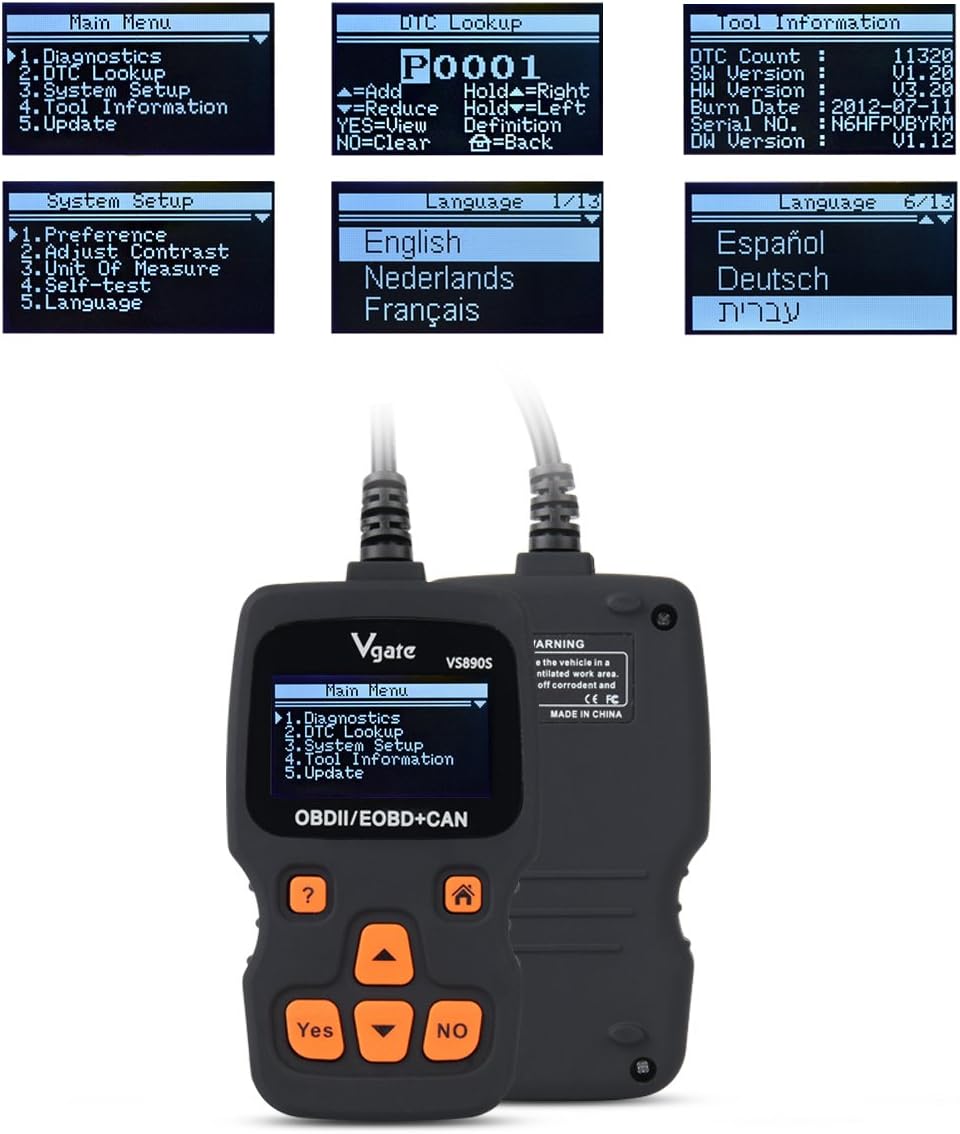
Figure 5.2: The Vgate VS890S displaying the Main Menu with options such as Diagnostics, DTC Lookup, System Setup, Tool Information, and Update.
- Diagnostics: Accesses vehicle diagnostic functions, including reading and clearing trouble codes, viewing live data, and more.
- DTC Lookup: Allows you to manually enter a Diagnostic Trouble Code (DTC) to view its definition.
- System Setup: Configures device settings such as language, display contrast, and units of measurement.
- Tool Information: Displays details about the scanner, including software version and serial number.
- Update: Used for updating the device's firmware (requires connection to a computer).
5.2. Reading and Clearing Trouble Codes
- From the Main Menu, select Diagnostics and press Yes.
- The scanner will establish communication with the vehicle. This may take a few moments.
- Once connected, select Read Codes to view any stored Diagnostic Trouble Codes (DTCs).
- To clear codes, select Erase Codes and press Yes. Confirm the action when prompted. Note: Clearing codes will turn off the Check Engine Light (MIL) but will not fix the underlying problem. Address the issue before clearing codes.
5.3. DTC Lookup
If you have a DTC from another source, you can use the DTC Lookup function to get its definition.
- From the Main Menu, select DTC Lookup and press Yes.
- Use the Roll Up and Roll Down buttons to select characters and the Yes button to confirm each character.
- Once the full DTC is entered, the definition will be displayed.
5.4. System Setup
Customize your scanner's settings.
- From the Main Menu, select System Setup and press Yes.
- Options include:
- Preference: Adjust general settings.
- Adjust Contrast: Modify screen brightness for better visibility.
- Unit of Measure: Switch between Metric and Imperial units.
- Self-Test: Perform a self-diagnostic check of the scanner.
- Language: Select your preferred operating language. The device supports multiple languages including English, Spanish, German, and French.
- Use the Roll Up and Roll Down buttons to select an option, then press Yes to enter its sub-menu or confirm a change.
5.5. Tool Information
View details about your VS890S scanner.
- From the Main Menu, select Tool Information and press Yes.
- The screen will display information such as DTC Count, Software Version (SW Version), Hardware Version (HW Version), Burn Date, Serial Number, and Diagnostic Software Version (DW Version).
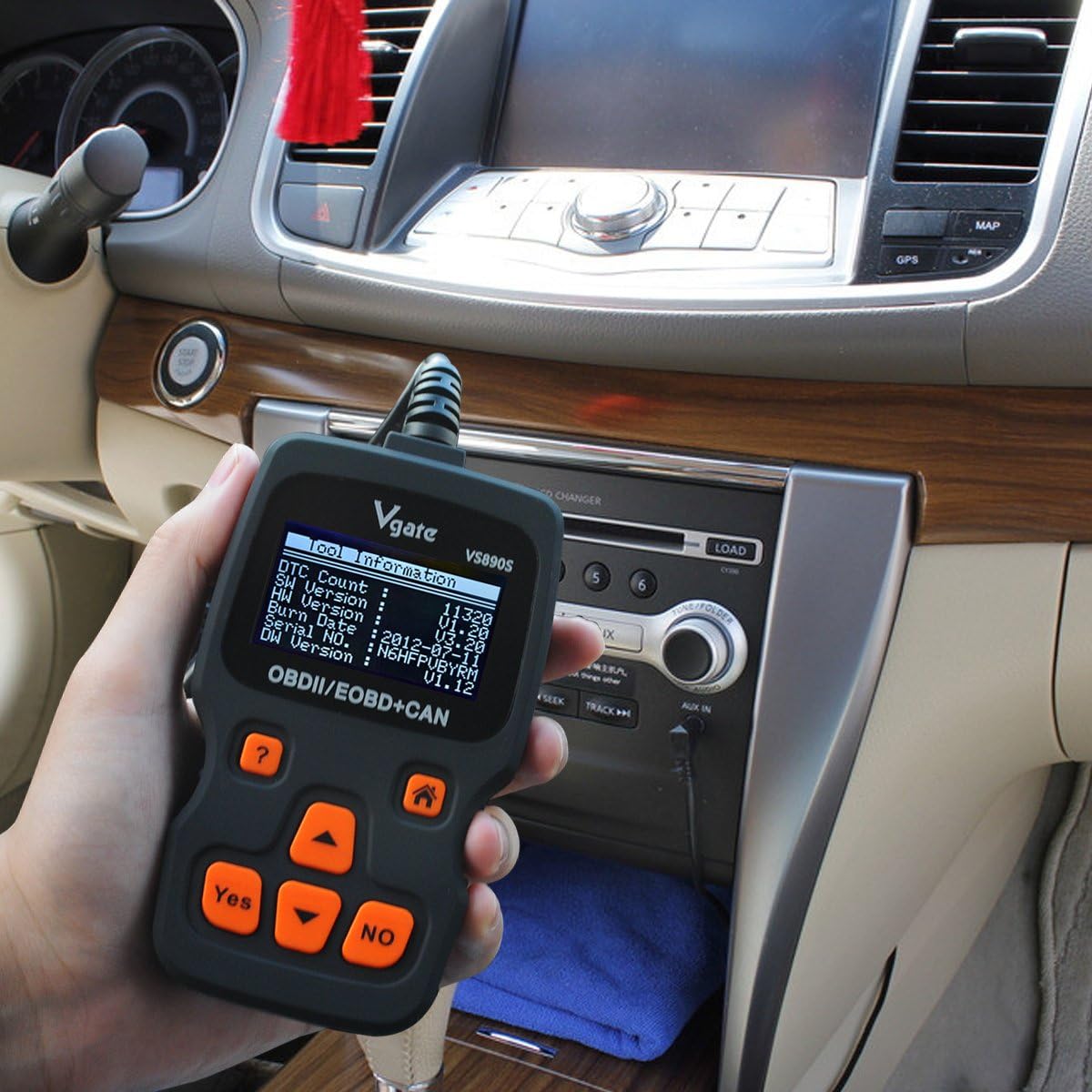
Figure 5.3: The Vgate VS890S displaying the 'Tool Information' screen, showing details like software and hardware versions, and serial number.
6. Maintenance
Proper care ensures the longevity and reliability of your Vgate VS890S scanner.
- Cleaning: Use a soft, damp cloth to clean the exterior of the scanner. Do not use abrasive cleaners or solvents.
- Storage: Store the device in a dry, cool environment, away from direct sunlight and extreme temperatures.
- Cable Care: Avoid bending or crimping the diagnostic cable excessively. Always grasp the connector when plugging or unplugging, not the cable itself.
7. Troubleshooting
If you encounter issues with your VS890S, refer to the following common problems and solutions.
| Problem | Possible Cause | Solution |
|---|---|---|
| Scanner does not power on. | Loose connection to DLC; Vehicle ignition off; Vehicle not OBD-II compliant. | Ensure cable is securely connected. Turn ignition to ON. Verify vehicle is OBD-II compliant (most vehicles 1996 and newer). |
| Communication error with vehicle. | Faulty connection; Vehicle's ECU is not responding; Incorrect protocol. | Check cable connection. Ensure ignition is ON. Try on another OBD-II compliant vehicle if possible. |
| Cannot clear trouble codes. | Ignition not ON; Underlying fault still present; Specific codes cannot be cleared by generic scanner. | Ensure ignition is ON. Repair the underlying issue first. Some manufacturer-specific codes may require a specialized tool. |
| Screen is dim or unreadable. | Contrast setting is too low. | Go to System Setup > Adjust Contrast to increase brightness. |
8. Specifications
Technical specifications for the Vgate VS890S diagnostic scanner.
- Brand: Vgate
- Model Number: VS890s
- Item Weight: 11.7 ounces
- Package Dimensions: 9.37 x 5.98 x 1.38 inches
- Power Source: Battery Powered (via OBD-II port)
- Screen Size: 2.4 Inches (LCD)
- Supported Protocols: CAN, J1850 PWM, J1850 VPW, ISO9141, KWP2000
- User Interface: Multi-language (supports up to 13 languages)
9. Warranty and Support
For warranty information or technical support, please refer to the documentation included with your purchase or contact Vgate customer service. Keep your purchase receipt as proof of purchase.


