
Introduction
The ZAGG Rugged Messenger is a versatile keyboard case designed to enhance the functionality and protection of your iPad Pro 10.5" or iPad Air 10.5" (Gen 3). It features a durable, detachable case and a Bluetooth keyboard with backlit keys, offering both robust protection and a comfortable typing experience. This manual provides instructions for setup, operation, and maintenance of your device.

Image: The ZAGG Rugged Messenger keyboard case in an open position, displaying the integrated keyboard and the protective shell designed for the iPad.
Package Contents
Verify that all items are present in your package:
- ZAGG Rugged Messenger Keyboard Case
- Micro USB Charging Cable
- Quick Start Guide
- Warning Card
Setup
1. Attaching Your iPad
- Align your iPad with the protective case.
- Gently press the iPad into the case until it is securely seated. Ensure all corners are protected.
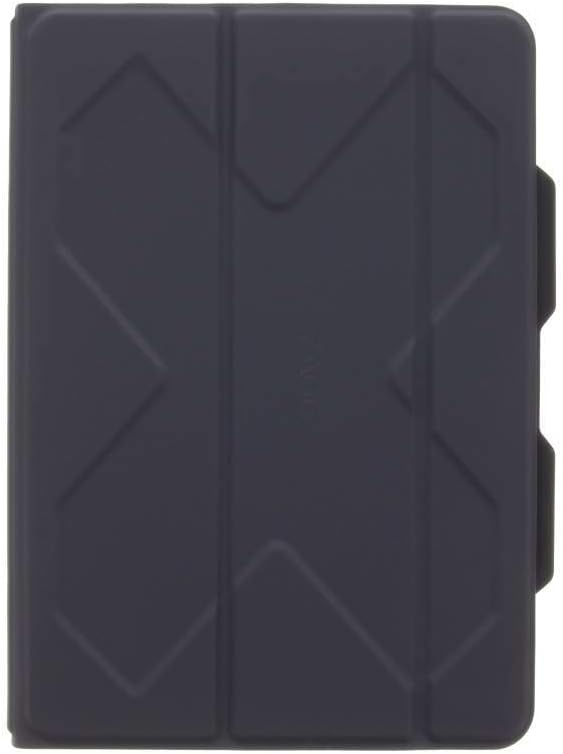
Image: The ZAGG Rugged Messenger case in a closed position, highlighting its robust exterior design.
2. Charging the Keyboard
Before initial use, fully charge your keyboard. The rechargeable battery provides up to two years of use between charges, depending on usage.
- Connect the micro USB charging cable to the keyboard's charging port.
- Connect the other end of the cable to a USB power source.
- The charging indicator light will illuminate. Once fully charged, the light will change or turn off.
3. Pairing the Keyboard via Bluetooth
The Rugged Messenger keyboard can connect to two devices simultaneously.
- Ensure your iPad's Bluetooth is enabled (Settings > Bluetooth).
- On the keyboard, press and hold the Bluetooth 1 or Bluetooth 2 key for three seconds. The LED indicator will flash, indicating pairing mode.
- On your iPad, select "ZAGG Rugged Messenger" from the list of available devices.
- Follow any on-screen prompts to complete the pairing process. The LED will stop flashing once paired.
Operating Instructions
Keyboard and Case Modes
The Rugged Messenger offers two primary modes for versatile use:
- Keyboard Mode: Position your iPad in the stand above the keyboard for typing. The magnets will secure the iPad in place.
- Case Mode: Detach the iPad in its protective case from the keyboard for tablet-only use. The case provides protection against impacts and corner damage.

Image: A user actively typing on the ZAGG Rugged Messenger keyboard, with the iPad securely positioned in the integrated stand.
Backlight Control
The keyboard features 7-color backlighting for typing in low-light conditions.
- Press the light bulb key to cycle through brightness levels.
- Press Fn + light bulb key to cycle through the backlight colors.
Multi-Device Toggling
To switch between two paired devices:
- Press the Bluetooth 1 key to connect to the first paired device.
- Press the Bluetooth 2 key to connect to the second paired device.
Apple Pencil Holder
A dedicated holder is integrated into the case to store your Apple Pencil securely.

Image: A detailed view of the ZAGG Rugged Messenger case, highlighting the built-in holder designed for the Apple Pencil.
Viewing Angles
The built-in stand allows for multiple viewing angles, providing flexibility for typing or media consumption.
Maintenance
Cleaning
- Wipe the keyboard and case with a soft, damp, lint-free cloth.
- Avoid using harsh chemicals or abrasive cleaners.
Battery Care
- Charge the keyboard regularly to maintain optimal battery performance.
- The sleep/wake function helps conserve battery life when the keyboard is not in use.
Troubleshooting
Keyboard Not Responding
- Ensure the keyboard is powered on.
- Check the battery level and charge if necessary.
- Verify that Bluetooth is enabled on your iPad and the keyboard is paired.
- Try re-pairing the keyboard to your iPad.
Connectivity Issues
- Move the keyboard closer to your iPad to ensure a strong Bluetooth signal.
- Disconnect other Bluetooth devices from your iPad to reduce interference.
- Restart both your iPad and the keyboard.
Specifications
| Feature | Detail |
|---|---|
| Model Number | ID9RMK-BB0 |
| Compatible Devices | Apple iPad Pro 10.5", Apple iPad Air 10.5" (Gen 3) |
| Connectivity Technology | Bluetooth, Wireless |
| Keyboard Description | Wireless QWERTY |
| Backlighting | 7-Color Backlit |
| Drop Protection | Up to 6.6 feet |
| Battery Life | Up to 2 years (rechargeable Lithium Polymer) |
| Material | Polycarbonate |
| Item Weight | 1.53 pounds |
| Product Dimensions (LxWxH) | 7.67 x 0.91 x 10.28 inches |
Warranty and Support
For detailed warranty information, technical support, or further assistance, please refer to the official ZAGG website or the included Quick Start Guide and Warning Card.
An electronic version of the user manual is available for download:


