
Introduction
The Beurer HM55 Wireless Thermometer and Hygrometer is designed to monitor your indoor climate, providing real-time data on temperature and relative humidity. This device helps you maintain a comfortable and healthy environment within your home by displaying current conditions and allowing long-term monitoring via the Beurer FreshRoom app on your smartphone. This manual provides essential information for the safe and effective use of your HM55 device.
Key Features
- Monitors and displays current time, temperature, and relative humidity.
- Provides a quick overview of indoor environment quality through a colored indicator.
- Bluetooth Smart connectivity for long-term monitoring with the free Beurer FreshRoom app.
- Allows monitoring of temperature and humidity trends over time with easy-to-read graphs in the app.
- Compact and elegant design for discreet placement.
- Multi-room display function enables management of multiple Beurer indoor humidity monitors via the app.
- App features include LED brightness control and time zone settings.
Safety Information
Please read these safety instructions carefully before using the device. Keep this manual for future reference.
General Safety
- Do not expose the device to direct sunlight, extreme temperatures, or high humidity.
- Keep the device away from water and other liquids. Do not immerse it.
- Do not open or attempt to repair the device yourself. Refer all servicing to qualified personnel.
- This device is not a toy. Keep it out of reach of children.
- Use the device only for its intended purpose as described in this manual.
Battery Safety
- Always insert batteries with the correct polarity (+/-).
- Do not mix old and new batteries, or different types of batteries.
- Remove depleted batteries promptly to prevent leakage and damage.
- If the device will not be used for an extended period, remove the batteries.
- Dispose of batteries according to local regulations. Do not dispose of batteries in fire.
Package Contents
Carefully unpack your Beurer HM55 and check that all components are present and undamaged.
- 1 x Beurer HM55 Thermo-Hygrometer
- 2 x 1.5V AAA Batteries
- 1 x Instruction Manual (this document)
Device Overview
Familiarize yourself with the components of your Beurer HM55 device.
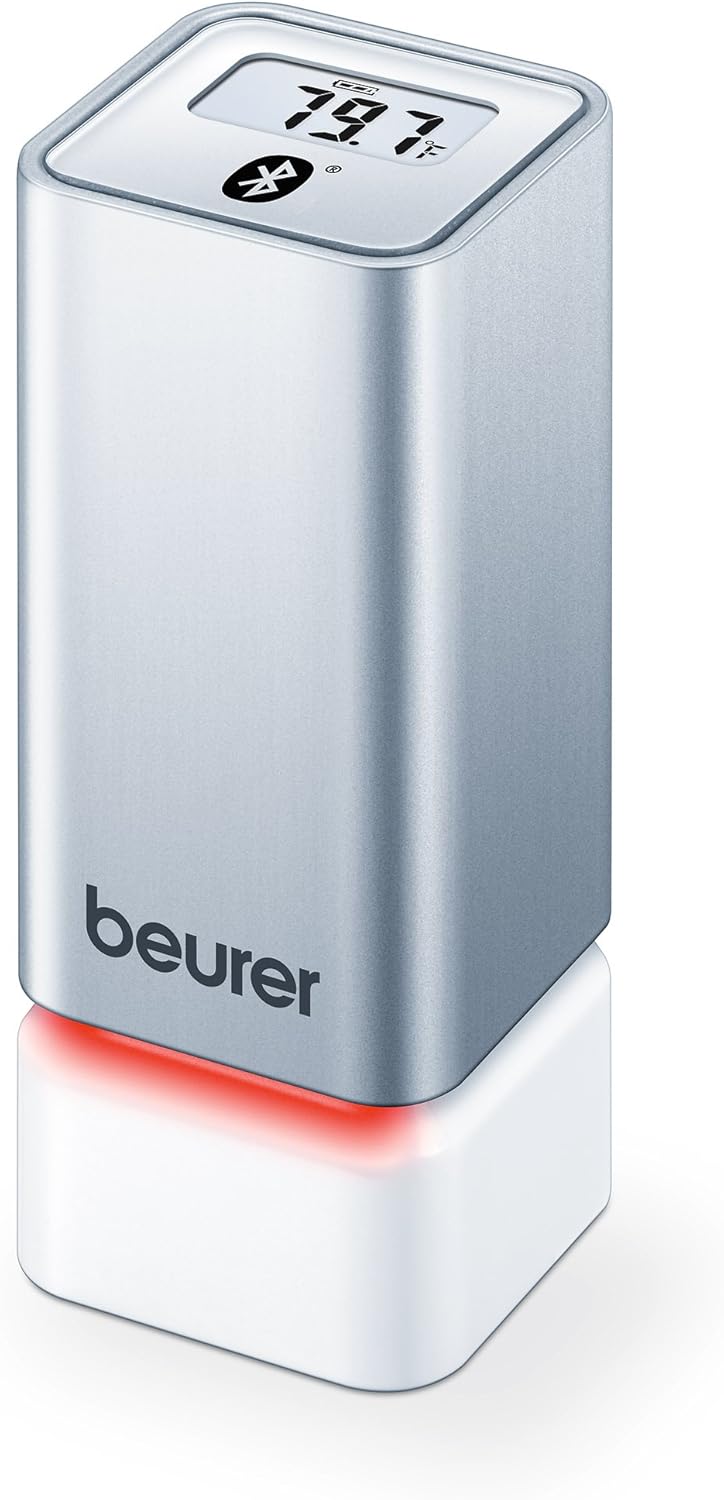
Figure 1: Front view of the Beurer HM55 device, showing the display and Beurer logo.

Figure 2: Close-up of the HM55 display, indicating temperature, humidity, and Bluetooth icon.

Figure 3: The compact size of the HM55 device, shown in comparison to a hand.
- Display: Shows current temperature, relative humidity, and time.
- LED Indicator: Located at the base, changes color to indicate indoor climate quality.
- Battery Compartment: Located on the underside of the device.
- Bluetooth Symbol: Indicates active Bluetooth connection.
Setup
1. Inserting Batteries
- Locate the battery compartment on the bottom of the HM55 device.
- Open the battery compartment cover.
- Insert the two 1.5V AAA batteries, ensuring correct polarity (+/-).
- Close the battery compartment cover securely. The device display should activate.
2. Downloading the Beurer FreshRoom App
The Beurer FreshRoom app is required to utilize the full functionality of your HM55 device, including long-term monitoring and multi-room management. The app is compatible with iOS (version 8.0 or higher) and Android (version 4.4 or higher with Bluetooth 4.0).
- For iOS devices, download the "Beurer FreshRoom" app from the Apple App Store.
- For Android devices, download the "Beurer FreshRoom" app from the Google Play Store.
- Alternatively, scan the QR code provided in the product packaging or visit the official Beurer website for direct links. Beurer Smartphone App Information

Figure 4: Example of the Beurer FreshRoom app interface on a smartphone.
3. Pairing with Your Smartphone
- Ensure Bluetooth is enabled on your smartphone.
- Open the Beurer FreshRoom app.
- Follow the on-screen instructions within the app to search for and connect to your HM55 device. The app will guide you through the pairing process.
- Once successfully paired, the Bluetooth symbol on the HM55 display will illuminate, and data will begin to synchronize with the app.
4. Initial Placement
Place the HM55 in the room you wish to monitor. For accurate readings, avoid placing it:
- Near heat sources (e.g., radiators, direct sunlight).
- Near air conditioning vents or open windows.
- In areas with high airflow or drafts.
- In direct contact with moisture.
Operating the Device
Understanding the Display
The HM55 display provides immediate readings:
- Temperature: Displays in Celsius (°C) or Fahrenheit (°F). The unit can be changed via the app.
- Relative Humidity: Displays as a percentage (%).
- Time: Displays the current time, synchronized via the app.
- Bluetooth Icon: Indicates an active connection to your smartphone.
Interpreting the Colored Climate Indicator
The LED light at the base of the HM55 provides a quick visual indication of your indoor climate:
- Green: Optimal indoor climate.
- Red: Poor indoor climate (e.g., too dry, too humid, or extreme temperature).
- The specific thresholds for these indicators can be customized within the Beurer FreshRoom app.

Figure 5: HM55 device showing a red LED indicator, signifying a poor indoor climate.

Figure 6: HM55 device showing a green LED indicator, signifying an optimal indoor climate.
Using the Beurer FreshRoom App
The app provides advanced features for monitoring and managing your indoor climate:
- Real-time Data: View current temperature and humidity readings from your device.
- Historical Data: Access graphs and logs of temperature and humidity over various periods (e.g., hourly, daily, weekly, monthly).
- Alerts: Set custom minimum and maximum thresholds for temperature and humidity. Receive notifications if readings fall outside these ranges.
- Settings: Adjust device settings such as temperature unit (°C/°F), LED brightness, and time zone.
Multi-Room Function
If you have multiple Beurer HM55 devices, the FreshRoom app allows you to monitor all of them from a single interface. Each device can be assigned to a specific room for easy identification and tracking.
- Add each additional HM55 device to the app following the pairing instructions.
- Assign a unique name or room designation to each device within the app settings.
- View and compare climate data from all connected rooms on a single dashboard.
Maintenance
Cleaning
- Wipe the device with a soft, dry, or slightly damp cloth.
- Do not use abrasive cleaners, solvents, or harsh chemicals, as these can damage the surface or internal components.
- Ensure no liquid enters the device.
Battery Replacement
When the battery low indicator appears on the display or in the app, replace both AAA batteries following the instructions in the "Inserting Batteries" section.
Storage
If the device will not be used for an extended period, remove the batteries and store the device in a cool, dry place, away from direct sunlight and extreme temperatures.
Troubleshooting
If you encounter issues with your Beurer HM55, refer to the following common problems and solutions:
| Problem | Possible Cause | Solution |
|---|---|---|
| Device display is blank. | Batteries are depleted or incorrectly inserted. | Check battery polarity or replace with new AAA batteries. |
| App cannot connect to the device. | Bluetooth is off on smartphone; device is out of range; app issue. | Ensure Bluetooth is enabled. Move smartphone closer to the device. Restart the app or smartphone. Re-pair the device if necessary. |
| Readings appear inaccurate. | Device placement is suboptimal; environmental factors. | Relocate the device away from direct heat, cold, or drafts. Allow time for readings to stabilize after relocation. |
| LED indicator is always red. | Indoor climate is consistently outside optimal range; app settings. | Check temperature and humidity levels in the app. Adjust environmental conditions (e.g., use a humidifier/dehumidifier, adjust heating/cooling). Review and adjust alert thresholds in the app. |
Technical Specifications
| Model | HM55 |
| Brand | Beurer |
| Power Supply | 2 x 1.5V AAA batteries |
| Connectivity | Bluetooth Smart (Bluetooth 4.0) |
| App Compatibility | iOS 8.0 or higher, Android 4.4 or higher |
| Mounting Type | Wall Mount |
| Color | Silver |
| Included Components | Beurer Thermo-Hygrometer |
Warranty and Support
Beurer provides a limited warranty for this product. For detailed warranty terms and conditions, please refer to the warranty card included with your product or visit the official Beurer website.
For technical support, troubleshooting assistance, or to inquire about replacement parts, please contact Beurer customer service. Contact information can typically be found on the Beurer website or in the product packaging.
Online Resources: For additional information and app support, visit Beurer Smartphone App Information.


