
1. Introduction and Overview
The Autel Autolink AL329 is an advanced OBDII/EOBD code reader designed for diagnosing vehicle issues. It provides comprehensive diagnostic functions to help users identify and resolve problems efficiently. This manual provides detailed instructions for setting up, operating, maintaining, and troubleshooting your AL329 device.
Key Features:
- Compatible with domestic, Asian, and European vehicles (1996 and newer OBD II/EOBD compatible).
- Retrieves generic (P0, P2, P3, U0), manufacturer-specific (P1, P3, U1), and pending codes.
- One-Click I/M emissions readiness key for quick monitor status checks.
- AutoVIN for quick reading and clearing of Diagnostic Trouble Codes (DTCs).
- Enhanced Mode 6 diagnostics.
- Clears codes, resets monitors, and turns off the Malfunction Indicator Light (MIL).
- Views freeze frame data.
- Graphs, records, and plays back live data.
- Retrieves Vehicle Identification Information (VIN, CALID, CVN).
- Easy plug-in and scan operation.
- Tri-lingual interface: English, Spanish, and French.
- Features a TFT color display (220x176 DPI).
- Grease and water resistant design.
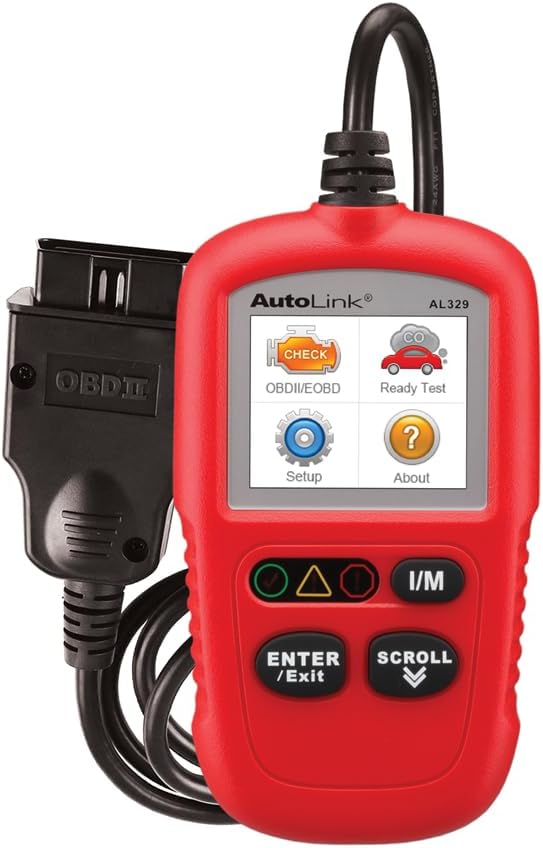
Image: The Autel Autolink AL329 code reader, a compact red device with a screen and control buttons, connected via an OBDII cable.
2. Setup
2.1 Connecting the Device
- Locate the vehicle's 16-pin Data Link Connector (DLC). The DLC is usually located under the dashboard, on the driver's side.
- Turn the vehicle's ignition to the 'ON' position, but do not start the engine.
- Plug the AL329's OBDII connector into the vehicle's DLC. The device will power on automatically.
2.2 Initial Configuration
- Upon first use, you may need to select your preferred language (English, Spanish, or French) from the 'Setup' menu.
- The device is designed for easy plug-and-scan operation, requiring minimal initial setup.
2.3 Software Updates
The AL329 supports software updates to ensure compatibility with the latest vehicle models and diagnostic protocols. Refer to the official Autel website for instructions on how to download and install updates.
Video: An official overview of the Autel AutoLink AL329, highlighting its features and ease of use for vehicle diagnostics.
3. Operating Instructions
3.1 Diagnostic Menu Navigation
Use the 'SCROLL' buttons to navigate through the menu options on the TFT color display. Press 'ENTER/EXIT' to select an option or return to the previous menu.
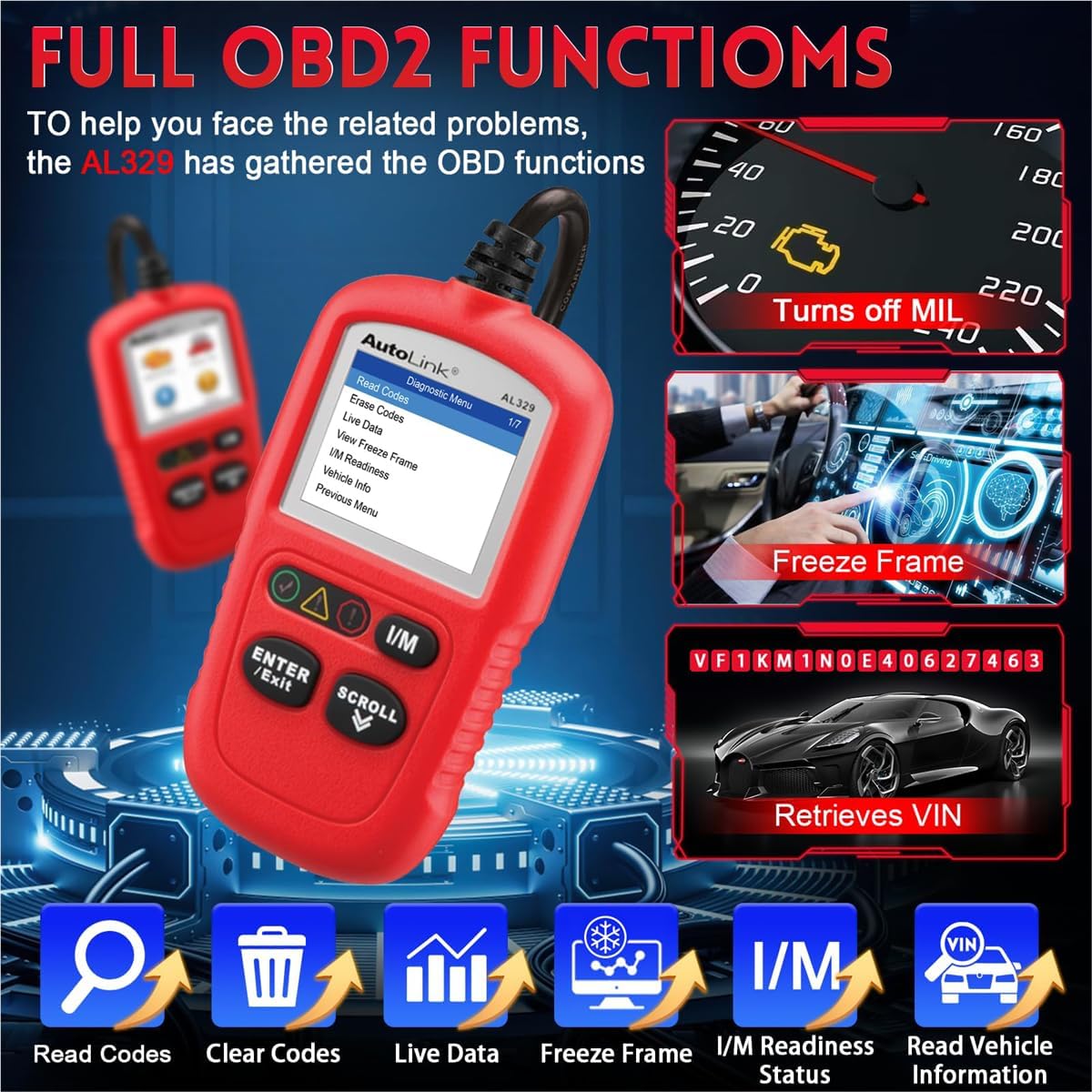
Image: The Autel AL329 displaying its diagnostic menu with options like Read Codes, Erase Codes, Live Data, Freeze Frame, I/M Readiness, and Vehicle Info.
3.2 Reading and Clearing Codes
- Read Codes: Select 'Read Codes' from the Diagnostic Menu to retrieve generic (P0, P2, P3, U0), manufacturer-specific (P1, P3, U1), and pending codes.
- Clear Codes: Select 'Erase Codes' to clear Diagnostic Trouble Codes (DTCs) from the vehicle's computer, reset monitors, and turn off the Malfunction Indicator Light (MIL). Ensure the ignition is on and the engine is off before clearing codes.
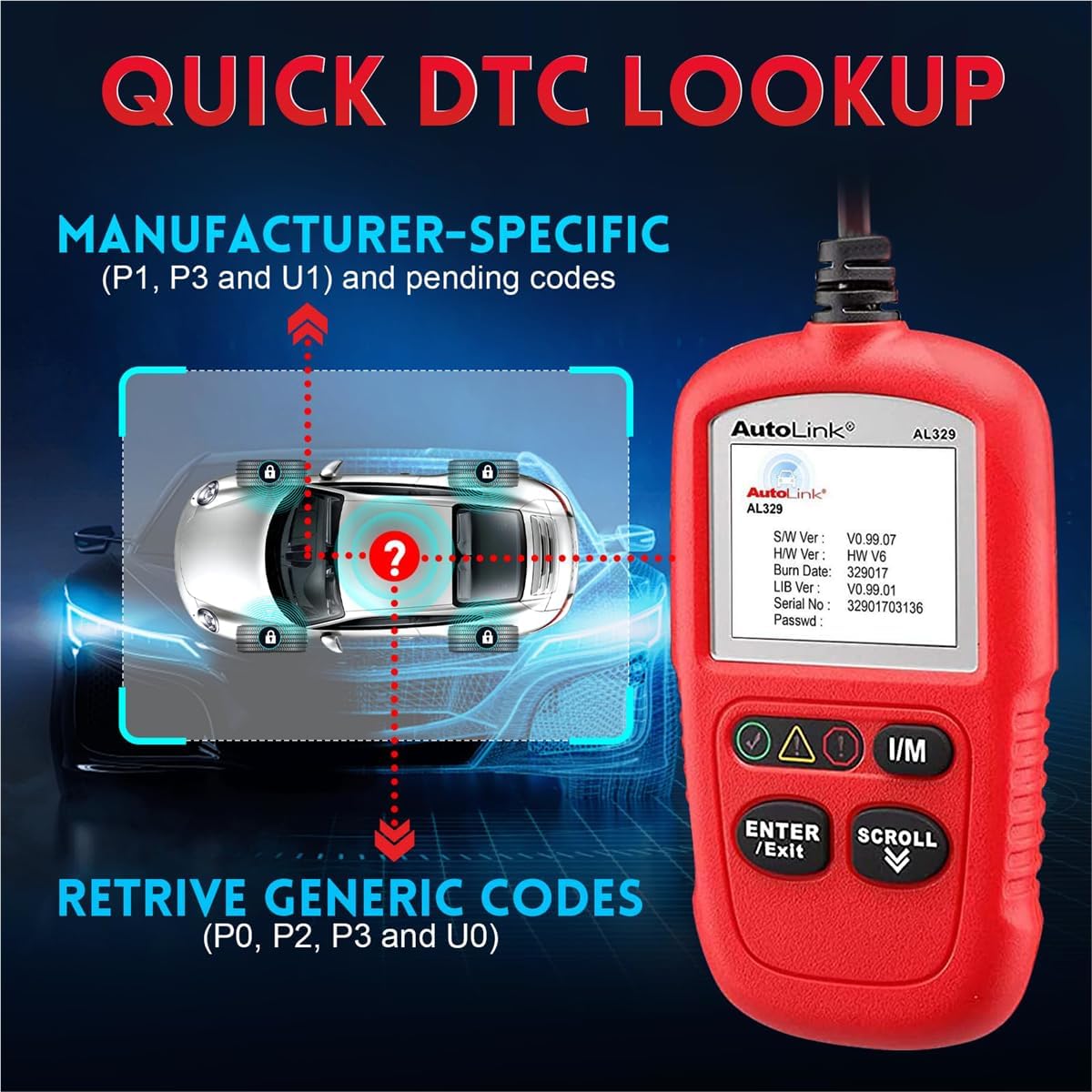
Image: The Autel AL329 screen showing a DTC lookup function, indicating retrieval of generic and manufacturer-specific codes.
3.3 Live Data and Freeze Frame
- Live Data: Select 'Live Data' to view real-time PID data from the vehicle. This function allows you to graph, record, and play back live sensor readings.
- View Freeze Frame: Select 'View Freeze Frame' to see a snapshot of sensor values at the moment a DTC was set. This helps in diagnosing intermittent problems.
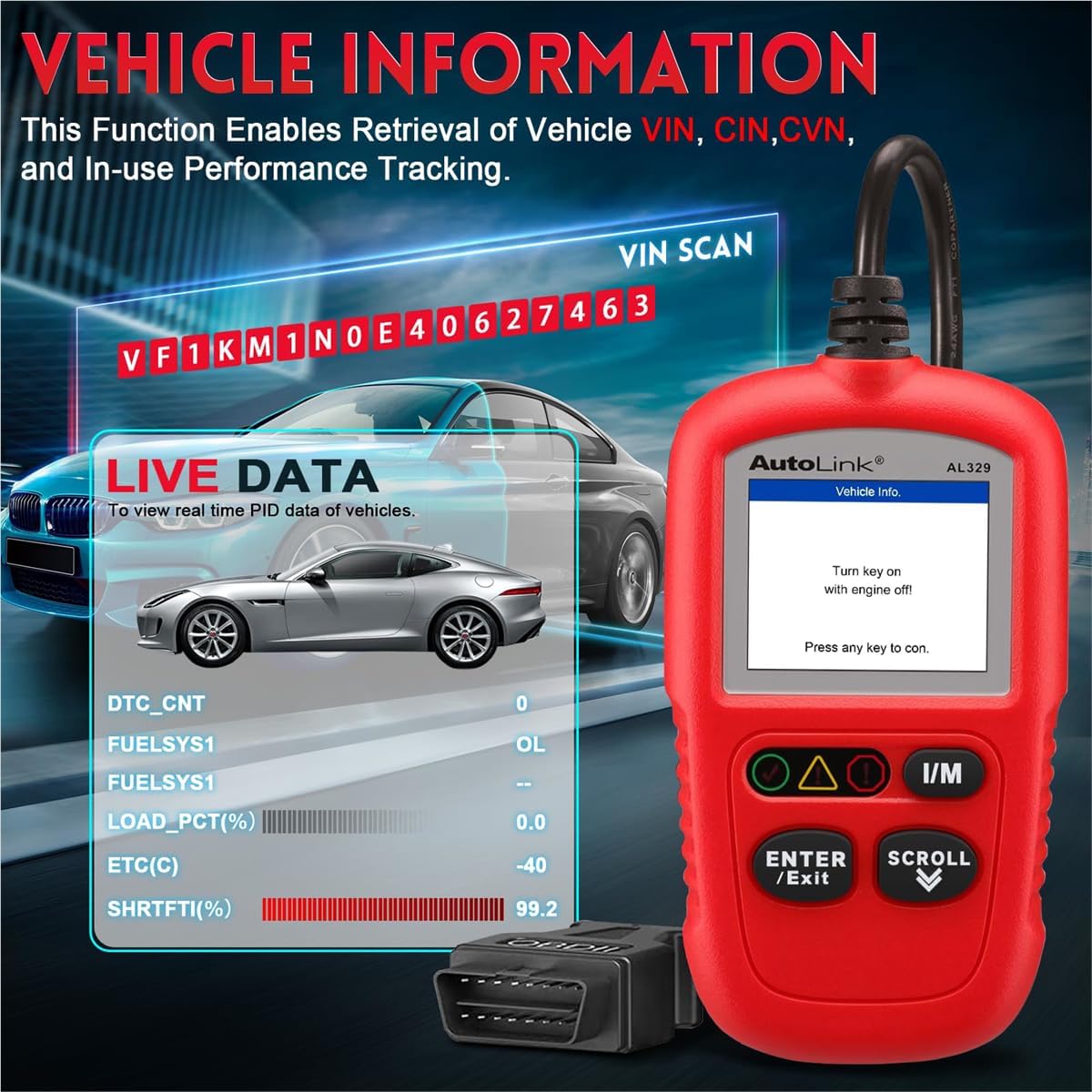
Image: The Autel AL329 displaying vehicle information including VIN and live data parameters like DTC count, fuel system status, and engine load percentage.
3.4 I/M Readiness and Vehicle Information
- I/M Readiness: Press the dedicated 'I/M' button or select 'I/M Readiness' from the menu. This performs a quick check on active vehicle monitors to confirm if DTCs are present and if the vehicle is ready for an emissions test.
- Vehicle Information: Select 'Vehicle Info' to retrieve vehicle identification information such as VIN (Vehicle Identification Number), CALID (Calibration Identification), and CVN (Calibration Verification Number).
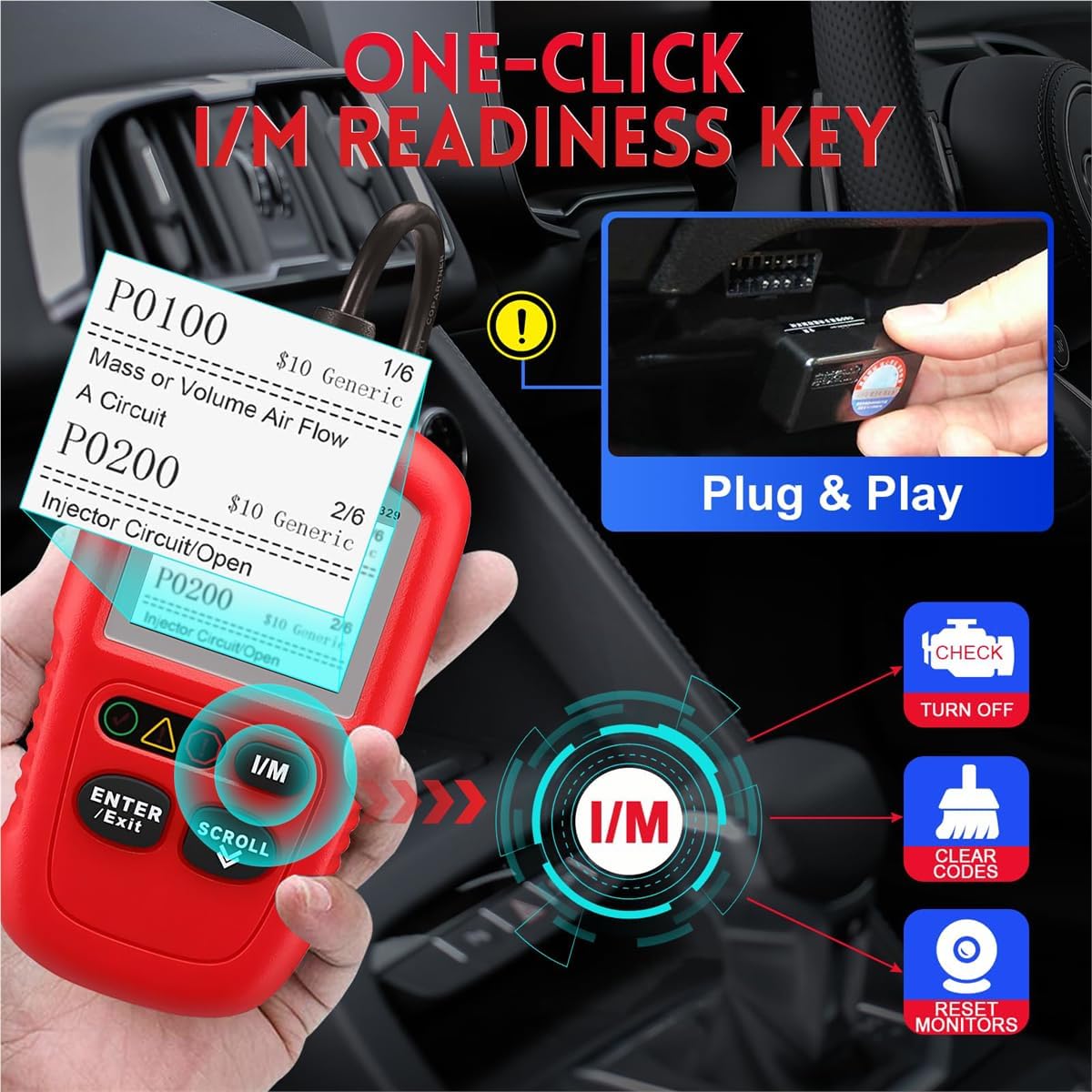
Image: The Autel AL329 connected to a vehicle's OBDII port, demonstrating the one-click I/M readiness function to check for DTCs and monitor status.

Image: The Autel AL329 displaying I/M Readiness status, showing various monitor statuses (OK, INC, N/A) and indicating the presence of Error DTCs and Pending DTCs.
4. Maintenance
4.1 Cleaning and Storage
- The AL329 is designed to be grease and water resistant. Wipe the device with a clean, damp cloth to remove dirt or grime.
- Store the device in a dry, clean environment within the specified storage temperature range of -20 to 70°C (-1 to 158°F).
4.2 Software Updates
Regularly check the Autel official website for available software updates to ensure optimal performance and compatibility. Follow the provided instructions for downloading and installing updates.
5. Troubleshooting
5.1 Common Issues and Solutions
- Device not powering on: Ensure the OBDII connector is securely plugged into the vehicle's DLC and the vehicle's ignition is in the 'ON' position. Check the vehicle's battery for sufficient charge.
- Communication error: Verify that the vehicle is OBDII/EOBD compliant (1996 and newer for most regions). Check for loose connections. Try the device on another compatible vehicle to rule out a device issue.
- Codes not clearing: Ensure the vehicle's ignition is 'ON' and the engine is 'OFF' when attempting to clear codes. Some persistent issues may cause codes to reappear immediately after clearing; address the underlying mechanical problem first.
- Inaccurate readings: Ensure the vehicle's software is up-to-date. Verify that the vehicle's sensors are functioning correctly.
6. Specifications
| Feature | Specification |
|---|---|
| Brand | Autel |
| Model | AL329 |
| Power Source | Battery Powered (via vehicle OBDII port) |
| Screen Size | 2.8 Inches |
| Native Resolution | 220x176 dpi |
| Language Support | English, Spanish, French |
| Connectivity | USB mini 2.0, OBDII DB16 |
| Storage Temperature | -20 to 70°C (-1 to 158°F) |
| Dimensions (L x W x H) | 120.9 mm (4.76") x 68.4 mm (2.69") x 18 mm (0.71") |
| Net Weight | 155.2 g (0.342 lb) |

Image: A graphic detailing the hardware specifications of the Autel AL329, including its tri-lingual support, display resolution, resistance features, and power requirements.
7. Warranty Information
The Autel Autolink AL329 Code Reader comes with a 12-month warranty from the date of purchase. Please retain your proof of purchase for warranty claims. For detailed warranty terms and conditions, refer to the official Autel website or contact customer support.
8. Customer Support
For technical assistance, product inquiries, or warranty support, please visit the official Autel website or contact their customer service department. You can also find additional resources and FAQs at the Autel Store on Amazon.


