
Introduction
Extended computer use can lead to fatigue and discomfort in the hands and arms. The Logilink ID0159 ergonomic vertical mouse is designed to address this by promoting a natural hand position, which helps reduce strain on the hand and wrist. This ergonomic design supports comfortable and focused computer work.
This manual provides essential information for the proper setup, operation, and maintenance of your Logilink ID0159 Wireless Ergonomic Optical Mouse. Please read it carefully before use.
Product Features
- Ergonomic Vertical Design: Promotes a natural hand and wrist posture to reduce strain.
- Wireless Connectivity: Utilizes radio frequency for a stable connection.
- Optical Sensor: Provides precise tracking with 1200 dpi resolution.
- 5 Buttons: Includes standard left/right click, scroll wheel, and two thumb buttons for enhanced functionality.
- Right-Handed Orientation: Specifically designed for right-hand users.
- Plug & Play: Compatible with Windows 98 and newer operating systems, requiring no additional driver installation.
- Battery Operated: Uses 1 AA alkaline battery (included).
Package Contents
Please check the package contents to ensure all items are present:
- Logilink ID0159 Wireless Ergonomic Optical Mouse
- USB Receiver
- 1 x AA Alkaline Battery
- User Manual (this document)
Setup Instructions
- Insert Battery:
Locate the battery compartment on the underside of the mouse. Open the compartment cover, insert the provided AA battery, ensuring correct polarity (+/-), and close the cover securely.
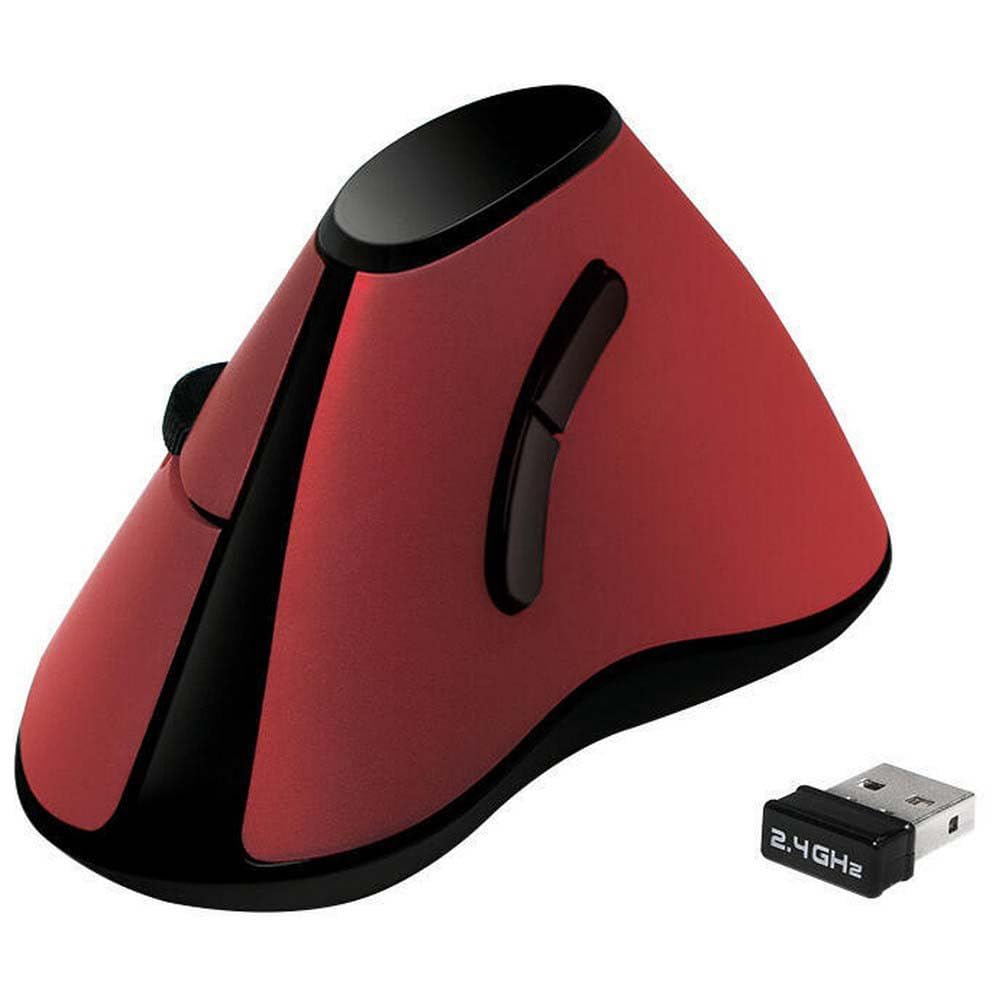
Image: Top-down view of the Logilink ID0159 mouse, illustrating its ergonomic shape and the location of the scroll wheel. The underside, where the battery compartment is typically found, is not visible in this specific image, but it represents the overall product.
- Connect USB Receiver:
Plug the small USB receiver into an available USB port on your computer. Your operating system should automatically detect and install the necessary drivers. This is a plug-and-play device.
- Power On:
The mouse typically activates automatically once the battery is inserted and the receiver is connected. Some models may have an on/off switch on the underside; if present, ensure it is in the 'ON' position. An indicator light may illuminate briefly.
- Test Functionality:
Move the mouse to check if the cursor on your screen responds. Click the left and right buttons and scroll the wheel to confirm basic functionality.
Operating Instructions
The Logilink ID0159 mouse features a standard set of buttons for intuitive control.

Image: A hand holding the Logilink ID0159 mouse, illustrating the natural, vertical grip that the ergonomic design promotes.
- Left Click Button: Located on the top left side, used for selecting items, opening files, and confirming actions.
- Right Click Button: Located on the top right side, used for accessing context menus and special functions.
- Scroll Wheel: Positioned between the left and right click buttons, used for scrolling through documents and web pages. It can also function as a middle click button.
- Forward/Backward Buttons: Two buttons located on the thumb side of the mouse (left side for right-handed users). These are typically used for navigating forward and backward in web browsers or file explorers.

Image: Side view of the Logilink ID0159 mouse, clearly showing the two thumb buttons designed for easy access during operation.
Maintenance
- Cleaning: Use a soft, dry cloth to clean the mouse. For stubborn dirt, slightly dampen the cloth with water or a mild cleaning solution. Avoid harsh chemicals or abrasive materials.
- Battery Replacement: When the mouse performance degrades or the indicator light (if present) signals low battery, replace the AA battery. Ensure the new battery is inserted with correct polarity.
- Storage: When not in use for extended periods, consider removing the battery to prevent leakage, especially if using non-alkaline batteries. Store the mouse and receiver in a dry, dust-free environment.
Troubleshooting
- Mouse Not Responding:
- Check if the battery is correctly inserted and has sufficient charge. Replace if necessary.
- Ensure the USB receiver is securely plugged into a working USB port on your computer. Try a different USB port.
- If your mouse has an on/off switch, ensure it is in the 'ON' position.
- Restart your computer.
- Erratic Cursor Movement:
- Clean the optical sensor on the underside of the mouse.
- Ensure you are using the mouse on a suitable surface. Highly reflective or transparent surfaces may cause issues. A mouse pad is recommended.
- Check for interference from other wireless devices. Move the mouse closer to the receiver.
- Buttons or Scroll Wheel Not Working:
- Check battery level and replace if low.
- Ensure no debris is obstructing the buttons or scroll wheel.
- Test the mouse on another computer to rule out software issues.
Specifications
| Feature | Detail |
|---|---|
| Model Name | ID0159 |
| Brand | Logilink |
| Connectivity Technology | Radio Frequency |
| Motion Detection Technology | Optical |
| Number of Buttons | 5 |
| Hand Orientation | Right |
| DPI Resolution | 1200 dpi |
| Compatible Operating Systems | Windows 98 and newer |
| Battery Type | 1 x AA Alkaline (included) |
| Recommended Use | Office, Universal |
| Color | Red |
Warranty and Support
The Logilink ID0159 Wireless Ergonomic Optical Mouse comes with a 1-year availability for spare parts. For warranty claims or technical support, please contact your retailer or the Logilink customer service department.
Please retain your proof of purchase for any warranty-related inquiries.


