
1. Product Overview
The Cable Matters Unidirectional USB-C to HDMI Cable provides a direct connection from your USB-C enabled device to an HDMI display. This cable supports high-resolution video and audio transmission, making it ideal for connecting laptops, tablets, and smartphones to UHD TVs, monitors, or projectors.
Key Features:
- Supports 4K@60Hz and 2K@144Hz resolutions.
- HDMI 2.0 compatibility with up to 18Gbps bandwidth.
- High Definition Audio support (SACD, DVD-Audio, DTS-HD Master Audio, and Dolby TrueHD).
- Unidirectional signal flow: USB-C source to HDMI display only.
- Thunderbolt 3, Thunderbolt 4, and USB4 compatible.
- Durable braided design with robust connectors.

Image: The Cable Matters Unidirectional USB-C to HDMI Cable, showcasing its USB-C and HDMI connectors.
2. Compatibility
This cable is designed for devices with a USB-C port that supports DisplayPort Alternate Mode (Alt Mode), Thunderbolt 3, Thunderbolt 4, or USB4. It is unidirectional, meaning the signal flows from the USB-C source to the HDMI display.
Compatible Source Devices (USB-C Port):
- MacBook, MacBook Air, MacBook Pro, iMac, iMac Pro, iPad Pro
- Dell XPS 12 9250, 13 9350/9360/9365, 15 9550/9560, Latitude series, Precision series, Alienware series
- HP Elite X2 1012 G1/G2, Z1 Workstation G3, Spectre series, EliteBook series, ZBook series
- Chromebook Flip C302, Chromebook R13, Pixelbook 2, Pixel Slate Tablet
- Samsung Galaxy S8/S8+, S9/S9+, S10/S10+/S10e, Note 8/Note 9 (DeX mode requires Android 9 Pie or later)
- iPhone 15 Pro Max (and other iPhone 15 models with USB-C)
- Other devices with USB-C supporting DisplayPort Alt Mode, Thunderbolt 3/4, or USB4.
Compatible Target Displays (HDMI Port):
- UHD TVs
- Monitors
- Projectors

Image: Diagram illustrating compatible USB-C source devices (MacBook, Windows Laptop, Chromebook, Phone, iPad) and HDMI target displays (TV, Monitor, Projector).
3. Setup Instructions
Connecting your USB-C device to an HDMI display using this cable is a straightforward process. Follow these steps for optimal performance:
- Identify Ports: Locate the USB-C port on your source device (laptop, tablet, phone) and the HDMI input port on your display (TV, monitor, projector). Ensure your USB-C port supports video output (DisplayPort Alt Mode, Thunderbolt 3/4, or USB4).
- Connect USB-C: Insert the USB-C connector of the cable firmly into the USB-C port on your source device.
- Connect HDMI: Insert the HDMI connector of the cable firmly into an available HDMI input port on your display.
- Select Input: On your display, use the remote control or on-screen menu to select the correct HDMI input source that corresponds to the port you connected the cable to.
- Configure Display Settings (if necessary): Your device should automatically detect the external display. If not, you may need to adjust display settings in your operating system (e.g., Windows Display Settings, macOS System Settings > Displays) to extend or duplicate your screen.
Important Note:
For newly released Windows computers, it may be necessary to update BIOS Thunderbolt 3 firmware, Thunderbolt 3 drivers, and Intel Graphics drivers from your computer manufacturer's website to ensure proper functionality with this cable.
4. Operating Instructions
Once connected, the cable operates automatically to transmit video and audio. Here are some common operating scenarios:
- Mirror Mode: Duplicate your device's screen onto the external display. This is useful for presentations or sharing content.
- Extend Mode: Extend your desktop across both your device's screen and the external display, providing more workspace. This is common for productivity tasks.
- Audio Output: The cable supports high-definition audio. Ensure your device's sound settings are configured to output audio through the HDMI connection if you wish to use the display's speakers.
- Resolution and Refresh Rate: The cable will attempt to negotiate the best possible resolution and refresh rate supported by both your source device and display, up to 4K@60Hz or 2K@144Hz. You can manually adjust these settings in your device's display preferences.

Image: A user working with a laptop connected to an external monitor, demonstrating the extended display functionality for productive work.
5. Maintenance and Care
To ensure the longevity and optimal performance of your Cable Matters USB-C to HDMI cable, follow these simple maintenance guidelines:
- Handle with Care: Avoid bending the cable sharply or pulling it by the cable itself when disconnecting. Always grasp the connector ends.
- Keep Clean: Use a soft, dry cloth to gently wipe the cable and connectors. Avoid using harsh chemicals or abrasive materials.
- Storage: When not in use, coil the cable loosely and store it in a cool, dry place away from direct sunlight and extreme temperatures.
- Inspect Regularly: Periodically check the connectors and cable for any signs of damage, such as fraying, kinks, or bent pins.
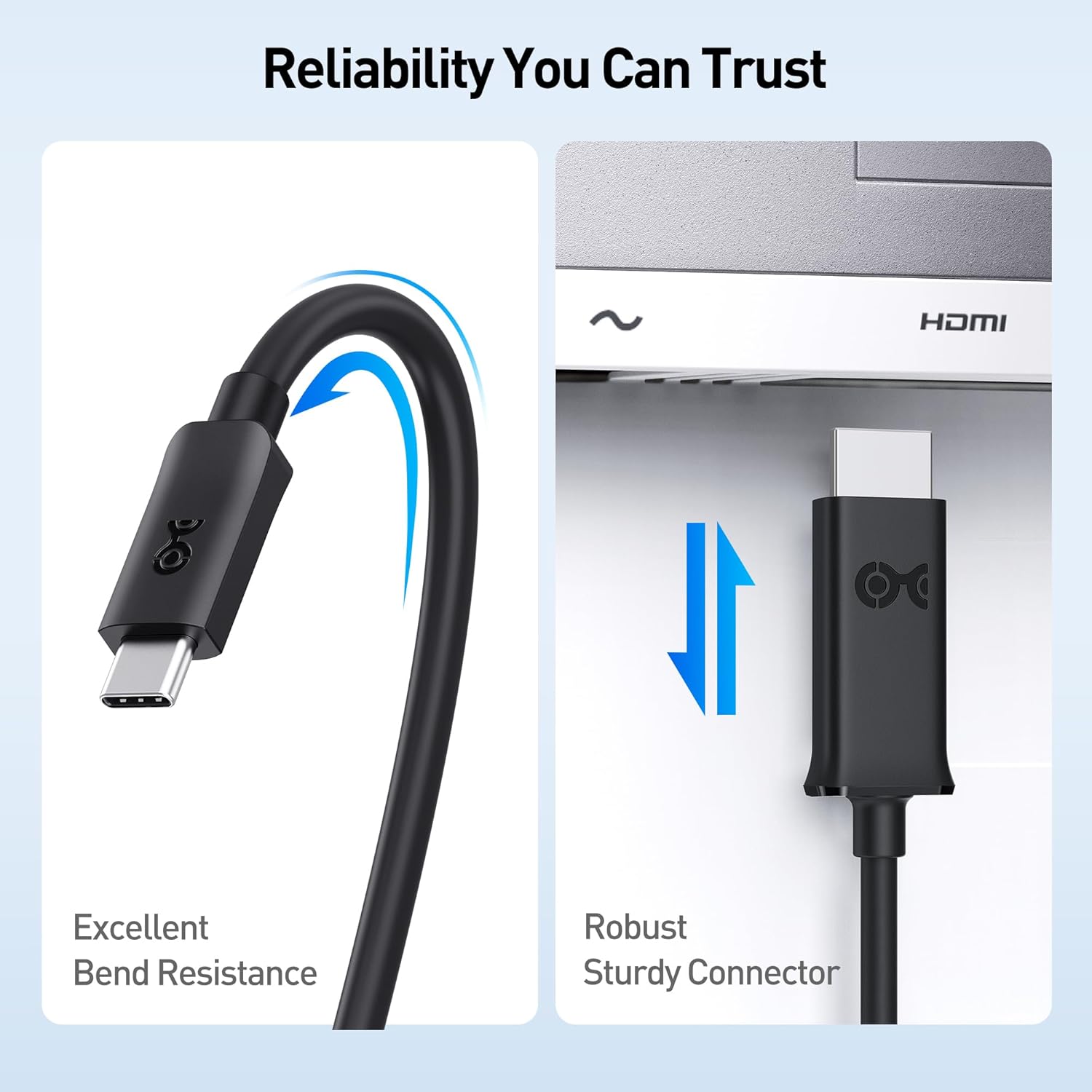
Image: Close-up view highlighting the cable's excellent bend resistance and robust, sturdy connectors, indicating durability.
6. Troubleshooting
If you encounter issues while using your USB-C to HDMI cable, refer to the following common troubleshooting steps:
| Problem | Possible Cause / Solution |
|---|---|
| No display / "No Signal" message |
|
| Flickering or unstable display |
|
| No audio from display |
|
| Resolution not as expected (e.g., not 4K) |
|
7. Specifications
| Feature | Detail |
|---|---|
| Model Number | 201062-BLK-1m |
| Brand | Cable Matters |
| Connector Type | USB Type C (Male) to HDMI (Male) |
| Cable Type | HDMI |
| Length | 3.3 feet (1 meter) |
| Max Resolution Support | 4K@60Hz, 2K@144Hz |
| HDMI Standard | HDMI 2.0 |
| Bandwidth | Up to 18Gbps |
| Audio Support | High Definition Audio (SACD, DVD-Audio, DTS-HD Master Audio, Dolby TrueHD) |
| Special Feature | Braided cable, Unidirectional (USB-C Source to HDMI Display) |
| Compatibility | Thunderbolt 3, Thunderbolt 4, USB4, DisplayPort Alt Mode |
| Color | Black |
| Item Weight | 1.76 ounces |
8. Warranty and Support
Cable Matters products are backed by a limited warranty. For specific warranty details and technical support, please visit the official Cable Matters website or contact their customer service directly.
Contact Information:
- Website: www.cablematters.com
- Customer Service: Refer to the website for contact methods (email, phone, chat).
Please have your product model number (201062-BLK-1m) and purchase information ready when contacting support.


