
Introduction
Thank you for choosing the Billboard Bluetooth Wireless Hook Over Earbuds. This manual provides essential information for setting up, operating, and maintaining your new earbuds. Please read these instructions carefully before use to ensure optimal performance and longevity of your device. Keep this manual for future reference.
Package Contents
Ensure all items are present in the package:
- Billboard Bluetooth Wireless Hook Over Earbuds
- Micro USB Charging Cable
- User Manual (this document)
Product Overview
The Billboard Bluetooth Wireless Hook Over Earbuds are designed for comfortable and secure fit, featuring a tangle-free flat cord and integrated controls for music and calls.
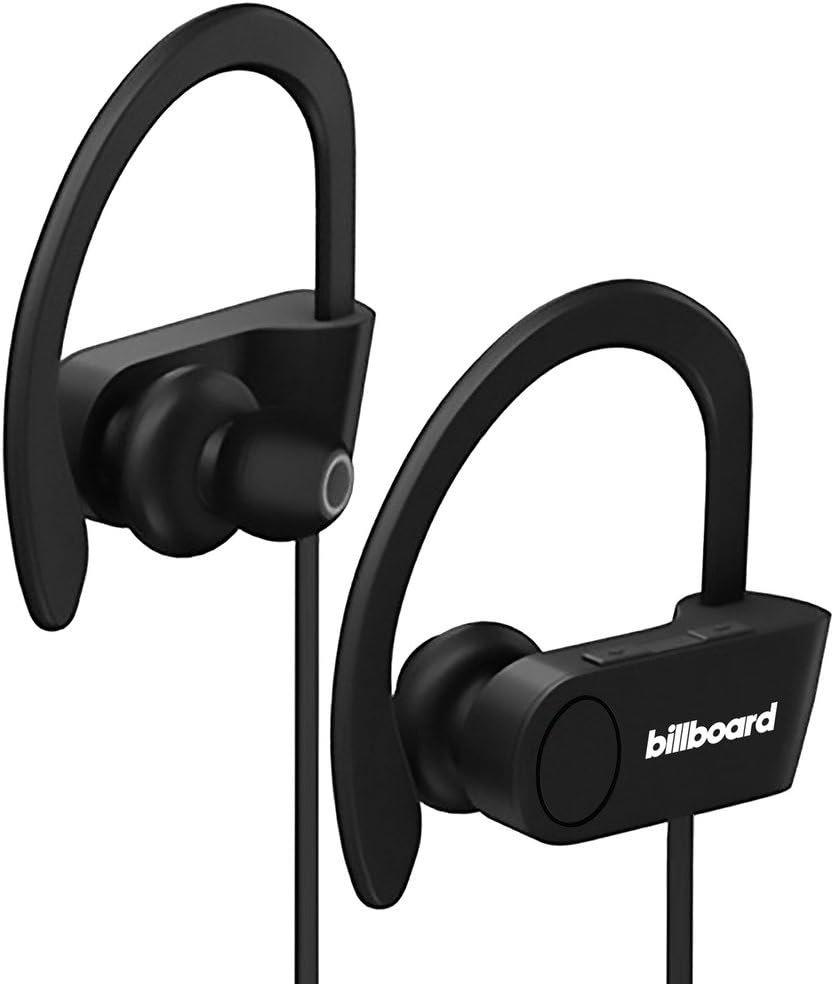
Image: Billboard Bluetooth Wireless Hook Over Earbuds, front view. These black earbuds feature an over-ear hook design for secure placement and a flat cord connecting the two earpieces.

Image: Billboard Bluetooth Wireless Hook Over Earbuds, showing the flat tangle-free cord. The design emphasizes a comfortable fit with the ear hooks and the practical flat cable.
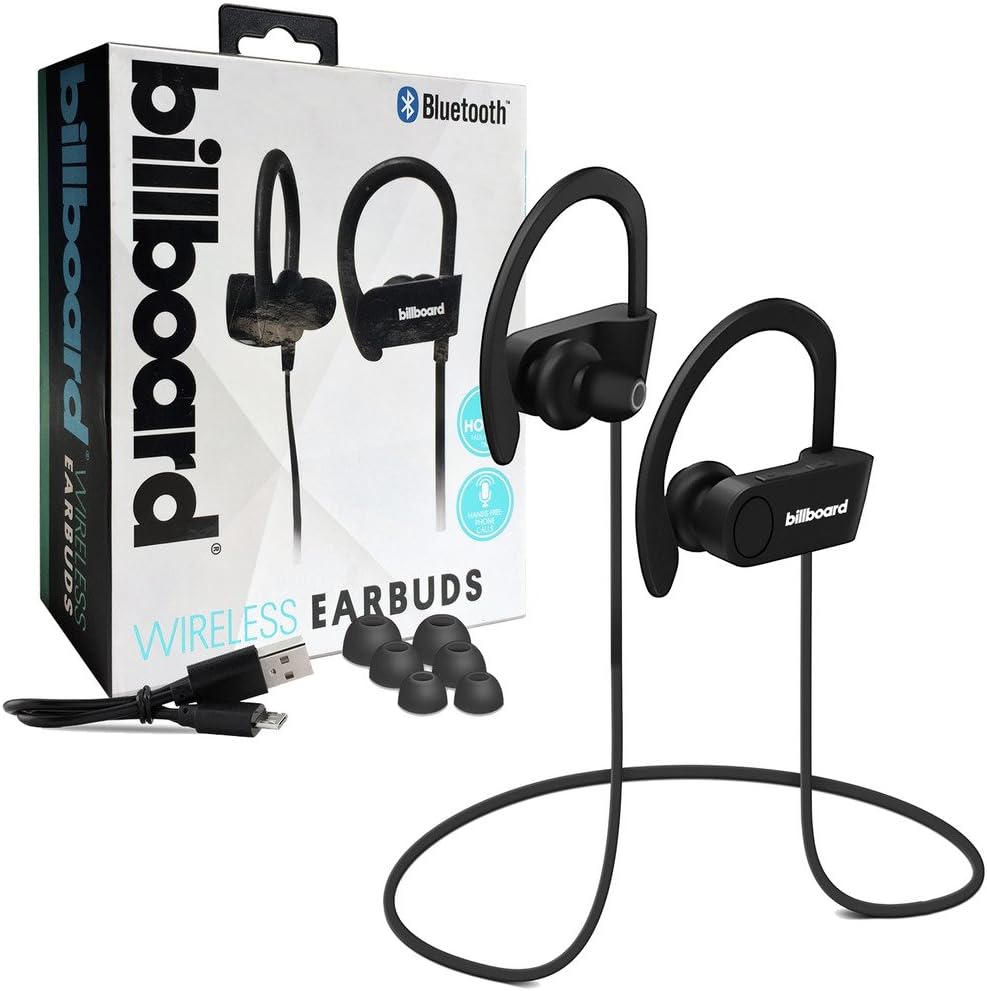
Image: Billboard Bluetooth Wireless Hook Over Earbuds packaging with included accessories. The box displays the earbuds, a charging cable, and additional ear tips, highlighting the product's features.
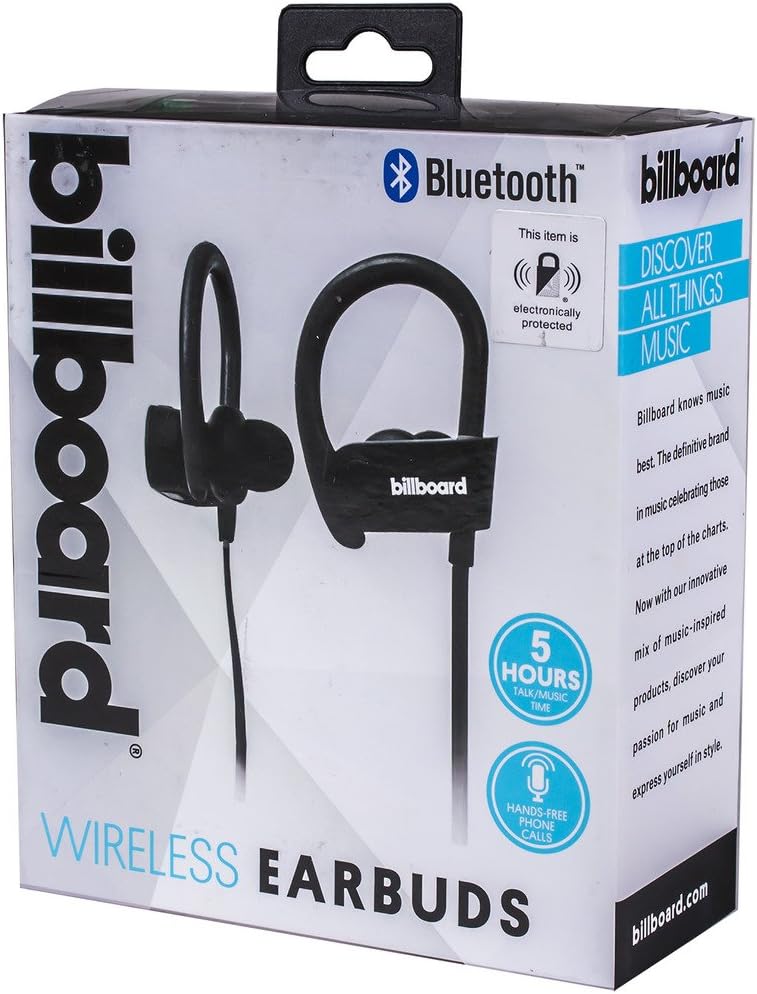
Image: Close-up of Billboard Bluetooth Wireless Hook Over Earbuds packaging, detailing features. The packaging highlights key features such as Bluetooth connectivity, 5 hours of talk/music time, and hands-free phone calls.
Setup
1. Charging the Earbuds
- Locate the Micro USB charging port on one of the earbuds (typically on the control module).
- Connect the provided Micro USB charging cable to the earbud's charging port.
- Plug the other end of the USB cable into a USB power source (e.g., computer USB port, wall adapter).
- The LED indicator light will illuminate, typically red, to show that the earbuds are charging.
- Once fully charged, the LED indicator light will change color (e.g., turn blue or off). A full charge usually takes approximately 1-2 hours.
Note: Ensure the earbuds are fully charged before first use for optimal battery life.
2. Bluetooth Pairing
- Power On: Press and hold the Multi-function button (usually the center button on the control module) for a few seconds until the LED indicator light flashes blue and red alternately, indicating pairing mode.
- Activate Bluetooth: On your smartphone or other Bluetooth-enabled device, go to the Bluetooth settings and ensure Bluetooth is turned on.
- Search for Devices: Your device will automatically search for nearby Bluetooth devices.
- Select Earbuds: From the list of available devices, select "Billboard Earbuds" or a similar name.
- Confirm Pairing: Once successfully paired, the LED indicator light on the earbuds will typically flash blue slowly or turn off, and you will hear an audible confirmation.
- If prompted for a password, enter "0000" (four zeros).
Note: The earbuds will automatically attempt to reconnect to the last paired device when powered on, if that device's Bluetooth is active and within range.
Operating Instructions
Controls Overview
The control module on the earbud cord typically includes a Multi-function button (MFB) and Volume Up/Down buttons.
- Multi-function Button (MFB): Power On/Off, Play/Pause, Answer/End Call, Reject Call.
- Volume Up (+): Increase volume, Next track.
- Volume Down (-): Decrease volume, Previous track.
Power On/Off
- Power On: Press and hold the MFB for approximately 3 seconds until the LED flashes blue and you hear a power-on prompt.
- Power Off: Press and hold the MFB for approximately 3-5 seconds until the LED flashes red and you hear a power-off prompt.
Music Playback
- Play/Pause: Press the MFB once.
- Next Track: Press and hold the Volume Up (+) button.
- Previous Track: Press and hold the Volume Down (-) button.
Call Management
- Answer/End Call: Press the MFB once during an incoming call or during an active call.
- Reject Call: Press and hold the MFB for approximately 2 seconds during an incoming call.
- Redial Last Number: Double-press the MFB when no call is active.
Volume Control
- Increase Volume: Press the Volume Up (+) button repeatedly.
- Decrease Volume: Press the Volume Down (-) button repeatedly.
Maintenance
- Cleaning: Use a soft, dry cloth to clean the earbuds. Do not use abrasive cleaners or solvents.
- Storage: Store the earbuds in a cool, dry place away from direct sunlight and extreme temperatures.
- Battery Care: To preserve battery life, charge the earbuds regularly, even if not in frequent use. Avoid fully discharging the battery for extended periods.
- Water Exposure: These earbuds are not waterproof. Avoid exposure to water or excessive moisture.
Troubleshooting
| Problem | Solution |
|---|---|
| Earbuds will not power on. | Ensure the earbuds are fully charged. Connect to a power source and check the charging indicator light. |
| Cannot pair with device. | Make sure the earbuds are in pairing mode (flashing blue and red). Ensure Bluetooth is enabled on your device and it is within range (typically 10 meters). Try turning both devices off and on again. |
| No sound or low volume. | Check the volume levels on both the earbuds and your connected device. Ensure the earbuds are properly paired and connected. Try playing different audio sources. |
| Intermittent connection. | Move closer to your connected device. Avoid obstacles between the earbuds and the device. Ensure there is no interference from other wireless devices. |
Specifications
- Brand: Billboard
- Model: B073CCBSLL
- Color: Black
- Ear Placement: In Ear (with Over-Ear Hook)
- Form Factor: Two-ear
- Connectivity: Bluetooth Wireless
- Charging Port: Micro USB
- Battery Life (Talk/Music Time): Approximately 5 hours
- Compatible Devices: Universal/Smartphones
- Features: Tangle-Free Flat Cord, Built-in Microphone, Integrated Controls
Warranty and Support
For warranty information and customer support, please refer to the documentation included with your purchase or visit the official Billboard product support website. Keep your proof of purchase for any warranty claims.
If you encounter issues not covered in this manual, please contact customer service for assistance.
