
Qbic BXP-300
Qbic BXP-300 4K-UHD Media Player User Manual
Model: BXP-300
Introduction
This user manual provides comprehensive instructions for the setup, operation, maintenance, and troubleshooting of the Qbic BXP-300 4K-UHD Media Player. Please read this manual thoroughly before using the device to ensure proper functionality and to maximize your experience.
1. Setup
1.1 Package Contents
Before proceeding, please verify that all items are present in the package:
- Qbic BXP-300 4K-UHD Media Player
- Power Adapter (DC 12V)
- Wi-Fi Antenna
- Quick Start Guide (if applicable)
1.2 Device Overview

Figure 1.2.1: Front and side view of the Qbic BXP-300, showing the DC 12V input, LAN port, USB ports, ADB port, Micro SDHC slot, Reset button, and Wi-Fi antenna connection.

Figure 1.2.2: Rear and side view of the Qbic BXP-300, highlighting the HDMI output, S/PDIF, Audio Out, and an additional USB port.
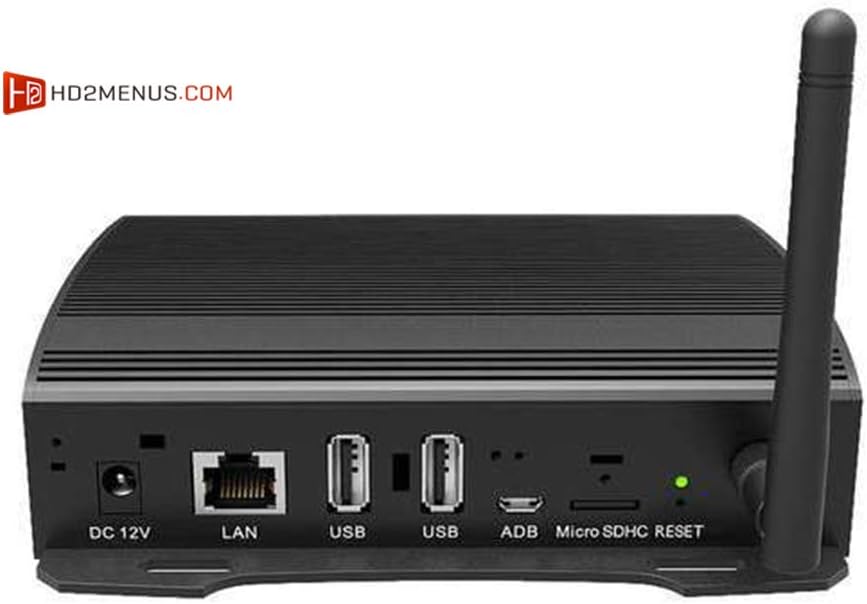
Figure 1.2.3: Detailed front view of the Qbic BXP-300, showing the DC 12V power input, LAN port, two USB ports, ADB port, Micro SDHC card slot, and Reset button.
1.3 Connecting the Device
Connect the Wi-Fi Antenna: Screw the provided Wi-Fi antenna into the antenna connector on the rear of the BXP-300.
Connect to Display: Use an HDMI cable (not included) to connect the HDMI OUT port on the BXP-300 to the HDMI input on your TV or monitor. Ensure the display is set to the correct HDMI input source.
Connect to Network (Optional):
- Wired Connection: Connect an Ethernet cable from your router or network switch to the LAN port on the BXP-300.
- Wireless Connection: The device supports Wi-Fi. Configuration will be done during initial setup in the operating system.
Connect Peripherals (Optional): Insert USB devices such as a keyboard, mouse, or USB storage drive into the available USB ports.
Connect Power: Insert the DC 12V power adapter into the DC 12V input port on the BXP-300. Plug the power adapter into a wall outlet. The device should power on automatically or can be powered on using the power button (if available, not explicitly shown but common).
2. Operating Instructions
2.1 Initial Boot-up and Setup Wizard
Upon first power-on, the BXP-300 may guide you through an initial setup wizard. Follow the on-screen prompts to configure language, time zone, and network settings (if not already connected via Ethernet).
2.2 Navigating the User Interface
The BXP-300 features a user-friendly interface designed for media playback. Use a connected USB mouse or keyboard (or a compatible remote control) to navigate through menus and select options.

Figure 2.2.1: Example of a digital menu interface, demonstrating the type of content the Qbic BXP-300 can display. Navigation typically involves a mouse or remote control.
2.3 Media Playback
The Qbic BXP-300 supports 4K-UHD media playback. You can play media from various sources:
- USB Storage: Insert a USB flash drive or external hard drive into a USB port. The device should detect the storage and allow you to browse media files.
- Micro SDHC Card: Insert a Micro SDHC card into the designated slot.
- Network Storage: If connected to a network, you may be able to access media files from network-attached storage (NAS) or shared folders on other computers, depending on the installed software.
- Streaming Services: The device may support various streaming applications. Refer to the pre-installed applications or app store for available options.
2.4 Network Configuration
To connect to a wireless network:
- Navigate to the "Settings" menu.
- Select "Network & Internet" or similar option.
- Choose "Wi-Fi" and select your desired network from the list.
- Enter the Wi-Fi password if prompted.
- Confirm the connection.
For wired connections, ensure the Ethernet cable is securely connected. The device should automatically obtain an IP address via DHCP.
3. Maintenance
3.1 Cleaning the Device
To maintain optimal performance and appearance, clean the BXP-300 regularly:
- Use a soft, dry, lint-free cloth to wipe the exterior surfaces.
- Do not use liquid cleaners, aerosols, or abrasive solvents, as they may damage the finish or internal components.
- Ensure the device is powered off and unplugged before cleaning.
3.2 Software Updates
Periodically check for software updates to ensure your device has the latest features and security patches. Updates can typically be found in the "Settings" menu under "About Device" or "System Updates." Follow the on-screen instructions to download and install any available updates. Ensure a stable internet connection during the update process.
3.3 Storage Considerations
When not in use for extended periods, store the device in a cool, dry place away from direct sunlight and extreme temperatures. Avoid placing heavy objects on top of the unit.
4. Troubleshooting
If you encounter issues with your Qbic BXP-300, refer to the following common problems and solutions:
| Problem | Possible Cause | Solution |
|---|---|---|
| No Power | Power adapter not connected; Power outlet faulty. | Ensure power adapter is securely connected to the device and a working power outlet. Try a different outlet. |
| No Video Output | HDMI cable loose or faulty; Incorrect input source on TV/monitor. | Check HDMI cable connections. Ensure your TV/monitor is set to the correct HDMI input. Try a different HDMI cable. |
| No Audio Output | Volume too low; Audio settings incorrect; Faulty cable. | Increase volume on the TV/monitor and the device. Check audio output settings in the device's menu. Ensure audio cables (if used) are connected correctly. |
| Cannot Connect to Wi-Fi | Incorrect password; Out of range; Router issue. | Verify Wi-Fi password. Move the device closer to the router. Restart your router and the BXP-300. |
| Device Freezes/Unresponsive | Software glitch; Overheating. | Disconnect power, wait 10 seconds, then reconnect. Ensure adequate ventilation around the device. |
5. Specifications
Key technical specifications for the Qbic BXP-300 4K-UHD Media Player:
- Model: BXP-300
- Video Output: 4K-UHD (Ultra High Definition) via HDMI
- Connectivity: LAN (Ethernet), Wi-Fi, USB (multiple ports), Micro SDHC
- Audio Output: HDMI, S/PDIF, Audio Out (3.5mm jack)
- Power Input: DC 12V
- ASIN: B0731GN1RR
- Date First Available: 12 August 2024
- Note: Specific processor, RAM, and storage details are not provided in the product listing but are typical for media players of this type.
6. Warranty Information
Warranty terms and conditions for the Qbic BXP-300 Media Player are typically provided with the product packaging or can be found on the official Qbic website. Please retain your proof of purchase for any warranty claims.
7. Customer Support
For further assistance, technical support, or to download the latest drivers and firmware, please visit the official Qbic support website. Contact information for customer service may also be available on the manufacturer's website or in your product documentation.
Please refer to the manufacturer's official website for the most up-to-date support resources.
Related documentsBXP-300


Ask a question about this manual
Ask about setup, troubleshooting, compatibility, parts, safety, or missing instructions. Manuals+ will review the question and use this page’s manual context to help answer it.