
Introduction
This manual provides essential instructions for setting up, operating, maintaining, and troubleshooting your Chuwi Hi13 Tablet PC. Please read this guide thoroughly to ensure proper use and to maximize the performance and longevity of your device.
The Chuwi Hi13 is a versatile 13.5-inch tablet PC running Windows 10, powered by an Intel Apollo Lake Celeron N3450 Quad Core processor, featuring 4GB RAM and 64GB eMMC storage. It is designed for both productivity and entertainment, offering a high-resolution display and various connectivity options.

Image: The Chuwi Hi13 Tablet PC showcasing its Windows 10 operating system interface.
Product Overview
Physical Components and Ports
Familiarize yourself with the physical layout and available ports on your Chuwi Hi13 tablet.

Image: Side view diagram of the Chuwi Hi13 tablet, highlighting its dimensions and port locations including earphone jack, Micro HDMI, Micro USB, Type-C, and TF Card slot.
- Earphone Port: 3.5mm jack for audio output.
- Micro SD Card Slot: For expanding storage up to 128GB.
- Micro HDMI Slot: For connecting to external displays.
- Micro USB Port: For data transfer and charging.
- Type-C Port: Versatile port for charging, data, and display output.
- Power Button: Located on the side for turning the device on/off and sleep/wake.
- Volume Buttons: For adjusting audio levels.
Display and Cameras
The Chuwi Hi13 features a high-resolution display and dual cameras for various applications.

Image: Close-up of the Chuwi Hi13's 13.5-inch IPS capacitive screen, demonstrating its 3000x2000 resolution and vibrant color reproduction.
- Screen: 13.5-inch IPS Capacitive Touch Screen with 3000 x 2000 resolution, offering wide viewing angles and impressive clarity.
- Front Camera: 2.0MP, suitable for video calls and selfies.
- Rear Camera: 5.0MP, for capturing photos and videos.

Image: Two Chuwi Hi13 tablets, one showing the front 2.0MP camera and the other highlighting the rear 5.0MP camera, indicating their use for photos and video calls.
Setup Guide
Initial Power On and Windows 10 Setup
- Charge the Device: Before first use, connect the provided charger to the Type-C or Micro USB port and allow the tablet to charge fully. The battery indicator will show charging status.
- Power On: Press and hold the Power button on the side of the tablet until the Chuwi logo appears.
- Windows 10 Configuration: Follow the on-screen prompts to complete the initial Windows 10 setup. This includes selecting your region, language, connecting to a Wi-Fi network, and creating a user account.
- Updates: After setup, it is recommended to check for and install any available Windows updates to ensure optimal performance and security.

Image: The Chuwi Hi13 tablet connected to its docking keyboard, displaying the Windows 10 operating system, indicating its dual-mode functionality.
Connecting Accessories
- Docking Keyboard: Align the tablet with the magnetic connector on the docking keyboard and gently press until it clicks into place. The keyboard will be automatically recognized by Windows 10.
- Stylus: If using a compatible active stylus (sold separately), follow its specific pairing instructions, typically involving Bluetooth pairing through Windows settings.
- External Storage: Insert a Micro SD card into the designated slot to expand storage capacity.
Operating Instructions
Navigating Windows 10
The Chuwi Hi13 runs Windows 10 Home 64-bit, offering a familiar desktop environment and tablet mode functionality.
- Start Menu: Access applications, settings, and power options via the Start Menu.
- Edge Browser: Utilize the pre-installed Microsoft Edge browser for web browsing.
- Tablet Mode: Windows 10 can switch between desktop and tablet modes, optimizing the interface for touch input.
Touch Screen and Input
The 13.5-inch IPS 10-point touch screen supports multi-touch gestures for intuitive navigation.
- Tap: Equivalent to a mouse click.
- Tap and Hold: Equivalent to a right-click.
- Pinch-to-Zoom: Use two fingers to zoom in or out on content.
- Swipe: Navigate through menus or scroll content.
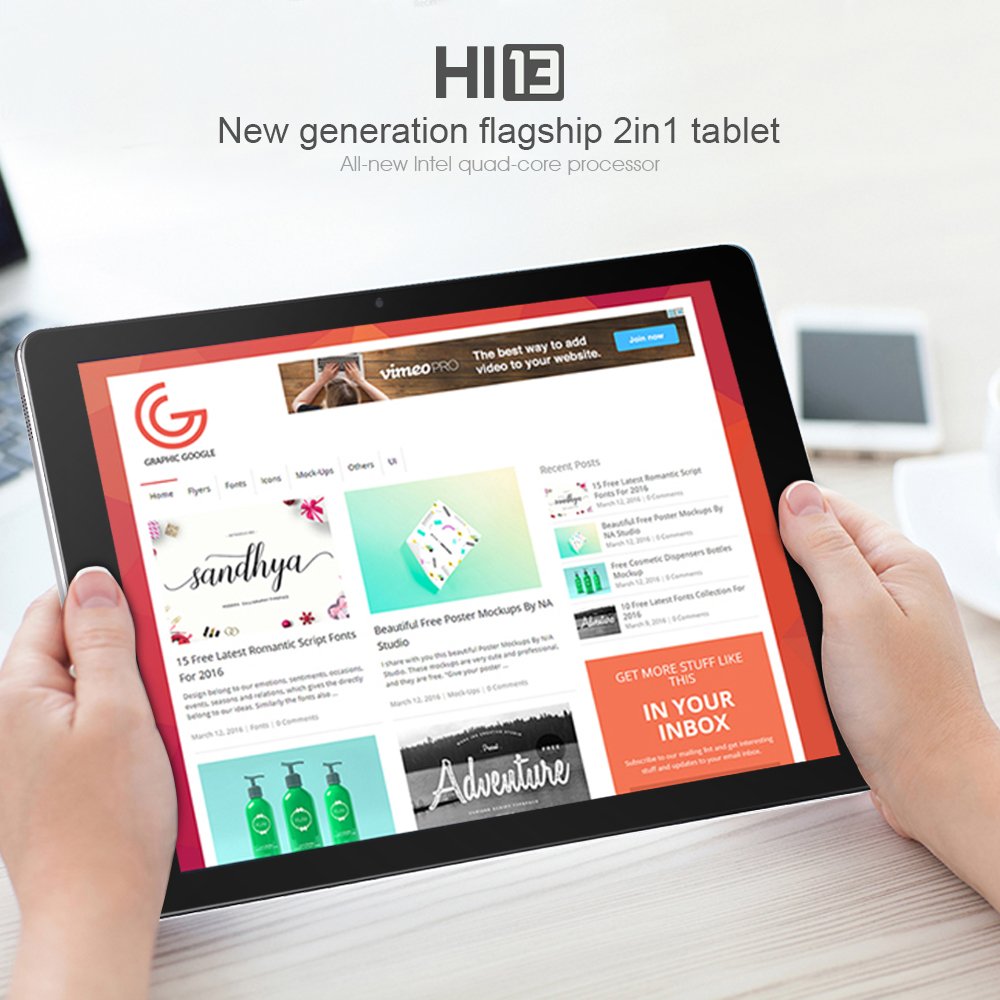
Image: A user holding the Chuwi Hi13 tablet in landscape orientation, browsing a website, demonstrating its use for media consumption and web access.
Connectivity
- Wi-Fi: Connect to wireless networks using the built-in 802.11a/ac/b/g/n dual-band Wi-Fi (2.4GHz / 5.0GHz).
- Bluetooth: Pair with Bluetooth 4.0 devices such as headphones, speakers, or input devices.
- HDMI: Use the Micro HDMI port to connect to an external monitor or TV for a larger display.
- OTG: The tablet supports On-The-Go (OTG) functionality, allowing you to connect USB peripherals via an adapter.
Maintenance
Cleaning the Device
- Screen: Use a soft, lint-free cloth, slightly dampened with water or a screen cleaner, to gently wipe the display. Avoid harsh chemicals.
- Body: Wipe the tablet's body with a soft, dry cloth.
- Ports: Keep ports free of dust and debris. Use a can of compressed air if necessary, but avoid inserting objects into the ports.
Battery Care
- Avoid extreme temperatures, as they can degrade battery life.
- For optimal battery health, try to keep the charge level between 20% and 80% when possible.
- Use only the original charger or a certified compatible charger.
Software Updates
Regularly check for and install Windows updates to ensure your system has the latest features, security patches, and performance improvements. Go to Settings > Update & Security > Windows Update.
Troubleshooting
Common Issues and Solutions
- Device Not Powering On:
- Ensure the device is fully charged. Connect the charger and wait a few minutes before attempting to power on again.
- Try holding the power button for 10-15 seconds for a hard reset.
- Slow Performance:
- Close unnecessary applications running in the background.
- Check for and install any pending Windows updates.
- Ensure sufficient free storage space (at least 10-15% of total capacity).
- Run a disk cleanup and defragmentation (for HDD, though eMMC benefits less from defrag).
- Consider performing a factory reset if performance issues persist after other steps (back up data first).
- Charging Issues:
- Verify the charger and cable are securely connected to both the tablet and the power outlet.
- Try a different compatible charger and cable if available.
- Inspect the charging port for any visible damage or debris.
- Display Problems (No image, flickering):
- Restart the tablet.
- If connected to an external display, ensure the HDMI cable is properly connected and the correct input is selected on the external display.
- Check display settings in Windows.
- Wi-Fi/Bluetooth Connectivity Issues:
- Toggle Wi-Fi/Bluetooth off and on in Windows settings.
- Restart the tablet and your router/modem.
- Ensure drivers are up to date via Device Manager.
Specifications
Detailed technical specifications for the Chuwi Hi13 Tablet PC.
| Feature | Specification |
|---|---|
| Brand | Chuwi |
| Model | Hi13 |
| Operating System | Windows 10 Home 64-bit |
| Processor | Intel Apollo Lake Celeron N3450 Quad Core (up to 2.2GHz) |
| Graphics | Intel HD Graphics 500 |
| RAM | 4GB DDR3L |
| Storage | 64GB eMMC (Expandable up to 128GB via Micro SD) |
| Screen Size | 13.5 inches |
| Screen Resolution | 3000 x 2000 IPS Capacitive (10-Point) |
| Front Camera | 2.0MP |
| Rear Camera | 5.0MP |
| Wi-Fi | 802.11a/ac/b/g/n Dual Band (2.4GHz / 5.0GHz) |
| Bluetooth | Yes (Bluetooth 4.0) |
| Ports | 1x 3.5mm Earphone, 1x Micro SD, 1x Micro HDMI, 1x Micro USB, 1x Type-C |
| Battery | 10000mAh |
| Dimensions | 334 x 222 x 8.9 mm |
| Weight | 1080g (1.08 kg) |
Warranty and Support
Warranty Information
The Chuwi Hi13 Tablet PC comes with a 1-year manufacturer's warranty. This warranty covers defects in materials and workmanship under normal use. Please retain your proof of purchase for warranty claims.
The warranty does not cover damage caused by misuse, accidents, unauthorized modifications, or normal wear and tear.
Customer Support
For technical assistance, warranty claims, or further inquiries, please refer to the official Chuwi support channels. You can typically find support contact information, FAQs, and driver downloads on the official Chuwi website.
It is recommended to visit the Chuwi Store on Amazon or the official Chuwi global website for the most up-to-date support resources.


