
ILIFE A9
ILIFE A9 Robot Vacuum Cleaner User Manual
Model: A9 | Brand: ILIFE
Introduction
Welcome to the ILIFE A9 Robot Vacuum Cleaner user manual. This guide provides detailed instructions on setting up, operating, maintaining, and troubleshooting your ILIFE A9 to ensure optimal performance and a clean home. The ILIFE A9 features smart Panoview navigation, Wi-Fi connectivity for app control, a cellular dustbin, and multiple cleaning modes for versatile cleaning.

Figure 1: ILIFE A9 Robot Vacuum Cleaner, showcasing its sleek design, charging dock, and mobile app connectivity.
1. Setup
1.1 Unboxing and Initial Placement
Carefully remove all components from the packaging. Ensure all accessories listed in the "What You Get" section are present. Place the charging dock against a wall in an open, uncluttered area, ensuring there are no obstacles within 1 meter (3 feet) to the sides and 2 meters (6 feet) in front of the dock.
Video 1: Official unboxing and initial setup of the ILIFE A9 Robot Vacuum Cleaner, demonstrating how to unpack and prepare the device for first use.
1.2 Charging the Robot
Connect the AC power adapter to the charging dock and plug it into a wall outlet. Place the ILIFE A9 onto the charging dock, ensuring the charging pins align. The indicator light on the robot will show its charging status. Allow the robot to fully charge before its first use.
1.3 Wi-Fi Connected App Setup
Download the ILIFEHOME app from your smartphone's app store. Follow the in-app instructions to connect your ILIFE A9 to your home Wi-Fi network (2.4G Wi-Fi only). The app allows for easy operation, scheduling, and monitoring of your robot vacuum.
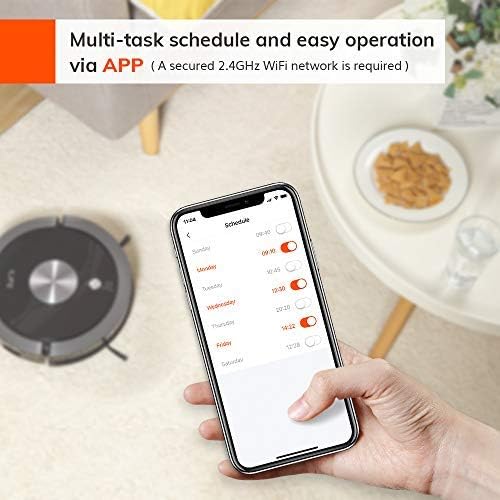
Figure 2: The ILIFEHOME mobile application interface, demonstrating multi-task scheduling and remote operation capabilities.
1.4 ElectroWall Setup
The ElectroWall creates an invisible barrier to restrict the robot from entering certain areas. Insert 2 AA batteries (included) into the ElectroWall device. Place the ElectroWall on the floor where you want to create a boundary. Ensure the signal is not obstructed.

Figure 3: The ElectroWall device creating a virtual barrier to prevent the robot from entering specific zones, useful for protecting delicate areas or pet bowls.
2. Operating the ILIFE A9
2.1 Smart Panoview Navigation
The ILIFE A9 utilizes Panoview navigation to systematically map and clean your rooms. This intelligent navigation system ensures comprehensive coverage and avoids missing areas, adapting to your home's layout.

Figure 4: Visual representation of the ILIFE A9's Panoview navigation system, illustrating how it maps and efficiently cleans a room.
2.2 Multiple Cleaning Modes
The ILIFE A9 offers several cleaning modes to suit different needs:
- Path Mode: Maximizes cleaning coverage, ideal for large, open areas.
- Spot Mode: Concentrates cleaning on a specific small area for intensive cleaning of spills or concentrated dirt.
- Max Mode: Provides intensive cleaning with increased suction power for heavily soiled areas.
- Edge Mode: Focuses on cleaning along walls and corners to ensure no dust is left behind.
You can select these modes via the remote control or the ILIFEHOME app.
2.3 Cleaning Hard-to-Reach Areas
The slim design of the ILIFE A9 allows it to effectively clean under furniture and in other hard-to-reach areas, ensuring thorough cleaning throughout your home.

Figure 5: The ILIFE A9's low-profile design enables it to clean effectively under furniture and along edges, reaching areas often missed by traditional vacuums.
3. Maintenance
3.1 Cellular Dustbin Cleaning
The cellular dustbin design significantly reduces the frequency of filter replacement and dustbin cleaning. To empty the dustbin, press the release button, remove the dustbin, and dispose of the collected debris. Regularly clean the filter to maintain optimal suction performance.

Figure 6: Illustration of the cellular dustbin's internal airflow and its easy-to-empty design, promoting sustained filter performance.
3.2 Brush and Sensor Cleaning
Periodically inspect and clean the main roller brush and side brushes to remove tangled hair or debris. Use the provided cleaning tool for this purpose. Also, wipe the sensors on the robot and charging dock with a soft, dry cloth to ensure proper navigation and charging.
4. Troubleshooting
If your ILIFE A9 encounters an issue, refer to the following common solutions:
- Robot not charging: Ensure the charging dock is powered on and the robot's charging pins are correctly aligned with the dock. Clean the charging contacts on both the robot and the dock.
- Robot gets stuck frequently: Clear obstacles like loose cables, rugs with long fringes, or small objects from the cleaning path. Use the ElectroWall to block off problematic areas.
- Reduced suction power: Empty the dustbin and clean or replace the high-performance filter. Check the main brush and side brushes for any tangled hair or debris.
- App connectivity issues: Ensure your Wi-Fi network is 2.4G (5G is not supported). Restart your router, the robot, and the app. Re-pair the robot with the app if necessary.
- Robot not returning to charging dock: Ensure the charging dock is in an accessible location without obstructions. Clean the sensors on the robot and the dock.
For more detailed troubleshooting or persistent issues, please contact ILIFE customer support.
5. Specifications
| Feature | Detail |
|---|---|
| Brand | ILIFE |
| Model Name | A9 |
| Special Feature | Cordless |
| Color | Black |
| Product Dimensions | 12.99"L x 12.6"W x 2.99"H |
| Included Components | 1 * ILIFE A9, 1 * ElectroWall (2 AA batteries included), 1 * remote control (2 AAA batteries included), 1 * charging dock, 1 AC power adapter, 1 * cleaning tool, 1 * high performance filter, 4 * side brushes, user manual |
| Filter Type | Disk |
| Battery Life | 2 years |
| Voltage | 240 Volts |
| Capacity | 0.6 Liters |
| Power Source | Battery Powered |
| Control Method | Voice |
| Compatible Devices | Amazon Echo |
| Item Weight | 5.6 pounds |
| Manufacturer | ILIFE INNOVATION LIMITED |
| Specific instructions for use | dual action, hard floor, carpet |
6. Warranty and Support
New ILIFE A9 robots are provided with a 12-month warranty from the purchasing date. Refurbished or used robots typically come with a 3-month warranty. For warranty claims, technical support, or any inquiries, please refer to the contact information provided in your product packaging or visit the official ILIFE website.
You can also find additional support and resources on the ILIFE Store on Amazon.
Related documentsA9


Ask a question about this manual
Ask about setup, troubleshooting, compatibility, parts, safety, or missing instructions. Manuals+ will review the question and use this page’s manual context to help answer it.