
Uncaged Ergonomics RUb
User Manual
Uncaged Ergonomics Dual Motor Electric Standing Desk Frame
Model: RUb
Introduction
Thank you for choosing the Uncaged Ergonomics Dual Motor Electric Standing Desk Frame. This premium adjustable desk frame is designed to enhance your workspace by allowing seamless transitions between sitting and standing positions, promoting a healthier and more productive work environment. This manual provides detailed instructions for assembly, operation, maintenance, and troubleshooting to ensure optimal performance and longevity of your desk frame.

Image: The Uncaged Ergonomics Dual Motor Electric Standing Desk Frame with its control panel, showcasing the robust design and intuitive interface.
Safety Information
Please read all safety instructions carefully before assembly and operation to prevent injury or damage to the product.
- Weight Limit: Do not exceed the maximum weight capacity of 113 kg (250 lbs) on the desk frame. Overloading can cause damage and pose a safety risk.
- Anti-Collision Technology: The desk frame is equipped with anti-collision technology. This feature helps prevent the desk from lowering onto an object by stopping movement if an obstruction is detected. However, always ensure the path is clear during height adjustments.
- Electrical Safety:
- Ensure the power cord is properly connected to a grounded outlet.
- Do not operate the desk with a damaged power cord or plug.
- Keep liquids away from electrical components.
- Disconnect power before cleaning or maintenance.
- Children and Pets: Keep children and pets away from the desk during operation to prevent accidents.
- Assembly: Ensure all components are securely fastened according to the assembly instructions. Loose parts can lead to instability.

Image: Illustration of the anti-collision safety feature, showing how the desk stops if an obstruction is detected during movement.
Package Contents
Before beginning assembly, please verify that all components are present and undamaged. If any parts are missing or damaged, please contact customer support.
- 1 x Electric Desk Frame (includes legs, crossbar, and feet)
- 1 x Control Panel with LED Display
- 1 x Power Adapter and Cable
- Assembly Hardware (screws, bolts, washers)
- Allen Wrench (for assembly)
- Cable Management Ties
- Rubber Spacers (for tabletop mounting)
- User Manual (this document)
Assembly Instructions (Setup)
Follow these steps to assemble your Uncaged Ergonomics Electric Standing Desk Frame. It is recommended to have a second person assist with assembly, especially when handling larger components or the tabletop.
- Unpack Components: Carefully remove all parts from the packaging. The packaging is designed to protect the components during transit.
- Attach Feet to Legs: Securely attach the feet to the bottom of each desk leg using the provided screws.
- Connect Crossbar: Connect the adjustable crossbar between the two desk legs. Ensure the crossbar is extended to the desired width for your tabletop.
- Mount Control Box: Attach the control box to the designated area on the frame, typically under the crossbar, using the provided hardware.
- Connect Motors and Control Panel: Plug the motor cables from each leg into the control box. Connect the control panel cable to the control box.
- Prepare Tabletop: Place your chosen tabletop upside down on a soft, protected surface. Position the assembled desk frame onto the tabletop, ensuring it is centered and aligned.
- Mount Tabletop: Use the provided screws and rubber spacers to securely attach the desk frame to the tabletop. Pre-drilling pilot holes in the tabletop may be necessary depending on its material.
- Cable Management: Use the included cable ties to neatly route and secure all cables, preventing them from dangling or getting caught during height adjustments.
- Power On: Carefully flip the desk upright. Plug the power cable into the control box and then into a grounded electrical outlet.
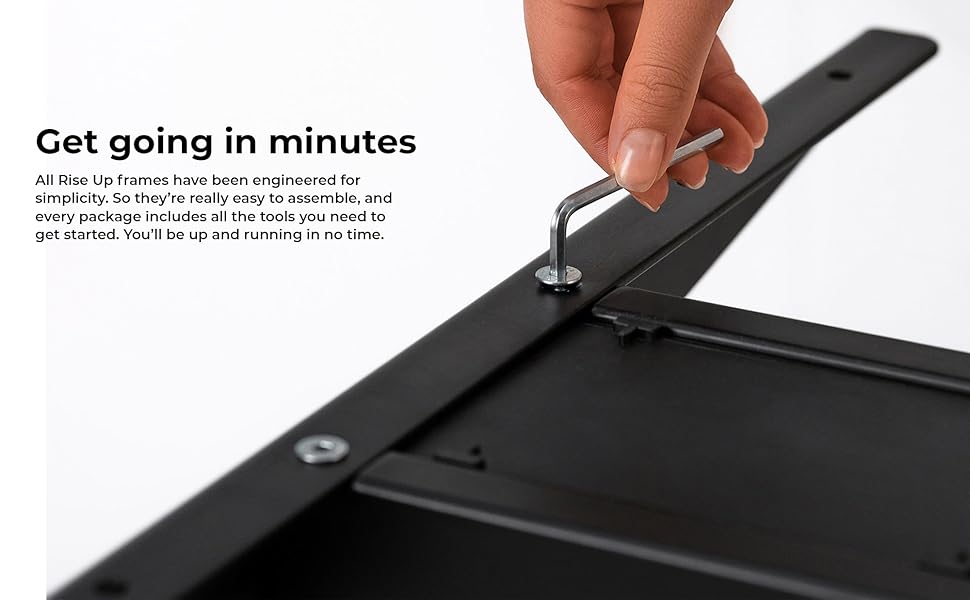
Image: A close-up view of an assembly step, showing the use of an Allen wrench to secure a component of the desk frame.
Operating Instructions
The control panel allows for easy and precise height adjustments, along with convenient memory settings.
Control Panel Overview
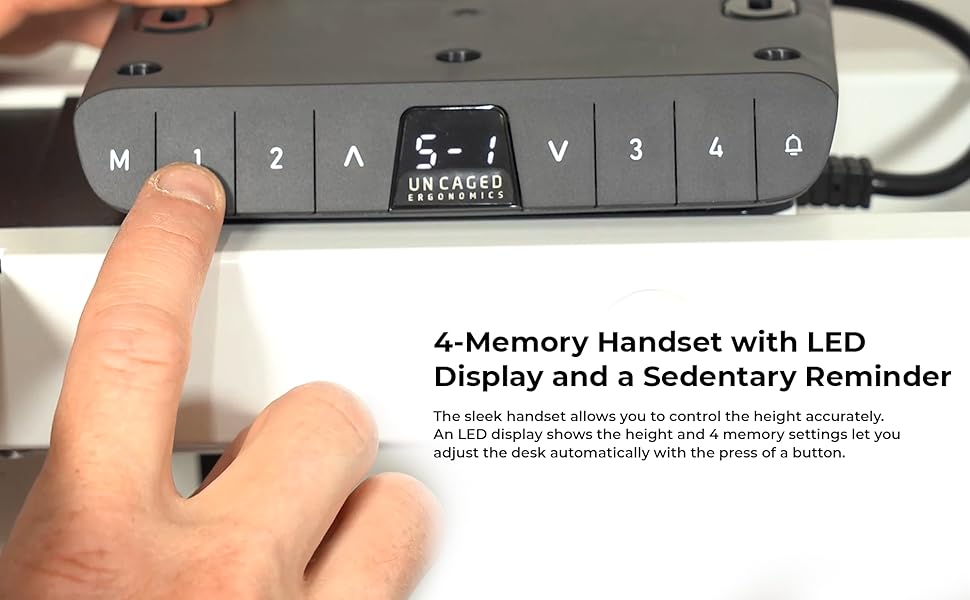
Image: The desk's control panel featuring an LED display for height readings and buttons for manual adjustment and memory presets.
- Up/Down Buttons (▲ / ▼): Press and hold the Up or Down arrow buttons to manually adjust the desk height. Release the button to stop at the desired height. The LED display will show the current height.
- Memory Settings (1, 2, 3, 4): The desk frame features four programmable memory presets for quick height adjustments.
- Adjust the desk to your desired height using the Up/Down buttons.
- Press the "M" button. The LED display will show "S-".
- Within 3 seconds, press the desired memory button (1, 2, 3, or 4). The display will show "S-1", "S-2", etc., indicating the height has been saved.
- To recall a saved height, simply press the corresponding memory button (1, 2, 3, or 4). The desk will automatically move to the saved position.
- Anti-Collision Feature: During height adjustment, if the desk encounters an obstruction, it will automatically stop and reverse slightly to prevent damage.

Image: A user comfortably working at the desk in a standing position, demonstrating the ergonomic benefits of height adjustability.
Features
The Uncaged Ergonomics Electric Standing Desk Frame is engineered with advanced features for superior performance and user experience.
- Dual Motor System: Equipped with two powerful motors for fast, smooth, and quiet height adjustments. Each motor is located in a leg, ensuring synchronized movement and stability.
- Wide Height Adjustment Range: Seamlessly adjust the desk height from 66 cm (26.1 inches) to 131 cm (51.6 inches), accommodating a wide range of user heights and preferences.
- Adjustable Width Frame: The frame's width can be adjusted from 107 cm (42.3 inches) to 152 cm (71 inches), allowing compatibility with various tabletop sizes.
- 3-Stage Lifting Columns: The three-stage leg design provides a greater height range and increased stability, even at maximum extension.
- Anti-Collision Technology: Advanced sensors detect obstructions during movement, automatically stopping and reversing the desk to prevent damage.
- 4 Memory Presets: Save your preferred sitting and standing heights for quick, one-touch adjustments.
- LED Height Display: The integrated LED display on the control panel shows the precise current height of the desk.
- Robust Construction: Made from high-strength, powder-coated steel for exceptional durability and a sleek finish.
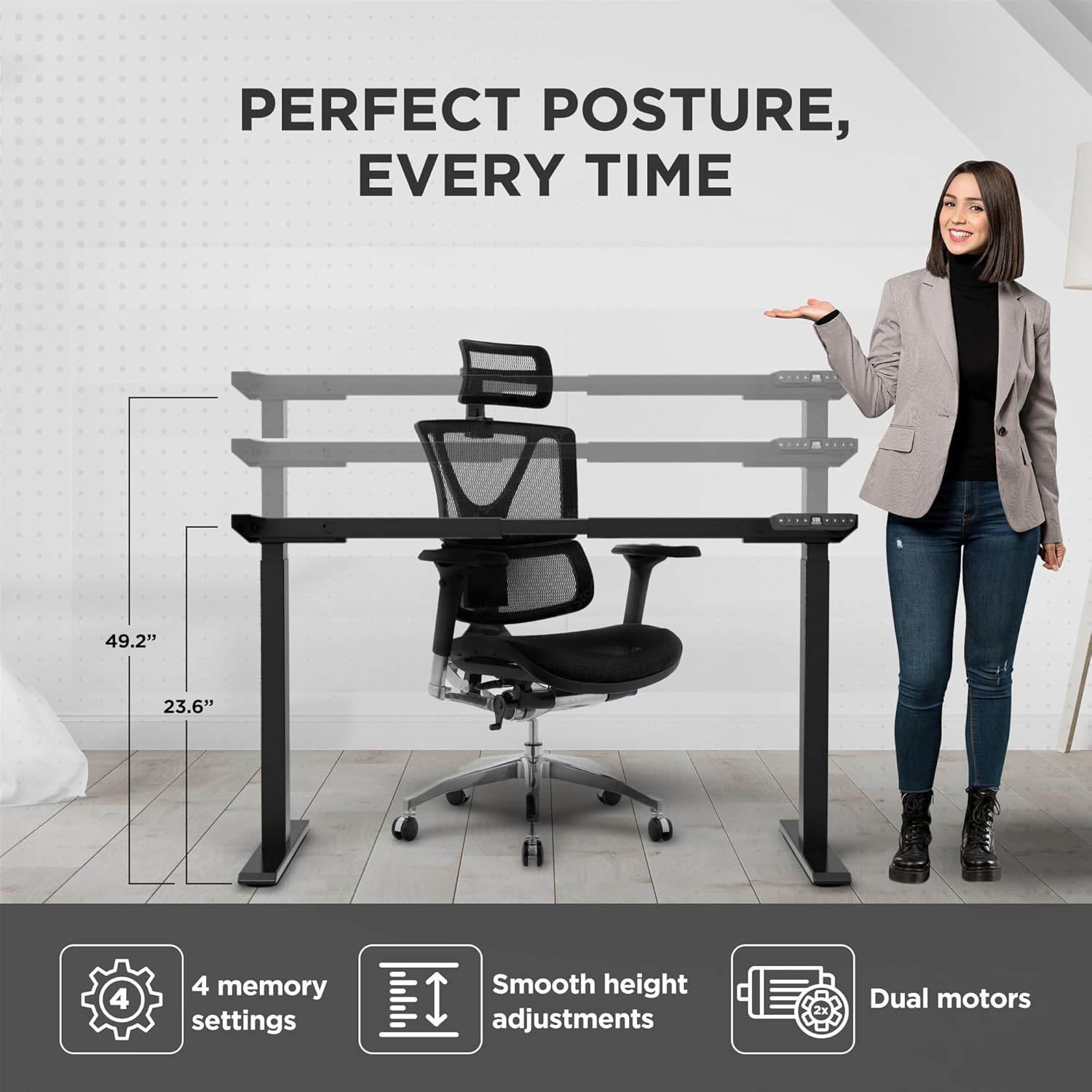
Image: Visual representation of the desk frame's adjustable height and key features, including 4 memory settings, smooth adjustments, and dual motors.

Image: Two individuals, one standing and one sitting, illustrating the wide range of height adjustability offered by the desk frame.
Specifications
| Model Number | RUb |
| Brand | Uncaged Ergonomics |
| Color | Black |
| Height Adjustment Range | 66 - 131 cm (26.1 - 51.6 inches) |
| Width Adjustment Range | 107 - 152 cm (42.3 - 71 inches) |
| Maximum Weight Capacity | 113 kg (250 lbs) |
| Material | High-strength Steel |
| Finish | Powder-coated |
| Motors | Dual Motors |
| Leg Stages | 3-Stage |
| Memory Presets | 4 |
| Special Features | Anti-collision technology, LED height display |
| Product Dimensions (assembled) | 69.85 x 152.4 x 131.06 cm (27.5 x 60 x 51.6 inches) |
| Item Weight | 22.68 kg (50 lbs) |

Image: The desk frame illustrating its compatibility with various tabletop sizes, ranging from 42.3 to 71 inches in width.
Maintenance
Regular maintenance will help ensure the long-term performance and appearance of your desk frame.
- Cleaning: Wipe the desk frame with a soft, damp cloth. Avoid using harsh chemicals or abrasive cleaners, as they may damage the finish.
- Check Connections: Periodically check all screws and bolts to ensure they are tight. Re-tighten if necessary.
- Cable Management: Ensure cables remain neatly organized and are not pinched or tangled, which could affect movement or cause damage.
- Motor Care: The dual motors are designed for durability and require no special lubrication. Avoid exposing them to excessive dust or moisture.
Troubleshooting
If you encounter any issues with your desk frame, refer to the common problems and solutions below. If the problem persists, please contact customer support.
| Problem | Possible Cause | Solution |
|---|---|---|
| Desk does not move or respond to controls. | Power cable disconnected; control box not properly connected; system error. |
|
| Desk moves unevenly or makes unusual noises. | Uneven load; loose connections; obstruction. |
|
| Memory settings are not saving or recalling correctly. | Incorrect saving procedure; temporary system glitch. |
|
| Anti-collision feature triggers too often or not at all. | Sensitivity setting; physical obstruction. |
|
Warranty and Support
Uncaged Ergonomics is committed to providing high-quality products built for durability and longevity. Our desk frames are designed to meet commercial-grade standards, reflecting over a decade of proven experience in manufacturing ergonomic solutions.
While specific warranty details may vary by region or purchase point, Uncaged Ergonomics stands behind the quality of its products. For any questions, technical assistance, or support needs, please contact Uncaged Ergonomics customer service. Our team is dedicated to ensuring your satisfaction and assisting with any issues you may encounter.
Please visit the official Uncaged Ergonomics website or refer to your purchase documentation for the most up-to-date warranty information and contact details.
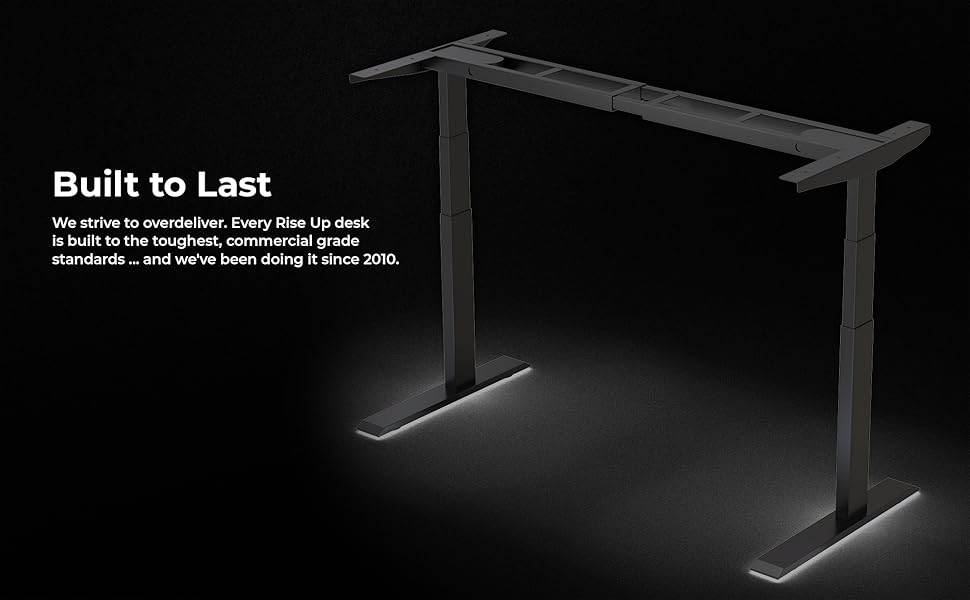
Image: The desk frame illuminated, emphasizing its robust construction and the brand's commitment to building products that are "Built to Last" since 2010.
Related documentsRUb


Ask a question about this manual
Ask about setup, troubleshooting, compatibility, parts, safety, or missing instructions. Manuals+ will review the question and use this page’s manual context to help answer it.