
TECKNET EKB005-Black
TECKNET 2.4G Wireless Keyboard User Manual
Model: EKB005-Black
Brand: TECKNET
Introduction
The TECKNET 2.4G Wireless Keyboard is a mini compact keyboard designed for convenience and portability. It features media hotkeys, a long 12-month battery life, and is compatible with various devices including PCs, desktops, laptops, and Smart TVs. Its comfortable key design ensures smooth, quiet typing, reducing finger fatigue. The plug-and-play functionality allows for easy setup with a stable wireless connection up to 49 feet (15 meters).

Figure 1: TECKNET 2.4G Wireless Keyboard, showcasing its compact design and full QWERTY layout.
What's in the Box
- TECKNET wireless keyboard
- 2.4 GHz Nano USB receiver
- User guide
Setup
1. Battery Installation
The keyboard requires 2 AAA batteries (not included). Locate the battery compartment on the back of the keyboard. Slide open the cover, insert the batteries according to the polarity indicators, and close the cover securely.

Figure 2: Rear view of the keyboard, highlighting the battery compartment and the integrated USB receiver storage.
2. Connecting the USB Receiver
The 2.4 GHz Nano USB receiver is conveniently stored next to the battery slot on the back of the keyboard. Gently remove the receiver. Plug the USB receiver into an available USB port on your computer, laptop, or Smart TV. The keyboard is plug-and-play, meaning it should be recognized automatically by your device without needing additional drivers.

Figure 3: The keyboard in use, demonstrating its wireless connection range of up to 49 feet (15 meters).
3. Powering On
Locate the On/Off switch on the back of the keyboard and slide it to the 'On' position. The keyboard is now ready for use.
Operating the Keyboard
Basic Typing
The keyboard features a stylish chocolate keycap design, providing a smooth and quiet typing experience. The low-profile keys reduce key travel, contributing to comfortable and efficient typing.
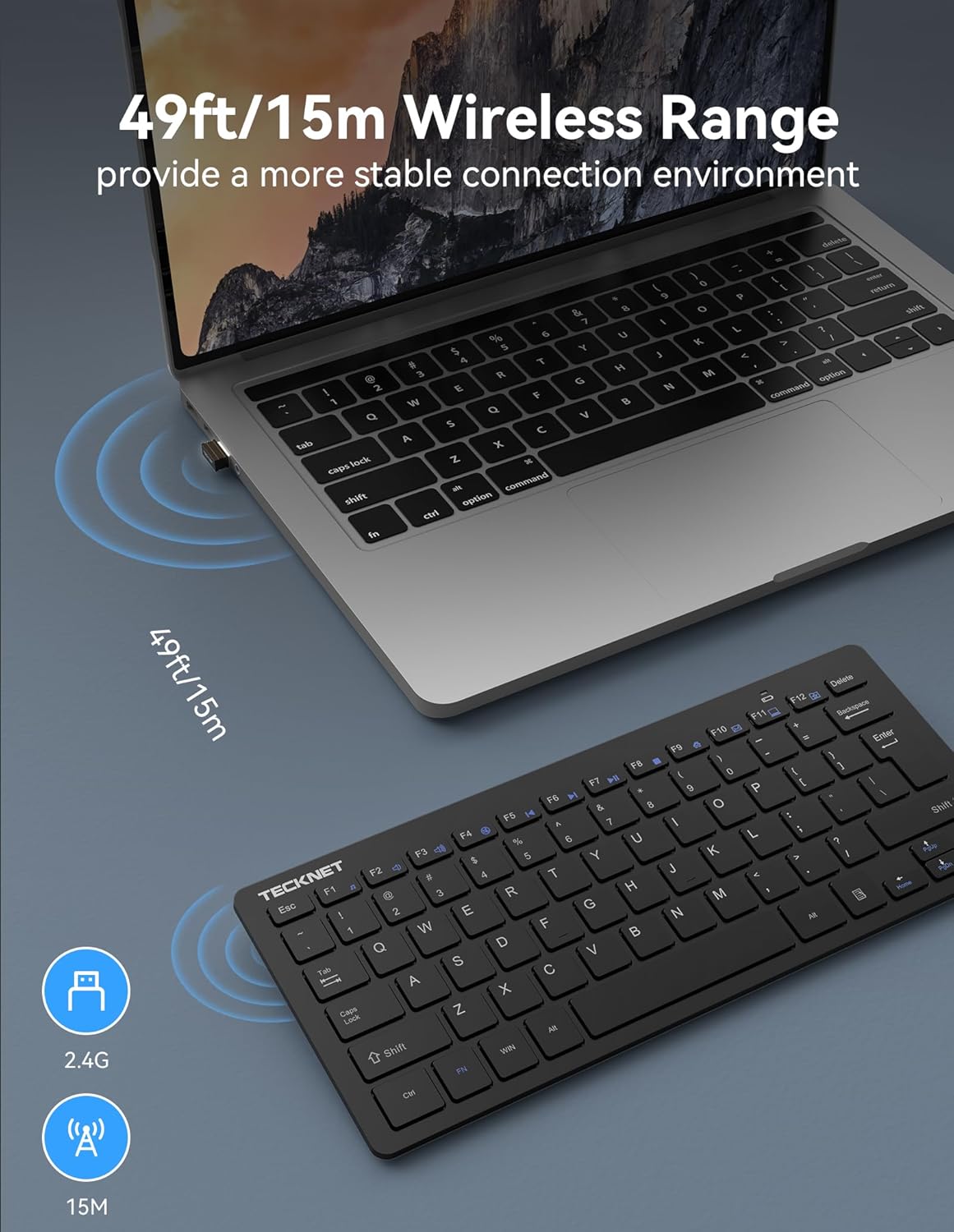
Figure 4: The keyboard's slim and portable design, making it easy to store and transport.
Multimedia Hotkeys
The keyboard includes 14 multimedia hotkeys for quick access to various functions. To use these functions, press and hold the 'FN' key, then press the corresponding F-key (F1-F12).
- FN+F1: Music
- FN+F2: Volume -
- FN+F3: Volume +
- FN+F4: Mute
- FN+F5: Previous Track
- FN+F6: Next Track
- FN+F7: Play/Pause
- FN+F8: Stop
- FN+F9: Internet
- FN+F10: E-mail
- FN+F11: My computer
- FN+F12: (Function not specified, typically a custom key or system function)

Figure 5: Visual representation of the keyboard's 14 multimedia hotkeys and their functions.
Power Saving Mode
The keyboard features an intelligent power-saving mode and an on/off switch to conserve battery life. It can be woken up with a single key press. This design allows for a battery life of up to 12 months based on 2 hours of uninterrupted use per day.

Figure 6: Illustration of the keyboard's energy-saving features, contributing to its extended battery life.
Maintenance
Cleaning
To clean the keyboard, use a soft, lint-free cloth. For stubborn dirt, slightly dampen the cloth with water or a mild cleaning solution. Avoid using harsh chemicals or abrasive materials, as these can damage the keyboard's surface or keys.
Battery Replacement
When the battery indicator light on the keyboard signals low power, it's time to replace the AAA batteries. Follow the battery installation steps outlined in the Setup section.
Troubleshooting
Keyboard Not Responding
- Ensure the keyboard's On/Off switch is in the 'On' position.
- Check if the USB receiver is securely plugged into a working USB port on your device. Try a different USB port if necessary.
- Replace the AAA batteries with fresh ones.
- Ensure the keyboard is within the effective wireless range (up to 49ft/15m) of the USB receiver.
- Restart your computer or device.
Keys Not Functioning Correctly
- Gently clean around the affected keys to remove any debris that might be obstructing their movement.
- Ensure no software conflicts are present by testing the keyboard on another device.
Specifications
| Feature | Detail |
|---|---|
| Product Dimensions | 11.49 x 4.9 x 0.78 inches |
| Item Weight | 6.7 ounces |
| Manufacturer | TECKNET |
| Language | English |
| ASIN | B072N471V4 |
| Country of Origin | China |
| Item model number | EKB005-Black |
| Brand | TECKNET |
| Compatible Devices | PC |
| Connectivity Technology | USB Wireless |
| Keyboard Description | Multi Functional |
| Recommended Uses For Product | Office |
| Special Feature | Ergonomic, Lightweight, Low-Profile Key |
| Color | Black |
| Number of Keys | 78 |
| Keyboard backlighting color support | Single Color |
| Style | Modern |
Product Videos
Video 1: Official TECKNET Wireless Keyboard overview, demonstrating its features and design.
Warranty and Customer Support
TECKNET offers a 36-month warranty for this product (registration required). If you encounter any problems while using the keyboard, please feel free to contact our professional customer service team for assistance.
For customer service inquiries, please refer to the contact information provided in your product packaging or visit the official TECKNET website.
Ask a question about this manual
Ask about setup, troubleshooting, compatibility, parts, safety, or missing instructions. Manuals+ will review the question and use this page’s manual context to help answer it.