Introduction
This manual provides essential instructions for setting up, operating, and maintaining your Samsung Galaxy Folder 2 SM-G1600 smartphone. Please read this guide thoroughly to ensure proper use and to maximize the device's features.
The Samsung Galaxy Folder 2 SM-G1600 is an Android flip smartphone featuring a 3.8-inch display, 16GB internal storage, and 2GB RAM. It supports 2G, 3G, and 4G cellular technologies and Wi-Fi connectivity.
What's Included
Your package typically includes the Samsung Galaxy Folder 2 smartphone, a charger, and a battery. Additional accessories may vary by region.

Figure 1: Contents of the Samsung Galaxy Folder 2 package, including the phone, charger, and battery.
Setup
1. Installing the SIM Card and Battery
- Open the back cover: Gently pry open the back cover of the phone.
- Insert SIM card: Locate the SIM card slot(s). Insert your SIM card(s) with the gold contacts facing down, ensuring it clicks into place.
- Insert microSD card (optional): If using an external memory card, insert it into the designated slot.
- Insert battery: Align the battery contacts with the terminals inside the phone and gently press it into place.
- Close the back cover: Replace the back cover, pressing along the edges until it snaps securely.
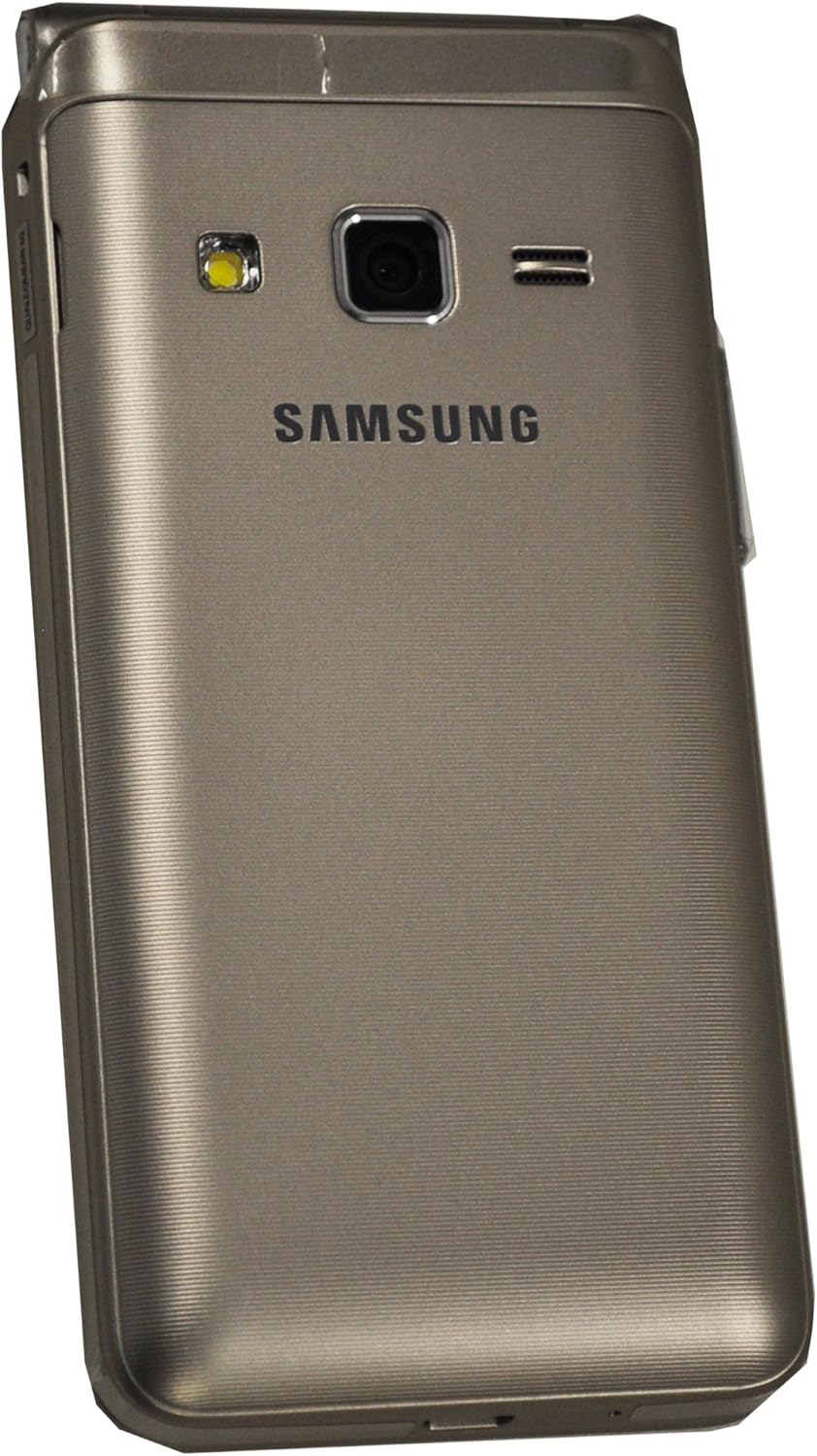
Figure 2: Rear view of the Samsung Galaxy Folder 2, showing the camera and flash. The back cover can be removed to access the SIM/battery compartment.
2. Charging the Battery
Before first use, fully charge the battery. Connect the charger to the phone's charging port and plug it into a power outlet. The charging indicator will show the charging status. Disconnect the charger once the battery is fully charged.
3. Powering On/Off
- To power on: Press and hold the Power key until the Samsung logo appears.
- To power off: Press and hold the Power key, then select "Power off" from the options.
Operating Instructions
Basic Navigation
The Galaxy Folder 2 combines a physical keypad with a touchscreen for navigation. Open the flip to access the screen and keypad.

Figure 3: The Samsung Galaxy Folder 2 in its open position, displaying the screen and the physical keypad.
- Keypad: Use the physical keys for dialing numbers, typing messages, and navigating menus. The directional pad (D-pad) in the center allows for menu navigation.
- Touchscreen: Tap, swipe, and pinch on the screen to interact with applications and content.

Figure 4: A detailed view of the Samsung Galaxy Folder 2's physical keypad, highlighting the navigation and number keys.
Making and Receiving Calls
- To make a call: Open the phone, dial the number using the keypad, and press the Call key (green phone icon).
- To answer a call: When the phone rings, open the flip or press the Call key.
- To end a call: Press the End Call key (red phone icon) or close the flip.
Sending Messages
Navigate to the Messaging application. Select "New message," enter the recipient's number or select from contacts, type your message using the keypad, and send.
Connecting to Wi-Fi
- Go to Settings > Connections > Wi-Fi.
- Toggle Wi-Fi On.
- Select your desired network from the list and enter the password if prompted.
Using the Camera
Open the Camera application. Frame your shot using the screen, then press the camera button on the keypad or tap the shutter icon on the screen to capture a photo or start recording a video.
Maintenance
Cleaning Your Device
Use a soft, lint-free cloth to clean the screen and body of the phone. Avoid using harsh chemicals or abrasive materials, which can damage the device.
Battery Care
- Avoid exposing the battery to extreme temperatures.
- Use only Samsung-approved chargers and batteries.
- Do not puncture or damage the battery.
Software Updates
Regularly check for and install software updates to ensure optimal performance and security. Go to Settings > Software update.
Data Backup
It is recommended to regularly back up your important data (contacts, photos, videos, etc.) to a cloud service or a computer to prevent data loss.
Troubleshooting
- Phone not turning on: Ensure the battery is charged. Connect the charger and wait a few minutes before attempting to power on again. If the battery is removable, ensure it is correctly installed.
- Network issues (no signal/calls): Check if your SIM card is properly inserted. Ensure you are in an area with network coverage. Try restarting the phone.
- Applications crashing or freezing: Close and reopen the application. If the issue persists, restart the phone. Clear the app's cache or data via Settings > Apps.
- Slow performance: Close unnecessary background applications. Clear cache data regularly. Consider performing a factory reset as a last resort (this will erase all data on the phone, so back up first).
Specifications
| Feature | Detail |
|---|---|
| Model Name | Galaxy Folder 2 (SM-G1600) |
| Operating System | Google Android |
| Display Size | 3.8 Inches |
| Resolution | 480 x 800 |
| RAM | 2 GB |
| Memory Storage Capacity | 16 GB |
| CPU Speed | 1.4 GHz |
| CPU Model | 1.2GHz Cortex A13 Processor |
| Wireless Technologies | Cellular (2G, 3G, 4G), Wi-Fi |
| GPS | True |
| Audio Jack | 3.5 mm |
| Phone Talk Time | 20 Hours |
| Dimensions | 7 x 3 x 2.5 inches |
| Manufacturer | Samsung |
Warranty and Support
For warranty information, please refer to the warranty card included with your product or visit the official Samsung website for your region. Samsung provides customer support for product inquiries, technical assistance, and service requests.
You can find support resources, FAQs, and contact information on the official Samsung support website: www.samsung.com/support