
1. Introduction
This manual provides comprehensive instructions for the setup, operation, and maintenance of your Mount-It! Standing Desk Converter, model MI-7926. This height-adjustable desk riser is designed to transform your existing desk into a dynamic sit-stand workstation, promoting ergonomic flexibility and comfort.

Image 1.1: Mount-It! Standing Desk Converter MI-7926.
2. Safety Information
WARNING: Cancer and Reproductive Harm - www.P65Warnings.ca.gov
Please read all instructions carefully before use. Keep this manual for future reference.
- Ensure the desk converter is placed on a stable, level surface.
- Do not exceed the maximum weight capacity of 33 pounds (15 kg).
- Keep hands and fingers clear of moving parts during height adjustment to prevent injury.
- Ensure all components are securely fastened before placing equipment on the converter.
3. Package Contents
Verify that all components are present before proceeding with assembly:
- Mount-It! Standing Desk Converter Unit (Pre-assembled)
- Keyboard Tray
- Hardware for Keyboard Tray Attachment
4. Setup and Assembly
The Mount-It! Standing Desk Converter is largely pre-assembled for your convenience. Only the keyboard tray requires attachment.
- Carefully remove the desk converter unit from its packaging and place it on your existing desk.
- Locate the keyboard tray and the included hardware (screws).
- Align the keyboard tray with the designated attachment points on the underside of the main desktop platform.
- Secure the keyboard tray using the provided screws. Ensure it is firmly attached.
Your standing desk converter is now ready for use. Place your monitors, laptop, and other accessories on the main desktop surface.
5. Operating Instructions
The MI-7926 features a manual lift system with gas spring assist for smooth height adjustments.
5.1 Adjusting Height
- To Raise the Desk: Simultaneously squeeze the two levers located on the sides of the desktop. While holding the levers, gently lift the desktop to your desired standing height. The gas spring mechanism will assist in the lift. Release the levers to lock the desk in place.
- To Lower the Desk: Simultaneously squeeze the two levers located on the sides of the desktop. While holding the levers, gently press down on the desktop to your desired sitting height. The gas spring mechanism will provide controlled descent. Release the levers to lock the desk in place.

Image 5.1: Gas Spring Assist for easy height adjustment.

Image 5.2: Locking teeth mechanism for secure height settings.
5.2 Desktop Features
- Spacious Work Surface: The main desktop measures 36.25" x 22", accommodating dual monitors or a monitor and laptop setup.
- Keyboard Tray: The lower keyboard tray measures 26.75" x 9", providing ample space for a keyboard and mouse.
- Tablet Slot: A built-in slot on the desktop allows for convenient placement of tablets or smartphones.

Image 5.3: Desktop with integrated tablet slot.
6. Maintenance
Regular maintenance ensures the longevity and optimal performance of your desk converter.
- Cleaning: Wipe surfaces with a soft, damp cloth. Avoid abrasive cleaners or solvents.
- Inspection: Periodically check all screws and connections to ensure they are tight. Retighten if necessary.
- Mechanism Care: Keep the gas spring mechanism and moving parts free from dust and debris. Do not lubricate unless specifically instructed by the manufacturer.
7. Troubleshooting
If you encounter issues with your desk converter, refer to the following common solutions:
- Difficulty Adjusting Height:
- Ensure both levers are fully squeezed simultaneously.
- Check for any obstructions around the lifting mechanism.
- Verify that the weight on the desktop does not exceed the 33 lb capacity. - Wobbling or Instability:
- Confirm the converter is placed on a flat, stable desk surface.
- Check all assembly screws, especially those for the keyboard tray, and tighten them if loose. - Desk Not Locking in Position:
- Ensure the levers are fully released after adjusting the height. The locking teeth should engage securely.
If problems persist, contact Mount-It! customer support for assistance.
8. Specifications
| Feature | Specification |
|---|---|
| Model Number | MI-7926 |
| Brand | Mount-It! |
| Product Dimensions (D x W x H) | 22"D x 36.25"W x 17"H |
| Desktop Dimensions | 36.25"W x 22"D |
| Keyboard Tray Dimensions | 26.75"W x 9"D |
| Height Adjustment Range | 6.25" (minimum) to 16.5" (maximum) |
| Maximum Weight Capacity | 33 Pounds (15 kg) |
| Color | Black |
| Base Material | Metal |
| Top Material Type | Wood |
| Assembly Required | No (Keyboard tray attachment only) |

Image 8.1: Detailed dimensions of the desk converter.
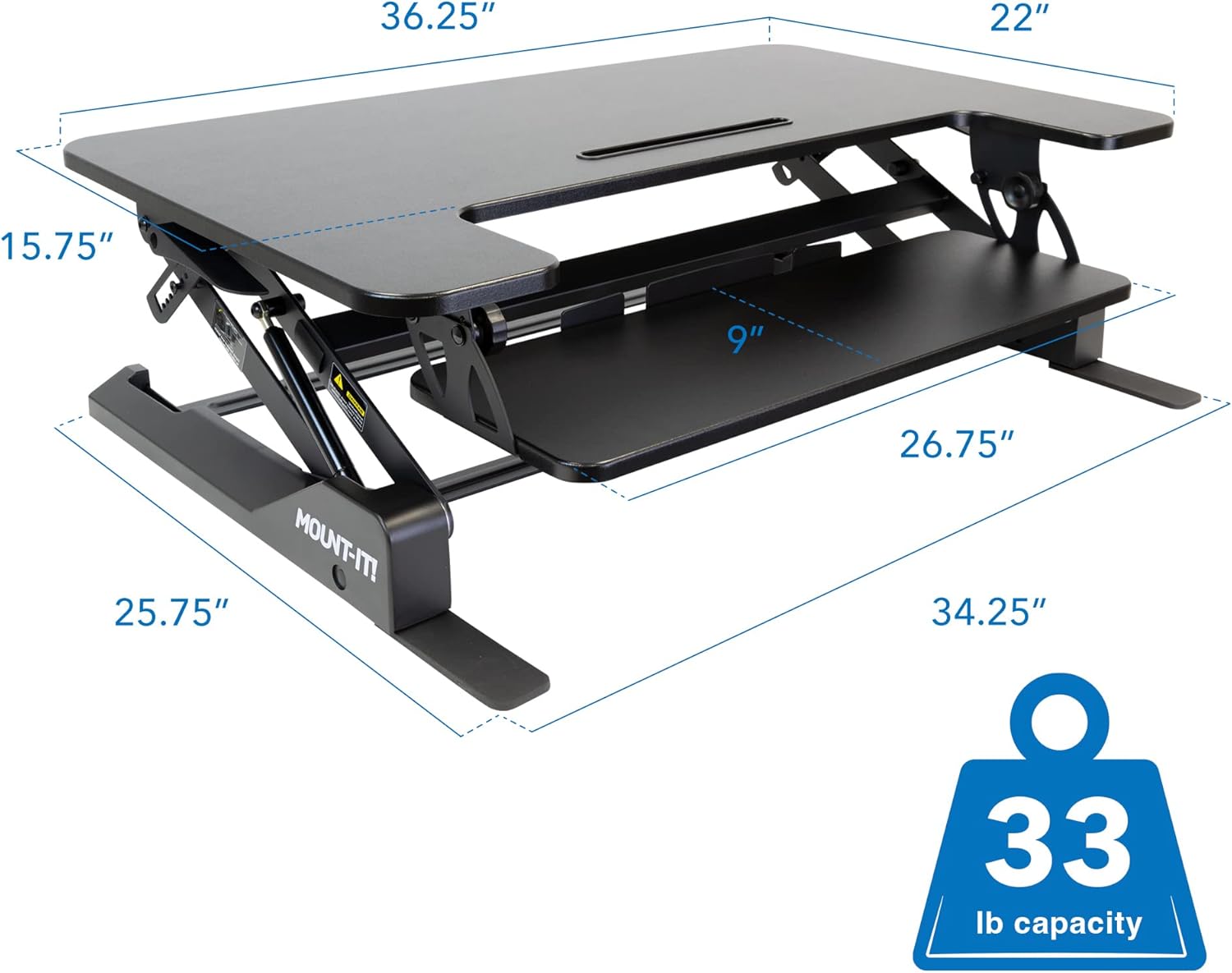
Image 8.2: Overall dimensions and weight capacity.
9. Warranty and Support
9.1 Warranty Information
This Mount-It! product is covered by a 1-year limited manufacturer's warranty. This warranty covers defects in materials and workmanship under normal use. For specific terms and conditions, please refer to the warranty documentation included with your purchase or contact Mount-It! customer support.
9.2 Customer Support
For technical assistance, warranty claims, or any questions regarding your Mount-It! Standing Desk Converter, please contact Mount-It! customer support through their official website or the contact information provided with your product.


