1. Introduction
This manual provides comprehensive instructions for the installation, operation, and maintenance of your Garmin eLog Compliant Electronic Logging Device (ELD). The Garmin eLog is designed to simplify ELD compliance for commercial drivers by automatically tracking and recording Hours of Service (HOS) without subscription fees. Please read this manual thoroughly before using the device to ensure proper functionality and compliance.
2. Safety Information
Always operate the device in a safe manner. Ensure the device is securely mounted and does not obstruct your view or interfere with vehicle controls. Do not attempt to service the device yourself. Refer all servicing to qualified personnel. This product contains chemicals known to the State of California to cause cancer and birth defects or other reproductive harm (Proposition 65 warning).
Important Compatibility Note: The Garmin eLog is not compatible with vehicles using OBD-II protocol (SAE J1979). Vehicles with a Volvo engine and 16-pin J1962 configuration require an adapter cable, which is sold separately.
3. Package Contents
Verify that all items listed below are present in your package:
- Garmin eLog Device
- 6-pin J1708 Adapter
- Quick Start Manual
4. Product Overview
The Garmin eLog is a compact, black electronic logging device designed for easy integration into commercial vehicles. It features diagnostic port connectors and a USB port for data transfer.
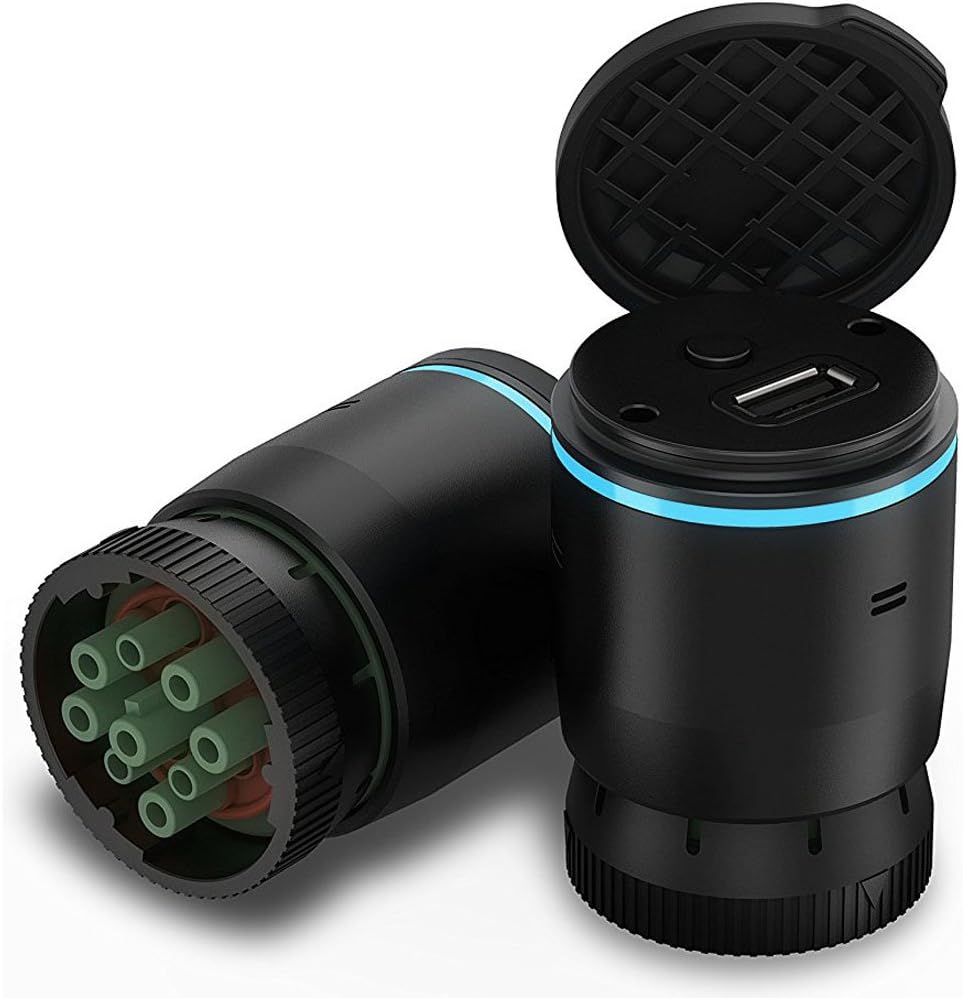
Figure 1: Garmin eLog Device. This image shows the black Garmin eLog device, highlighting its diagnostic port connector with multiple pins and the top section with a USB port covered by a cap. A blue LED ring is visible on the top section.
Key Features:
- Simple one-time purchase; No subscription fees.
- FMCSA ELD mandate compliant for Hours of Service (HOS) recording.
- Supports 9-pin J1939 and 6-pin J1708 diagnostic ports.
- Securely stores ELD records on your compatible smartphone.
- Data accessible for inspection via the device’s USB port or via FMCSA Web Services over Bluetooth.
- Requires the free Garmin eLog app on a compatible GPS and Bluetooth-enabled smartphone or tablet (sold separately).
5. Setup
5.1. App Installation
- Download the free Garmin eLog app from your smartphone's app store (compatible with Android 4.1.x or higher; Apple 9+).
- Ensure your smartphone or tablet has GPS and Bluetooth capabilities enabled.
5.2. Device Connection
- Locate the diagnostic port in your commercial vehicle. The Garmin eLog supports 9-pin J1939 and 6-pin J1708 diagnostic ports. Use the provided 6-pin J1708 adapter if necessary.
- Connect the Garmin eLog device directly to the vehicle's diagnostic port. Ensure a secure connection.
- Once connected, the device will power on and indicate readiness (refer to the quick start manual for specific LED indicators).
5.3. Initial Pairing
- Open the Garmin eLog app on your smartphone.
- Follow the on-screen prompts to pair the app with your Garmin eLog device via Bluetooth.
- Complete the initial setup within the app, including driver profile information and vehicle details.
6. Operating the Garmin eLog
6.1. Automatic HOS Recording
Once connected and paired, the Garmin eLog automatically records driving time as per FMCSA regulations. Ensure the device remains connected to the vehicle's diagnostic port during operation.
6.2. Managing Duty Status
- Use the Garmin eLog app to manually set your driver duty status (e.g., On Duty, Off Duty, Sleeper Berth).
- The app provides an easy interface to view remaining driving hours by day or week.
6.3. Data Access for Inspection
In the event of an inspection, ELD records can be accessed and transferred in two ways:
- USB Port: Connect a USB drive to the Garmin eLog device's USB port to transfer log data.
- FMCSA Web Services: Data can be transferred wirelessly via Bluetooth to FMCSA Web Services directly from your paired smartphone.
7. Maintenance
The Garmin eLog device requires minimal maintenance. Keep the device and its connectors clean and free from dust and debris. Use a soft, dry cloth for cleaning. Do not use liquid cleaners or solvents.
Regularly back up your ELD records from your smartphone to an external storage device or cloud service as recommended by the Garmin eLog app to ensure data integrity and compliance.
8. Troubleshooting
8.1. Device Not Powering On
- Ensure the device is securely connected to the vehicle's diagnostic port.
- Verify that the vehicle's ignition is on.
- Check the diagnostic port for any visible damage or obstructions.
8.2. App Not Connecting to Device
- Confirm Bluetooth is enabled on your smartphone and the Garmin eLog app has Bluetooth permissions.
- Ensure the Garmin eLog device is powered on and within range of your smartphone.
- Try restarting both the Garmin eLog app and your smartphone.
- If issues persist, unpair and re-pair the device within the app's settings.
8.3. Malfunction Messages
- Malfunction messages can occur if the device loses connection or if data is not regularly backed up.
- Ensure continuous connection to the diagnostic port.
- Perform regular data backups as prompted by the app.
- Consult the Garmin eLog app's help section or Garmin support for specific malfunction codes.
8.4. Compatibility Issues
- Remember, the device is not compatible with OBD-II protocol (SAE J1979).
- For Volvo engines with 16-pin J1962 configuration, a separate adapter cable is required.
9. Specifications
| Feature | Detail |
|---|---|
| Product Dimensions | 2.7 x 1.8 x 1.8 inches |
| Item Weight | 3.2 ounces |
| Model Number | 010-01876-00 |
| ASIN | B072L856YC |
| Color | Black |
| Manufacturer | Garmin |
| Country of Origin | Taiwan |
| Operating System Compatibility | Android 4.1.x or higher; Apple 9+ |
| Diagnostic Port Support | 9-pin J1939, 6-pin J1708 |
| Subscription Fees | None |
| UPC | 753759187354 |
10. Warranty and Support
For warranty information and technical support, please refer to the official Garmin website or contact Garmin customer service. You can also find additional resources and FAQs on the Garmin support pages.
Online Resources: