
Introduction
The NEC E436 is a 43-inch direct-lit, commercial-grade LED backlit display designed for various applications including education, corporate environments, and digital signage. This display features LED backlighting for reduced power consumption, a thinner profile, and lighter weight. It offers Full HD resolution for clear image quality and includes an integrated ATSC/NTSC tuner and built-in speakers for broadcast capabilities. Additionally, the E436 incorporates a USB player for displaying video, audio, or JPEG image files.
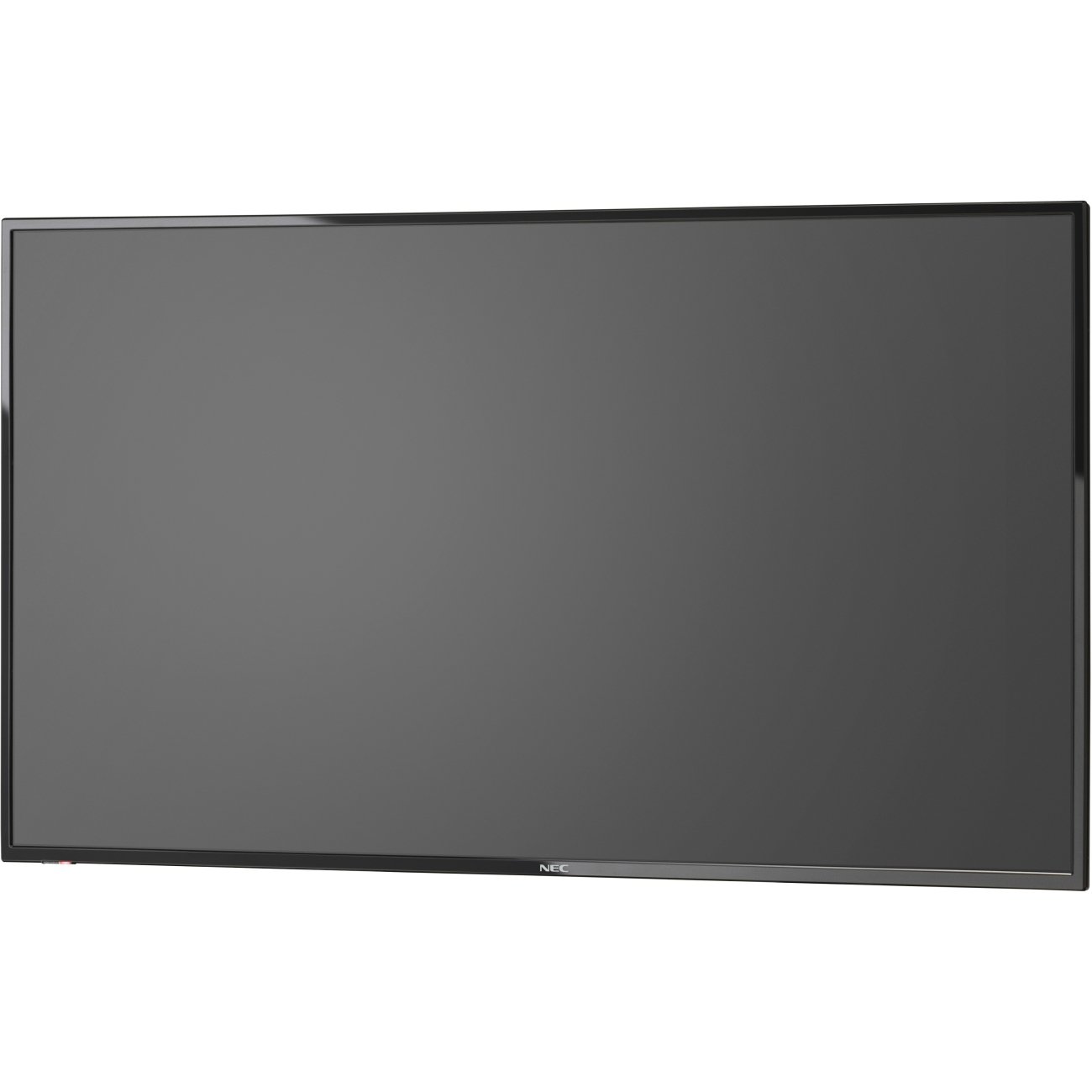
Image 1: Front view of the NEC E436 43-inch LED Backlit Display with its stand, showcasing a vibrant beach landscape on the screen.
Setup
1. Unpacking the Display
Carefully remove the display and all components from the packaging. Ensure all items listed below are present:
- NEC E436 43" LED Backlit Display
- Power Cord
- Remote Control (if included)
- User Manual (this document)
- Stand components (if applicable)
2. Physical Installation
The display can be installed using its included stand or mounted on a VESA-compatible wall mount or stand.
Stand Assembly (if applicable)
- Place the display face down on a soft, clean surface to prevent screen damage.
- Attach the stand base to the display using the provided screws. Ensure it is securely fastened.
- Carefully lift the display and place it on a stable, level surface.
VESA Wall Mounting
The NEC E436 supports VESA 200 x 200mm mounting. Use M6 x 16mm screws for attachment. Consult your wall mount's instructions for proper installation. Ensure the mounting surface can support the display's weight (approximately 20 pounds).
3. Connecting Cables
Connect the necessary cables to the display's input ports.
- Power Cable: Connect the power cord to the display's power input and then to a grounded electrical outlet.
- HDMI Cable: For video and audio input from a source device (e.g., computer, media player), connect an HDMI cable to the display's HDMI port and the source device's HDMI output.
- USB Device: To use the integrated multimedia player, insert a USB flash drive containing your media files into the display's USB port.
- Antenna/Cable: To utilize the integrated ATSC/NTSC tuner, connect an antenna or cable TV feed to the RF input port.
4. Initial Power On
After connecting all cables, press the power button on the display or remote control to turn on the unit. Follow any on-screen prompts for initial setup, such as language selection or channel scanning for the integrated tuner.
Operating Instructions
1. Basic Controls
The display can be controlled using the buttons on the unit itself or via the remote control.
- Power: Turns the display on or off.
- Input/Source: Selects the desired input source (HDMI, TV, USB).
- Volume Up/Down: Adjusts the audio output level from the built-in 10W speakers.
- Menu: Accesses the on-screen display (OSD) menu for advanced settings.
- Navigation Buttons: Used to navigate through menu options.
- OK/Enter: Confirms selections in the menu.
2. Using the Integrated Tuner
To watch broadcast television, ensure an antenna or cable feed is connected to the RF input.
- Press the Input/Source button and select "TV".
- Access the menu and navigate to the "Channel" or "Setup" section.
- Select "Auto Scan" or "Channel Search" to find available channels.
- Once scanning is complete, use the Channel Up/Down buttons to browse channels.
3. Using the USB Multimedia Player
The integrated USB player allows playback of video, audio, and JPEG image files directly from a USB storage device.
- Insert a USB flash drive containing your media files into the display's USB port.
- Press the Input/Source button and select "USB".
- The display will typically open a file browser. Navigate to your desired media file (video, audio, or image).
- Select the file to begin playback.
- Use the remote control for playback functions such as play, pause, stop, next, and previous.
4. Adjusting Display Settings
Access the OSD menu to customize picture, sound, and other display settings.
- Picture Settings: Adjust brightness, contrast, color, sharpness, and picture mode (e.g., Standard, Dynamic, Movie).
- Sound Settings: Adjust bass, treble, balance, and sound mode.
- Time Settings: Set the current time, sleep timer, or auto power-off.
- System Settings: General display options, including language, factory reset, and software updates.
Maintenance
1. Cleaning the Display
To maintain optimal picture quality, clean the display regularly.
- Screen: Gently wipe the screen with a soft, lint-free cloth. For stubborn marks, lightly dampen the cloth with water or a specialized screen cleaner. Do not spray liquid directly onto the screen.
- Cabinet: Wipe the display's frame and back with a soft, dry cloth.
- Caution: Always unplug the display from the power outlet before cleaning. Avoid using abrasive cleaners, waxes, or solvents.
2. General Care
- Avoid placing the display in direct sunlight or near heat sources.
- Ensure adequate ventilation around the display to prevent overheating.
- Protect the display from moisture and extreme temperatures.
- Do not block ventilation openings.
Troubleshooting
Before contacting support, try the following solutions for common issues:
| Problem | Possible Solution |
|---|---|
| No power |
|
| No signal/No picture |
|
| Picture is distorted or unclear |
|
| No sound |
|
Specifications
| Feature | Detail |
|---|---|
| Brand | NEC |
| Model Number | E436 |
| Screen Size | 43 Inches |
| Display Type | LED Backlit |
| Resolution | Full HD (1920 x 1080) |
| Aspect Ratio | 16:9 |
| Refresh Rate | 60 Hz |
| Response Time | 8 Milliseconds |
| Contrast Ratio | 2000:1 |
| Connectivity | 1x HDMI, 1x USB (USB 3.0) |
| Integrated Tuner | ATSC/NTSC |
| Audio | Built-in 10W Speakers |
| Mounting Type | VESA 200 x 200mm (M6 x 16mm) |
| Item Weight | 20 Pounds |
Warranty and Support
Warranty Information
The NEC E436 display comes with a 3-year warranty. This warranty covers defects in materials and workmanship under normal use. Please retain your proof of purchase for warranty claims. For specific terms and conditions, refer to the warranty card included with your product or visit the official NEC website.
Customer Support
For technical assistance, troubleshooting beyond this manual, or warranty service, please contact NEC customer support. Contact details can typically be found on the official NEC website or in the documentation provided with your purchase.
When contacting support, please have your model number (E436) and serial number ready.


