
1. Introduction
Thank you for choosing the OPPO UDP-205 Ultra HD Audiophile Blu-ray Disc Player. This player is engineered to deliver reference-level audio and video performance, supporting a wide range of disc formats including 4K UHD Blu-ray, Blu-ray, 3D Blu-ray, DVD, DVD-Audio, SACD, and CD. It features dual ESS ES9038PRO DACs for superior audio quality and advanced video processing for stunning HDR and Dolby Vision visuals. This manual provides essential information for the proper setup, operation, and maintenance of your player.
2. Safety Information
- Power Supply: Ensure the player is connected to a power source with the correct voltage as indicated on the rear panel.
- Ventilation: Do not block ventilation openings. Allow adequate space around the unit for proper airflow to prevent overheating.
- Moisture: Keep the player away from water or excessive moisture. Do not expose it to rain or splashes.
- Cleaning: Disconnect the power cord before cleaning. Use a soft, dry cloth. Do not use liquid or aerosol cleaners.
- Servicing: Do not attempt to service this product yourself. Refer all servicing to qualified service personnel.
- Laser Safety: This product utilizes a laser. To prevent direct exposure to the laser beam, do not open the enclosure or defeat any safety mechanisms.
3. Package Contents
Verify that your package contains the following items:
- OPPO UDP-205 Ultra HD Audiophile Blu-ray Disc Player
- Remote Control (with 2 AA batteries)
- Power Cord
- HDMI Cable
- USB Wi-Fi Adapter (if included)
- User Manual (this document)
4. Product Overview
4.1 Front Panel
The front panel features the disc tray, display, power button, and basic playback controls.

Image Description: A front-angled view of the OPPO UDP-205 Blu-ray player. The player is black with a brushed metal finish. The OPPO logo is visible on the top left. The disc tray is on the right, below a small display screen. A power button with an indicator light is on the bottom left, and a USB port is on the bottom right.
4.2 Rear Panel Connections
The rear panel provides various input and output ports for connecting to your display, audio system, and network.

Image Description: A detailed view of the rear panel of the OPPO UDP-205. It shows a comprehensive array of audio and video outputs, including HDMI (Main and Audio Only), LAN, Optical, Coaxial, USB 3.0, RS-232C, Trigger In/Out, and 7.1/5.1/2.0 channel analog audio outputs (RCA and XLR balanced stereo). An AC voltage switch and power input are on the far right.
4.3 Internal Components
The internal design highlights the audiophile-grade components, including the toroidal power transformer and dual DACs.

Image Description: An overhead view of the internal components of the OPPO UDP-205. Key features visible include a large toroidal power transformer on the left, the disc loader mechanism in the center, and multiple circuit boards populated with high-quality audio and video processing components, including the ESS Sabre Pro DACs.
5. Setup
5.1 Connecting to a Display
- Connect one end of an HDMI cable to the HDMI OUT (Main) port on the player's rear panel.
- Connect the other end of the HDMI cable to an HDMI input on your TV or projector.
- For optimal audio, you may use the HDMI OUT (Audio Only) port to connect to an AV receiver or soundbar.
5.2 Connecting to an Audio System
- Analog Audio: For high-fidelity audio, connect the 7.1/5.1/2.0 channel analog outputs (RCA) or the XLR balanced stereo outputs to your amplifier or receiver's corresponding inputs.
- Digital Audio: Use the Optical or Coaxial digital audio outputs to connect to an external DAC or AV receiver.
- USB DAC: The player features a USB DAC input for connecting a computer to utilize the UDP-205's high-quality DACs.
5.3 Network Connection
- Wired: Connect an Ethernet cable from your router to the LAN (Gigabit) port on the player.
- Wireless: If using a USB Wi-Fi adapter (sold separately or included), plug it into a USB port and configure Wi-Fi settings in the player's setup menu.
5.4 Power Connection
After all other connections are made, connect the power cord to the player's AC INLET and then to a wall outlet. Ensure the AC VOLTAGE SWITCH on the rear panel is set correctly for your region (110-120V or 220-240V).
6. Operating Instructions
6.1 Basic Disc Playback
- Press the Power button to turn on the player.
- Press the Open/Close button on the front panel or remote to open the disc tray.
- Place a disc gently into the tray with the label side facing up.
- Press the Open/Close button again to close the tray. The player will automatically begin reading the disc.
- Use the Play, Pause, Stop, Fast Forward, and Rewind buttons on the remote control for playback control.
6.2 Menu Navigation
Use the Arrow buttons and Enter button on the remote control to navigate through the player's on-screen menus for settings, media browsing, and disc playback options. The Home button returns you to the main menu.
6.3 Region Free Functionality
The UDP-205 is designed to play Blu-ray discs from any region (A, B, C) and DVDs from any region (0-9). No manual adjustment is typically required for region-free playback. The player automatically adapts to the disc's region coding.

Image Description: Graphic showing three hexagonal shapes with globes inside, labeled 'A', 'B', and 'C', representing Blu-ray regions.
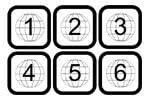
Image Description: Graphic showing six square icons with globes inside, labeled '1' through '6', representing DVD regions.

Image Description: Graphic showing two rectangular blocks, one labeled 'PAL' and the other 'NTSC', indicating video format compatibility.
6.4 Supported Disc Formats
The UDP-205 supports a comprehensive range of disc formats:
- 4K UHD Blu-ray
- Blu-ray (2D & 3D)
- DVD-Video
- DVD-Audio
- SACD (Super Audio CD)
- CD (Compact Disc)
7. Maintenance
7.1 Cleaning the Unit
To maintain the player's appearance, wipe the exterior surfaces with a soft, dry, lint-free cloth. Do not use abrasive cleaners, waxes, or solvents. For the disc tray, use a soft brush to remove dust if necessary. Never attempt to clean the internal lens.
7.2 Firmware Updates
OPPO periodically releases firmware updates to improve performance, add features, or fix bugs. It is recommended to keep your player's firmware up to date. Firmware updates can typically be performed via network connection or USB. Refer to the official OPPO website for the latest firmware and update instructions.
8. Troubleshooting
If you encounter issues with your UDP-205, please refer to the following common problems and solutions:
| Problem | Possible Solution |
|---|---|
| No Power | Check if the power cord is securely connected. Ensure the AC VOLTAGE SWITCH on the rear panel is set correctly. Try a different power outlet. |
| No Picture | Verify HDMI cable connections. Ensure the correct input is selected on your TV/display. Check video output settings in the player's menu. |
| No Sound | Check audio cable connections (HDMI, analog, digital). Ensure the correct input is selected on your audio receiver/amplifier. Adjust volume levels. Check audio output settings in the player's menu. |
| Disc Not Playing / Disc Error | Ensure the disc is clean and free of scratches. Verify the disc is inserted correctly. Try a different disc. Ensure the disc format is supported by the player. |
| Remote Control Not Working | Replace the batteries (2 AA). Ensure there are no obstructions between the remote and the player. Point the remote directly at the player's front panel sensor. |
9. Specifications
- Model: UDP-205
- Dimensions (W x D x H): 16.8 x 12.2 x 4.8 inches (42.7 x 31.0 x 12.2 cm)
- Weight: 22 pounds (10 kg)
- Video Resolution: Up to 3840x2160 (4K UHD)
- Connectivity: HDMI (Main, Audio Only), LAN (Gigabit Ethernet), USB 3.0, Optical, Coaxial, XLR Balanced Audio, RCA 7.1/5.1/2.0 Channel Audio, RS-232C, Trigger In/Out
- Audio Output Mode: Surround
- DACs: Dual ESS ES9038PRO Sabre Pro DACs
- Power Supply: Toroidal Transformer
- Supported Media Types: 4K UHD Blu-ray, Blu-ray, 3D Blu-ray, DVD-Video, DVD-Audio, SACD, CD
10. Warranty and Support
For warranty information and technical support, please refer to the documentation included with your product or visit the official OPPO website. Keep your proof of purchase for warranty claims. OPPO provides customer support to assist with any questions or issues you may encounter with your UDP-205 player.


