Introduction
This manual provides essential information for the safe and effective operation of your DJI Phantom 4 Advanced Drone. Please read this manual thoroughly before using the product to ensure proper setup, operation, and maintenance. The Phantom 4 Advanced is a sophisticated aerial platform designed for advanced imaging and flight performance, featuring obstacle avoidance capabilities.
Setup
1. Unboxing and Initial Inspection
Carefully remove all components from the packaging. Verify that all items listed in the product contents are present and undamaged. The drone and its accessories are typically secured within a custom-fitted carrying case or backpack for protection during transport.

The DJI Phantom 4 Advanced Drone and its components are securely stored in a dedicated carrying case, designed for protection and organization.
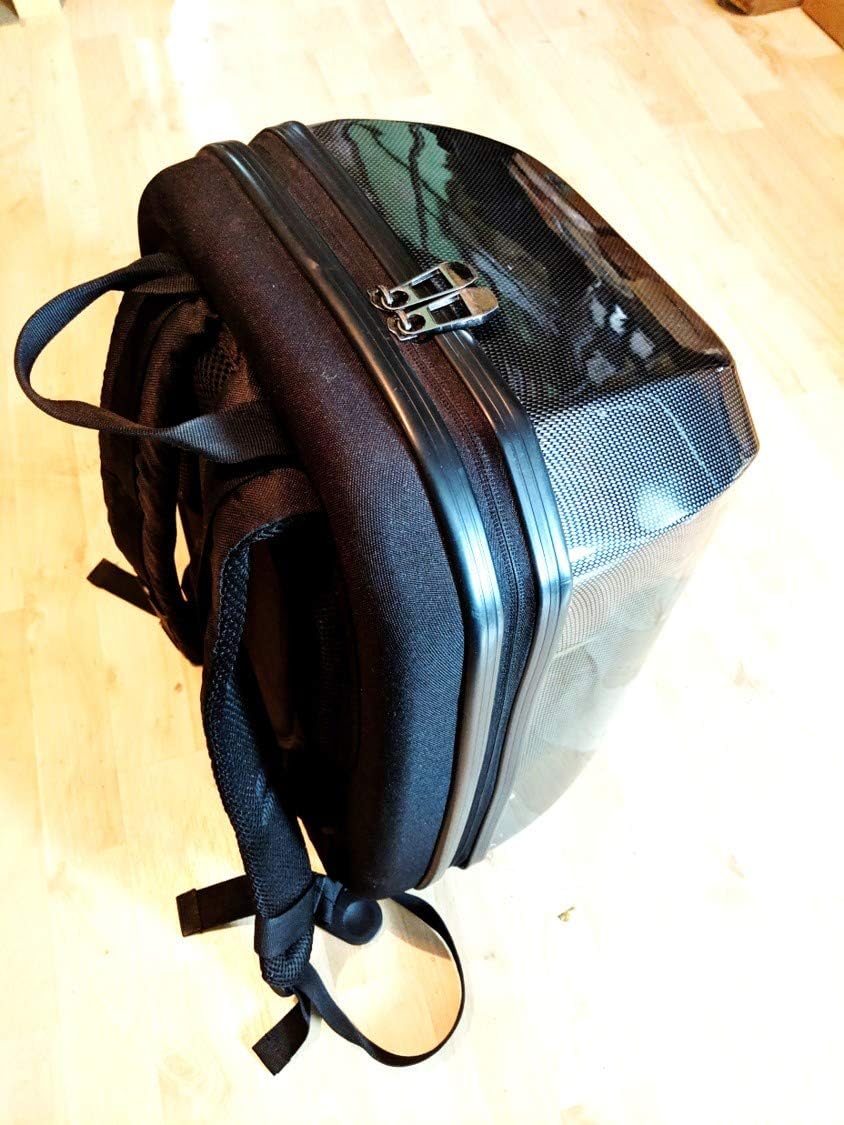
The drone fits snugly into a backpack-style case, providing portability and protection for the aircraft and its accessories.
2. Battery Charging
Before first use, fully charge the Intelligent Flight Battery and the remote controller. Connect the charger to a power outlet and then to the battery. The battery indicator lights will show the charging status. A full charge is indicated when all lights are solid green.

The Intelligent Flight Battery for the Phantom 4 Advanced Drone, ready for charging or installation.
3. Propeller Installation
Attach the propellers to the motors. Match the silver propeller caps to the motors with silver dots, and the black propeller caps to the motors with black dots. Press down on the propeller and rotate in the direction indicated by the lock icon until it is securely fastened.

The Phantom 4 Advanced Drone with its propellers correctly installed, ready for flight.
4. Remote Controller Setup
Ensure the remote controller is fully charged. Extend the mobile device holder and securely mount your smartphone or tablet. Connect your mobile device to the remote controller using a USB cable. Power on the remote controller by pressing the power button once, then pressing and holding it again.
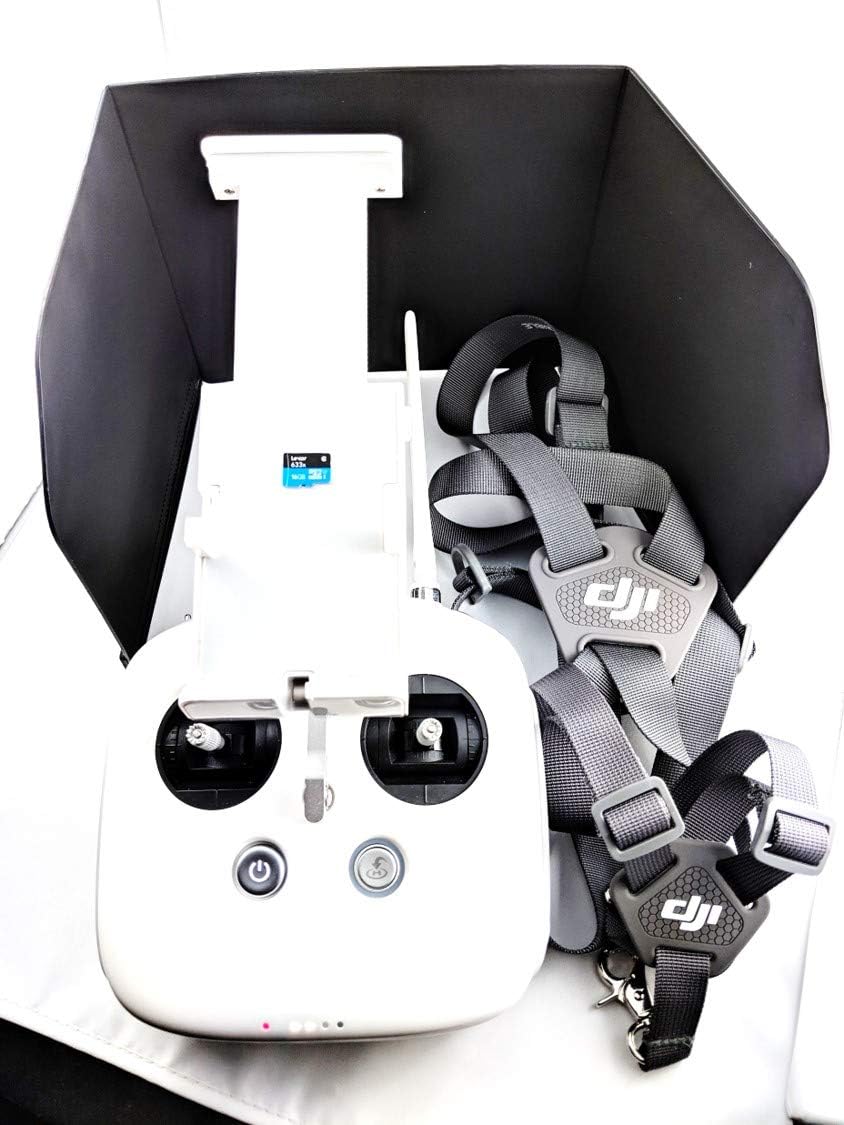
The remote controller for the Phantom 4 Advanced, featuring a mobile device holder, sun hood, and neck strap for comfortable operation.

A side view of the remote controller, highlighting its connectivity ports including HDMI and USB, for connecting to external displays or devices.
Operating the Drone
1. Pre-Flight Checklist
Before each flight, perform the following checks:
- Ensure batteries for both drone and remote controller are fully charged.
- Verify propellers are securely attached and undamaged.
- Check for any obstructions around the motors or camera gimbal.
- Ensure the camera gimbal lock is removed before powering on the drone.
- Confirm GPS signal strength is adequate for outdoor flight.
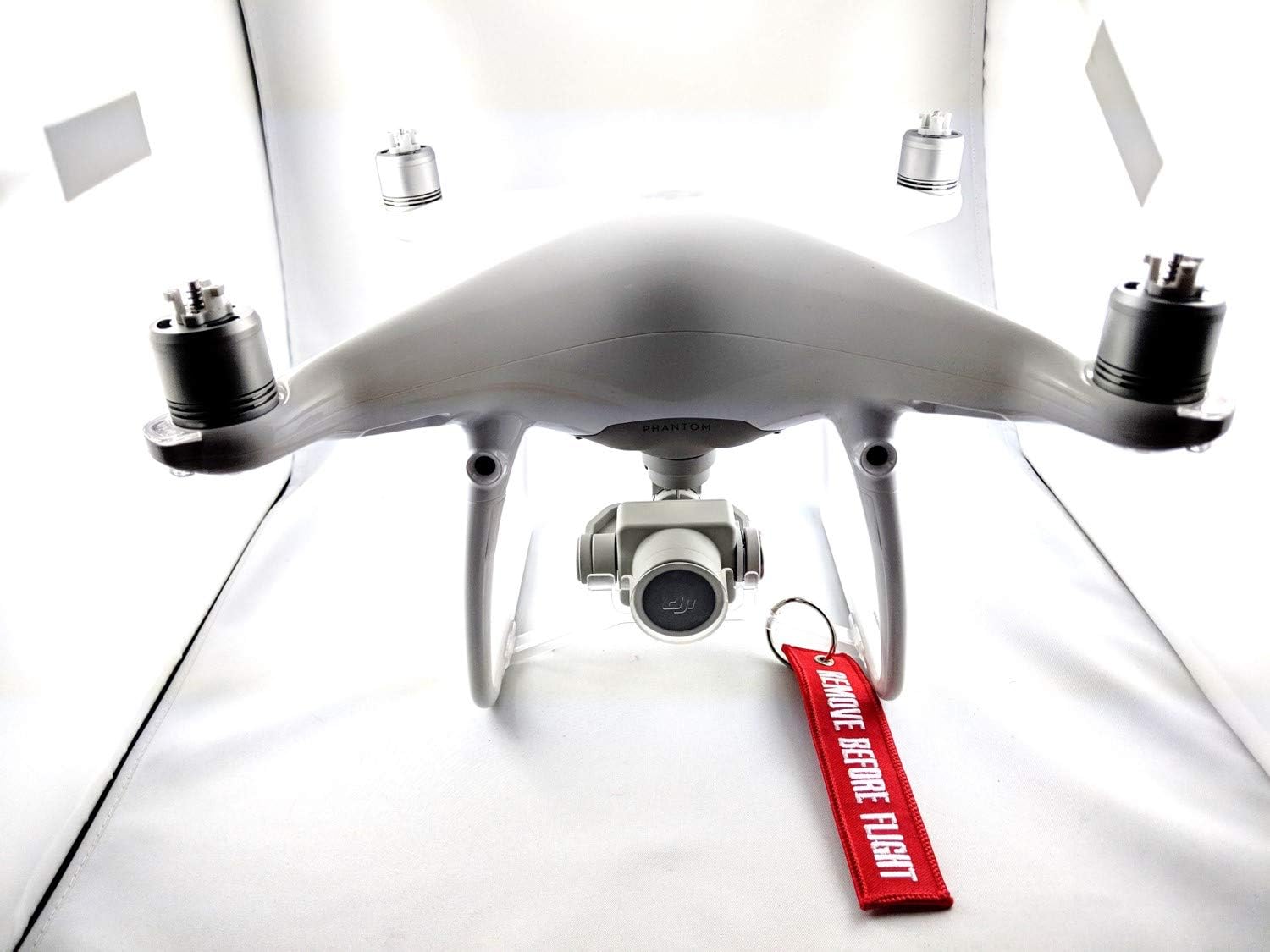
The Phantom 4 Advanced Drone's camera gimbal, often secured with a 'REMOVE BEFORE FLIGHT' tag for protection during transport.
2. Takeoff and Landing
To take off, place the drone on a flat, open surface. Power on the drone and remote controller. In the DJI GO 4 app, tap the auto-takeoff icon and confirm. The drone will ascend to a safe height. For landing, tap the auto-landing icon, or manually descend the drone slowly to a clear area.
3. Flight Modes and Obstacle Avoidance
The Phantom 4 Advanced features multiple flight modes. Utilize the obstacle avoidance system, which uses sensors to detect and react to obstacles in front of the drone, enhancing flight safety. Always be aware of your surroundings and maintain visual line of sight with the drone.
4. Camera Operation
The integrated camera captures high-quality aerial footage. It supports 4K video recording and 20 MP still photos. Use the dedicated buttons on the remote controller or the DJI GO 4 app interface to control camera functions, including photo capture, video recording, and gimbal tilt.

The front view of the Phantom 4 Advanced Drone, highlighting its integrated camera and robust landing gear.
Maintenance
1. Cleaning
Regularly clean the drone, especially after flights in dusty or sandy environments. Use a soft, dry cloth to wipe down the body. For the camera lens and vision sensors, use a lens cleaning cloth and solution. Avoid using harsh chemicals.
2. Storage
When not in use, store the drone and its components in a cool, dry place, away from direct sunlight. It is recommended to use the original carrying case or a dedicated drone backpack for storage and transport to prevent damage.

A specialized backpack provides a secure and convenient way to transport the DJI Phantom 4 Advanced Drone and its accessories.
3. Battery Care
For optimal battery life, store Intelligent Flight Batteries with a charge level between 50% and 60%. Avoid fully discharging or overcharging the batteries. If storing for extended periods, cycle the batteries every three months.
Troubleshooting
This section addresses common issues you might encounter. For more detailed troubleshooting, refer to the official DJI support resources.
- Drone not powering on: Ensure the Intelligent Flight Battery is fully charged and correctly inserted. Press the power button once, then press and hold for two seconds.
- No GPS signal: Fly in an open area away from tall buildings or strong electromagnetic interference. Allow the drone sufficient time to acquire GPS satellites.
- Gimbal abnormal: Check for any obstructions around the gimbal. Ensure the gimbal lock is removed. Recalibrate the gimbal through the DJI GO 4 app if necessary.
- App connection issues: Ensure your mobile device is securely connected to the remote controller via USB. Restart both the app and the remote controller.
Specifications
| Feature | Detail |
|---|---|
| Model Name | Phantom 4 Advanced |
| Model Number | CP.PT.000688 |
| Dimensions | 29 x 29 x 17.5 cm |
| Weight | 1.39 kg |
| Photo Resolution | 20 MP |
| Video Recording Resolution | 4K |
| Video Recording Format | MP4 |
| Connectivity | HDMI, USB |
| Special Features | Obstacle Avoidance |
| Battery Type | Lithium-polymer (1 required, included) |
Warranty and Support
Warranty Information
Specific warranty terms and conditions for the DJI Phantom 4 Advanced Drone are provided at the time of purchase or can be found on the official DJI website. Please retain your proof of purchase for warranty claims.
Customer Support
For technical assistance, repairs, or further inquiries, please contact DJI customer support. You can find contact information and additional resources on the official DJI website or through the DJI Store on Amazon.


