Introduction
This manual provides essential information for the MECHREVO X6Ti-M2 FHD Gaming Laptop. It covers setup, operation, maintenance, and troubleshooting to ensure optimal performance and longevity of your device. Please read this manual thoroughly before using your laptop.
Package Contents
Upon unpacking, verify that all items listed below are present and in good condition. If any item is missing or damaged, contact your retailer.
- MECHREVO X6Ti-M2 Gaming Laptop
- AC Power Adapter and Power Cord
- User Manual (this document)
- Warranty Card (if applicable)
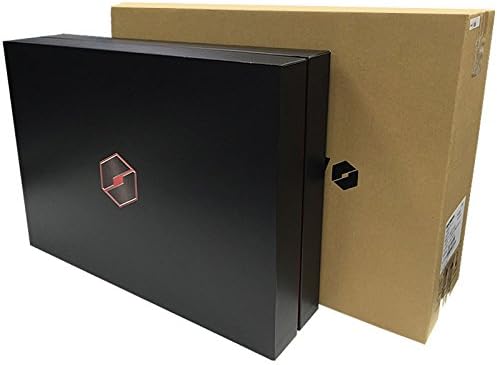
Image: The MECHREVO X6Ti-M2 laptop packaging, showing the black product box next to a brown shipping box.
Product Overview
The MECHREVO X6Ti-M2 is a high-performance gaming laptop designed for demanding applications and gaming. Familiarize yourself with its key components and features.
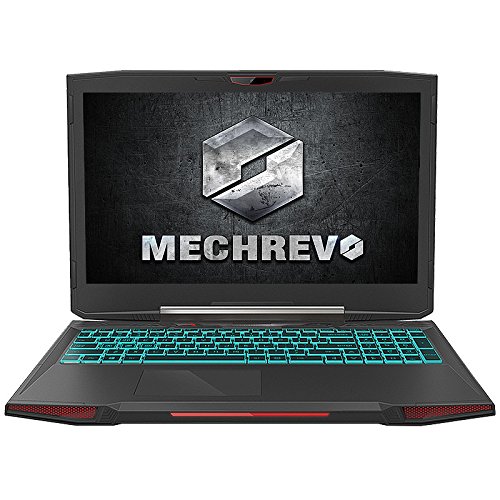
Image: A general view of the MECHREVO X6Ti-M2 gaming laptop, showcasing its design and illuminated screen.
Front and Keyboard View

Image: Front view of the MECHREVO X6Ti-M2 laptop with its screen open, displaying a red logo, and the keyboard illuminated with green backlighting.
- Display: 15.6-inch Full HD (1920 x 1080) widescreen display.
- Keyboard: Full-size keyboard with 32-color customizable backlighting.
- Touchpad: Precision touchpad for navigation.
Rear View and Ports

Image: Rear view of the MECHREVO X6Ti-M2 laptop, showing the lid with a red illuminated logo and cooling vents, along with various ports at the back.
- USB Ports: Includes USB 3.1 Type-C port and other standard USB ports for peripheral connectivity.
- Video Output: Ports for connecting external displays (e.g., HDMI).
- Ethernet Port: For wired network connection.
- Power Input: Connector for the AC power adapter.
Setup
1. Unpacking and Placement
Carefully remove the laptop and all accessories from the packaging. Place the laptop on a stable, flat surface with adequate ventilation around it to prevent overheating.
2. Connecting Power
- Connect the AC power cord to the power adapter.
- Plug the power adapter into the laptop's power input port.
- Plug the other end of the power cord into a grounded electrical outlet.
- Allow the battery to charge for at least 30 minutes before initial use, or until the battery indicator shows a sufficient charge.
3. Initial Boot and Windows Setup
Press the power button to turn on the laptop. The system will guide you through the initial Windows 10 setup process. Follow the on-screen instructions to configure language, region, network, and user accounts.
Operating Instructions
Power On/Off
- To Power On: Press the power button located on the laptop.
- To Shut Down: Click the Start button, then Power, and select "Shut down."
- To Restart: Click the Start button, then Power, and select "Restart."
- To Sleep: Click the Start button, then Power, and select "Sleep," or close the laptop lid.
Keyboard Functions
The laptop features a backlit keyboard with customizable colors. Use the function keys (Fn) in combination with other keys for quick access to system settings.
- Fn + Fx Keys: Control brightness, volume, Wi-Fi, touchpad, and other features. Refer to the icons on the F-keys for specific functions.
- Backlight Control: Specific Fn key combinations allow you to change the keyboard backlight color and brightness.
Connecting Peripherals
Connect external devices such as mice, keyboards, external hard drives, or monitors to the available USB, HDMI, or other ports. The system will typically detect and install necessary drivers automatically.
Maintenance
Cleaning the Laptop
- Screen: Use a soft, lint-free cloth lightly dampened with water or a screen cleaner. Do not spray liquid directly onto the screen.
- Keyboard and Chassis: Use a soft cloth. For stubborn dirt, a slightly damp cloth can be used. Avoid harsh chemicals. Use compressed air to clear dust from between keys.
- Vents: Regularly check and clean the cooling vents to ensure proper airflow and prevent overheating.
Battery Care
- Avoid fully discharging the battery frequently.
- Store the laptop in a cool, dry place if not used for extended periods.
- Do not expose the battery to extreme temperatures.
Software Updates
Regularly update your operating system (Windows 10) and device drivers (especially graphics drivers) to ensure optimal performance, security, and compatibility. You can check for updates through Windows Settings and the NVIDIA GeForce Experience application.
Troubleshooting
This section addresses common issues you might encounter with your MECHREVO X6Ti-M2 laptop.
No Power / Laptop Not Turning On
- Ensure the AC adapter is securely connected to both the laptop and a working power outlet.
- Verify the power outlet is functional by plugging in another device.
- If the battery is completely drained, allow it to charge for some time before attempting to power on.
Display Issues
- Blank Screen: Try connecting an external monitor to see if there's output. If so, the laptop's display might be faulty.
- Dim Screen: Adjust the display brightness using the Fn keys (e.g., Fn + F3/F4).
- Resolution Problems: Check display settings in Windows to ensure the correct resolution (1920x1080) is selected.
Performance Slowdown
- Close unnecessary applications running in the background.
- Check Task Manager for processes consuming high CPU, RAM, or disk resources.
- Ensure the laptop has adequate ventilation and is not overheating. Clean vents if necessary.
- Run a disk cleanup and defragmentation (for HDD) or TRIM (for SSD) if applicable.
- Update drivers, especially graphics drivers.
Keyboard Backlight Not Working
- Ensure the backlight feature is enabled via the dedicated Fn key combination.
- Check for any specific software provided by MECHREVO for keyboard customization.
Specifications
The following table outlines the key technical specifications of the MECHREVO X6Ti-M2 Gaming Laptop.
| Component | Specification |
|---|---|
| Model Name | X6Ti-M2 |
| Processor | Intel Core i7-6700HQ (up to 3.5 GHz) |
| Display | 15.6-inch Full HD (1920 x 1080) |
| Graphics Card | NVIDIA GeForce GTX965M with 4 GB GDDR5 VRAM |
| RAM | 8 GB DDR4 SDRAM |
| Storage | 128 GB SSD + 1 TB HDD |
| Operating System | Windows 10 |
| Connectivity | Bluetooth, Wi-Fi |
| Special Features | 32-color Backlit Keyboard, USB 3.1 Type-C Port |
Warranty and Support
For warranty information, please refer to the warranty card included with your product or visit the official MECHREVO website. Keep your proof of purchase for warranty claims.
For technical support, driver downloads, or further assistance, please visit the MECHREVO support portal or contact their customer service. Contact details can typically be found on the manufacturer's website.
Note: Product specifications and appearance are subject to change without notice.


