
1. Introduction
This manual provides essential instructions for the safe and efficient operation of your Intermec CN75E Mobile Computer. Please read this manual thoroughly before using the device to ensure proper functionality and to prevent damage. Keep this manual for future reference.
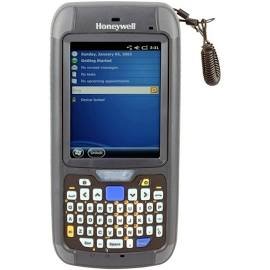
A front view of the Intermec CN75E mobile computer, featuring a full QWERTY keyboard, a color display showing a user interface, and a wrist strap attached to the top right. This image illustrates the device's physical appearance.
2. Setup
2.1 Package Contents
Verify that all items are present in the package:
- Intermec CN75E Mobile Computer
- Rechargeable Battery (may be pre-installed)
- AC Power Adapter
- USB Communication Cable
- Quick Start Guide and Safety Information
2.2 Battery Installation
If the battery is not pre-installed, locate the battery compartment cover on the rear of the device. Remove the cover, insert the battery with the contacts aligned, and then replace the cover securely. Refer to the Quick Start Guide for detailed diagrams.
2.3 Charging the Device
Connect the AC power adapter to the charging port on the device. Plug the adapter into a standard electrical outlet. The charging indicator light will illuminate. Allow the device to charge fully before initial use. A full charge typically takes several hours.
2.4 Powering On/Off
To power on the device, press and hold the Power button until the display illuminates. To power off, press and hold the Power button, then follow the on-screen prompts to shut down the device.
3. Operating the Device
3.1 Keyboard and Display
The CN75E features a full QWERTY keyboard for efficient data entry. The color display operates on Windows Embedded Handheld 6.5, providing a familiar interface for navigation and application use. Use the stylus or your finger for touch screen interaction.
3.2 Data Capture
The device is equipped with an EA30 stand-range imager for barcode scanning and a camera for image capture. To activate the imager, press the designated scan button. For camera operation, access the camera application from the device's main menu.
3.3 Connectivity
The CN75E supports various connectivity options:
- Wi-Fi (802.11abgn): Connect to wireless networks for data communication. Access Wi-Fi settings through the device's control panel.
- Bluetooth (BT): Pair with compatible Bluetooth devices such as headsets or printers. Bluetooth settings are available in the device's control panel.
- GPS: Utilize the integrated GPS for location-based services and navigation. Ensure GPS is enabled in the system settings for applications requiring location data.
- Flex Radio: The device includes a Flex Radio for specific communication needs. Refer to your network administrator or specific application documentation for configuration and usage.
4. Maintenance
4.1 Cleaning
To clean the device, use a soft, lint-free cloth lightly dampened with water or a mild, non-abrasive cleaning solution. Do not use harsh chemicals, solvents, or abrasive materials. Avoid spraying liquids directly onto the device. Ensure all ports are closed before cleaning.
4.2 Storage
Store the device in a cool, dry environment away from direct sunlight and extreme temperatures. If storing for an extended period, ensure the battery is partially charged (around 50%) to prolong its lifespan. Remove the battery if the device will not be used for several months.
5. Troubleshooting
5.1 Common Issues and Solutions
- Device not powering on: Ensure the battery is properly installed and charged. Connect the device to the AC adapter and attempt to power on.
- Battery not charging: Verify that the AC adapter is securely connected to both the device and a working power outlet. Check for any damage to the cable or adapter.
- Connectivity issues (Wi-Fi/Bluetooth): Confirm that Wi-Fi or Bluetooth is enabled in the device settings. Check network availability and credentials. Restart the device and the access point/paired device if necessary.
- Scanner not reading barcodes: Ensure the barcode is clean and undamaged. Check the scanner's settings to confirm it is enabled and configured for the barcode type being scanned. Ensure adequate lighting.
If problems persist, perform a soft reset (refer to the Quick Start Guide for instructions) or contact technical support.
6. Specifications
- Model: CN75EQ6KCF2W6100
- Keyboard: QWERTY
- Imager: EA30 Stand Range
- Camera: Yes
- Wireless Connectivity: 802.11abgn, Bluetooth (BT)
- Radio: Flex Radio
- Navigation: GPS
- Operating System: Windows Embedded Handheld 6.5
- Language: Worldwide English (Ww English)
- Regulatory Compliance: FCC
- Package Dimensions: 15 x 14 x 14 inches
- Package Weight: 1.1 Pounds
- Manufacturer: Intermec
- Date First Available: May 19, 2017
7. Warranty and Support
For detailed warranty information, terms, and conditions, please refer to the warranty card or documentation included with your Intermec CN75E Mobile Computer. For technical assistance, product support, or service inquiries, please visit the official Intermec (now Honeywell) website or contact your authorized reseller. Support resources typically include FAQs, driver downloads, and contact information for customer service.


