1. Introduction and Overview
The Canon MAXIFY MB5170 is an A4 Wi-Fi All-in-One Inkjet Duplex Printer designed for efficient home or office use. This device integrates print, scan, copy, and fax functionalities, offering comprehensive document management. Key features include Wi-Fi and Wi-Fi Direct connectivity, Apple AirPrint support, a Single Pass 2-sided Automatic Document Feeder (ADF), and ID card copying capabilities. It is equipped with a large 250-sheet paper cassette and delivers a maximum print speed of 26.5 pages per minute for color documents.
2. Setup Guide
2.1 Unpacking and Initial Placement
Carefully remove the printer from its packaging. Ensure all protective tapes and packing materials are removed from the exterior and interior of the device. Place the printer on a stable, level surface with adequate space for paper loading and output.
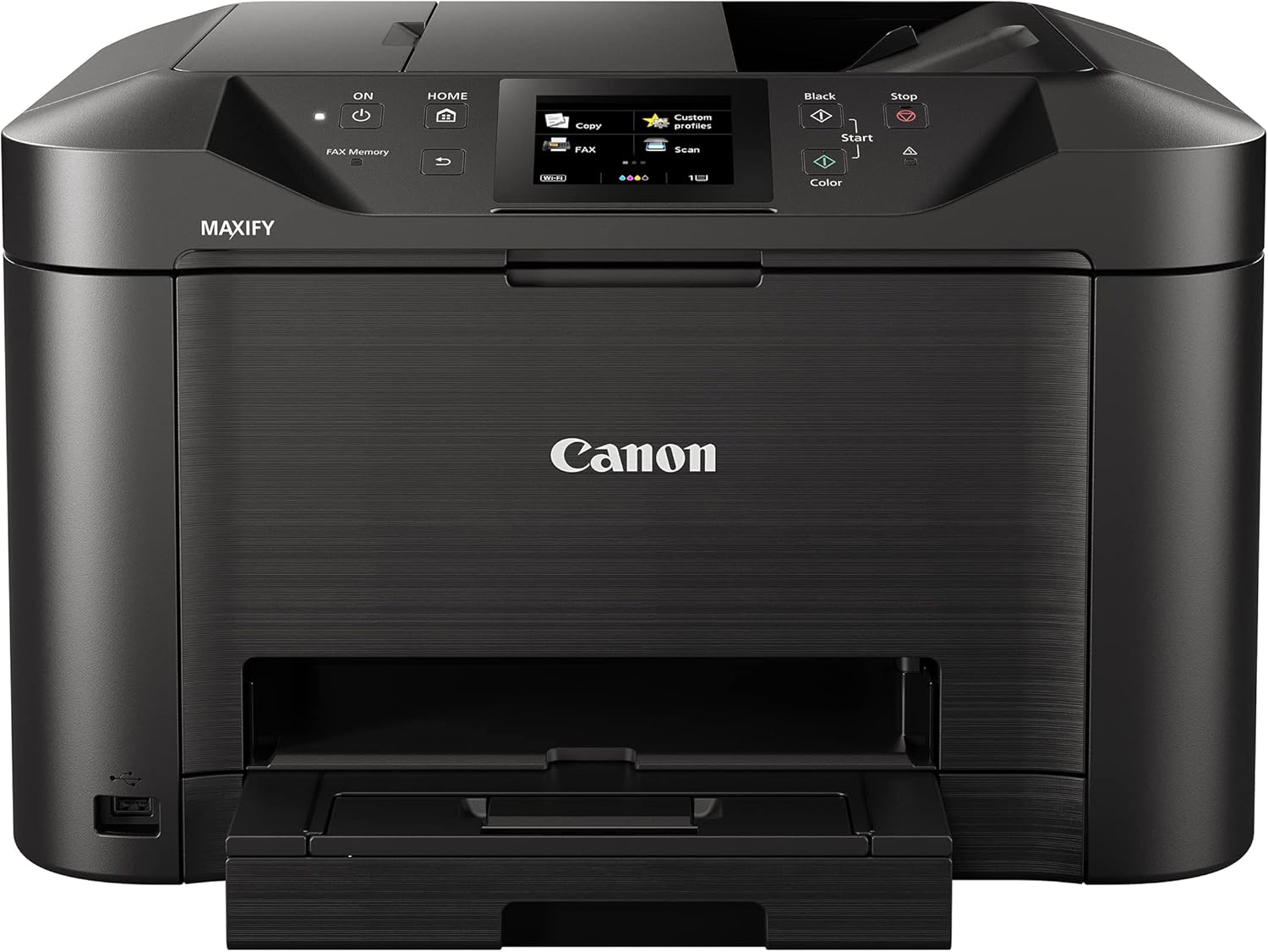
Figure 2.1: Front view of the Canon MAXIFY MB5170 printer.
2.2 Power Connection
Connect the power cord to the printer and then to a wall outlet. Do not connect to a surge protector or extension cord during initial setup to avoid potential power issues.
2.3 Ink Cartridge Installation
Open the printer's access cover. Install the provided ink cartridges into their corresponding slots, ensuring they click into place. Close the access cover.
2.4 Paper Loading
Open the paper cassette and load A4 plain paper. Adjust the paper guides to fit the paper size. The printer supports a maximum input sheet capacity of 250 sheets.

Figure 2.2: Printer with paper loaded in the cassette and a document ready for scanning in the ADF.
2.5 Software Installation and Network Setup
Insert the installation CD-ROM (if provided) into your computer or download the latest drivers and software from the Canon official website. Follow the on-screen instructions to install the necessary software. During installation, you will be prompted to set up the printer's network connection, including Wi-Fi setup. For Wi-Fi Direct, refer to the on-screen guide on the printer's control panel.
3. Operating Instructions
3.1 Printing Documents
To print, select the print option from your computer's application. Choose the Canon MAXIFY MB5170 as your printer. Adjust print settings such as paper size (A4), print quality, and duplex printing (if desired). The printer supports dual-sided printing automatically.
3.2 Scanning Documents
Place your document on the scanner glass or in the Automatic Document Feeder (ADF). The ADF supports single-pass 2-sided scanning. From the printer's control panel or your computer's scanning software, select the 'Scan' function. Choose scan settings such as destination, file type, and resolution, then initiate the scan.

Figure 3.1: Angled view of the printer, highlighting the control panel for operation.
3.3 Copying Documents
Place the original document on the scanner glass or in the ADF. On the printer's control panel, select 'Copy'. Adjust settings such as number of copies, color or black & white, and special copy functions like ID card copying. Press the 'Start' button (Black or Color) to begin copying. The max copy speed for black & white is 24 ppm.

Figure 3.2: Printer in operation, showing a document being copied and exiting the output tray.
3.4 Faxing Documents
Load the document into the ADF. On the control panel, select 'FAX'. Enter the recipient's fax number using the numeric keypad. Confirm settings and press the 'Start' button to send the fax.
3.5 Wireless Connectivity (Wi-Fi and Apple AirPrint)
The printer connects to your network via Wi-Fi. Once connected, you can print wirelessly from compatible devices. For Apple AirPrint, ensure your iOS device is on the same Wi-Fi network as the printer. Select the print option from your app, choose the MAXIFY MB5170, and print directly without additional drivers.
4. Maintenance
4.1 Ink Cartridge Replacement
When an ink cartridge is low or empty, a message will appear on the printer's display. Open the ink cartridge access cover, remove the old cartridge, and insert a new genuine Canon ink cartridge of the correct color (Black, Cyan, Magenta, Yellow). Close the cover.
4.2 Cleaning
- Print Head Cleaning: If print quality degrades (e.g., streaks, faded colors), perform a print head cleaning from the printer's maintenance menu or through the printer driver on your computer.
- Scanner Glass Cleaning: Regularly wipe the scanner glass and the underside of the ADF cover with a soft, lint-free cloth dampened with a mild glass cleaner.
4.3 Paper Jam Resolution
If a paper jam occurs, the printer display will show an error message. Carefully open the necessary covers (rear cover, front cover, paper output tray) and gently pull out any jammed paper in the direction of the paper path. Avoid tearing the paper, as small pieces can cause further issues. Close all covers securely after clearing the jam.
5. Troubleshooting
5.1 Common Issues and Solutions
- Printer Not Responding: Ensure the printer is powered on and connected to the computer or network. Check all cables. Restart both the printer and the computer.
- Poor Print Quality: Perform print head cleaning and nozzle check. Ensure genuine Canon ink cartridges are used and are not empty. Check paper type settings.
- Wi-Fi Connection Issues: Verify the printer is within range of your Wi-Fi router. Re-enter Wi-Fi password if necessary. Restart the router and printer.
- Paper Feed Problems: Ensure paper is loaded correctly and paper guides are adjusted. Check for any foreign objects or small paper scraps in the paper path.
For more detailed troubleshooting, refer to the Canon support website or the full electronic manual.
6. Specifications
| Feature | Specification |
|---|---|
| Model Name | MB5170 |
| Manufacturer | Canon |
| Printing Technology | Inkjet |
| Connectivity Technology | Wi-Fi |
| Printer Output | Colour |
| Special Features | Network-Ready |
| Maximum Media Size | A4 |
| Print Media | Paper (plain) |
| Max Input Sheet Capacity | 250 sheets |
| Dual-sided Printing | Yes |
| Maximum Print Speed (Colour) | 26.5 ppm |
| Max Monochrome Printing Speed | 24 ppm |
| Scanner Type | Sheetfed |
| Max Copy Speed (Black & White) | 24 ppm |
| Compatible Devices | Smartphones |
| Ink Colour | Black, Cyan, Magenta, Yellow |
| Item Weight | 11.4 Kilograms |
| Product Dimensions | 18.2D x 23.9W x 13H centimetres |
| Included Components | Printer & Cable |
7. Warranty and Support
This Canon MAXIFY MB5170 printer is covered by a manufacturer's warranty. Please refer to the warranty card included with your product or visit the official Canon website for detailed warranty terms and conditions specific to your region.
For technical support, driver downloads, and additional resources, please visit the Canon support website. You may also contact Canon customer service for assistance with setup, operation, or troubleshooting.
- Canon Official Website: www.canon.com
- Support Page: Refer to your regional Canon website for specific support contact information.