
1. Introduction
The MikroTik CSS326-24G-2S+RM is a powerful and versatile 24-port Gigabit Ethernet switch designed for advanced network management. This managed switch features two SFP+ ports for high-speed fiber connectivity, supporting both 1.25 Gb SFP and 10 Gb SFP+ modules. It offers comprehensive Layer 2 functionalities through its SwOS operating system, including VLAN configuration, port-to-port forwarding, MAC filtering, traffic mirroring, and bandwidth limitation. This manual provides essential information for the proper installation, operation, and maintenance of your CSS326-24G-2S+RM switch.
2. Safety Information
Please read these safety instructions carefully before operating the device.
- Always connect the device to a power source that matches the voltage specified on the device label.
- Do not expose the device to water, moisture, or high humidity.
- Ensure proper ventilation to prevent overheating. The device is designed for passive cooling, but adequate airflow is still important.
- Do not open the device casing. Servicing should only be performed by qualified personnel.
- Use only accessories and power adapters approved by MikroTik.
- This device is intended for indoor use only.
3. Package Contents
Verify that your package contains the following items:
- MikroTik CSS326-24G-2S+RM Network Switch
- Rack mount ears (for 1U rack installation)
- Power adapter (DC 10V-30V)

Image: Rack mount ears included for securing the switch in a standard 1U rack.
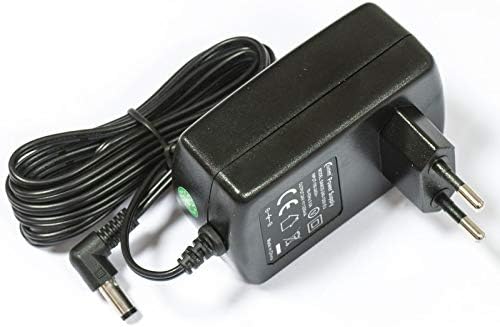
Image: The power adapter supplied with the switch, providing DC 10V-30V power.
4. Hardware Overview
The CSS326-24G-2S+RM features a robust metal casing designed for 1U rack mounting.

Image: Front panel of the switch, displaying 24 Gigabit Ethernet ports and two SFP+ cages.

Image: Rear panel of the switch, featuring the DC power input and ventilation openings.
4.1. Ports and Indicators
- 24 x Gigabit Ethernet Ports (RJ45): Supports 10/100/1000 Mbps connections. Each port has LED indicators for link/activity status.
- 2 x SFP+ Cages: Supports 1.25 Gb SFP and 10 Gb SFP+ modules for fiber optic connections.
- DC Power Input: Located on the rear panel, accepts 10V-30V DC power.
- Reset Button: For resetting the device to factory defaults or entering bootloader mode.
5. Setup
5.1. Physical Installation
- Rack Mounting: Attach the included rack mount ears to the sides of the switch using the provided screws. Secure the switch into a standard 1U rack slot.
- Desktop Placement: If not rack mounting, place the switch on a flat, stable surface, ensuring adequate space around the device for ventilation.
- Power Connection: Connect the power adapter to the DC-IN jack on the rear panel of the switch, then plug the adapter into a suitable power outlet.
- Network Connections: Connect your network devices (computers, servers, other switches) to the RJ45 Gigabit Ethernet ports using standard Ethernet cables. For high-speed uplinks or fiber connections, insert compatible SFP or SFP+ modules into the SFP+ cages and connect fiber optic cables.
5.2. Initial Configuration Access
The CSS326-24G-2S+RM uses MikroTik's SwOS for management, which is a web-based interface.
- Ensure your computer is connected to one of the switch's Ethernet ports.
- By default, the switch will attempt to obtain an IP address via DHCP. If no DHCP server is available, it will fall back to a static IP address (commonly 192.168.88.1 or 192.168.1.1, refer to the device's quick start guide for exact default).
- Open a web browser and enter the switch's IP address in the address bar.
- Log in using the default credentials (usually admin with no password). It is highly recommended to change the default password immediately after initial login for security.
6. Operating
The SwOS interface provides comprehensive control over the switch's functionalities.
6.1. Key Features and Configuration
- VLAN Management: Configure Virtual Local Area Networks (VLANs) to segment your network traffic and enhance security. The switch supports IEEE 802.1Q VLANs.
- Port-to-Port Forwarding: Control traffic flow between specific ports.
- MAC Filter: Implement MAC address-based filtering for enhanced network access control.
- Traffic Mirroring: Duplicate network traffic from one port to another for monitoring and analysis.
- Bandwidth Limitation: Apply rate limits to individual ports to manage network usage.
- SFP/SFP+ Module Support: The SFP+ cages are compatible with both 1.25 Gb SFP and 10 Gb SFP+ modules, allowing flexible high-speed connectivity options.
- PoE Support: The switch supports Power over Ethernet (PoE) functionality, allowing power delivery to compatible devices over Ethernet cables (check specific port capabilities in SwOS).
For detailed configuration steps and advanced features, refer to the official MikroTik SwOS documentation available on their website.
7. Maintenance
7.1. Firmware Updates
Regularly check the MikroTik website for the latest SwOS firmware updates. Firmware updates can provide new features, performance improvements, and critical security patches.
- Download the appropriate firmware file for your CSS326-24G-2S+RM model from the MikroTik website.
- Access the SwOS web interface.
- Navigate to the "System" or "Upgrade" section (exact location may vary by firmware version).
- Upload the downloaded firmware file and follow the on-screen instructions to complete the update. The device will reboot during this process.
7.2. Cleaning
Keep the device clean and free from dust. Use a soft, dry cloth for cleaning. Do not use liquid cleaners or aerosols. Ensure ventilation openings are not obstructed.
7.3. Environmental Considerations
The switch is designed to operate within a temperature range of -20°C to +45°C. While it uses passive cooling, ensure it is placed in an environment with adequate airflow to prevent excessive heat buildup, especially in enclosed racks.
8. Troubleshooting
If you encounter issues with your MikroTik CSS326-24G-2S+RM switch, refer to the following common troubleshooting steps:
- No Power:
- Verify the power adapter is securely connected to both the switch and a working power outlet.
- Check the power outlet with another device.
- No Network Connectivity:
- Ensure Ethernet cables are properly connected to both the switch and the network device.
- Check the link/activity LEDs on the switch ports. If they are off, try a different cable or port.
- Verify IP address settings on your connected device and the switch.
- If using SFP/SFP+ modules, ensure they are correctly seated and compatible, and that fiber cables are properly connected.
- Cannot Access Web Interface (SwOS):
- Confirm your computer's IP address is in the same subnet as the switch's default IP (e.g., 192.168.88.x if the switch is 192.168.88.1).
- Try resetting the switch to factory defaults using the reset button (Warning: This will erase all configurations.).
- Ensure no firewall on your computer is blocking access.
- Performance Issues:
- Check for excessive network traffic or loops.
- Ensure firmware is up to date.
- Monitor the switch's system temperature via SwOS to ensure it's within operating limits.
For more advanced troubleshooting or persistent issues, consult the MikroTik official documentation or contact MikroTik support.
9. Specifications
| Feature | Specification |
|---|---|
| Model | CSS326-24G-2S+RM |
| Brand | MikroTik |
| Switch Type | Managed |
| Ethernet Ports | 24 x Gigabit Ethernet (10/100/1000 Mbps) |
| SFP+ Ports | 2 x SFP+ (supports 1.25 Gb SFP and 10 Gb SFP+) |
| Networking Standards | IEEE 802.1Q |
| Power Input | DC-IN jack, 10V-30V |
| Power over Ethernet (PoE) | Supported |
| Rack Mounting | 1U Form Factor (Rack mount ears included) |
| Dimensions (L x W x H) | 17.32" x 5.67" x 1.73" (440mm x 144mm x 44mm) |
| Item Weight | 0.91 kg (2 pounds) |
| Case Material | Metal |
| Operating Temperature | -20°C to +45°C |
| Data Transfer Rate | 1000 Megabits Per Second (Gigabit) |
10. Warranty Information
MikroTik products are covered by a limited warranty. The specific terms and duration of the warranty may vary by region and product. Please refer to the official MikroTik website or your local distributor for detailed warranty information. Keep your proof of purchase for warranty claims.
11. Support
For technical support, additional documentation, or community forums, please visit the official MikroTik website:
https://mikrotik.com/
You can find comprehensive guides, FAQs, and support resources there.


