
1. Introduction
The Logitech MX Anywhere 2S is a versatile and portable wireless mouse designed for enhanced productivity across multiple devices. Featuring advanced tracking, multi-device connectivity, and fast charging, it is an ideal tool for users who work on various platforms and locations.
This manual provides detailed instructions on setting up, operating, and maintaining your MX Anywhere 2S mouse, along with troubleshooting tips and product specifications.

Image: The Logitech MX Anywhere 2S Wireless Mouse, showcasing its ergonomic design and graphite color.
2. Package Contents
- Logitech MX Anywhere 2S Wireless Mouse
- Pico Unifying Receiver
- Micro-USB Charging Cable (1.3m)
- Warranty Information
- User Documentation

Image: A visual representation of the Logitech MX Anywhere 2S mouse and its included accessories, such as the Unifying receiver and charging cable.
3. Setup
3.1. Charging the Mouse
Before first use, it is recommended to fully charge your MX Anywhere 2S mouse. Connect the included Micro-USB charging cable to the mouse's charging port and the other end to a USB port on your computer or a USB power adapter.
- A 3-minute charge provides approximately 8 hours of use.
- A full charge can last for over 70 days, depending on usage.
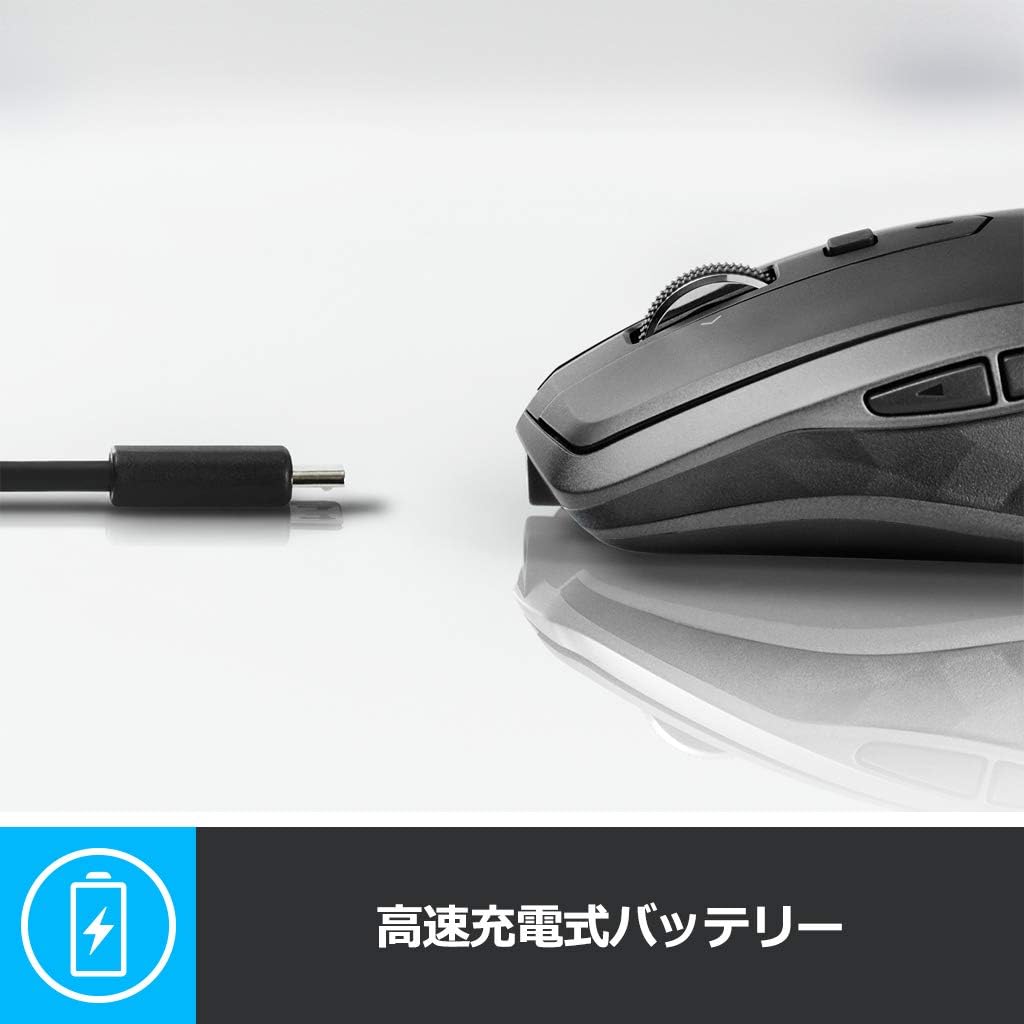
Image: The MX Anywhere 2S mouse connected to its charging cable, illustrating its fast-charging capability.
3.2. Connecting the Mouse
The MX Anywhere 2S offers two connection methods: Logitech Unifying USB receiver or Bluetooth.
3.2.1. Unifying USB Receiver Connection
- Plug the Logitech Unifying receiver into an available USB port on your computer.
- Turn on the mouse using the On/Off switch located on the bottom of the mouse.
- The mouse should automatically connect to the receiver. If not, use the Logitech Options software to pair.
3.2.2. Bluetooth Connection
- Turn on the mouse using the On/Off switch located on the bottom of the mouse.
- Press the Easy-Switch button on the bottom of the mouse to select an available channel (1, 2, or 3). The LED indicator for the selected channel will blink rapidly.
- On your computer, open Bluetooth settings and search for new devices.
- Select "MX Anywhere 2S" from the list of available devices to complete the pairing process.

Image: Icons representing Bluetooth and Unifying USB connections, indicating the mouse's dual connectivity options for Windows, Mac, and iPad OS.
3.3. Multi-Device Pairing (Easy-Switch)
The MX Anywhere 2S can be paired with up to three different devices and switch between them seamlessly.
- Pair the mouse with your first device using either Unifying or Bluetooth.
- Press the Easy-Switch button on the bottom of the mouse to select another channel (e.g., 2).
- Pair the mouse with your second device using the chosen channel.
- Repeat for a third device if desired.
- To switch between devices, simply press the Easy-Switch button to select the corresponding channel.

Image: An illustration showing the bottom of the MX Anywhere 2S mouse with its Easy-Switch button, demonstrating how it can pair with and switch between up to three different computers (laptops and desktops).
4. Operating the Mouse
4.1. DPI Adjustment (Darkfield Laser Sensor)
The MX Anywhere 2S features a Darkfield laser sensor that allows for precise tracking on virtually any surface, including glass. The DPI (dots per inch) can be adjusted from 200 to 4,000 DPI in 50 DPI increments.
To adjust DPI, download and install the free Logitech Options software. Within the software, you can customize the pointer speed and sensitivity to your preference.

Image: The MX Anywhere 2S mouse resting on a reflective surface, illustrating its ability to track accurately on various surfaces, including glass.
4.2. High-Speed Scroll Wheel and Tilt Scroll
The mouse is equipped with a high-speed scroll wheel that allows for rapid navigation through long documents or web pages. It also features tilt-scroll functionality for horizontal scrolling.
- High-Speed Scroll: Flick the scroll wheel to activate hyper-fast scrolling.
- Click-to-Click Scroll: Press the button behind the scroll wheel to switch to precise, click-to-click scrolling.
- Tilt Scroll: Tilt the scroll wheel left or right for horizontal navigation.

Image: A close-up view of the MX Anywhere 2S scroll wheel, highlighting its high-speed scrolling and navigation features.
4.3. Customizable Buttons
The MX Anywhere 2S features 7 customizable buttons and 1 scroll wheel. These can be programmed to perform various functions using the Logitech Options software.
- Left/Right Click: Standard mouse buttons.
- Scroll Wheel Click: Can be customized.
- Side Buttons: Two thumb buttons for forward/back navigation, customizable for other functions.
- Gesture Button: Located on the thumb rest, can be customized for gestures.
- Mode Shift Button: Behind the scroll wheel, switches between hyper-fast and click-to-click scrolling.

Image: A diagram of the MX Anywhere 2S mouse with numbered callouts pointing to its key features, including Bluetooth/Unifying connection, customizable buttons, Easy-Switch, high-speed scroll wheel, tilt scroll, and comfortable form factor.

Image: A screenshot of the Logitech Options software interface on a computer monitor, demonstrating the customization options available for the mouse's buttons and wheel.
4.4. Logitech FLOW
Logitech FLOW allows you to seamlessly control up to three computers with a single MX Anywhere 2S mouse, and even copy and paste text, images, and files between them.
- Ensure all computers are on the same network.
- Install Logitech Options software on all computers you wish to use with FLOW.
- Follow the instructions within Logitech Options to enable and configure FLOW.

Image: A setup showing multiple computers (Windows and Mac) with the MX Anywhere 2S mouse, illustrating the Logitech FLOW feature that allows seamless cursor and file transfer between them.
5. Maintenance
5.1. Cleaning
To clean your mouse, use a soft, damp cloth. Avoid using abrasive cleaners or solvents.
5.2. Battery Life
The MX Anywhere 2S has a long-lasting rechargeable battery. To maximize battery life:
- Turn off the mouse when not in use for extended periods.
- Charge the mouse regularly, especially when the battery indicator shows low power.
6. Troubleshooting
6.1. Mouse Not Responding
- Ensure the mouse is turned on.
- Check the battery level and charge if necessary.
- For Unifying connection: Ensure the receiver is securely plugged into a USB port. Try a different USB port.
- For Bluetooth connection: Ensure Bluetooth is enabled on your computer and the mouse is paired. Try re-pairing the mouse.
- Try switching to a different Easy-Switch channel to see if it connects to another paired device.
6.2. Tracking Issues
- Ensure the sensor on the bottom of the mouse is clean and free of debris.
- Try using the mouse on a different surface. While the Darkfield sensor works on most surfaces, extreme patterns or highly reflective surfaces might cause issues.
- Adjust the DPI settings using the Logitech Options software.
6.3. Logitech FLOW Not Working
- Ensure Logitech Options software is installed and running on all computers.
- Verify that all computers are connected to the same network.
- Check firewall settings on your computers; they might be blocking FLOW communication.
- Restart the Logitech Options software on all connected computers.
7. Specifications
| Feature | Description |
|---|---|
| Model Number | MX1600sGR |
| Dimensions (W x D x H) | 61.6 x 100.3 x 34.4 mm |
| Weight | 240.4 g (0.53 lbs) |
| Color | Graphite |
| Sensor Technology | Darkfield Laser Tracking |
| DPI Range | 200 to 4,000 DPI (50 DPI increments) |
| Connectivity | Bluetooth, Logitech Unifying USB |
| Wireless Operating Distance | Approx. 10m |
| Buttons | 7 customizable buttons + 1 scroll wheel |
| Battery Type | Rechargeable Li-Po battery |
| Battery Life | Up to 70 days on a full charge (usage dependent) |
| Fast Charging | 3 minutes charge for 8 hours of use |
| Supported OS | Windows 7, Windows 8, Windows 10 or later; Mac OS X 10.10 or later; iPad OS |
| Compatible Devices | PC, Tablet |
8. Warranty and Support
8.1. Warranty Information
The Logitech MX Anywhere 2S comes with a 2-year limited hardware warranty from the date of purchase. Please retain your proof of purchase for warranty claims.
For detailed warranty terms and conditions, please refer to the warranty documentation included in your product package or visit the official Logitech support website.
8.2. Customer Support
For further assistance, technical support, or to download the latest version of Logitech Options software, please visit the official Logitech support website:


