1. Introduction
This manual provides essential information for the safe and efficient operation of your Neewer NW801H 8-inch TFT-LCD Monitor. Please read this manual thoroughly before using the product and retain it for future reference. The NW801H monitor is designed for versatile applications, including use with DSLRs, PCs, CCTV cameras, DVD players, and car backup camera systems. It features a 4:3 aspect ratio, 1024x768 resolution, and multiple input options.
2. Safety Information
- Do not expose the monitor to rain or moisture to prevent fire or electric shock.
- Do not open the monitor casing. Refer all servicing to qualified personnel.
- Use only the provided power supply.
- Ensure proper ventilation to prevent overheating.
- Avoid placing the monitor in direct sunlight or near heat sources.
- Clean the screen with a soft, dry cloth. Avoid harsh chemicals.
- Keep out of reach of children.
3. Package Contents
Verify that all items listed below are included in your package. If any items are missing or damaged, contact your retailer.
- 1x Neewer NW801H Monitor
- 1x Power Supply (PSE Listed)
- 1x BNC Cable
- 1x Operation Manual (this document)
- 1x Mount (stand)

Image 3.1: The Neewer NW801H monitor shown with its included accessories: power adapter, BNC cable, and desktop stand.
4. Product Overview
4.1 Front Panel

Image 4.1: Front view of the Neewer NW801H monitor, displaying the screen and control buttons located below the display.
The front panel features the 8-inch TFT-LCD display and a row of control buttons for navigating the monitor's settings and input selection.
4.2 Rear Panel and Connections
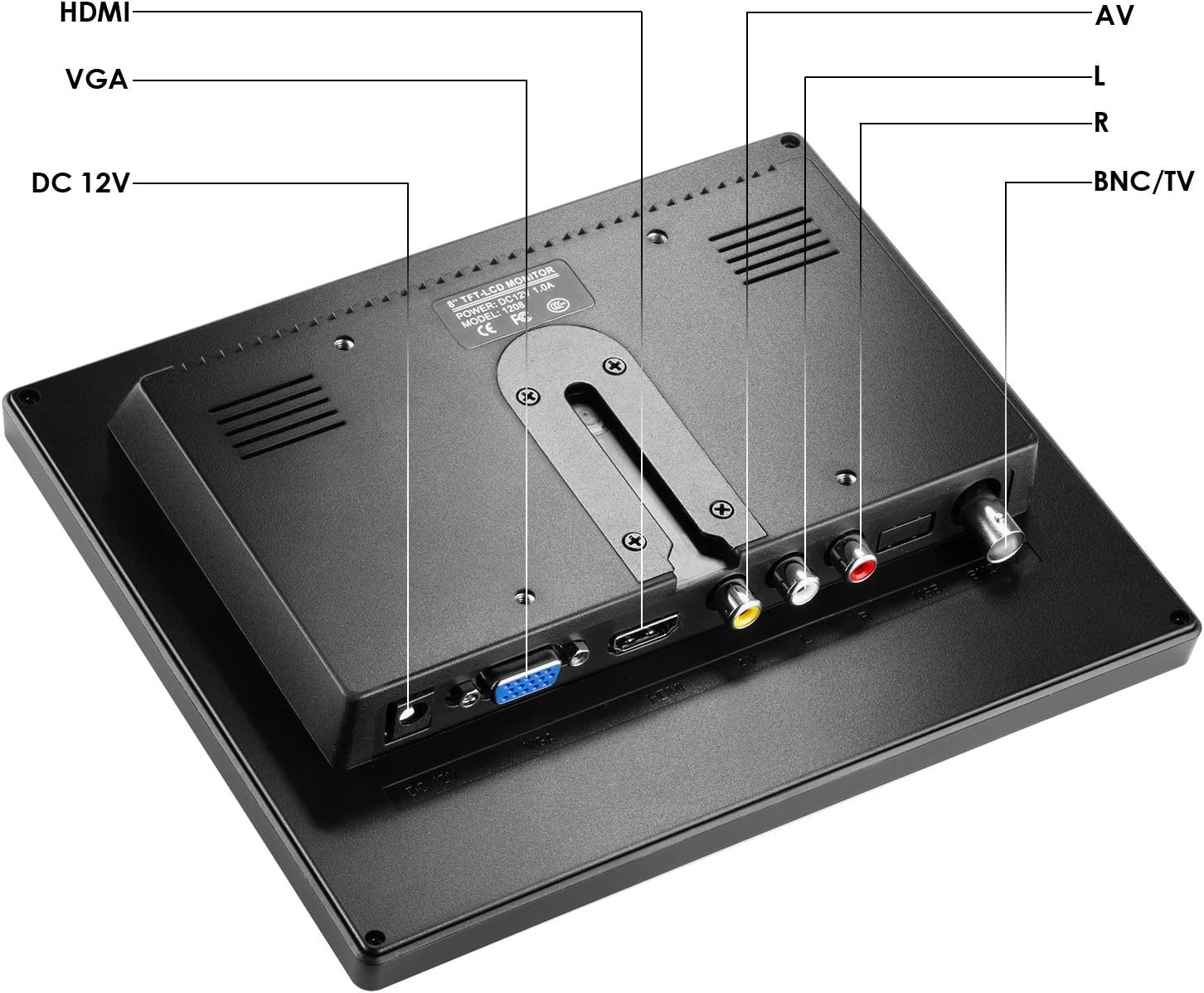
Image 4.2: Rear view of the Neewer NW801H monitor, highlighting the various input ports and power connection.
- DC 12V: Power input port for the included 12V power adapter.
- HDMI: High-Definition Multimedia Interface input for digital video and audio signals.
- VGA: Video Graphics Array input for analog video signals.
- AV (L/R): Audio/Video input for composite video and stereo analog audio signals.
- BNC/TV: BNC input for composite video signals, commonly used with CCTV systems.
5. Setup Instructions
5.1 Assembling the Monitor Stand
- Insert the stand's neck into the base.
- Secure the neck to the base using the provided screw and a screwdriver.
- Attach the assembled stand to the back of the monitor by aligning the mounting points and securing it.
- Ensure the monitor is firmly attached to the stand.

Image 5.1: Visual guide demonstrating the four steps to assemble the monitor stand and attach it to the display unit.
5.2 Power Connection
Connect the provided 12V power adapter to the "DC 12V" input port on the rear of the monitor. Plug the power adapter into a standard electrical outlet.
5.3 Connecting Input Devices
The monitor supports multiple input types. Choose the appropriate cable for your device and connect it to the corresponding port on the monitor's rear panel.
- HDMI: For devices like DSLRs, PCs, or DVD players with HDMI output.
- VGA: For PCs or other devices with VGA output.
- AV: For devices with composite video (yellow RCA) and stereo audio (red/white RCA) outputs, such as older DVD players or some cameras.
- BNC: For CCTV cameras or other surveillance equipment with BNC video output.

Image 5.2: Illustrates the monitor's compatibility with various devices including DSLR cameras, DVRs, PCs, CCD cameras, CCTV cameras, and DVD players.
6. Operating Instructions
6.1 Powering On/Off
Press the power button (usually marked with a circle and vertical line symbol) on the front panel to turn the monitor on or off.
6.2 Input Selection
Use the "Input" or "Source" button on the front panel to cycle through the available input sources (HDMI, VGA, AV, BNC) until your desired input is displayed.
6.3 Menu Navigation
The monitor features an On-Screen Display (OSD) menu for adjusting various settings.
- Press the "Menu" button to open the OSD.
- Use the arrow buttons (often labeled with left/right or up/down arrows) to navigate through menu options.
- Press the "Enter" or "OK" button to select an option or confirm a setting.
- Use the "Exit" or "Menu" button again to close the OSD.
Common Menu Settings:
- Brightness/Contrast: Adjust display luminance and contrast levels.
- Color Settings: Modify color temperature, hue, and saturation.
- Aspect Ratio: Select between 4:3 or other available aspect ratios (if applicable).
- Audio: Adjust volume for the built-in speaker.
7. Maintenance
- Cleaning the Screen: Gently wipe the screen with a soft, lint-free cloth. For stubborn marks, slightly dampen the cloth with water or a screen-specific cleaning solution. Do not spray liquid directly onto the screen.
- Cleaning the Casing: Use a soft, dry cloth to wipe the monitor casing. Avoid abrasive cleaners or solvents.
- Storage: When not in use for extended periods, store the monitor in a cool, dry place, away from direct sunlight and extreme temperatures.
8. Troubleshooting
| Problem | Possible Cause | Solution |
|---|---|---|
| No image on screen | No power; Incorrect input selected; Loose cable connection. | Check power connection; Select correct input source; Ensure cables are securely connected. |
| Image is distorted or blurry | Incorrect resolution setting on source device; Cable quality; Monitor settings. | Adjust source device resolution to 1024x768; Try a different cable; Adjust monitor's brightness/contrast/sharpness. |
| No audio | Volume too low; Audio cable not connected (for AV/VGA); Source device audio output issue. | Increase monitor volume; Ensure audio cables are connected (if using AV/VGA); Check audio settings on source device. |
| Monitor turns off unexpectedly | Power supply issue; Overheating. | Check power connection and adapter; Ensure adequate ventilation around the monitor. |
9. Specifications
| Feature | Specification |
|---|---|
| Display Panel | TFT-LCD |
| Screen Size | 8.0 inches |
| Resolution | 1024x768 |
| Screen Ratio | 4:3 |
| Brightness | 300cd/m2 |
| Contrast | 500:1 |
| View Angle | 160 degrees (80/80 degrees) |
| Refresh Rate | 60-75Hz |
| Backlight | LED |
| Signal Input | HDMI/VGA/AV/BNC |
| Power Voltage | 12V 1A (100V-220V) |
| Working Temperature | -10~60 ℃ |
| Product Dimensions | 13 x 10.5 x 2.9 inches |
| Item Weight | 1 pounds |
10. Warranty and Support
For warranty information and technical support, please refer to the warranty card included with your product or visit the official Neewer website. Keep your purchase receipt as proof of purchase.
Manufacturer: Neewer
Model Number: 10089910


