
1. Introduction
This manual provides essential instructions for the safe and effective use of your Nikon W300 Waterproof Underwater Digital Camera. The Nikon W300 is designed for durability, offering waterproof, freeze-proof, shockproof, and dustproof capabilities, making it suitable for various outdoor and underwater environments. Please read this manual thoroughly before using the camera to ensure optimal performance and longevity.
Important Safety Information:
- Always ensure all compartment covers (battery/memory card, USB/HDMI) are securely closed and locked before exposing the camera to water or dust.
- Do not open compartment covers when the camera is wet or in a dusty environment.
- Avoid dropping or subjecting the camera to severe impacts, even though it is shockproof, as extreme force can compromise its integrity.
- Use only Nikon-approved accessories and power sources.
2. What's Included
Verify that all the following items are present in your product package:
- Nikon W300 Digital Camera
- AN-CP23 Strap
- UC-E21 USB Cable
- EN-EL12 Rechargeable Li-ion Battery
- EH-73P Charging AC Adapter
- BU-2 Cleaning Brush
3. Initial Setup
3.1. Charging the Battery
Before initial use, fully charge the supplied EN-EL12 rechargeable Li-ion battery. Connect the camera to the EH-73P Charging AC Adapter using the UC-E21 USB cable. The charging indicator will illuminate during charging and turn off when complete. A full charge takes approximately 2 hours and 20 minutes.
3.2. Inserting the Battery and Memory Card
Open the battery/memory card compartment cover located on the side of the camera. Insert the EN-EL12 battery with the correct orientation, then insert a compatible SD/SDHC/SDXC memory card into the designated slot. Close the cover securely until it locks into place.

Image: Front view of the Nikon W300 camera, highlighting the battery and memory card compartment on the left side.
4. Basic Operation
4.1. Power On/Off
Press the ON/OFF button located on the top of the camera to power it on or off. The LCD monitor will display the startup screen.
4.2. Shooting Photos and Videos
Use the mode button (often labeled 'W' or 'Scene') to select between photo and video modes. Press the shutter button to capture a still image or start/stop video recording. The 3-inch TFT LCD monitor provides a clear view for framing your shots and reviewing content.
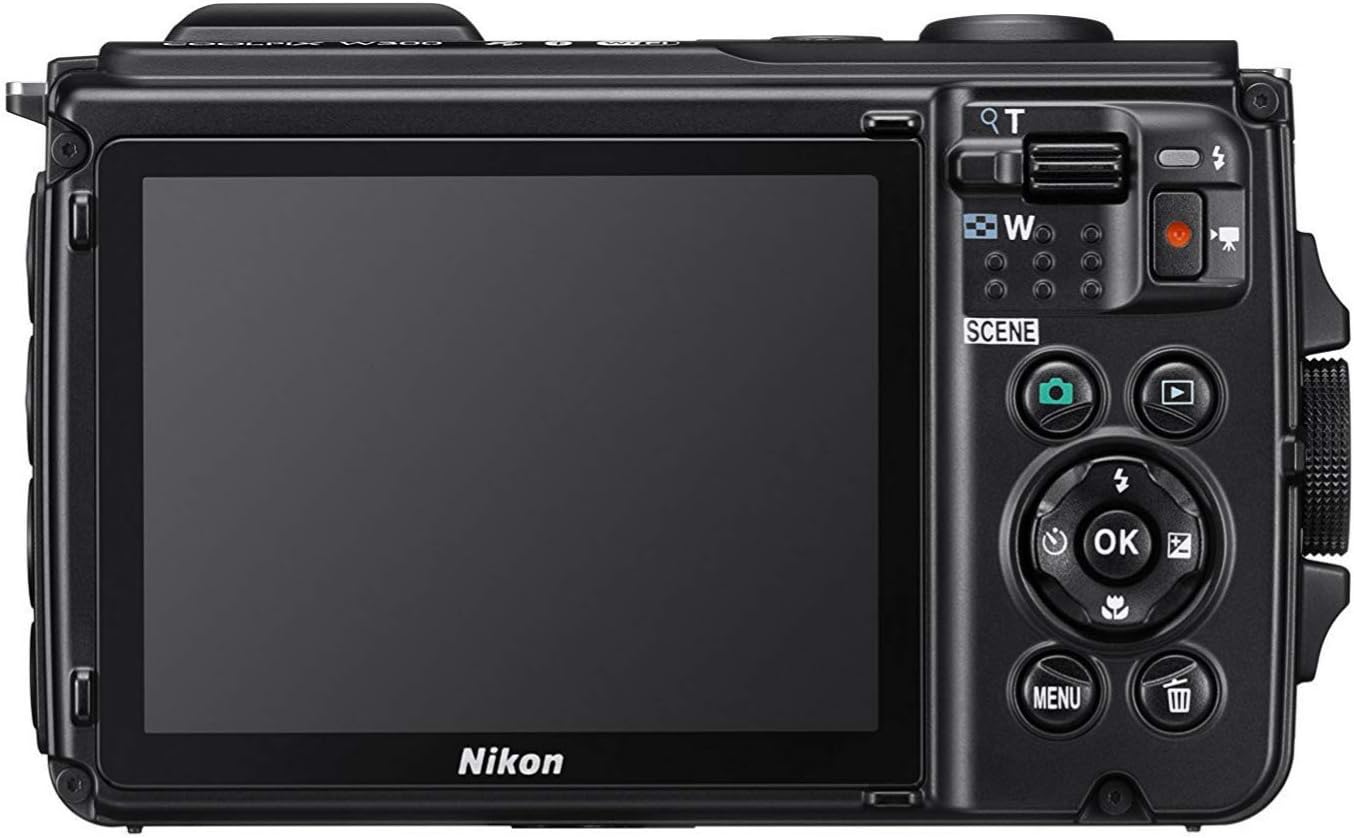
Image: Rear view of the Nikon W300 camera, displaying the LCD screen and various control buttons for navigation and mode selection.
4.3. Zoom Function
The camera features a 5x optical zoom NIKKOR lens. Use the zoom lever, typically located around the shutter button, to adjust the focal length for wide-angle or telephoto shots.
5. Key Features
- Durability: The W300 is waterproof to 30m (100ft), freeze-proof to -10°C (14°F), shockproof from drops up to 2.4m (8ft), and dustproof, making it ideal for extreme conditions.
- High-Resolution Imaging: Capture stunning 16 MP photos and record 4K Ultra HD videos, along with time-lapse and super-lapse video options.
- Advanced Optics: Equipped with a 5x optical zoom NIKKOR lens (24-120mm equivalent) and Hybrid VR image stabilization for clear, steady shots.
- Integrated Sensors: Built-in GPS, eCompass, altimeter, and depth gauge allow you to track and log your adventures.
- Connectivity: Wi-Fi and Bluetooth Low Energy (BLE) enable easy sharing of photos and remote control via a compatible smart device.

Image: Top view of the Nikon W300 camera, illustrating the power button and icons for Wi-Fi and Bluetooth connectivity.
6. Maintenance
6.1. Cleaning the Camera
- After underwater use, rinse the camera thoroughly with fresh water and dry it with a soft, clean cloth.
- Use the supplied BU-2 cleaning brush to remove sand or debris from around the compartment covers.
- For the lens and LCD, use a soft, lint-free cloth specifically designed for optical surfaces. Avoid harsh chemicals.
6.2. Battery Care
- Store the battery in a cool, dry place when not in use.
- Avoid fully discharging the battery frequently to prolong its lifespan.
- If the camera will not be used for an extended period, remove the battery.
7. Troubleshooting
- Camera does not power on: Ensure the battery is fully charged and correctly inserted.
- Water inside the lens/screen: This indicates a breach in the waterproof seal. Immediately power off the camera, remove the battery, and contact Nikon service. Ensure all compartment covers are securely closed and free of debris before submerging the camera.
- Images are blurry: Check lens for smudges or condensation. Ensure proper focus mode is selected.
- Cannot connect to smart device: Verify Wi-Fi/Bluetooth is enabled on both devices and that the Nikon SnapBridge app is installed and configured correctly.
- Memory card error: Ensure the memory card is inserted correctly and is not full or corrupted. Try formatting the card (this will erase all data).
8. Specifications
| Feature | Detail |
|---|---|
| Model Name | Nikon W300 |
| Effective Still Resolution | 16 MP |
| Video Resolution | 4K UHD 2160p (30 fps) |
| Optical Zoom | 5x |
| Lens Type | NIKKOR lens (4.3-21.5mm, 35mm equivalent: 24-120mm) |
| Image Stabilization | Digital, Optical (Hybrid VR) |
| Water Resistance Level | Waterproof (30m / 100ft) |
| Shockproof | 2.4m (8ft) |
| Freeze-proof | -10°C (14°F) |
| Display Type | 3-inch TFT LCD |
| Connectivity | Wi-Fi, Bluetooth, HDMI D (Micro), USB Micro-B (USB 2.0) |
| Battery Type | EN-EL12 Rechargeable Li-ion Battery |
| Operating Environment (Land) | -10 to +40°C (14 to 104°F) |
| Operating Environment (Underwater) | 0 to 40°C (32 to 104°F) |
| Item Weight | 0.51 Pounds |
9. Warranty and Support
Your Nikon W300 camera is covered by a limited warranty. Please refer to the warranty card included in your product packaging for specific terms and conditions. For technical support, service, or additional information, please visit the official Nikon support website or contact your local Nikon customer service center.
Online Support: Nikon USA Support


