Introduction
This manual provides comprehensive instructions for the installation, operation, and maintenance of the Logitech TV Mount for MeetUp. This mount is designed to securely hold the Logitech MeetUp ConferenceCam either above or below a flat-panel monitor, utilizing industry-standard VESA mounting points.
For optimal performance and safety, please read this manual thoroughly before installation and retain it for future reference.
Package Contents
- Logitech TV Mount for MeetUp
- Mounting Hardware (screws, washers, spacers)
- User Guide (this document)
Please verify all components are present before proceeding with installation.
Safety Information
- Ensure the TV and mounting surface can support the combined weight of the TV, mount, and MeetUp camera.
- Do not overtighten screws, as this may cause damage.
- Keep small parts away from children.
- If unsure about any step, consult a qualified professional.
Setup and Installation
The Logitech TV Mount for MeetUp is designed for easy installation. It can be mounted either above or below your flat-panel display.
Step 1: Prepare the TV and MeetUp
- Carefully place your TV face down on a soft, clean surface to prevent scratches.
- Locate the VESA mounting holes on the back of your TV. These are typically in a square or rectangular pattern.
- Ensure your Logitech MeetUp ConferenceCam is ready for attachment.
Step 2: Attach the Mount to the TV
The TV mount features a swing arm design and multiple mounting holes to accommodate various VESA patterns.
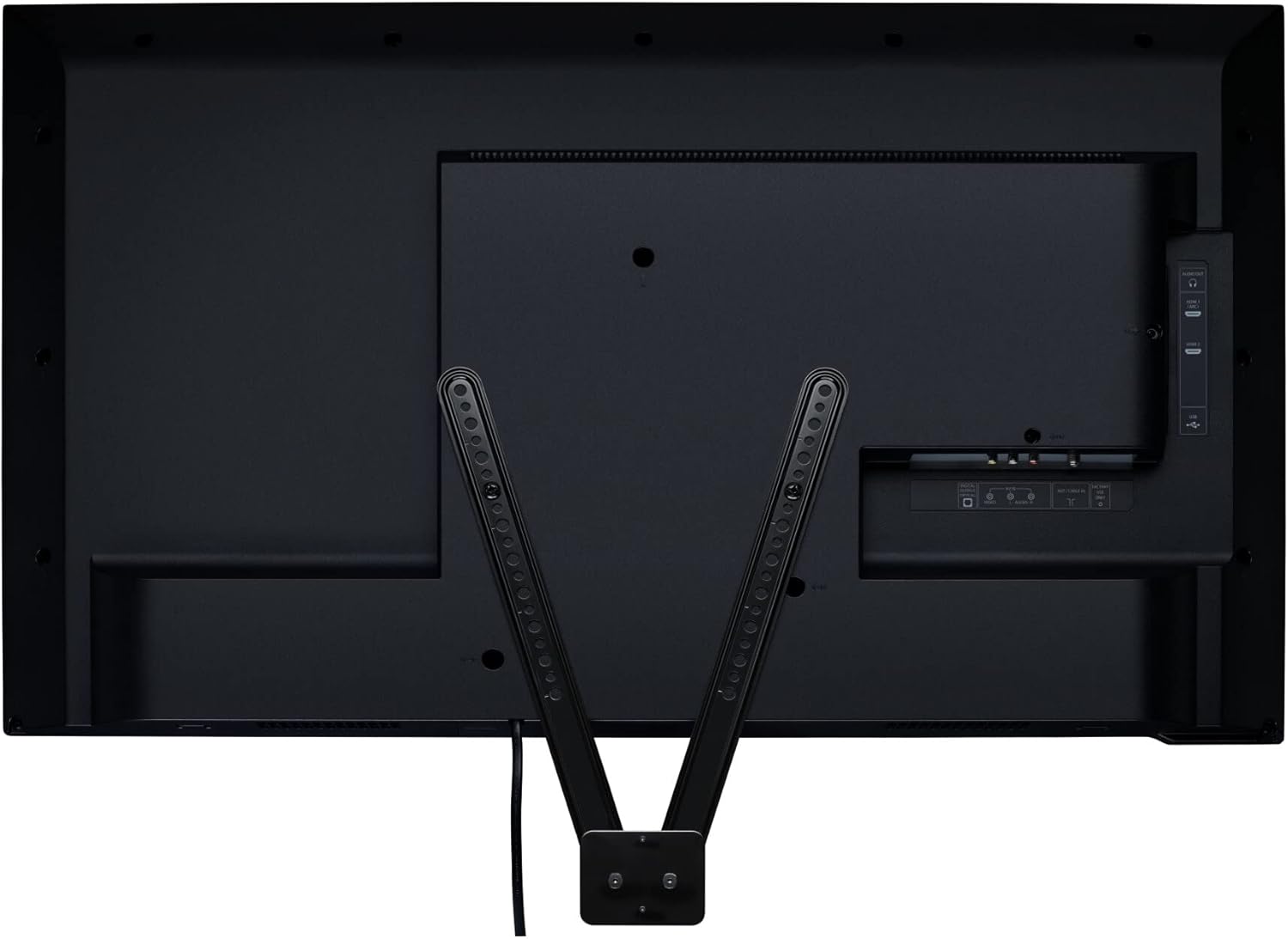
Image: Rear view of a television with the Logitech TV Mount securely attached to the VESA mounting points. The two arms of the mount extend downwards, ready to receive the MeetUp camera.
- Align the mounting arms of the Logitech TV Mount with the VESA holes on your TV.
- Use the provided screws and washers to secure the mount to the TV. Ensure a snug fit without overtightening.
- The mount can be positioned to allow the MeetUp to be above or below the display.
Step 3: Attach MeetUp to the Mount

Image: Front view of a television with the Logitech MeetUp ConferenceCam mounted directly below the screen using the Logitech TV Mount. The camera is centered and appears flush with the bottom edge of the display.
- Once the TV mount is secured to the TV, attach your Logitech MeetUp ConferenceCam to the designated area on the mount.
- Follow the specific instructions provided with your MeetUp camera for attaching it to a mount.
- Ensure the MeetUp is firmly seated and secured to prevent movement.
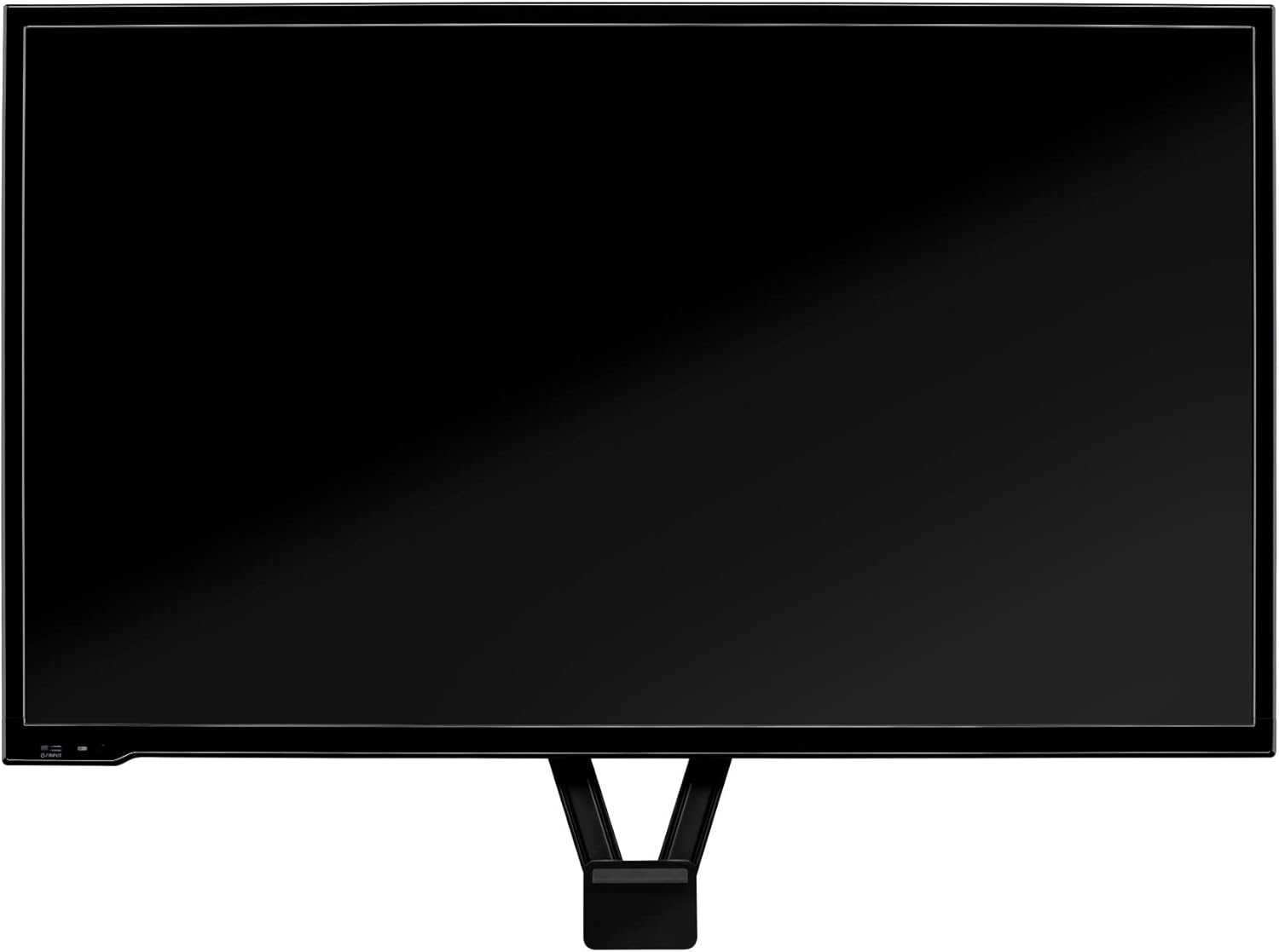
Image: A standalone view of the Logitech TV Mount, showcasing its V-shaped design and the various holes along its arms for VESA compatibility and attachment of the MeetUp camera.
Operating Considerations
Once installed, the Logitech TV Mount requires no active operation. Its function is to provide a stable and secure mounting solution for your MeetUp ConferenceCam.
- Optimal Placement: For the best video conferencing experience, consider mounting the MeetUp camera either directly above or below the center of your display.
- Cable Management: Route any cables from the MeetUp camera neatly to avoid tangles and ensure a clean setup.
Maintenance
The Logitech TV Mount is designed for durability and requires minimal maintenance.
- Cleaning: Use a soft, dry cloth to wipe down the mount if it accumulates dust. Avoid abrasive cleaners or solvents.
- Periodic Check: Periodically inspect all screws and connections to ensure they remain secure. Retighten if necessary, but do not overtighten.
Troubleshooting
If you encounter issues with your Logitech TV Mount, refer to the following common problems and solutions:
| Problem | Possible Cause | Solution |
|---|---|---|
| Mount feels loose or wobbly. | Screws are not tightened sufficiently. | Carefully retighten all mounting screws connecting the mount to the TV and the MeetUp to the mount. Do not overtighten. |
| MeetUp camera is not level. | Mount not aligned correctly during installation. | Re-check the alignment of the mount on the TV's VESA holes. Adjust as needed. |
| Mount does not fit TV. | Incorrect VESA pattern or TV size. | Verify your TV's VESA pattern and size compatibility with the mount's specifications. This mount supports displays up to 55 inches (or XL for up to 90 inches). |
If the problem persists, please contact Logitech support.
Specifications
| Feature | Detail |
|---|---|
| Model Number | 939-001498 |
| Dimensions (LxWxH) | 3.25 x 0.63 x 15.75 inches |
| Weight | 9.8 ounces |
| Color | Black |
| Mounting Type | Wall Mount (VESA standard) |
| Movement Type | Tilt |
| Maximum Compatible Screen Size | 90 Inches (for XL version), 55 Inches (standard version) |
| Compatible Devices | Logitech MeetUp ConferenceCam, Monitor, Television |
| UPC | 097855133250 |
| Country of Origin | China |
Warranty Information
Logitech products are manufactured to the highest quality standards. For detailed warranty information, please refer to the official Logitech website or the warranty card included with your product. Typically, Logitech offers a limited hardware warranty for its products, covering defects in materials and workmanship under normal use.
Please retain your proof of purchase for warranty claims.
Support
For further assistance, technical support, or to access additional resources, please visit the official Logitech support website:
You may also find helpful information and FAQs on the product's Amazon page or the Logitech brand store.


