1. Introduction
This manual provides essential information for the safe and efficient operation of your Canon PIXMA MG3670 All-in-One Inkjet Printer. The MG3670 is a versatile device designed for home and small office use, offering print, scan, and copy functionalities. It supports wireless connectivity, including Wi-Fi and Wi-Fi Direct, and is compatible with Apple AirPrint™ and Mopria™ Print Service for convenient mobile printing. Key features include automatic duplex printing and efficient photo printing.

Figure 1.1: The Canon PIXMA MG3670 All-in-One Inkjet Printer. This image shows the compact black design of the printer, highlighting its front and right side.
2. Safety Information
Please read all safety instructions before using the printer to prevent injury or damage.
- Electrical Safety: Use only the power cord supplied with the printer. Do not overload electrical outlets. Disconnect the power plug from the outlet before cleaning or servicing.
- Handling Ink Cartridges: Keep ink cartridges out of reach of children. Do not ingest ink. If ink gets on your skin or clothing, wash it off immediately with soap and water.
- Ventilation: Ensure adequate ventilation around the printer to prevent overheating. Do not block ventilation openings.
- Placement: Place the printer on a stable, level surface. Avoid placing it in direct sunlight, near heat sources, or in areas with excessive dust or humidity.
- Moving the Printer: When moving the printer, ensure all cables are disconnected and the paper output tray is closed.
3. Package Contents
Verify that all items listed below are included in your printer package. If any items are missing or damaged, contact your retailer.
- Canon PIXMA MG3670 All-in-One Inkjet Wireless Printer
- USB Cable
- Power Cable
- Setup CD-ROM
- Set of Ink Cartridges (Black and Color)

Figure 3.1: Included accessories for the Canon PIXMA MG3670. This image displays the USB cable, power cable, and the black and color ink cartridges that come with the printer.
4. Setup
4.1 Initial Setup
- Remove all packaging materials and protective tapes from the printer.
- Place the printer on a flat, stable surface.
- Connect the power cable to the printer and then to a wall outlet.
- Turn on the printer using the power button.
4.2 Installing Ink Cartridges
Open the printer's access cover and install the black and color ink cartridges into their respective slots. Ensure they click firmly into place. Refer to the on-screen instructions during the initial setup process for detailed guidance.
4.3 Loading Paper
Open the paper support and paper output tray. Load paper into the rear paper tray, ensuring it is aligned correctly with the paper guides. The printer supports various paper types and sizes, including standard A4, 4x6 inch, 5x7 inch, and 8x10 inch photo paper.
4.4 Wireless Setup
The Canon PIXMA MG3670 offers flexible wireless connectivity.
- Standard Wi-Fi Connection: Connect the printer to your home or office Wi-Fi network. This allows multiple devices on the same network to print wirelessly. Follow the instructions on the printer's display or the setup CD-ROM for network configuration.
- Wi-Fi Direct: For direct connection from a mobile device without a router, enable Wi-Fi Direct on the printer and connect your device directly to the printer's Wi-Fi signal.
- Apple AirPrint™: For Apple iOS devices, ensure your device and printer are on the same Wi-Fi network, then print directly from AirPrint-enabled applications.
- Mopria™ Print Service: For Android devices, install the Mopria Print Service app and ensure your device and printer are on the same Wi-Fi network to enable direct printing.
Note: Some users have reported challenges with initial wireless setup, particularly in complex network environments. Refer to the detailed troubleshooting section or Canon's official support website if you encounter difficulties.
5. Operating the Printer
5.1 Printing
To print documents or photos, ensure the printer is connected to your computer or mobile device and has sufficient paper and ink. Select the print option from your application, choose the Canon MG3670, and adjust settings such as paper size, print quality, and duplex printing (automatic two-sided printing). The printer offers ISO standard print speeds of up to 9.9 images per minute (ipm) for monochrome and 5.7 ipm for color. A 4x6 inch borderless photo can be printed in approximately 44 seconds.
5.2 Scanning
Place the document or photo face down on the scanner glass. Use the Canon IJ Scan Utility software on your computer or a compatible mobile app to initiate a scan. You can choose scan type (document, photo), resolution, and destination. PIXMA Cloud Link scan-related applications are available for users utilizing genuine Canon ink cartridges, allowing direct scanning to cloud services.
5.3 Copying
Place the original document on the scanner glass. Press the Copy button on the printer's control panel. You can select the number of copies and adjust settings like copy quality or type (color/black & white) directly from the printer's interface. The maximum copy speed for black and white documents is 9.9 pages per minute (ppm).
6. Maintenance
6.1 Cleaning the Printer
Regular cleaning helps maintain print quality and extends the printer's lifespan.
- Exterior: Wipe the exterior of the printer with a soft, damp, lint-free cloth. Do not use abrasive cleaners or solvents.
- Scanner Glass: Clean the scanner glass with a soft cloth moistened with glass cleaner. Avoid spraying cleaner directly onto the glass.
- Interior: Periodically run the print head cleaning utility from your computer's printer settings to clear clogged nozzles and improve print quality.
6.2 Replacing Ink Cartridges
When an ink cartridge runs low or is empty, the printer's indicator light will signal. Open the ink cartridge cover, remove the empty cartridge, and insert a new genuine Canon ink cartridge firmly until it clicks into place. Close the cover. It is recommended to use genuine Canon ink cartridges for optimal performance and print quality.
7. Troubleshooting
This section addresses common issues you might encounter with your Canon PIXMA MG3670 printer.
- Printer Not Connecting to Wi-Fi:
Ensure your Wi-Fi router is on and broadcasting. Verify the Wi-Fi password. Try restarting both the printer and the router. If using a dual-band router, ensure the printer is connecting to a 2.4GHz network, as some older printers may not support 5GHz. For persistent issues, try connecting via USB for initial setup or consult Canon's online support for detailed network troubleshooting guides.
- Paper Jams:
Turn off the printer and carefully open all covers to locate the jammed paper. Gently pull the paper out in the direction of the paper path, avoiding tearing. Ensure paper is loaded correctly and not overfilled in the tray. Use recommended paper types and weights.
- Poor Print Quality (Streaks, Faded Prints):
Check ink levels and replace any empty or low cartridges. Perform a print head cleaning and nozzle check from the printer's maintenance utility on your computer. Ensure you are using genuine Canon ink cartridges.
- Printer is Slow:
Printing speed can vary based on document complexity, print quality settings, and network conditions. For faster printing, select 'Standard' or 'Draft' quality settings instead of 'High Quality'. Ensure your computer meets the recommended system requirements.
8. Specifications
| Feature | Specification |
|---|---|
| Model Name | Canon PIXMA MG3670 |
| Product Dimensions (D x W x H) | 12D x 17.7W x 6H centimetres |
| Printing Technology | Inkjet |
| Connectivity Technology | Wireless (Wi-Fi, Wi-Fi Direct), USB |
| Max Print Speed (Monochrome) | 9.9 ipm (images per minute) |
| Max Print Speed (Colour) | 5.7 ipm (images per minute) |
| Max Copy Speed (Black & White) | 9.9 ppm (pages per minute) |
| Scanner Type | Photo |
| Dual-sided Printing | Yes (Automatic) |
| Supported Media Sizes | A4, 4x6 inch, 5x7 inch, 8x10 inch |
| Ink Colour | Black, Cyan, Magenta, Yellow |
| Special Features | Borderless and Bordered Printing |
| Item Weight | 0.05 Kilograms (Note: This seems unusually low for a printer, likely refers to a component weight. Actual printer weight is typically higher.) |
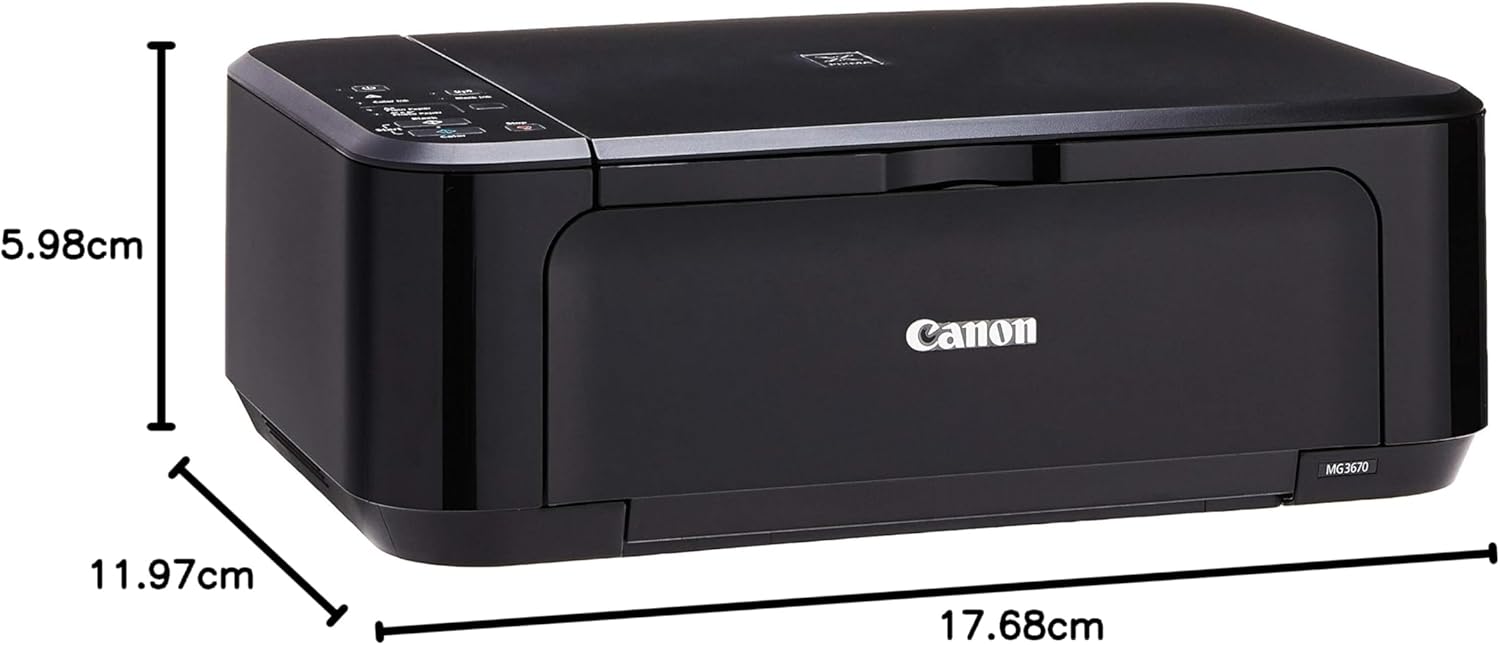
Figure 8.1: Dimensions of the Canon PIXMA MG3670 printer. The image illustrates the printer's approximate measurements: 17.68cm (width), 11.97cm (depth), and 5.98cm (height).
9. Warranty and Support
For information regarding the product warranty, please refer to the warranty card included in your package or visit the official Canon support website for your region. The website also provides access to drivers, software, FAQs, and contact information for technical support.
Official Canon Support Website: www.canon.com/support


