Introduction
Thank you for choosing the NILLKIN X-on X1 Portable Bluetooth Speaker. This device combines a portable Bluetooth speaker with a 5200 mAh power bank, designed for versatility and durability. It features Bluetooth 4.0 connectivity, dual 45mm speakers, an integrated microphone for hands-free calls, and IPX4 water resistance. Please read this manual carefully to ensure proper use and optimal performance.
Product Features
- 2-in-1 Functionality: Portable Bluetooth speaker and 5200 mAh power bank.
- Bluetooth 4.0 Connectivity: Compatible with Bluetooth-enabled devices such as smartphones, tablets, and computers, offering stable, high-speed, long-range transmission.
- High-Quality Audio: Equipped with two 45mm speakers and a separate acoustic chamber for clear sound.
- Hands-Free Calling: Integrated microphone allows for answering calls directly through the speaker; music pauses during calls for high-definition communication.
- Intuitive Controls: Four buttons for volume adjustment, call management, play/pause, and track navigation.
- IPX4 Water Resistance: Resists water splashes and adverse weather conditions, suitable for outdoor use.
- Power Bank Function: 5200 mAh battery can charge smartphones or tablets (output: 5.25V/1A max).
- Portable Design: Includes a hook for attaching to a lanyard or carabiner (carabiner provided).
- Durable Construction: Anti-scratch design, resistant to harsh outdoor environments.
- AUX Audio Input: Universal 3.5mm audio connector for multimedia AUX audio input; AUX mode is automatically detected when connected.
Package Contents
Please check the package for the following items:
- NILLKIN X-on X1 Portable Bluetooth Speaker
- USB Charging Cable
- AUX Audio Cable
- Carabiner
- User Manual (this document)
Getting Started: Setup
1. Charging the Speaker
Before first use, fully charge the NILLKIN X-on X1 speaker.
- Connect the provided USB charging cable to the speaker's charging port.
- Connect the other end of the USB cable to a USB power adapter (not included) or a computer's USB port.
- The charging indicator light will illuminate. Once fully charged, the light may change color or turn off, depending on the model.
Note: A full charge typically takes several hours.
2. Powering On/Off
- To Power On: Press and hold the Power button for a few seconds until you hear an audible prompt or see the indicator light illuminate.
- To Power Off: Press and hold the Power button again for a few seconds until you hear an audible prompt or the indicator light turns off.
Operating Instructions
1. Bluetooth Pairing
Pair your NILLKIN X-on X1 speaker with a Bluetooth-enabled device.
- Ensure the speaker is powered on and in Bluetooth pairing mode (indicated by a flashing LED light, usually blue). If not, press the Bluetooth button (if available) or power cycle the device.
- On your device (smartphone, tablet, etc.), go to the Bluetooth settings and enable Bluetooth.
- Search for available devices. The speaker should appear as "NILLKIN X-on X1" or similar.
- Select the speaker from the list to connect. Once connected, you will hear a confirmation sound, and the LED indicator will typically turn solid blue.
- The speaker will automatically attempt to reconnect to the last paired device when powered on.

Image: The NILLKIN X-on X1 speaker shown next to a smartphone displaying its Bluetooth settings, indicating a successful pairing process.
2. Music Playback Controls
Use the buttons on the speaker to control music playback.
- Play/Pause: Press the Play/Pause button once to play or pause music.
- Volume Up: Press the '+' button to increase volume.
- Volume Down: Press the '-' button to decrease volume.
- Next Track: Press and hold the '+' button (or a dedicated next track button) to skip to the next song.
- Previous Track: Press and hold the '-' button (or a dedicated previous track button) to go to the previous song.
3. Hands-Free Calling
When connected via Bluetooth, the speaker can be used for phone calls.
- Answer Call: When a call comes in, press the Call button (often the Play/Pause button) once to answer.
- End Call: During a call, press the Call button once to end the call.
- Reject Call: Press and hold the Call button for a few seconds to reject an incoming call.
4. Using as a Power Bank
The NILLKIN X-on X1 features a 5200 mAh battery that can charge other devices.
- Locate the USB output port on the speaker.
- Connect your smartphone, tablet, or other USB-powered device to this port using its charging cable.
- The speaker will begin charging your device.
Note: Using the power bank function will deplete the speaker's battery, reducing its music playback time.

Image: A side view of the NILLKIN X-on X1 speaker, highlighting the protected USB output port and AUX input port, which are typically covered by a flap for water resistance.
5. AUX Mode
For devices without Bluetooth, you can use the AUX input.
- Connect one end of the provided 3.5mm AUX audio cable to the speaker's AUX input port.
- Connect the other end to the audio output jack of your device (e.g., MP3 player, computer).
- The speaker will automatically switch to AUX mode.
- Control playback and volume from your connected device.
Maintenance
- Cleaning: Wipe the speaker with a soft, damp cloth. Do not use harsh chemicals or abrasive cleaners.
- Water Resistance: The speaker is IPX4 water-resistant, meaning it can withstand splashes. Do not submerge it in water. Ensure all port covers are securely closed when exposed to water.
- Storage: Store the speaker in a cool, dry place away from direct sunlight and extreme temperatures.
- Battery Care: To prolong battery life, avoid fully discharging the battery frequently. Charge it regularly, even if not in use for extended periods.
Troubleshooting
| Problem | Possible Cause | Solution |
|---|---|---|
| Speaker does not power on. | Low battery. | Charge the speaker fully. |
| Cannot pair via Bluetooth. | Speaker not in pairing mode; device Bluetooth off; too far from speaker. | Ensure speaker is in pairing mode. Turn on Bluetooth on your device. Move device closer to speaker (within 10 meters). Forget previous pairings and try again. |
| No sound from speaker. | Volume too low; incorrect input mode; device not playing audio. | Increase speaker and device volume. Ensure correct mode (Bluetooth or AUX) is selected. Check if audio is playing on the connected device. |
| Power bank not charging device. | Speaker battery low; incorrect cable; device not compatible. | Ensure speaker has sufficient charge. Use a functional charging cable. Verify device compatibility with 5V/1A output. |
| Sound distortion or crackling. | Low battery; device too far; interference. | Charge the speaker. Move device closer. Avoid sources of strong electromagnetic interference. |
Specifications
- Model Name: X-Man X1
- Model Number: X1
- Brand: Nillkin
- Connectivity Technology: Bluetooth 4.0
- Speaker Type: Multimedia
- Speaker Output Power: 2 x 3W RMS (4 Ohms) / Max 10 Watts
- Frequency Response: 80Hz-20KHz
- Signal-to-Noise Ratio (SNR): ≥75dB
- Impedance: 4 Ohms
- Battery: 5200 mAh Lithium-ion (included)
- Power Bank Output: 5.25V/1A (max 4.75V)
- Power Source: Battery Powered
- Wireless Range: Up to 10 meters (33 feet)
- Water Resistance: IPX4 (splash-proof)
- Dimensions (L x W x H): 17 x 4 x 9.8 cm (6.7 x 1.6 x 3.9 inches)
- Item Weight: 518.2 Grams (1.14 lbs)
- Compatible Devices: All mobile phones with Bluetooth, Tablets

Image: A visual representation of the NILLKIN X-on X1 speaker's dimensions (170mm length, 40mm width, 98mm height) alongside an iPhone 6s for scale.
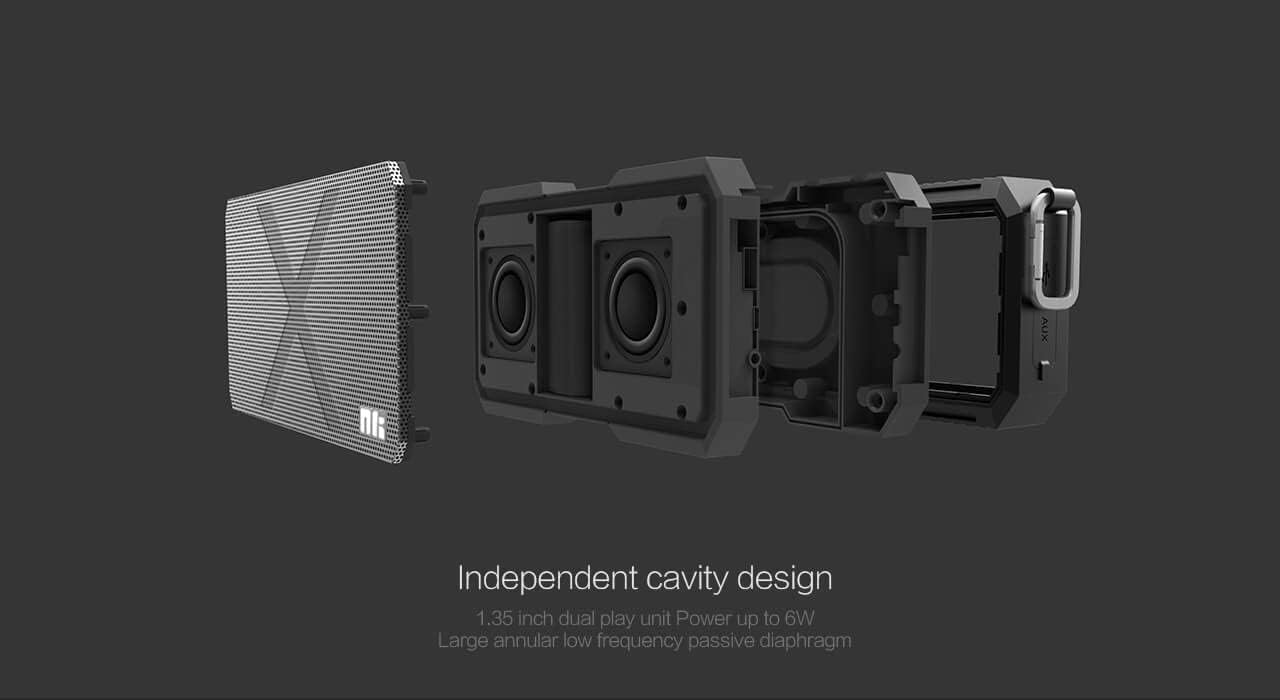
Image: An exploded diagram of the NILLKIN X-on X1 speaker, illustrating its internal structure including the 1.35-inch dual play unit and passive diaphragm for enhanced bass.
Warranty and Support
NILLKIN products are designed and manufactured to the highest quality standards. For warranty information and customer support, please refer to the warranty card included with your purchase or visit the official NILLKIN website. Keep your proof of purchase for any warranty claims.
If you encounter any issues not covered in the troubleshooting section, please contact NILLKIN customer support for assistance.


