1. Introduction
This manual provides comprehensive instructions for the HP 250 G6 laptop, designed to assist you with its setup, operation, maintenance, and troubleshooting. Understanding the features and functions of your device will ensure optimal performance and longevity.
The HP 250 G6 is a versatile laptop featuring an Intel Core i5-7200U processor, 8GB of DDR4 RAM, and a 256GB Solid State Drive. It comes equipped with a 15.6-inch HD SVA anti-glare display, Intel HD Graphics 620, and a DVD/CD-RW Combo drive. Connectivity options include 802.11ac Wi-Fi and Bluetooth 4.2. The laptop operates on Windows 10 Pro 64-bit.

Figure 1.1: Front view of the HP 250 G6 laptop, showcasing its 15.6-inch display with the Windows 10 Pro operating system interface.
2. Setup
2.1 Unpacking
Carefully remove all components from the packaging. Ensure the following items are present:
- HP 250 G6 Laptop
- AC Power Adapter and Power Cord
- Documentation (including this manual)
2.2 Connecting to Power
Before initial use, connect the laptop to a power source. Plug the AC power adapter into the laptop's power port and then into a wall outlet. The battery will begin charging automatically.
2.3 Initial Power On and Configuration
Press the power button located on the keyboard deck to turn on the laptop. Follow the on-screen instructions to complete the initial setup of Windows 10 Pro. This process typically involves selecting your region, language, accepting license agreements, and setting up user accounts.
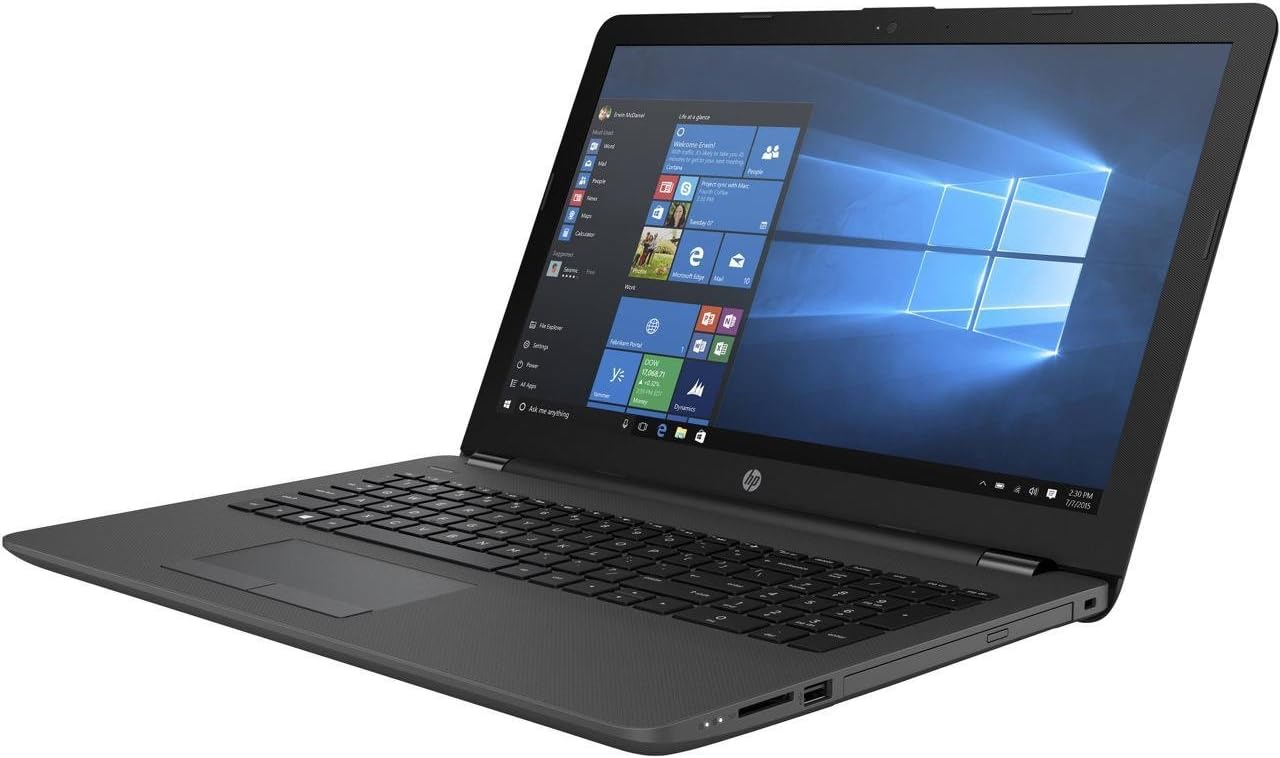
Figure 2.1: A side view of the HP 250 G6 laptop, illustrating the placement of ports such as USB, HDMI, and the power connector.
3. Operating Your HP 250 G6
3.1 Keyboard and Touchpad
The laptop features a full-sized keyboard and a multi-touch touchpad. The touchpad supports gestures for navigation, scrolling, and zooming. Refer to the Windows 10 Pro settings for customizing touchpad sensitivity and gestures.
3.2 External Ports and Connections
The HP 250 G6 provides various ports for connecting external devices:
- USB Ports: Connect USB devices such as external hard drives, mice, or keyboards. The laptop includes USB 2.0 ports.
- HDMI Port: Connect to an external display or projector.
- Ethernet (LAN) Port: For wired network connections.
- Audio Jack: For headphones or external speakers.
- SD Card Reader: For reading memory cards.
3.3 Optical Drive
The integrated DVD/CD-RW Combo drive allows you to read CDs and DVDs, and write to CD-R/RW discs. Insert discs gently into the drive slot.
3.4 Wireless Connectivity
The laptop supports 802.11ac Wi-Fi for high-speed wireless internet access and Bluetooth 4.2 for connecting wireless peripherals like headphones or mice.
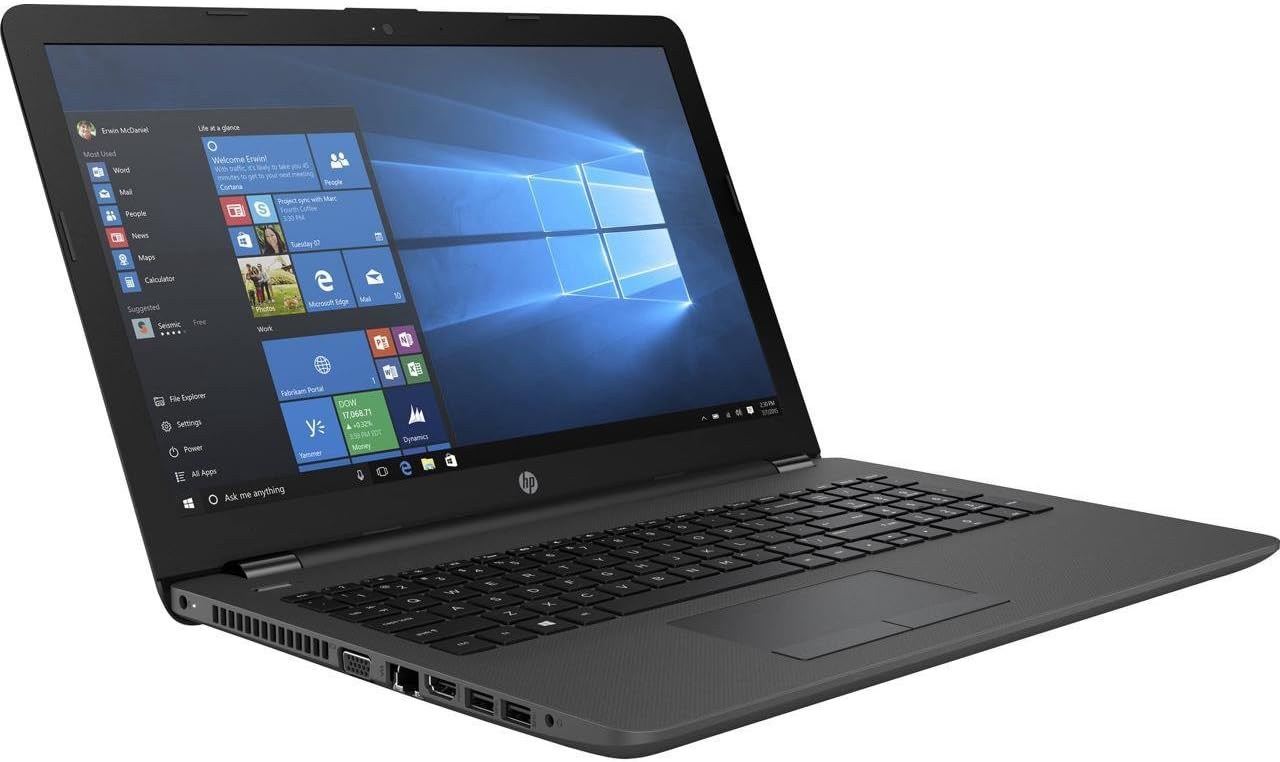
Figure 3.1: An alternative side view of the HP 250 G6 laptop, showing the DVD/CD-RW combo drive and other connectivity options.
4. Maintenance and Care
4.1 Cleaning
To clean the laptop, use a soft, lint-free cloth. For the screen, use a specialized screen cleaner. Avoid harsh chemicals or abrasive materials. Ensure the laptop is powered off and unplugged before cleaning.
4.2 Battery Management
The HP 250 G6 uses a 4-cell 41Wh Lithium Ion battery. To maximize battery life:
- Avoid extreme temperatures.
- Adjust power settings in Windows to optimize battery usage.
- Periodically allow the battery to discharge and recharge fully.
4.3 Software Updates
Regularly update your Windows 10 Pro operating system and HP drivers to ensure optimal performance, security, and compatibility. These updates often include bug fixes and performance enhancements.
5. Troubleshooting
This section addresses common issues you might encounter with your HP 250 G6 laptop.
5.1 Power Issues
- Laptop does not turn on: Ensure the AC adapter is securely connected to both the laptop and a working power outlet. Check if the power outlet is functional. If using battery, ensure it is charged.
- Battery not charging: Verify the AC adapter connection. Try a different power outlet. If the issue persists, the adapter or battery may require service.
5.2 Display Problems
- No image on screen: Connect an external monitor to check if the display output is working. If the external monitor works, the laptop's internal display may have an issue.
- Dim screen: Adjust the brightness settings using the function keys (Fn + F2/F3, or similar, depending on model) or through Windows display settings.
5.3 Connectivity Issues
- Wi-Fi not connecting: Ensure Wi-Fi is enabled in Windows settings. Restart your router and the laptop. Check for updated wireless drivers.
- Bluetooth device not pairing: Ensure Bluetooth is enabled on both the laptop and the device. Place devices close to each other and ensure they are in pairing mode.
6. Technical Specifications
Detailed specifications for the HP 250 G6 laptop (Model: 1NW57UT#ABA).
| Feature | Specification |
|---|---|
| Processor | Intel Core i5-7200U (2.5GHz, up to 3.1GHz, 3MB Cache) |
| RAM | 8 GB DDR4 |
| Storage | 256 GB TLC Solid State Drive |
| Display | 15.6-inch HD SVA AG (1366 x 768 pixels) |
| Graphics | Intel HD Graphics 620 (Integrated) |
| Optical Drive | DVD/CD-RW Combo |
| Wireless | 802.11ac (1x1) |
| Bluetooth | Bluetooth 4.2 |
| Operating System | Windows 10 Pro 64-bit |
| Ports | USB 2.0 (x1), other standard ports (VGA, HDMI, RJ-45, audio jack, card reader) |
| Security | TPM 2.0, Slot Lock |
| Battery | 4-Cell 41Wh Lithium Ion |
| Dimensions (LxWxH) | 14.96 x 9.99 x 0.93 inches |
| Weight | 4.14 pounds |
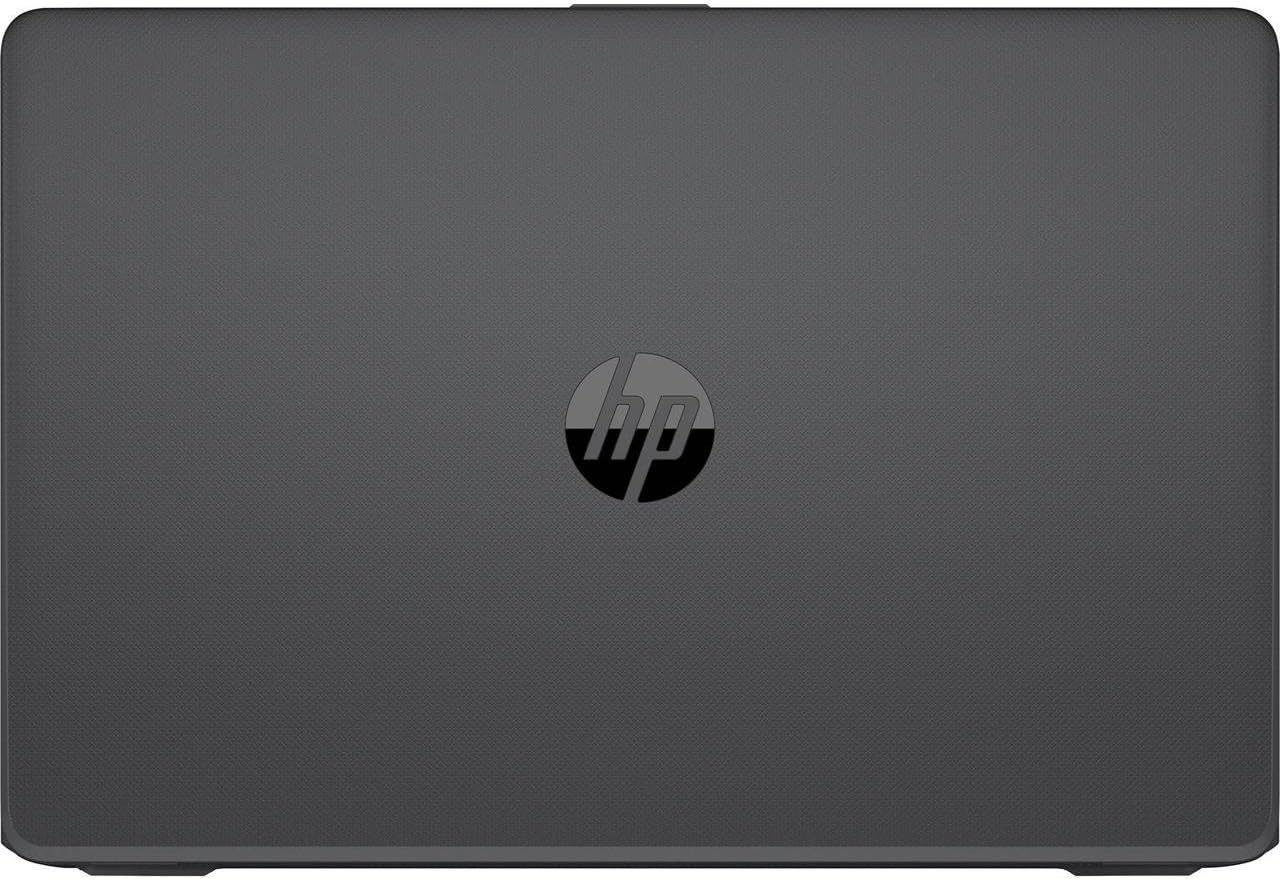
Figure 6.1: An overhead view of the closed HP 250 G6 laptop, featuring the HP logo prominently on the textured surface of the lid.
7. Warranty and Support
Your HP 250 G6 laptop comes with a standard manufacturer's warranty. Please refer to the warranty card included with your product for specific terms and conditions, including coverage duration and service procedures. For technical assistance, driver downloads, or further support, please visit the official HP support website or contact HP customer service.
For additional information and resources, you may visit the HP Store on Amazon.