
1. Introduction
The Grandstream GWN7600 is a high-performance 802.11ac Wave-2 Wi-Fi access point designed for small to medium-sized businesses, multi-floor offices, commercial locations, and branch offices. It features dual-band 2x2:2 MU-MIMO with beam-forming technology and an advanced antenna design to deliver maximum network throughput and extended Wi-Fi coverage.
This access point incorporates a controller-less distributed network management design, with the controller embedded directly within the product's web user interface. This enables each GWN7600 unit to manage a network of up to 30 GWN76xx series Access Points independently, eliminating the need for separate controller hardware or software and preventing a single point of failure. The GWN7600 supports advanced Quality of Service (QoS), low-latency real-time applications, and can handle over 450 concurrent client devices per AP. It is equipped with dual Gigabit network ports with Power-over-Ethernet (PoE) support, making it an ideal solution for medium wireless network deployments requiring medium-to-high user density.
2. Package Contents
Verify that all items are present in your package:
- GWN7600 Access Point
- Mounting Bracket
- Mounting Screws
- Quick Installation Guide (User Manual)
Note: A power supply unit is not included with the GWN7600. The device is designed to be powered via Power-over-Ethernet (PoE) using an 802.3af/at compliant injector or switch.
3. Product Overview
The GWN7600 features a compact, circular design suitable for ceiling or wall mounting. It includes LED indicators for status and network activity, and ports for network connectivity.
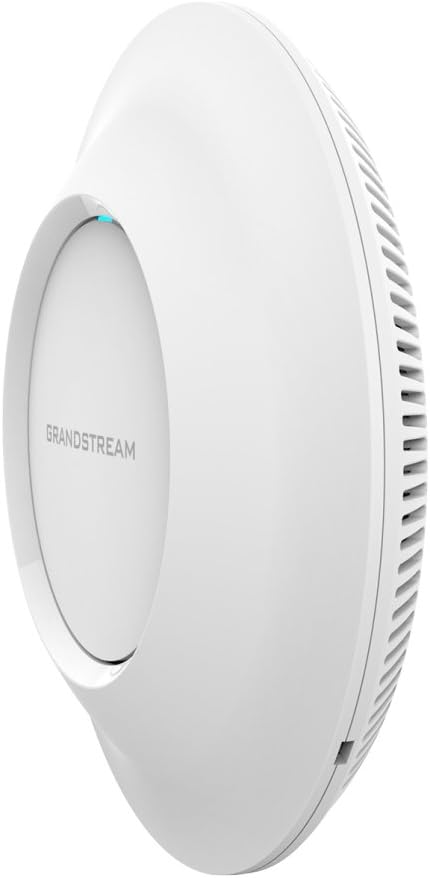
Figure 3.1: Side view of the Grandstream GWN7600 Access Point, showing its sleek, circular design and ventilation on the side. A blue LED indicator is visible on the top surface.

Figure 3.2: Front view of the Grandstream GWN7600 Access Point, displaying the "GRANDSTREAM" logo centrally. Three blue LED indicators are visible, indicating operational status.
LED Indicators
- Blue (Solid): Device is powered on and operating normally.
- Blue (Flashing): Network activity or device is booting up.
- Off: Device is powered off or experiencing an issue.
Ports
- LAN1/PoE: Gigabit Ethernet port with Power-over-Ethernet (PoE) support for data and power.
- LAN2: Gigabit Ethernet port for data connection.
- Reset Button: Used to reset the device to factory default settings.
- DC Power Jack (24V): Optional power input, though PoE is the primary method.
4. Setup
4.1 Physical Installation
The GWN7600 can be mounted on a wall or ceiling. Choose a central location to maximize Wi-Fi coverage. Use the included mounting bracket and screws to secure the access point.
- Attach the mounting bracket to the desired surface using the provided screws.
- Align the GWN7600 with the bracket and twist to lock it into place.
4.2 Powering the Device
The GWN7600 is primarily powered via Power-over-Ethernet (PoE). Connect an Ethernet cable from a PoE-enabled switch or PoE injector (802.3af/at compliant) to the LAN1/PoE port on the access point. The device will power on automatically.
Alternatively, a 24V DC power adapter (not included) can be connected to the DC Power Jack.
4.3 Initial Configuration Access
To access the web configuration interface:
- Ensure the GWN7600 is powered on and connected to your network.
- The device will attempt to obtain an IP address via DHCP. To find its IP address, check the DHCP client list on your router or network server.
- Open a web browser on a computer connected to the same network and enter the GWN7600's IP address in the address bar.
- Log in using the default credentials (refer to the Quick Installation Guide for default username and password).
Note on IP Address Discovery: If DHCP is not available, or if you cannot locate the IP address, Grandstream provides a discovery tool. Alternatively, you may need to connect directly to the device and configure a static IP on your computer within the device's default subnet (if applicable) to access the web UI. The device does not have a fixed default IP if DHCP is offered.
5. Operating the GWN7600
5.1 Basic Wi-Fi Operation
Once configured, the GWN7600 will broadcast Wi-Fi networks (SSIDs) as defined in its web interface. Client devices can connect to these networks using the specified security settings (e.g., WPA2-PSK).
5.2 Controller-less Management
The GWN7600 features an embedded controller. One GWN7600 unit can act as a master controller for up to 30 other GWN76xx series access points. This allows for centralized management of multiple APs without dedicated hardware or software.
- Access the web UI of the designated master AP.
- Navigate to the "GWN Cloud" or "AP Management" section to discover and manage other GWN series APs on your network.
- Configure SSIDs, security settings, and other network parameters from the master AP, which will then push these configurations to the managed APs.
5.3 Advanced Features
- MU-MIMO (Multi-User, Multiple-Input, Multiple-Output): Allows the access point to communicate with multiple client devices simultaneously, improving network efficiency and throughput for compatible devices.
- Beam-Forming Technology: Directs Wi-Fi signals towards connected devices, enhancing signal strength and coverage, especially at longer distances.
- Quality of Service (QoS): Prioritizes network traffic for critical applications (e.g., voice, video) to ensure smooth performance and low latency.
6. Maintenance
6.1 Firmware Updates
Regularly updating the firmware ensures optimal performance, security, and access to new features. Grandstream typically provides firmware updates on their official website.
- Visit the Grandstream support website to download the latest firmware for the GWN7600.
- Access the GWN7600's web configuration interface.
- Navigate to the "Maintenance" or "Firmware Upgrade" section.
- Follow the on-screen instructions to upload and apply the new firmware. Ensure the device remains powered during the entire upgrade process to prevent damage.
Important: It is recommended to back up your configuration settings before performing a firmware upgrade, as some upgrades may reset settings to default.
6.2 Cleaning
To clean the device, use a soft, dry cloth. Do not use liquid cleaners or aerosol sprays, as they may damage the device.
7. Troubleshooting
This section addresses common issues you might encounter with your GWN7600 Access Point.
7.1 No Power/LEDs Off
- Check PoE Connection: Ensure the Ethernet cable is securely connected to the LAN1/PoE port and that the PoE source (switch or injector) is active and providing power.
- Verify PoE Standard: Confirm that your PoE source is 802.3af/at compliant.
- Alternative Power: If using a DC adapter, ensure it is a 24V adapter and properly connected.
7.2 Cannot Access Web Interface
- IP Address: Verify the correct IP address of the GWN7600. Check your router's DHCP client list.
- Network Connectivity: Ensure your computer is on the same network segment as the access point.
- Firewall/Antivirus: Temporarily disable any firewall or antivirus software on your computer that might be blocking access.
- Browser Issues: Try a different web browser or clear your browser's cache.
- Factory Reset: As a last resort, perform a factory reset by pressing and holding the reset button for approximately 10 seconds while the device is powered on. This will revert all settings to default.
7.3 Poor Wi-Fi Performance/Coverage
- Placement: Ensure the access point is centrally located and free from obstructions (e.g., thick walls, metal objects).
- Interference: Check for sources of interference (e.g., cordless phones, microwaves, neighboring Wi-Fi networks). Adjust Wi-Fi channels if necessary.
- Firmware: Ensure the latest firmware is installed.
- Client Devices: Verify that client devices support 802.11ac Wave 2 for optimal performance.
8. Specifications
| Feature | Description |
|---|---|
| Wireless Standards | IEEE 802.11a/b/g/n/ac (Wave 2) |
| Wi-Fi Speeds | 1.27 Gbps (Dual-band 2x2:2 MU-MIMO) |
| Frequency Bands | 2.4 GHz and 5 GHz (Dual-Band) |
| Antennas | Internal antennas with Beam-Forming Technology |
| Network Interfaces | 2 x Gigabit Ethernet Ports (LAN1/PoE, LAN2) |
| PoE Support | 802.3af/at compliant |
| Max. Client Devices | 450+ concurrent clients |
| Coverage Range | Up to 165 meters (541 feet) |
| Management | Embedded controller (up to 30 GWN APs) |
| Dimensions (LxWxH) | 9 x 9 x 3 inches |
| Weight | 1.8 pounds |
| Operating System | ZyNOS |
| Voltage | 24 Volts (DC input option) |
9. Warranty Information
For detailed warranty information regarding your Grandstream GWN7600 Access Point, please refer to the official Grandstream website or the warranty card included with your product. Warranty terms and conditions may vary by region and retailer.
10. Technical Support
Should you require technical assistance or have questions not covered in this manual, please contact Grandstream technical support. Support resources, including FAQs, documentation, and contact information, are available on the official Grandstream website:


