
1. Introduction
This manual provides essential information for setting up, operating, maintaining, and troubleshooting your Microsoft Surface Pro Model 1796. The Surface Pro is a versatile 2-in-1 device designed to function as both a high-performance laptop and a portable tablet. Please read these instructions carefully to ensure optimal use and longevity of your device.
2. Product Overview
The Microsoft Surface Pro Model 1796 features a 12.3-inch PixelSense multi-touch display, an Intel Core i5 processor, 4GB of RAM, and a 128GB SSD. It operates on Windows 10 Pro, offering a full desktop experience in a portable form factor. The device supports a detachable keyboard (Surface Pro Signature Type Cover) and a digital pen (Surface Pen), both sold separately, to enhance its functionality.

Figure 2.1: Microsoft Surface Pro in tablet mode, displaying the lock screen.
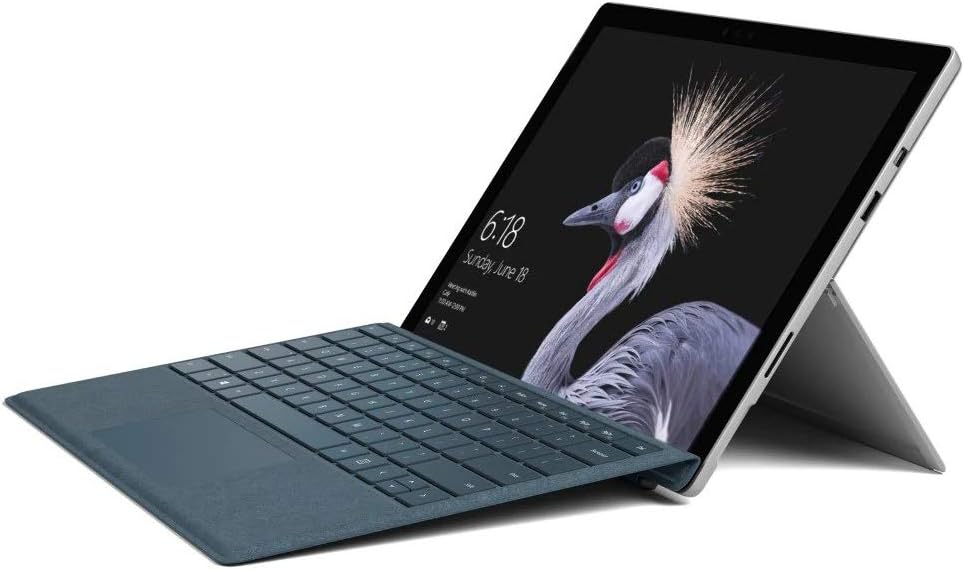
Figure 2.2: Microsoft Surface Pro with Signature Type Cover attached, configured as a laptop.

Figure 2.3: Microsoft Surface Pro tablet and detached Signature Type Cover.
3. Setup
3.1 Initial Power On
- Connect the power supply to the Surface Pro and a power outlet.
- Press the power button located on the top edge of the device.
- Follow the on-screen instructions to complete the initial Windows 10 Pro setup, including language selection, network connection, and user account creation.
3.2 Connecting Accessories
- Surface Pro Signature Type Cover: Align the Type Cover with the magnetic connector along the bottom edge of the Surface Pro until it clicks into place.
- Surface Pen: The Surface Pen connects via Bluetooth. Go to Settings > Devices > Bluetooth & other devices to pair the pen.
3.3 Charging the Device
Use the provided power adapter to charge your Surface Pro. The charging port is located on the right side of the device. A full charge provides approximately 13 hours of typical device usage.
4. Operating Instructions
4.1 Basic Navigation
- Touch: Use multi-touch gestures on the PixelSense display for navigation, zooming, and scrolling.
- Type Cover: Utilize the keyboard and trackpad for traditional laptop input.
- Surface Pen: Write, draw, and annotate directly on the screen.
4.2 Windows 10 Pro Features
Your Surface Pro comes with Windows 10 Pro, offering features such as:
- Windows Hello: For fast, secure, password-free sign-in using facial recognition.
- Cortana: Your personal digital assistant.
- Microsoft Edge: The default web browser.
- Tablet Mode: Automatically or manually switch to a touch-optimized interface when the Type Cover is detached.
4.3 Display Settings
The 12.3-inch PixelSense display has a resolution of 2736 x 1824 pixels. You can adjust display settings such as brightness, resolution, and scaling through Settings > System > Display.
5. Maintenance
5.1 Cleaning the Device
- Use a soft, lint-free cloth dampened with water or an approved screen cleaner to clean the display.
- For the device body, use a soft, dry cloth. Avoid harsh chemicals or abrasive materials.
5.2 Software Updates
Regularly check for and install Windows updates to ensure your device has the latest security patches and features. Go to Settings > Update & Security > Windows Update.
5.3 Battery Care
- Avoid extreme temperatures, as they can degrade battery life.
- For optimal battery health, avoid consistently discharging the battery completely or keeping it at 100% charge for extended periods.
6. Troubleshooting
6.1 Common Issues
- Device not powering on: Ensure the device is charged. Try holding the power button for 10-15 seconds to perform a force restart.
- Screen not responding: Restart the device. If the issue persists, check for driver updates.
- Performance issues: Close unnecessary applications, check for Windows updates, or run a disk cleanup.
6.2 Contacting Support
For more complex issues or technical assistance, please visit the official Microsoft Support website or contact their customer service. Have your device's model number (FJU-00001) and serial number ready.
7. Specifications
| Feature | Specification |
|---|---|
| Model Name | FJU-00001 |
| Display Size | 12.3 Inches |
| Screen Resolution | 2736 x 1824 pixels |
| Processor | Intel Core i5 (2.6 GHz) |
| RAM | 4 GB DDR3 |
| Storage | 128 GB SSD |
| Graphics Coprocessor | Intel HD Graphics 620 |
| Operating System | Windows 10 Pro |
| Wireless Type | 802.11b, 802.11g, 802.11n |
| Average Battery Life | 13 Hours |
| Item Weight | 1.7 pounds |
| Product Dimensions | 11.5 x 0.33 x 7.93 inches |
| Rear Webcam Resolution | 5 MP |
8. Warranty and Support
Your Microsoft Surface Pro Model 1796 is covered by a limited hardware warranty provided by Microsoft. For detailed warranty terms and conditions, please refer to the documentation included with your purchase or visit the official Microsoft support website. Keep your proof of purchase for warranty claims.
For technical support, driver downloads, and service information, please visit support.microsoft.com. You may need to provide your device's serial number and model information.


