Introduction
This manual provides comprehensive instructions for the setup, operation, and maintenance of your Brother P-Touch Cube Color Smartphone Label Maker, Model PTP300BT. This device allows you to design and print personalized labels directly from your smartphone or tablet using Bluetooth wireless technology and the dedicated Design&Print2 app.
1. Setup
1.1 Unboxing and Components
Carefully remove all components from the packaging. Verify that the following items are included:
- Brother P-touch Cube Label Maker (PTP300BT)
- Black on white standard laminated TZe starter tape (0.47" / 12mm x 13.1' / 4m)
- AC Power Adapter
- User's Guide (this document)

Figure 1: Front view of the Brother P-Touch Cube Label Maker. This image shows the compact, white cube-shaped device with the "P-touch" logo on its top surface.
1.2 Power Connection
Connect the supplied AC power adapter to the power port on the side of the label maker and then plug it into a standard electrical outlet. The device can also be powered by 6 AAA batteries (not included) for portable use. Refer to the battery compartment for correct battery insertion.
1.3 Installing the TZe Tape Cassette
- Open the tape cassette cover on the back of the label maker.
- Insert the TZe tape cassette with the tape end facing the tape exit slot. Ensure it clicks into place.
- Close the tape cassette cover securely.
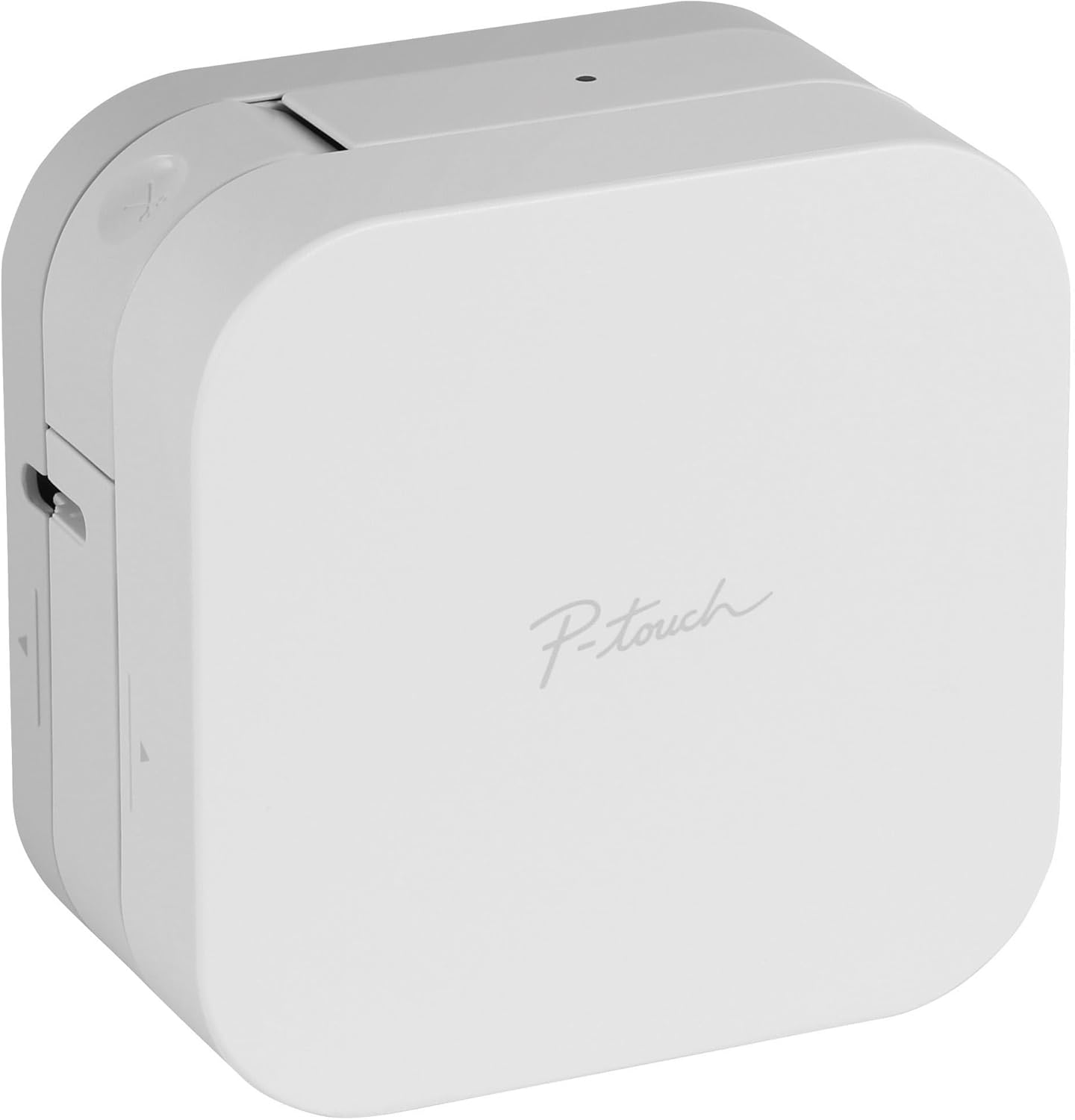
Figure 2: Side view of the label maker showing the tape cassette compartment. The image illustrates how the TZe tape cassette is inserted into the device.
1.4 Downloading and Installing the App
The Brother P-Touch Cube operates exclusively with the "Brother Design&Print2" app. This app is compatible with both Apple iOS and Android devices.
- For Apple devices, search for "Brother Design&Print2" in the App Store.
- For Android devices, search for "Brother Design&Print2" in the Google Play Store.
- Download and install the app on your smartphone or tablet.

Figure 3: A smartphone screen showing the main interface of the Brother Design&Print2 app, with various label categories like "Kitchen," "Storage," and "Home Office."
1.5 Bluetooth Pairing
- Ensure Bluetooth is enabled on your smartphone or tablet.
- Turn on the P-Touch Cube label maker by pressing the power button. The Bluetooth indicator light will flash.
- Open the "Brother Design&Print2" app. The app will automatically search for and connect to your label maker.
- Once connected, the Bluetooth indicator light on the label maker will glow steadily.
2. Operating Instructions
2.1 Designing Labels
The Design&Print2 app offers various options for label creation:
- Templates: Choose from a wide selection of pre-designed templates for home and office organization.
- Custom Design: Create your own labels using the app's editing tools. You can select from over 450 symbols, 60 frames, and a variety of fonts, including most Google and Apple font libraries.
- Text Input: Utilize your device's voice-to-text and spell-check features for efficient text entry.
2.2 Printing Labels
- After designing your label in the app, tap the "Print" icon.
- Confirm print settings such as the number of copies.
- The label maker will print the label. Once printing is complete, the label will emerge from the tape exit slot.
- Use the built-in cutter to cleanly separate the printed label from the tape roll.

Figure 4: The label maker in operation, with a white label extending from its output slot, displaying the text "Print Wirelessly".

Figure 5: A clear glass jar filled with penne pasta, featuring a white label with "PENNE" printed on it, created by the P-Touch Cube.

Figure 6: A small basil plant in a terracotta pot, with a black label stake inserted into the soil, clearly marked "BASIL".
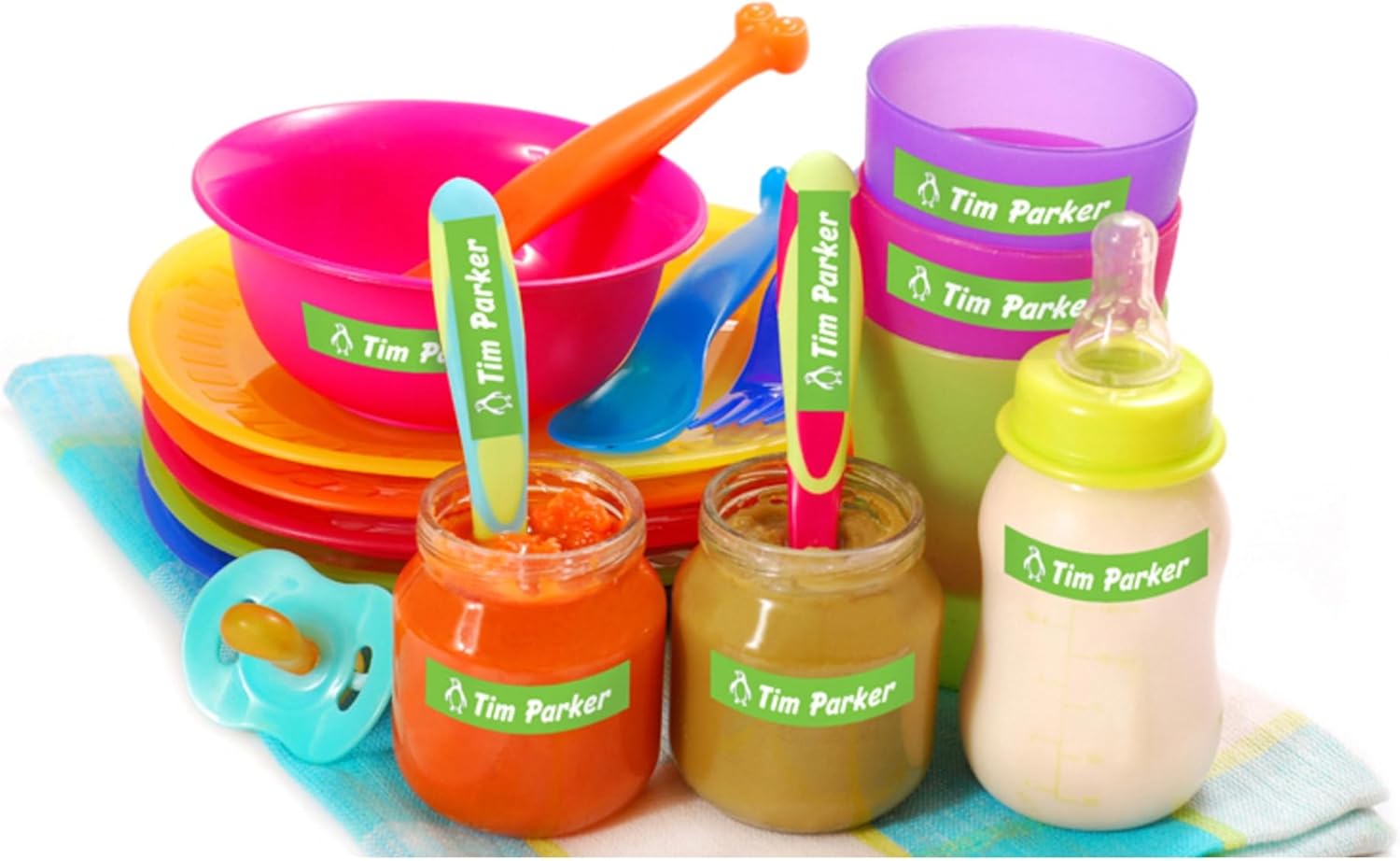
Figure 7: Various colorful baby feeding items, including jars of baby food and a baby bottle, all clearly labeled with green labels displaying "Tim Parker" and a small baby icon.
2.3 Compatible TZe Tapes
The P-Touch Cube uses Brother P-touch TZe durable, laminated tapes. These tapes are available in various colors and types, and support widths up to 12mm (0.47 inches).
3. Maintenance
3.1 Cleaning the Label Maker
- Ensure the label maker is turned off and unplugged before cleaning.
- Wipe the exterior of the device with a soft, dry cloth.
- To clean the print head, use a cotton swab lightly dampened with isopropyl alcohol. Gently wipe the print head surface.
- Remove any dust or adhesive residue from the tape exit slot and cutter blade area using a soft brush or cotton swab.
3.2 Replacing Tape Cassettes
When the tape cassette is empty or you wish to change tape types/colors:
- Open the tape cassette cover.
- Remove the used tape cassette by lifting it out.
- Insert a new TZe tape cassette, ensuring it is properly seated.
- Close the tape cassette cover.
4. Troubleshooting
If you encounter issues with your P-Touch Cube, refer to the following common solutions:
| Problem | Solution |
|---|---|
| Device does not power on. | Ensure the AC adapter is securely connected and plugged into a working outlet. If using batteries, check that they are correctly inserted and not depleted. |
| Cannot connect via Bluetooth. | Verify Bluetooth is enabled on your mobile device. Ensure the label maker is powered on and within range. Restart both the label maker and your mobile device. Check the app for connection status. |
| Poor print quality or blank labels. | Check if the TZe tape cassette is correctly installed and not empty. Clean the print head as described in the Maintenance section. Ensure the tape is not wrinkled or jammed. |
| Tape jam. | Turn off the device and open the tape cassette cover. Carefully remove any jammed tape. Reinsert the cassette and close the cover. |
| App not responding. | Close and reopen the "Brother Design&Print2" app. If the issue persists, restart your mobile device. Ensure the app is updated to the latest version. |
For further assistance, consult the official Brother support website or the in-app help resources.
5. Specifications
| Feature | Detail |
|---|---|
| Model Number | PTP300BT |
| Product Dimensions (D x W x H) | 2.5" x 4.6" x 4.6" |
| Item Weight | 13.4 ounces (0.84 lbs) |
| Connectivity Technology | Bluetooth |
| Printing Technology | Thermal |
| Maximum Print Resolution | 180 dpi (Color and Black & White) |
| Compatible Devices | Smartphones (Apple iOS, Android) |
| Supported Tape Widths | Up to 12 mm (0.47 inches) TZe tapes |
| Power Source | AC Power Adapter (included) or 6 AAA batteries (not included) |
| Included Components | Label Maker, Starter Tape, AC Adapter, User's Guide |
6. Warranty and Support
6.1 Product Warranty
This Brother P-Touch Cube Label Maker comes with a limited warranty. For detailed information regarding warranty terms, coverage, and duration, please refer to the warranty card included with your product or visit the official Brother support website.
6.2 Customer Support
For technical support, frequently asked questions, driver downloads, and additional resources, please visit the official Brother support website:
You can also find the full User Manual in PDF format for download here.


