
1. Introduction
The Swiftpoint Z Gaming Mouse is a high-performance input device designed for gaming and productivity, offering extensive customization and control options. It features a unique button layout, pressure-sensitive deep click buttons, gyroscopic gesture control, and an OLED display for real-time feedback. This manual provides instructions for setting up, operating, maintaining, and troubleshooting your Swiftpoint Z Gaming Mouse.

Figure 1: Swiftpoint Z Gaming Mouse, top-down view.
2. Package Contents
Verify that all items are present in your Swiftpoint Z Gaming Mouse package:
- Swiftpoint Z Gaming Mouse (Wired)
- Interchangeable Button Caps (4 sets of varying sizes and shapes)
- Adjustable Bases/Feet (2 sets)
- Flight Stick Extender
- Carrying Case

Figure 2: Swiftpoint Z Gaming Mouse and included accessories in its protective carrying case.
3. Product Overview
The Swiftpoint Z is engineered with advanced features to enhance your control and interaction:
- 13 Programmable Buttons: Customize actions for various applications and games.
- 5 Pressure-Sensitive Deep Click Buttons: Execute secondary actions based on click pressure, indicated by vibration feedback.
- Analog Joystick Control: Utilize gyroscopic sensors for precise in-game movement, such as peeking or flying.
- 12K DPI Optical Sensor: High-precision tracking with adjustable sensitivity.
- OLED Display: View current configuration, DPI settings, and profile information directly on the mouse.
- RGB LED Lighting: Personalize the mouse's aesthetic to match your setup.
- Onboard Memory: Store multiple profiles directly on the mouse for use across different systems without software.
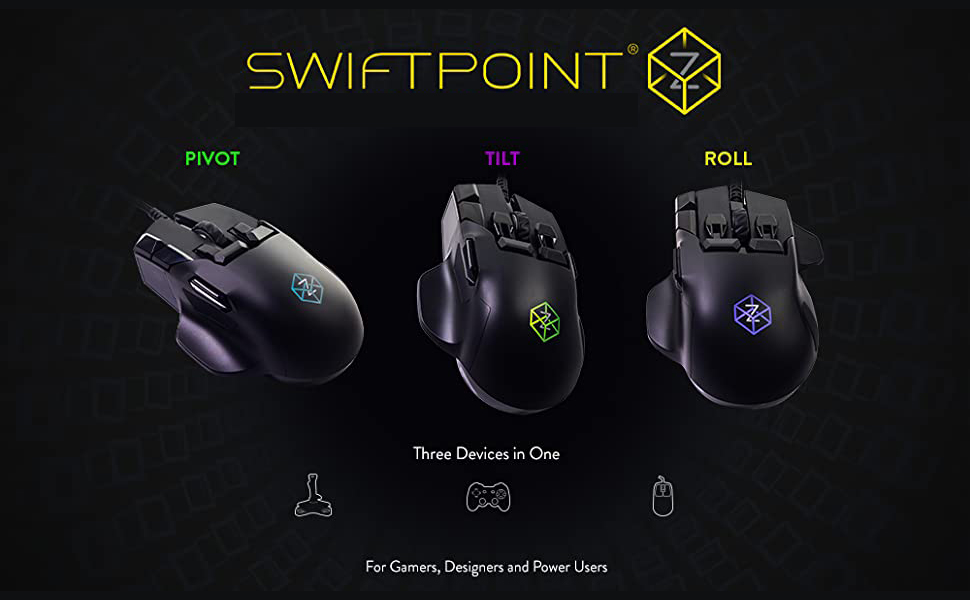
Figure 3: Overview of the Swiftpoint Z Gaming Mouse button layout.
4. Setup Guide
4.1 Connecting the Mouse
- Unpack the Swiftpoint Z Gaming Mouse from its packaging.
- Connect the USB cable of the mouse to an available USB port on your computer.
- The operating system should automatically detect the mouse.
4.2 Software Installation
For full functionality and customization of the Swiftpoint Z, it is recommended to install the official Swiftpoint software.
- Visit the official Swiftpoint website (www.swiftpoint.com) to download the latest software for your operating system (Windows compatible).
- Follow the on-screen instructions to complete the installation.
- Launch the software to begin customizing your mouse settings and profiles.
5. Operating Instructions
5.1 Basic Mouse Functions
The Swiftpoint Z operates as a standard mouse with left-click, right-click, and scroll wheel functions. The scroll wheel also functions as a middle-click button.
5.2 Understanding Programmable Buttons
The mouse features 13 programmable buttons, allowing you to assign keyboard keys, mouse functions, gamepad controls, or macros. Use the Swiftpoint software to configure these buttons according to your preferences.

Figure 4: The Swiftpoint Z features 13 programmable buttons for extensive customization.
5.3 Deep Click Functionality
Five buttons on the Swiftpoint Z are equipped with pressure sensors, enabling a 'deep click' action. A light press activates one function, while a harder press activates a secondary function. Vibration feedback confirms when a deep click has been registered. The sensitivity of deep clicks can be adjusted via the software.

Figure 5: Deep click buttons provide additional functionality based on pressure.
5.4 Gyroscopic and Analog Joystick Control
The integrated gyroscopic sensors allow for analog joystick control by tilting the mouse. This feature can be used for precise movements in games, such as leaning in FPS titles or controlling flight in simulations. The sensitivity and mapping of these gestures are configurable in the software.
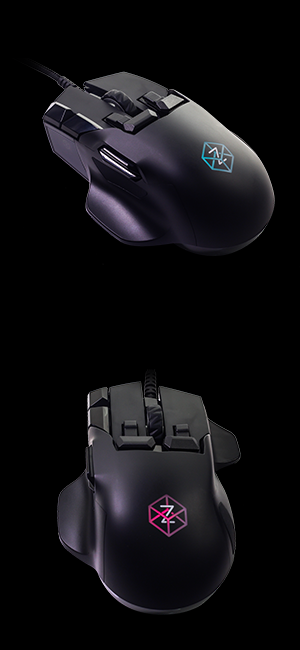
Figure 6: Gyroscopic sensors enable analog joystick control through mouse tilt.
5.5 OLED Display Usage
The small OLED screen on the side of the mouse provides immediate visual feedback. It can display the active profile, current DPI setting, battery status (if applicable), and other configurable information. This allows for quick adjustments and status checks without needing to open the software.
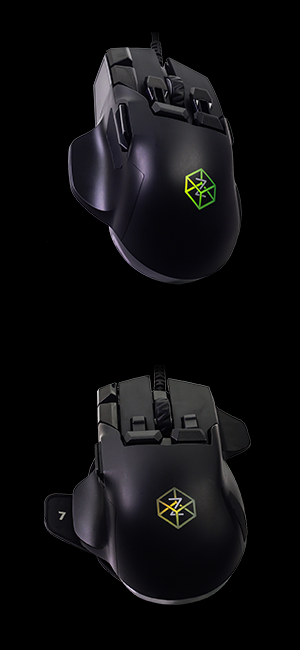
Figure 7: The OLED display provides real-time information and settings.
5.6 RGB Lighting Customization
The RGB LED lighting can be customized through the Swiftpoint software. You can select various colors and effects to personalize the mouse's appearance.
5.7 Profile Management (Onboard Memory)
The Swiftpoint Z includes onboard memory to store multiple user-defined profiles. This allows you to save different button mappings, DPI settings, and lighting configurations for various games or applications. Profiles can be switched directly from the mouse using assigned buttons or through the software.
6. Customization Options
The Swiftpoint Z offers physical customization to adapt to your hand size and grip style:
- Interchangeable Button Caps: The mouse comes with four sets of button caps in different sizes and shapes. Experiment with these to find the most comfortable and effective configuration for your fingers.
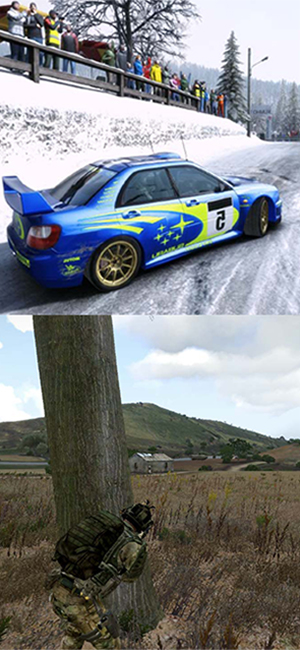
Figure 8: Customizable button caps allow for personalized ergonomics.
- Adjustable Bases/Feet: Two sets of adjustable bases are included. These can alter the mouse's height and angle, further enhancing comfort and control.

Figure 9: Adjustable bases provide ergonomic flexibility.
- Flight Stick Extender: For enhanced analog control, especially in flight simulation games, attach the flight stick extender. This accessory provides a more pronounced pivot point for gyroscopic movements.

Figure 10: The flight stick extender enhances analog control for specific applications.
7. Maintenance
To ensure the longevity and optimal performance of your Swiftpoint Z Gaming Mouse, follow these maintenance guidelines:
- Cleaning: Regularly wipe the mouse surface with a soft, dry cloth. For stubborn dirt, slightly dampen the cloth with water or a mild cleaning solution. Avoid harsh chemicals or abrasive materials.
- Sensor Care: Keep the optical sensor on the underside of the mouse clean and free from dust or debris. Use a cotton swab or compressed air if necessary.
- Cable Management: Avoid sharp bends or excessive pulling on the braided USB cable to prevent damage.
- Storage: When not in use, store the mouse and its accessories in the provided carrying case to protect them from dust and physical damage.
8. Troubleshooting
If you encounter issues with your Swiftpoint Z Gaming Mouse, refer to the following common problems and solutions:
| Problem | Possible Cause | Solution |
|---|---|---|
| Mouse not responding | Loose USB connection, faulty USB port, driver issue. |
|
| Deep click not registering or too sensitive | Incorrect sensitivity setting in software. |
|
| Gyroscopic control is inaccurate or drifts | Calibration issue, uneven surface. |
|
| Software is difficult to use or configure | Complexity of advanced features. |
|
9. Technical Specifications
| Feature | Detail |
|---|---|
| Brand | Swiftpoint |
| Model Number | SM700 |
| Color | Black |
| Connectivity Technology | USB (Wired) |
| Movement Detection Technology | Optical (PixArt PMW3360) |
| Sensor Resolution | 200 - 12,000 DPI |
| Polling Rate | 1000Hz |
| Button Quantity | 18 (including programmable and deep click functions) |
| Hand Orientation | Right |
| Compatible Devices | PC, Mac, Laptop |
| Operating System | Windows (Software required for full customization) |
| Cable Length | 6 feet (Braided) |
| Item Weight | 117 g |
| Enclosure Material | Plastic |
10. Warranty Information
The Swiftpoint Z Gaming Mouse comes with a 12 Month Manufacturer Warranty. Please retain your proof of purchase for warranty claims. For detailed terms and conditions, refer to the official Swiftpoint website or contact customer support.
11. Support
For further assistance, technical support, or to access additional resources such as FAQs and software updates, please visit the official Swiftpoint support page:
You may also find helpful community forums and user-created profiles on the Swiftpoint website.