
Introduction
This manual provides detailed instructions for the proper use and maintenance of your Casio fx-260 Solar II Scientific Calculator. Designed for students in middle school through high school, this calculator offers a range of functions including fraction calculations, trigonometric operations, and statistical analysis. Please read this manual thoroughly to ensure optimal performance and longevity of your device.

Image: Front view of the Casio fx-260 Solar II Scientific Calculator, displaying its 10-digit screen and key layout.
Setup
Power Source
The Casio fx-260 Solar II calculator is primarily solar-powered. It operates efficiently in well-lit environments. For low-light conditions or extended use, it features a battery backup system. The calculator comes with 2 AA batteries pre-installed.
- Initial Use: The calculator should power on automatically when exposed to sufficient light.
- Turning On: Press the ON button to activate the calculator.
- Turning Off: The calculator will automatically power off after a period of inactivity to conserve energy. You can also manually turn it off by pressing SHIFT then AC (OFF).
Battery Replacement
If the display becomes dim or unresponsive in adequate lighting, the battery may need replacement. Use 2 AA batteries. Refer to the diagram below for battery compartment location, typically on the back of the unit.
- Ensure the calculator is off.
- Carefully remove the battery compartment cover on the back of the calculator.
- Remove the old batteries and insert new AA batteries, ensuring correct polarity (+/-).
- Replace the battery compartment cover securely.
Operating Instructions
This section outlines the basic and advanced functions of your Casio fx-260 Solar II calculator.
Basic Arithmetic Operations
Enter numbers using the numeric keypad and perform operations using the +, -, ×, and ÷ keys. Press = to display the result.
- Clear Entry (C): Clears the last entered number or operation.
- All Clear (AC): Clears all calculations and memory, returning the calculator to its initial state.
Mode Settings
Press the MODE button to cycle through different calculation modes and settings. Common modes include:
- COMP (Computation): Standard arithmetic and scientific calculations.
- SD (Standard Deviation): For statistical calculations.
- REG (Regression): For regression analysis.
Use the arrow keys or MODE button to select the desired mode, then press = or the corresponding number.
Fraction Calculations
The d/c or a b/c key is used for entering and calculating with fractions.
- Entering Simple Fractions: Enter the numerator, press d/c, then enter the denominator.
- Entering Mixed Numbers: Enter the whole number, press a b/c, enter the numerator, press d/c, then enter the denominator.
- Converting Fractions to Decimals: Press SHIFT then d/c (or the appropriate conversion key) to toggle between fraction and decimal display.
Trigonometric Functions
The calculator supports standard trigonometric functions (sine, cosine, tangent) and their inverses.
- Angle Units: Ensure the correct angle unit (DEG for degrees, RAD for radians, GRA for gradians) is selected. Press MODE repeatedly until the desired unit appears, or use SHIFT + DRG (if available) to cycle. The current unit is indicated on the display.
- Sine (sin), Cosine (cos), Tangent (tan): Enter the angle value, then press the corresponding function key.
- Inverse Trigonometric Functions (sin-1, cos-1, tan-1): Press SHIFT, then the sin, cos, or tan key. Enter the value, then press =.
Logarithms and Exponents
- Common Logarithm (log): Press log, enter the number, then press =.
- Natural Logarithm (ln): Press ln, enter the number, then press =.
- Powers (xy): Enter the base, press xy, enter the exponent, then press =.
- Square Root (√): Press √, enter the number, then press =.
- Square (x2): Enter the number, then press x2.
Memory Functions
The calculator includes memory functions for storing and recalling values.
- Store to Memory (M+): Adds the displayed value to the independent memory.
- Recall Memory (MR): Recalls the value stored in the independent memory.
- Clear Memory (M-): Subtracts the displayed value from the independent memory. To clear the memory completely, press SHIFT then M+ (MCL).

Image: Close-up view of the Casio fx-260 Solar II calculator, highlighting the arrangement of its function keys.
Maintenance
- Cleaning: Wipe the calculator with a soft, dry cloth. Avoid using abrasive cleaners or solvents, as they may damage the casing or display.
- Storage: Store the calculator in a cool, dry place away from direct sunlight and extreme temperatures. Use the provided hard case cover to protect the keys and display from scratches and impact.
- Battery Life: The solar panel helps extend battery life significantly. If the calculator is stored in darkness for prolonged periods, the battery will be used more frequently.

Image: The Casio fx-260 Solar II calculator shown alongside its removable hard case, emphasizing protection.
Troubleshooting
| Problem | Solution |
|---|---|
| Display is blank or dim. | Ensure the calculator is in a well-lit area. If the issue persists, replace the AA batteries. |
| Incorrect calculation results. | Check the current mode (COMP, SD, REG) and angle unit (DEG, RAD, GRA). Press AC to clear previous calculations. Review your input sequence. |
| Keys are unresponsive. | Press ON. If still unresponsive, try replacing the batteries. Ensure no debris is lodged under the keys. |
| "ERROR" message on display. | This indicates a mathematical error (e.g., division by zero, invalid input for a function). Press AC to clear the error and re-enter the calculation. |
Specifications
- Model: FX-260 SOLARII
- Display: 10-Digit
- Power Source: Solar with AA battery backup (2 AA batteries included)
- Dimensions: 5 x 2.9 x 0.1 inches (approximately)
- Weight: 0.317 ounces (approximately)
- Functions: Fraction calculations, trigonometric functions, inverse trigonometric functions, logarithms, exponents, standard deviation, permutations, combinations, random number generator, variable storage.
- Permitted for Exams: AP, SAT, PSAT, ACT, NMSQT (check specific exam regulations as policies may change).
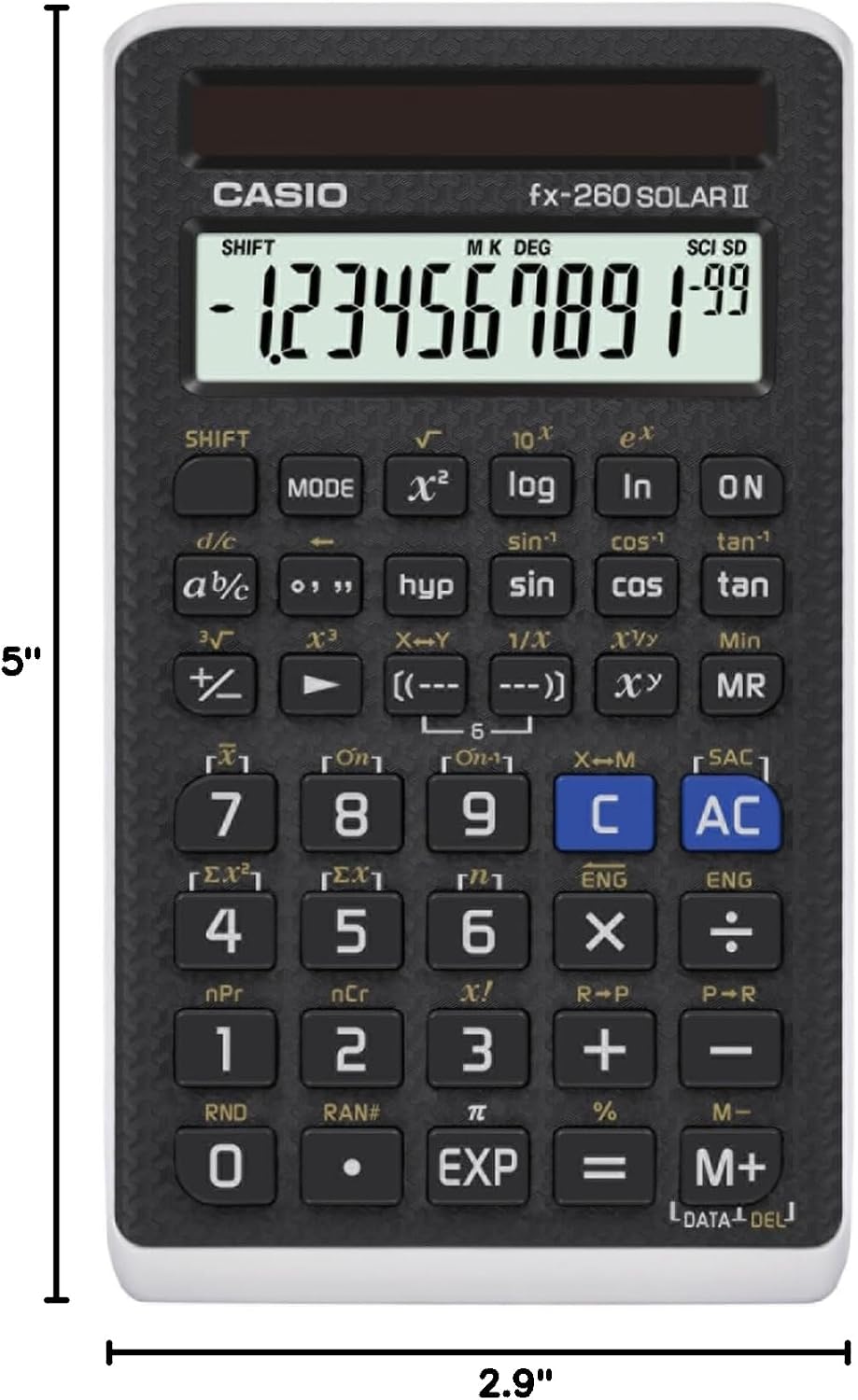
Image: The Casio fx-260 Solar II calculator displaying its approximate dimensions of 5 inches in length and 2.9 inches in width.
Warranty and Support
For warranty information and customer support, please refer to the documentation included with your purchase or visit the official Casio website. Specific warranty terms and conditions may vary by region and retailer.
You can find additional resources and contact information on the Casio Brand Store.


