
Introduction
This manual provides essential information for the installation, operation, and maintenance of your XFX AMD Radeon RX 550 4GB Core Edition graphics card. Please read these instructions carefully before proceeding with installation to ensure proper functionality and to avoid potential issues. The XFX RX 550 is designed to deliver reliable graphics performance for various computing tasks, including gaming and multimedia.
Setup and Installation
1. System Requirements
- PCI Express-compliant motherboard with one x16 graphics slot.
- Minimum 400W power supply recommended.
- Minimum 4GB system memory (RAM).
- Supported operating system (Windows 10, Windows 7 64-bit, Linux 64-bit).
- CD-ROM drive or internet connection for driver installation.
2. Physical Installation
- Prepare your system: Power off your computer and disconnect the power cable. Open the computer case.
- Locate the PCI Express x16 slot: Identify an available PCI Express x16 slot on your motherboard. This is typically the longest slot.
- Remove the slot cover: Remove the metal slot cover from the back of your computer case corresponding to the chosen PCI Express x16 slot.
- Insert the graphics card: Carefully align the graphics card with the PCI Express x16 slot. Apply even pressure to both ends of the card until it is fully seated in the slot. A click may be heard.
- Secure the card: Use a screw or the case's retention mechanism to secure the graphics card bracket to the computer case.
- Close the case: Replace the computer case cover and reconnect the power cable.

Figure 1: Front view of the XFX AMD Radeon RX 550 graphics card, showing the cooling fan and heatsink assembly.
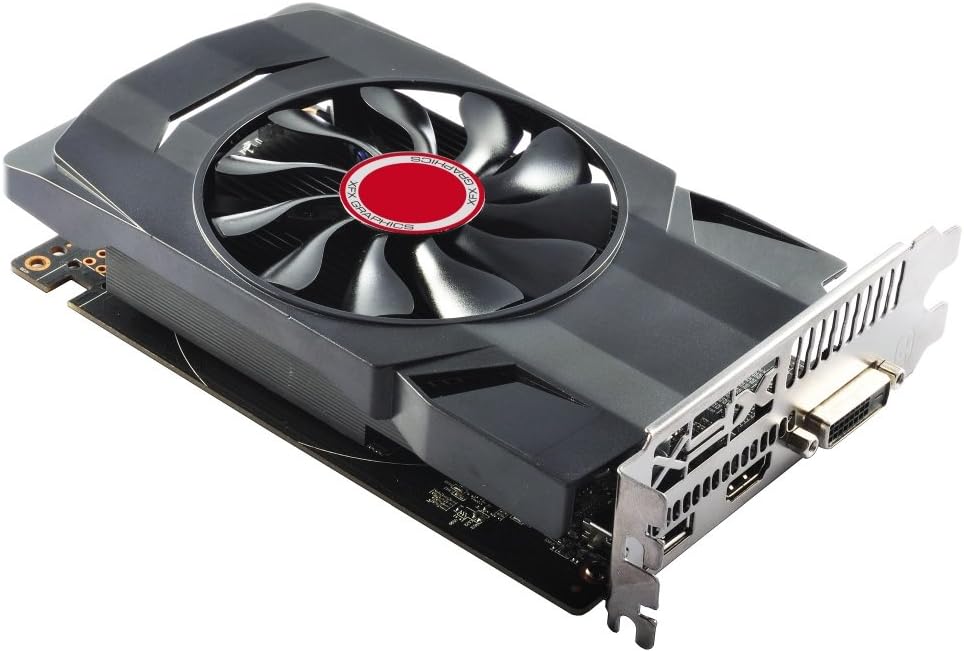
Figure 2: Angled view of the XFX AMD Radeon RX 550 graphics card, illustrating its compact form factor and single-slot bracket.
3. Driver Installation
- Power on your computer: Connect your monitor to one of the display outputs on the graphics card (HDMI, DisplayPort, or DVI).
- Install drivers:
- From included CD: Insert the driver CD into your optical drive and follow the on-screen instructions.
- From XFX/AMD website: Visit the official XFX or AMD website, navigate to the support section, and download the latest drivers for the Radeon RX 550. Run the installer and follow the prompts.
- Restart your system: After the driver installation is complete, restart your computer for the changes to take effect.
Operating the Graphics Card
1. Connecting Displays
The XFX RX 550 graphics card supports multiple display outputs. Connect your monitor(s) to the available ports: HDMI, DisplayPort, or DVI. Ensure your display cables are securely connected to both the graphics card and your monitor.

Figure 3: Rear view of the graphics card showing the DVI, HDMI, and DisplayPort outputs.
2. AMD Radeon Software
Once drivers are installed, you can access the AMD Radeon Software. This utility allows you to:
- Adjust display settings (resolution, refresh rate, color).
- Configure gaming profiles for optimal performance.
- Monitor GPU performance and temperature.
- Update drivers directly.
Refer to the AMD Radeon Software documentation for detailed instructions on using its features.
Maintenance
Proper maintenance ensures the longevity and optimal performance of your graphics card.
- Dust Removal: Periodically clean the graphics card's fan and heatsink to prevent dust buildup, which can hinder cooling performance. Use compressed air to gently blow dust away from the fins and fan blades. Ensure the fan is held stationary while cleaning to prevent damage.
- Driver Updates: Regularly check for and install the latest graphics drivers from the official AMD website. Driver updates often include performance improvements, bug fixes, and compatibility enhancements.
- Environmental Conditions: Ensure your computer case has adequate airflow to prevent overheating. Operate the graphics card within recommended temperature ranges.
Troubleshooting
If you encounter issues with your graphics card, consider the following troubleshooting steps:
- No Display Output:
- Ensure the monitor cable is securely connected to both the graphics card and the monitor.
- Verify the monitor is powered on and set to the correct input source.
- Confirm the graphics card is fully seated in the PCI Express slot.
- If you have integrated graphics, try booting with the integrated graphics to check if the system POSTs.
- Driver Issues:
- Perform a clean installation of the graphics drivers. Uninstall existing drivers using a utility like Display Driver Uninstaller (DDU) in Safe Mode, then install the latest drivers.
- Ensure you have downloaded the correct drivers for your operating system and graphics card model.
- Performance Problems (Low FPS, Stuttering):
- Check GPU temperatures using monitoring software. Overheating can lead to performance throttling.
- Ensure your system meets the recommended specifications for the applications or games you are running.
- Verify that your power supply unit (PSU) provides sufficient wattage.
- System Instability (Crashes, Freezes):
- Check for system memory (RAM) issues.
- Ensure all system components, including the graphics card, are properly seated.
- Update your motherboard BIOS to the latest version.
If problems persist after attempting these steps, contact XFX customer support for further assistance.
Specifications
| Feature | Detail |
|---|---|
| Model Number | RX-550P4SFG5 |
| Chipset | AMD Radeon RX 550 |
| Video Memory | 4GB GDDR5 |
| Memory Clock | 7000 MHz |
| Memory Interface | 128-bit |
| Bus Standard | PCI-Express x16 |
| Max Screen Resolution | 4096x2160 |
| Output Ports | DisplayPort, HDMI, DVI |
| Item Weight | 1 pounds (approx. 0.45 kg) |
| Product Dimensions (LxWxH) | 6.69 x 1.57 x 4.76 inches (approx. 17 x 4 x 12 cm) |
Warranty and Support
XFX products are covered by a limited warranty. For specific warranty terms and conditions, please refer to the warranty information included with your product or visit the official XFX website. Keep your proof of purchase for warranty claims.
For technical support, driver downloads, and frequently asked questions, please visit the XFX support website:
When contacting support, please have your product model number (RX-550P4SFG5) and serial number ready.


