1. Introduction
Welcome to the Optoma UHD60 True 4K UHD Projector instruction manual. This document provides essential information for setting up, operating, and maintaining your projector to ensure optimal performance and longevity. The Optoma UHD60 delivers a premium home cinema experience with stunning 4K Ultra High Definition visuals, vibrant colors, and high brightness, making it suitable for various viewing environments.
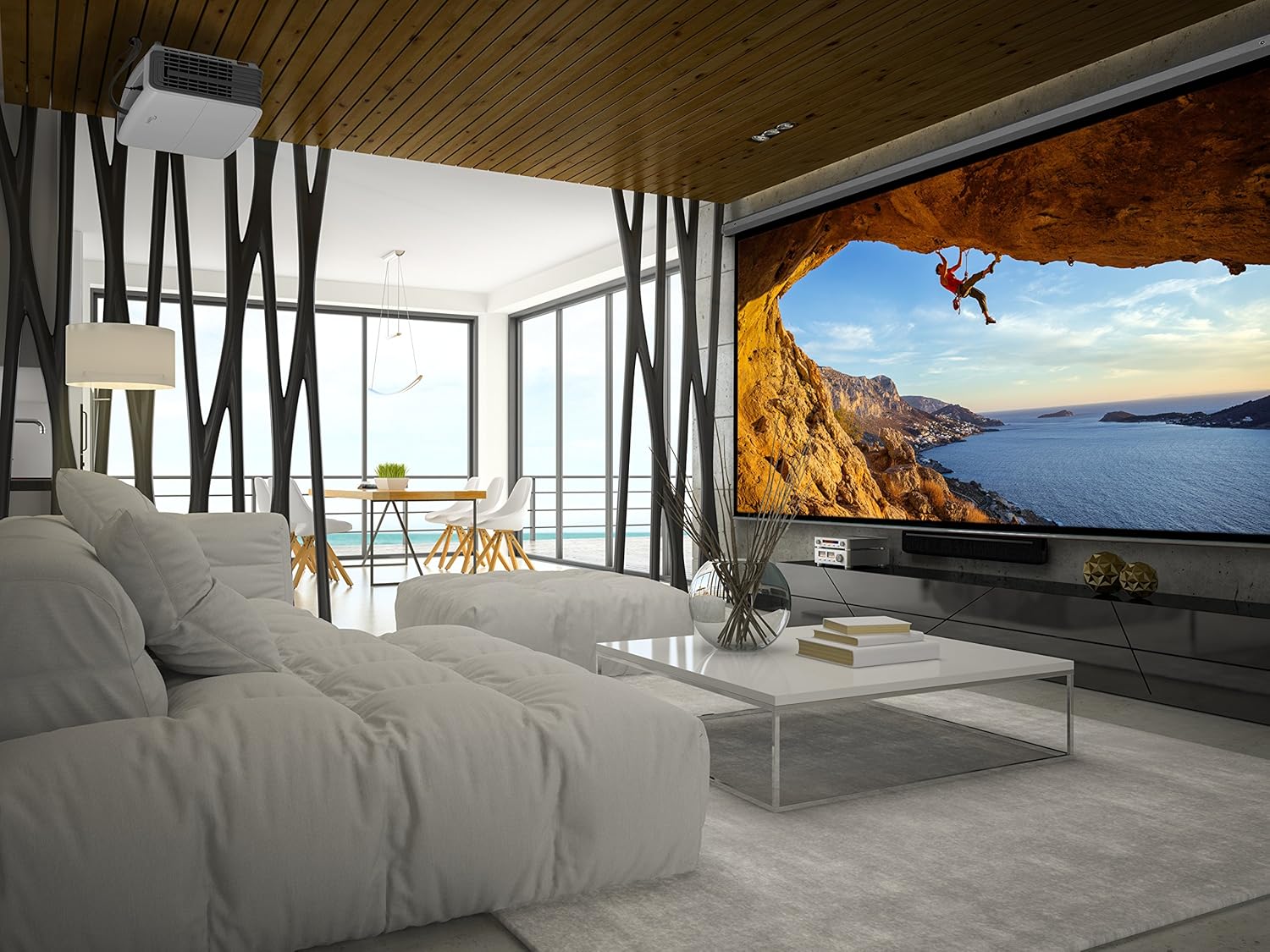
Image: The Optoma UHD60 projector mounted in a modern living room, projecting a vibrant image of a rock climber on a large screen.
2. What's in the Box
Upon unpacking, please ensure all items listed below are present:
- Optoma Home Theater Projectors Model UHD60
- Power Cable
- Remote Control
- User Manual (this document)
- Quick Start Guide
3. Product Overview
The Optoma UHD60 is engineered to provide an immersive viewing experience with advanced features:
- True 4K Ultra HD: Experience premium, high-quality home cinema feel with 8.3 million distinct addressable on-screen pixels, enabled by the Texas Instruments 4K UHD DLP chipset.
- 4X the Pixels of 1080p: See more detail with 4 times the pixels of your 1080p HDTV; higher resolution creates a razor sharp picture for the ultimate 4K home theater experience.
- Ultra-Bright: With 3,000 lumens, the UHD60 is bright enough in any room in the house, whether in a well-lit living room or a dimly lit home theater space.
- HDR Compatible: HDR10 technology with DCI-P3 wide color gamut support displays everything in the REC.2020 colors; also providing brighter whites, deeper blacks, and greater color depth.
- High Contrast Ratio: Dynamic Black technology provides more depth to the image by smoothing lamp output to create an incredibly high contrast ratio (1,000,000:1); bright scenes appear clear while dark scenes remain detailed.
- Ultra-Sharp Picture: UltraDetail technology ensures enhanced image sharpness with a higher frame rate to deliver a crystal clear picture.
- Flexible Installation: Whether ceiling mounted or placed on a table, get your picture just right with 1.6x zoom, throw ratio, vertical lens shift and keystone correction.
- Variety of Inputs: Connect with most media players, gaming consoles, PCs, Macs, and mobile devices with input options such as HDMI with HDCP 2.2 support, HDMI 4K, USB, VGA, and more.
4. Connectivity
The Optoma UHD60 offers extensive connectivity options to integrate with your existing devices. Refer to the image below for a visual guide to the input/output ports.
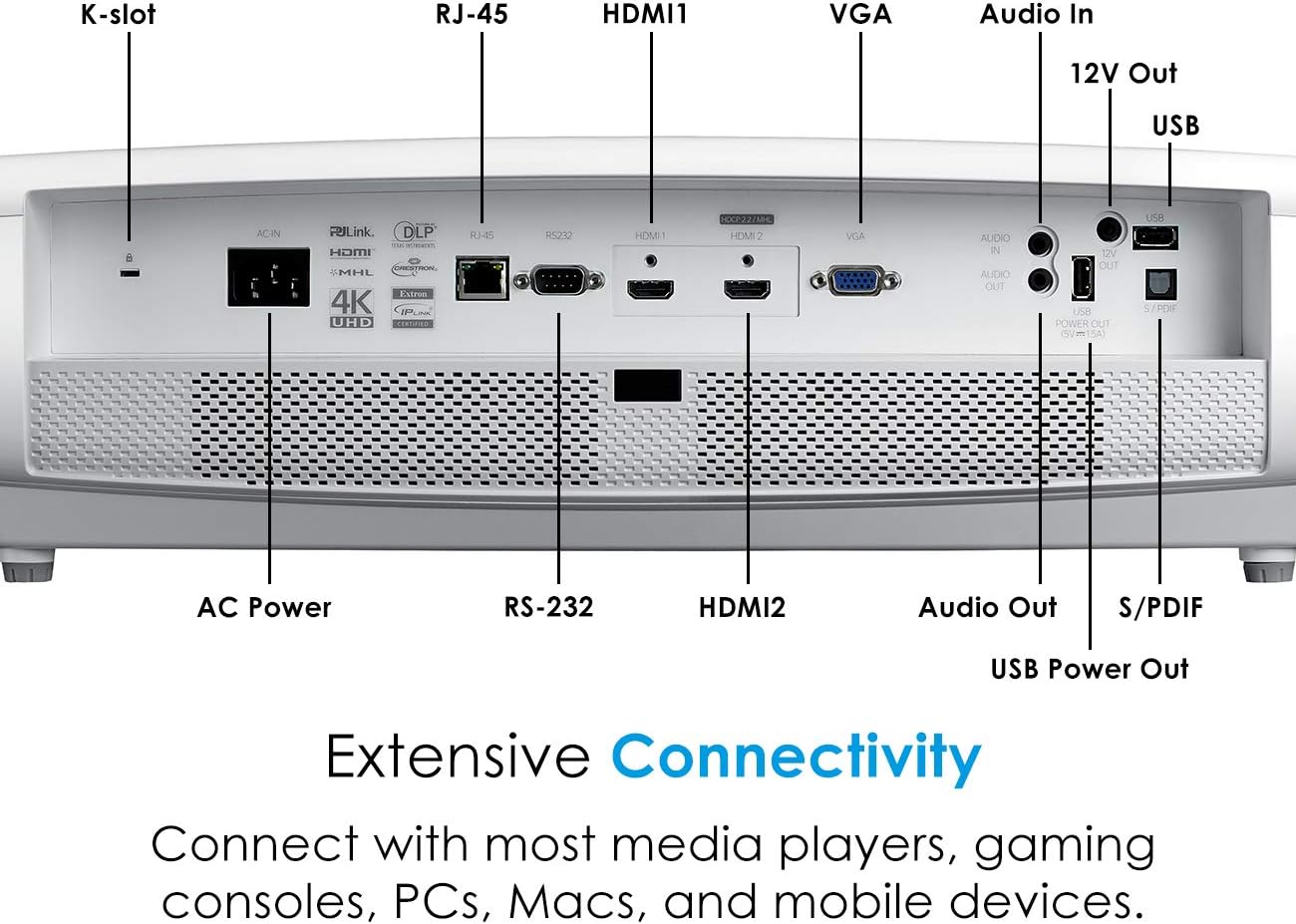
Image: Rear panel of the Optoma UHD60 projector, highlighting ports such as HDMI, VGA, USB, Audio In/Out, RJ-45, and RS-232 for extensive device compatibility.
- HDMI (with HDCP 2.2 support): For connecting high-definition sources like Blu-ray players, gaming consoles, and streaming devices.
- HDMI 4K: Dedicated port for 4K content.
- VGA: For connecting older computers or laptops.
- USB: For media playback or powering external devices.
- Audio In/Out: For connecting external audio systems.
- RJ-45: For network control.
- RS-232: For system integration and control.
5. Setup
Follow these steps to set up your Optoma UHD60 projector:
- Placement: Position the projector on a stable surface or mount it to the ceiling. Ensure it is within the recommended throw distance for your desired screen size. The projector offers flexible installation with 1.6x zoom and vertical lens shift.
- Power Connection: Connect the power cable to the projector and then to a power outlet.
- Source Connection: Connect your video source (e.g., Blu-ray player, gaming console, PC) to the appropriate input port on the projector using an HDMI, VGA, or other compatible cable.
- Power On: Press the power button on the projector or the remote control to turn on the device.
- Focus and Zoom: Adjust the focus and zoom rings on the lens to achieve a clear and sharp image that fills your screen.
- Keystone Correction: If the image appears trapezoidal, use the keystone correction feature to square the image. The UHD60 supports both vertical and horizontal keystone correction.
- Lens Shift: Utilize the vertical lens shift feature to adjust the image position without moving the projector, providing greater installation flexibility.
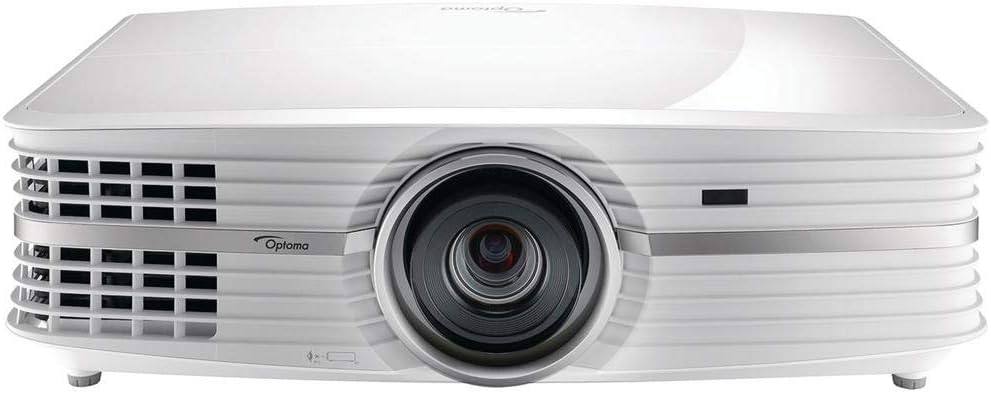
Image: Top view of the Optoma UHD60 projector, showing the control panel with power, menu, and navigation buttons, along with lens shift and zoom adjustment dials.
6. Operating the Projector
Basic operation of your Optoma UHD60 projector:
- Power On/Off: Press the power button once to turn on the projector. Press it again to initiate the shutdown sequence.
- Source Selection: Use the 'Source' button on the remote or projector to cycle through available input sources (HDMI, VGA, etc.) until your desired source is displayed.
- Menu Navigation: Use the 'Menu' button to access the on-screen display (OSD) menu. Use the arrow keys to navigate and 'Enter' to select options.
- Picture Mode: Adjust picture settings such as brightness, contrast, color, and sharpness via the OSD menu to optimize the image for your content and environment.
7. Maintenance
Proper maintenance ensures the longevity and performance of your projector:
- Lamp Life: The UHD60 features a long lamp life of up to 15,000 hours, enabling an average of 4 hours of viewing time every day for over 10 years.
- Cleaning: Regularly clean the projector lens with a soft, lint-free cloth. Ensure the air vents are clear of dust and obstructions to prevent overheating.
- Filter Replacement: Refer to the full user manual for instructions on cleaning or replacing the air filter, if applicable, to maintain optimal airflow.
8. Troubleshooting
If you encounter issues with your projector, try the following solutions:
- No Picture:
- Ensure the projector is powered on and the input source is correctly selected.
- Check all cable connections (HDMI, VGA) between the source device and the projector.
- Verify the source device is powered on and outputting a signal.
- Dim Image:
- Check the lamp mode in the OSD menu; ensure it's not in Eco mode if maximum brightness is desired.
- Reduce ambient light in the room.
- Clean the projector lens.
- Image Appears Trapezoidal:
- Use the keystone correction feature in the OSD menu to adjust the image.
- Ensure the projector is placed as perpendicular to the screen as possible.
- No Audio:
- Check the volume settings on both the projector and the source device.
- If using external speakers, ensure they are correctly connected and powered on.
For more detailed troubleshooting, please consult the full user manual or Optoma's official support resources.
9. Specifications
Key technical specifications for the Optoma UHD60 Projector:
| Feature | Detail |
|---|---|
| Brand | Optoma |
| Model Number | UHD60 |
| Display Resolution | 3840 x 2160 (4K UHD) |
| Brightness | 3,000 Lumens |
| Contrast Ratio | 1,000,000:1 (Dynamic Black) |
| Lamp Life | Up to 15,000 hours |
| Connectivity Technology | HDMI, USB, VGA |
| Special Features | 1.6x zoom, HDR10, Lens shift, Speakers, True 4k |
| Item Weight | 16 pounds |
| Product Dimensions | 13 x 19.6 x 5.6 inches |
10. Video Resources
Learn more about True 4K UHD technology with this official video from Optoma:
Video: An official Optoma video explaining the benefits and technology behind True 4K UHD resolution in projectors.
11. Warranty and Support
Optoma provides a limited warranty for its products. Please refer to the warranty card included with your projector for specific terms and conditions, or visit the official Optoma website for detailed warranty information and support resources.
For technical assistance, troubleshooting, or service inquiries, please contact Optoma Customer Support through their official website or the contact information provided in your product packaging.


