
Salicru SLC 700 Twin Pro2 (699CA000001)
Salicru SLC 700 Twin Pro2 UPS User Manual
Model: SLC 700 Twin Pro2 (699CA000001) | Brand: Salicru
1. Introduction
This manual provides essential information for the safe and efficient operation of your Salicru SLC 700 Twin Pro2 Uninterruptible Power System (UPS). This online double conversion UPS is designed to provide clean, stable, and reliable power to critical equipment, protecting against power outages, surges, and fluctuations. Please read this manual thoroughly before installation and operation.
2. Safety Instructions
Always observe the following safety precautions to prevent injury and damage to the UPS or connected equipment.
- Do not open the UPS casing. There are no user-serviceable parts inside. Refer all servicing to qualified service personnel.
- Do not install the UPS in direct sunlight, near heat sources, or in environments with excessive dust, humidity, or corrosive substances.
- Ensure the UPS is connected to a grounded power outlet.
- Do not block ventilation openings. Adequate airflow is crucial for proper operation and to prevent overheating.
- In case of fire, use a CO2 or dry chemical extinguisher. Do not use water.
- Disconnect the UPS from the AC power source before cleaning or performing any maintenance.
- The UPS contains internal batteries. Do not dispose of the UPS or its batteries in fire. Batteries may explode.
- Battery servicing should be performed or supervised by personnel knowledgeable about batteries and the required precautions.
3. Package Contents
Verify that all items are present in the package:
- Salicru SLC 700 Twin Pro2 UPS Unit
- User Manual (this document)
- Power Cord
- USB Communication Cable
- Software CD (if applicable)
4. Product Overview
4.1 Front Panel

Figure 4.1: Front view of the Salicru SLC 700 Twin Pro2 UPS, showing the LCD display and control panel.
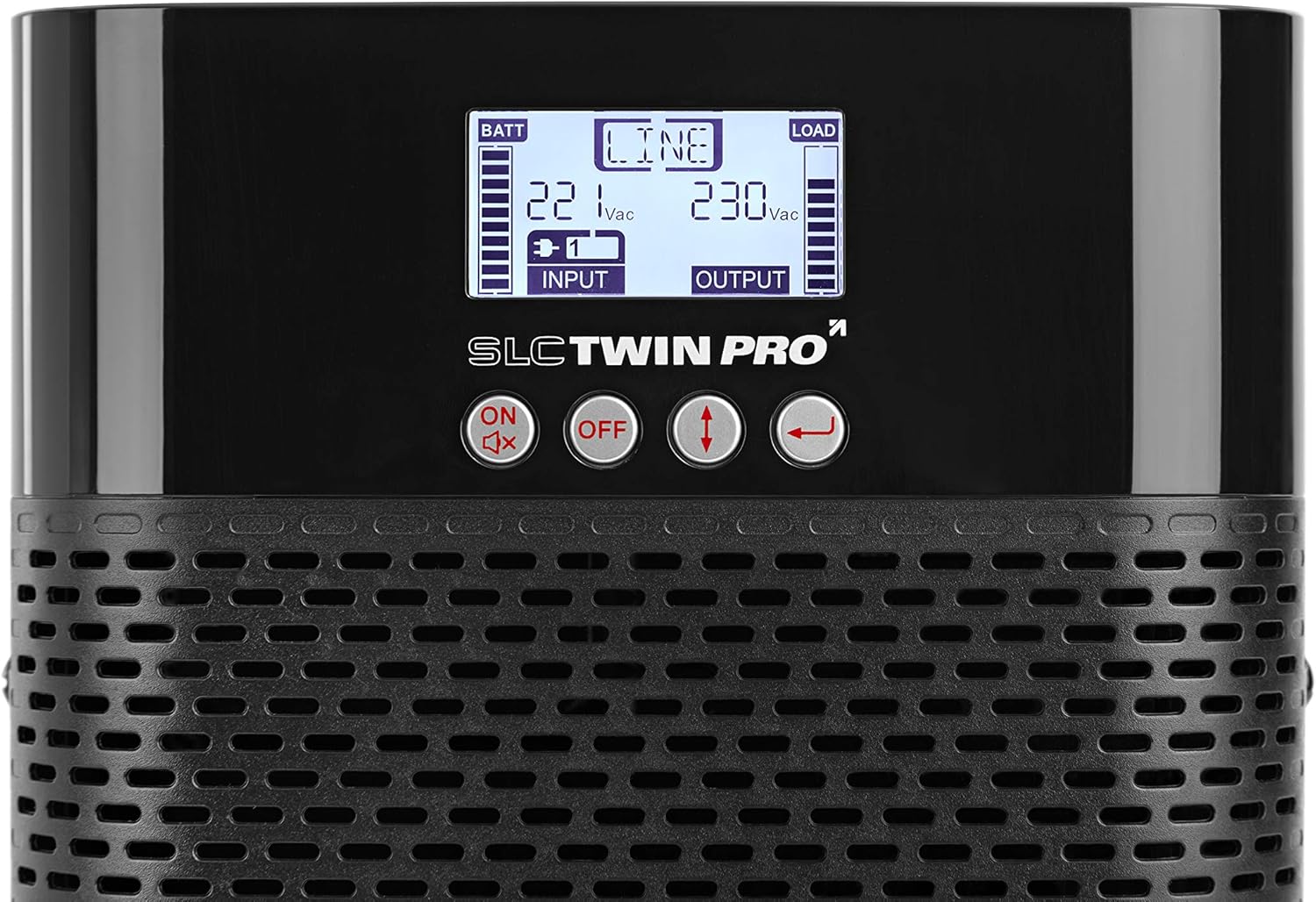
Figure 4.2: Close-up of the LCD display and control buttons. The display shows battery status, input/output voltage, and load level. Buttons include ON/Mute, OFF, Up/Down arrows, and Enter.
- LCD Display: Shows real-time UPS status, input/output voltage, battery level, load capacity, and various operational modes.
- Control Buttons:
- ON/Mute: Powers on the UPS or mutes the alarm.
- OFF: Powers off the UPS.
- Up/Down Arrows: Navigate through LCD menu options.
- Enter: Confirms selections or enters sub-menus.
- Ventilation Grille: Ensures proper airflow for cooling the internal components.
4.2 Rear Panel

Figure 4.3: Rear view of the Salicru SLC 700 Twin Pro2 UPS, detailing the connection ports and cooling fan.
- AC Input: Power cord connection for incoming utility power.
- AC Output Sockets: Outlets for connecting protected equipment.
- Breaker: Resettable circuit breaker for overload protection.
- Cooling Fan: Dissipates heat from the unit.
- USB Port: For connecting to a computer for monitoring and management software.
- EPO (Emergency Power Off) Port: For remote emergency shutdown.
- Intelligent Slot: For optional communication cards (e.g., SNMP card).
5. Setup
5.1 Placement
Choose a suitable location for the UPS:
- Place the UPS on a flat, stable surface.
- Ensure adequate clearance around the ventilation openings (front, sides, and rear) for proper airflow.
- Avoid areas with high humidity, extreme temperatures, or direct sunlight.
- Keep the UPS away from strong electromagnetic fields.
5.2 Connecting to Power
- Connect the supplied power cord to the AC Input port on the rear panel of the UPS.
- Plug the other end of the power cord into a grounded wall outlet.
- Allow the UPS to charge its internal batteries for at least 8 hours before initial use to ensure full runtime capacity. The UPS will charge even if it is turned off.
5.3 Connecting Devices
Connect your critical equipment to the AC Output Sockets on the rear panel of the UPS. Ensure that the total power consumption of all connected devices does not exceed the UPS's capacity (700VA / 630W).
- Connect computers, monitors, network devices, and other sensitive electronics.
- Do not connect laser printers or other high-surge current devices to the UPS output, as this may overload the unit.
6. Operation
6.1 Turning On the UPS
- Ensure the UPS is connected to AC utility power.
- Press and hold the ON/Mute button on the front panel for approximately 2 seconds until you hear a beep.
- The UPS will perform a self-test, and the LCD display will illuminate, showing the current status.
6.2 Turning Off the UPS
- If the UPS is supplying power to connected devices, ensure they are properly shut down.
- Press and hold the OFF button on the front panel for approximately 2 seconds until you hear a beep.
- The UPS will shut down, and the LCD display will turn off.
- To completely remove power, disconnect the power cord from the wall outlet.
6.3 LCD Display Information
The LCD display provides real-time operational status. Use the Up/Down arrow buttons to cycle through different information screens.
| Indicator | Description |
|---|---|
| BATT | Battery charge level. |
| LINE | Indicates the UPS is operating on utility power (Online mode). |
| LOAD | Output load level. |
| Input Voltage | Current incoming AC voltage. |
| Output Voltage | Current outgoing AC voltage supplied by the UPS. |
| Battery Mode | Indicates the UPS is operating on battery power during an outage. |
| Bypass Mode | Indicates the UPS is supplying utility power directly to the load, bypassing the inverter. |
7. Maintenance
Proper maintenance ensures the longevity and optimal performance of your UPS.
- Battery Care:
- Recharge the batteries every 3 months if the UPS is not in use to prevent battery degradation.
- Perform a battery calibration (if supported by software) annually to ensure accurate runtime estimates.
- Batteries typically last 3-5 years. Contact qualified service personnel for battery replacement.
- Cleaning:
- Use a soft, dry cloth to clean the exterior of the UPS.
- Do not use liquid or aerosol cleaners.
- Periodically clean the ventilation grilles to prevent dust buildup.
- Storage:
- If storing the UPS for an extended period, ensure the batteries are fully charged.
- Store in a cool, dry place.
- Recharge the batteries every 3 months during storage.
8. Troubleshooting
This section addresses common issues you might encounter with your UPS. If the problem persists, contact technical support.
| Problem | Possible Cause | Solution |
|---|---|---|
| UPS does not turn on. | No AC input power; Low battery; UPS fault. | Check power cord connection and wall outlet. Allow batteries to charge. If problem persists, contact support. |
| UPS beeps continuously. | On battery mode; Overload; Battery fault. | Check if utility power is present. Reduce connected load. Check battery status on LCD. |
| UPS goes to battery mode frequently. | Unstable utility power; Sensitivity setting too high. | Check utility power quality. Adjust UPS input voltage sensitivity via software (if available). |
| Short battery runtime. | Batteries not fully charged; Old batteries; Overload. | Allow batteries to fully charge. Consider battery replacement if old. Reduce connected load. |
9. Specifications
Key technical specifications for the Salicru SLC 700 Twin Pro2 UPS.
| Feature | Detail |
|---|---|
| Model Number | 699CA000001 |
| Brand | SALICRU |
| Product Dimensions | 35.6 x 14.4 x 22.8 cm |
| Item Weight | 9.3 kg |
| Output Power Capacity | 700 VA / 630 W |
| Input Voltage | 220 V |
| Output Voltage | 230 V |
| Current Rating | 2 Amps |
| Form Factor | Tower |
| Connector Type | ATX, EPS, USB |
| Batteries Required | 1 Lithium Ion battery (included) |
| Color | Black |
| Technology | Online Double Conversion |
| Output Power Factor | 0.9 |
10. Warranty and Support
For warranty information and technical support, please refer to the warranty card included with your product or visit the official Salicru website. Keep your purchase receipt as proof of purchase for warranty claims.
Salicru Official Website: www.salicru.com
Related documentsSLC 700 Twin Pro2 (699CA000001)


Ask a question about this manual
Ask about setup, troubleshooting, compatibility, parts, safety, or missing instructions. Manuals+ will review the question and use this page’s manual context to help answer it.