1. Product Overview
The LG 43MU79-B is a 42.51-inch 4K UHD (3840 x 2160) IPS monitor designed for high-resolution display and versatile connectivity. It features a wide viewing angle and accurate color reproduction, making it suitable for various professional and entertainment applications.
Key Features:
- 4K UHD (3840 x 2160) IPS Display
- HDCP 2.2 Compatible
- USB Type-C Connectivity
- 4x HDMI Inputs
- On-Screen Control for easy adjustments
- Factory Calibrated for color accuracy
- Base detachable for flexible mounting options

2. Setup and Assembly
2.1 Unboxing the Monitor
Carefully remove the monitor and all accessories from the packaging. Ensure all components listed in the packing list are present. Keep the packaging materials for future transport or storage.
2.2 Attaching the Stand
- Place the monitor face down on a soft, clean cloth to prevent scratches.
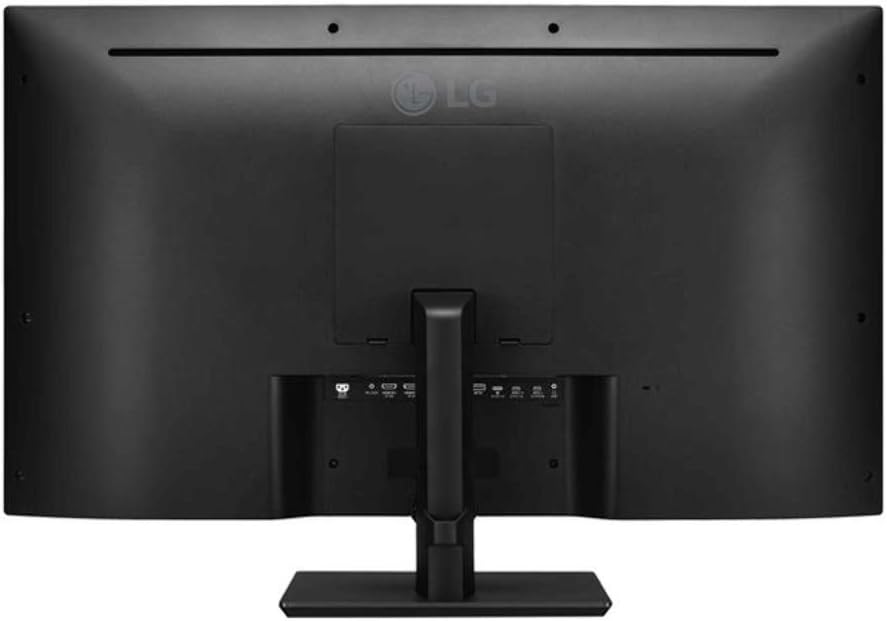
- Align the stand neck with the mounting holes on the back of the monitor.
- Secure the stand neck to the monitor using the provided screws.
- Attach the stand base to the stand neck and tighten the screw at the bottom of the base.
- Carefully lift the monitor and place it on a stable, flat surface.
2.3 Connecting Cables
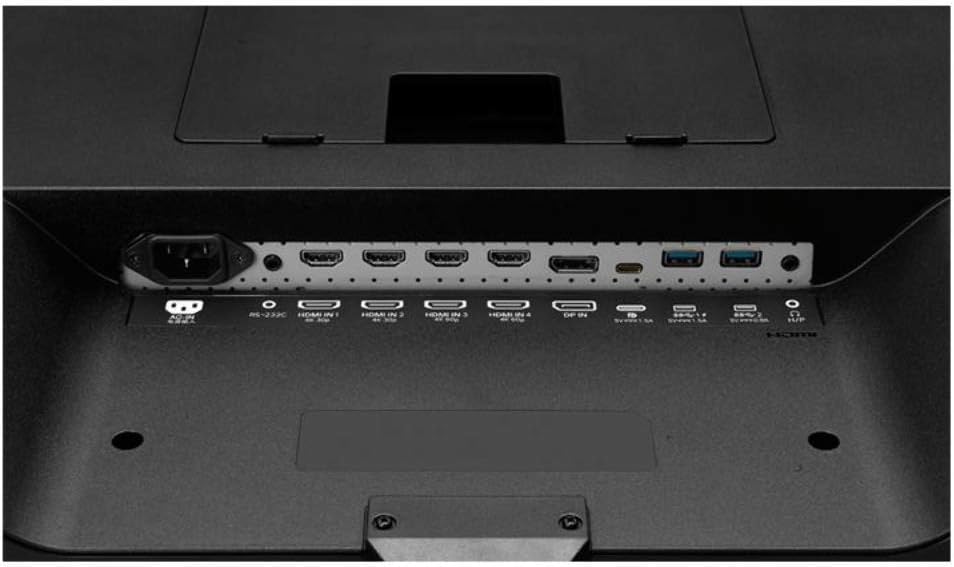
Connect the power cable to the monitor and a power outlet. Use the appropriate video cables (HDMI, DisplayPort, or USB Type-C) to connect your computer or other devices to the monitor. Ensure all connections are secure.
Note: No relevant official product videos from the seller were found for this specific product.
3. Operating Instructions
3.1 Powering On/Off
Press the power button, usually located on the bottom center or side of the monitor, to turn the display on or off. The power indicator light will illuminate when the monitor is active.
3.2 On-Screen Display (OSD) Menu
Access the On-Screen Display (OSD) menu using the joystick or buttons on the monitor. The OSD allows you to adjust various settings, including:
- Picture Settings: Brightness, Contrast, Sharpness, Color Temperature, Gamma.
- Input Selection: Switch between HDMI 1, HDMI 2, HDMI 3, HDMI 4, DisplayPort, and USB Type-C inputs.
- Audio Settings: Volume control for built-in speakers or connected audio devices.
- General Settings: Language, Power Saving, OSD Lock, Factory Reset.
3.3 USB Type-C Functionality
The USB Type-C port provides a single-cable solution for video, audio, data transfer, and power delivery (charging your connected laptop or device). Ensure your device supports USB Type-C Alt Mode for full functionality.
4. Maintenance
4.1 Cleaning the Monitor
To clean the screen, gently wipe it with a soft, lint-free cloth. For stubborn marks, lightly dampen the cloth with water or a mild, non-abrasive screen cleaner. Avoid using harsh chemicals or abrasive materials that could damage the screen surface.
To clean the monitor casing, use a soft, dry cloth. Do not spray cleaning solutions directly onto the monitor.
4.2 General Care
- Avoid placing heavy objects on the monitor or its cables.
- Do not block the ventilation openings on the monitor.
- Keep the monitor away from direct sunlight, heat sources, and excessive moisture.
- Unplug the monitor from the power outlet during lightning storms or when unused for extended periods.
5. Troubleshooting
5.1 No Power
- Ensure the power cable is securely connected to both the monitor and a working power outlet.
- Check if the power outlet is functioning by plugging in another device.
- Verify the monitor's power button is pressed.
5.2 No Signal
- Confirm that the video cable (HDMI, DisplayPort, USB Type-C) is correctly connected to both the monitor and your computer/device.
- Select the correct input source using the monitor's OSD menu.
- Ensure your computer/device is powered on and not in sleep mode.
- Try a different video cable or port if available.
5.3 Image Issues (Blurry, Distorted, Incorrect Colors)
- Adjust the resolution and refresh rate settings on your computer to match the monitor's native resolution (3840 x 2160) and recommended refresh rate.
- Perform a factory reset through the OSD menu.
- Check your graphics card drivers for updates.
6. Specifications
| Feature | Specification |
|---|---|
| Brand | LG |
| Model Number | 43MU79-B |
| Screen Size | 42.51 Inches (43 Inches viewable) |
| Screen Resolution | 3840 x 2160 (4K UHD) |
| Panel Type | IPS |
| Aspect Ratio | 16:9 |
| Screen Surface Description | Glossy |
| Connectivity | USB Type-C, 4x HDMI inputs, DisplayPort 1.2, USB 3.1 |
| HDCP Support | HDCP 2.2 compatible |
| Item Weight | 27.1 pounds |
| Product Dimensions (LxWxH) | 38.1 x 10.8 x 25.5 inches |
| Color | Black |
7. Warranty and Support
7.1 Warranty Information
For detailed warranty information, please refer to the warranty card included with your product or visit the official LG website. Warranty terms and conditions may vary by region and retailer.
7.2 Customer Support
If you encounter any issues not covered in this manual or require further assistance, please contact LG Customer Support. You can find contact information on the LG website or in your product documentation.
When contacting support, please have your monitor's model number (43MU79-B) and serial number ready.