
Introduction
This manual provides essential information for the safe operation and maintenance of your TOZO Q2020 Mini RC Quadcopter. Please read it thoroughly before operating the drone to ensure proper function and to prevent damage or injury.
What's in the Box
Verify that all the following components are included in your package:
- TOZO Q2020 Mini RC Quadcopter
- Remote Control
- Rechargeable Drone Battery
- USB Charging Cable
- Spare Propellers
- User Manual

Image: The TOZO Q2020 Mini RC Quadcopter and its remote control, showcasing the compact design.
Product Overview and Features
The TOZO Q2020 is a beginner-friendly mini quadcopter designed for stable and easy flight. It incorporates several features to enhance the flying experience:
- Altitude Hold: Maintains a consistent altitude, simplifying control for new pilots.
- Headless Mode: Eliminates the need to adjust the drone's position before flight, as the forward direction is always the direction the pilot is facing.
- 6-Axis Gyro: Provides enhanced stability and easier control.
- Full Protective Frame: Designed to absorb impacts and protect propellers from collisions.
- Blue LED Lights: Aids in orientation and visibility, especially in low-light conditions.
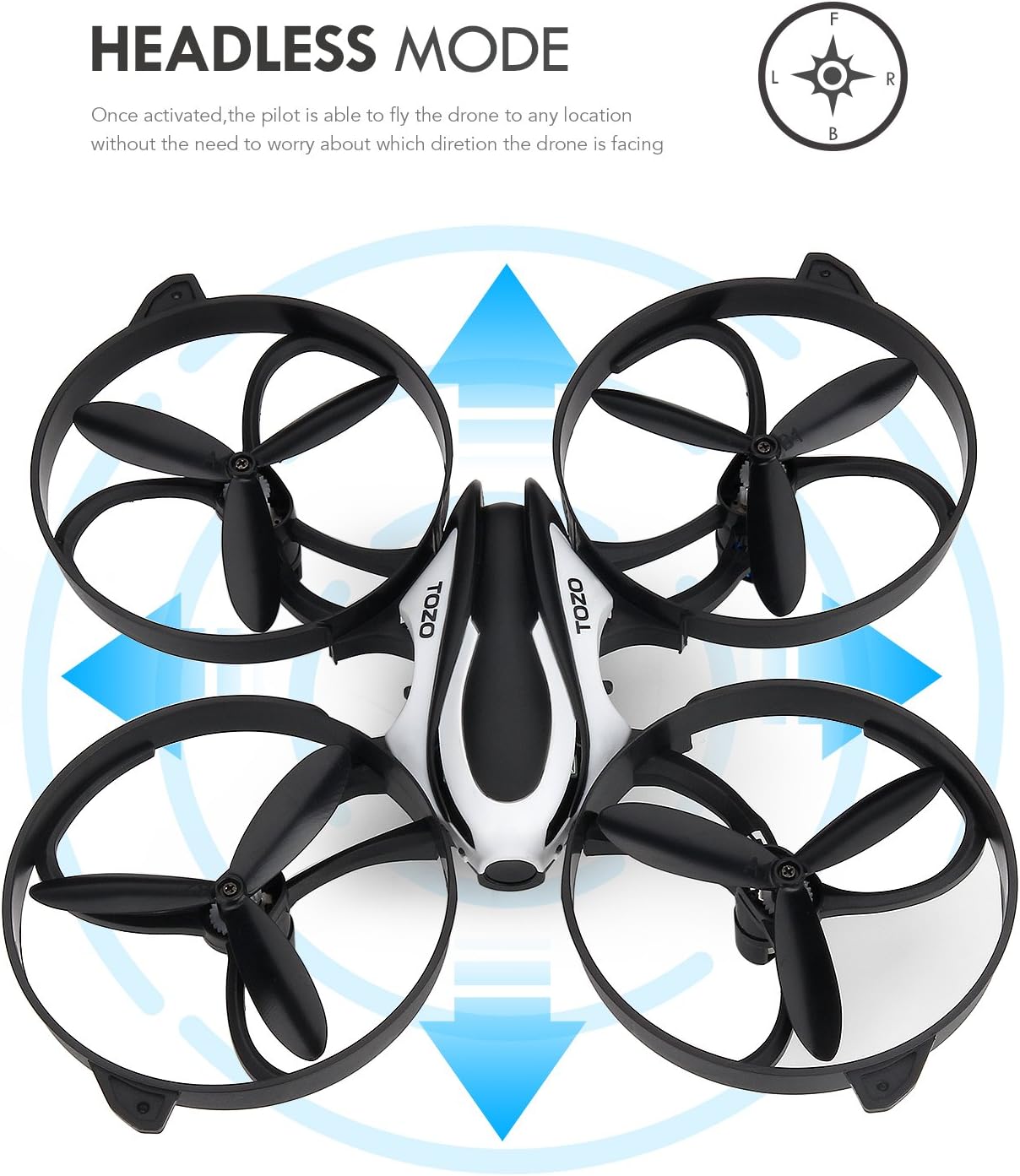
Image: Diagram illustrating the concept of Headless Mode, where the drone's orientation does not affect control direction.

Image: Visual representation of the Altitude Hold feature, showing the drone maintaining a steady height above the ground.

Image: Comparison showing the TOZO Q2020 with its full protective frame versus a drone without, highlighting collision protection.
Remote Control Functions
Familiarize yourself with the remote control layout and functions:

Image: Detailed diagram of the TOZO Q2020 remote control, labeling the throttle stick, rudder, speed button, flip button, power switch, one-key landing, orientation mode, auto return, direction stick, elevator, aileron, and forward/backward controls.
- Throttle Stick + Rudder (Left Joystick): Controls altitude (up/down) and rotation (left/right).
- Direction Stick (Right Joystick): Controls forward/backward and sideways (left/right) movement.
- Speed Button: Adjusts flight speed (multiple settings).
- Flip Button: Initiates 3D flip maneuvers.
- One Key Landing: Automatically lands the drone.
- Orientation Mode / Headless Mode Button: Activates/deactivates Headless Mode.
- Auto Return Button: Initiates the drone's return to the remote control's general vicinity.
- Power Switch: Turns the remote control on/off.
Setup
1. Charging the Drone Battery
- Connect the drone battery to the provided USB charging cable.
- Plug the USB cable into a USB power adapter (not included) or a computer's USB port.
- The charging indicator light will show the charging status. Refer to the charging cable's specific instructions for light indications (e.g., red light on during charging, off when fully charged).
- Charging typically takes approximately 60-90 minutes. Do not overcharge.
2. Installing Remote Control Batteries
The remote control requires 3 AAA batteries (not included). Open the battery compartment on the back of the remote control and insert the batteries, observing correct polarity.
3. Pairing the Drone and Remote Control
- Place the drone on a flat, level surface.
- Turn on the drone's power switch. The drone's indicator lights will flash.
- Turn on the remote control's power switch.
- Push the left joystick (throttle) all the way up, then all the way down. The drone's indicator lights will stop flashing and remain solid, indicating successful pairing.
4. Calibration
After pairing, perform a gyroscope calibration for stable flight:
- Ensure the drone is still on a flat, level surface.
- Push both joysticks on the remote control down and to the bottom-right corners simultaneously.
- The drone's lights will flash rapidly and then become solid, indicating successful calibration.
Operating Instructions
1. Take-off and Landing
- Manual Take-off: After pairing and calibration, push the left joystick (throttle) slowly upwards. The propellers will start spinning, and the drone will ascend.
- One Key Take-off: Press the 'One Key Landing' button (often also functions as one-key take-off). The drone will automatically ascend to a stable hovering height.
- Manual Landing: Slowly pull the left joystick (throttle) downwards until the drone lands.
- One Key Landing: Press the 'One Key Landing' button. The drone will automatically descend and land.
2. Basic Flight Controls
- Ascend/Descend: Push the left joystick up or down.
- Turn Left/Right (Yaw): Push the left joystick left or right.
- Forward/Backward (Pitch): Push the right joystick up or down.
- Fly Left/Right (Roll): Push the right joystick left or right.
3. Altitude Hold Mode
The TOZO Q2020 features Barometric Hover Mode. Once activated (typically after take-off), you can release the throttle stick, and the drone will automatically maintain its current altitude, allowing you to focus on directional control. This significantly enhances flight stability.
4. Headless Mode
Press the 'Orientation Mode' button to activate Headless Mode. In this mode, the drone's front direction is irrelevant; it will always move relative to the pilot's position. Pushing the right joystick forward will make the drone fly away from you, pulling it back will make it fly towards you, regardless of the drone's actual orientation. Press the button again to exit Headless Mode.
5. Return Home Function
When flying at a distance or if you lose sight of the drone, press the 'Auto Return' button. The drone will attempt to fly back towards the remote control's last known position. Note that this is a general return and not a precise GPS-guided return.
6. 3D Flips
To perform a 3D flip, fly the drone to a sufficient height (at least 2-3 meters). Press the 'Flip' button, then immediately push the right joystick in the desired flip direction (forward, backward, left, or right). The drone will perform a 360-degree flip.
7. Low Power Reminder
When the drone's battery power is low, the indicator lights will typically start flashing, and the remote control may emit an alarm. This indicates it's time to land the drone and recharge the battery.
Video: This video demonstrates the TOZO Q2020 drone's features, including its stable flight with Altitude Hold, the ease of use of Headless Mode, and the Return Home function. It also highlights the drone's durable design and responsive controls.
Maintenance
- Cleaning: Use a soft, dry cloth to clean the drone and remote control. Avoid using water or solvents.
- Propeller Replacement: If a propeller is damaged, carefully remove it and replace it with a spare propeller, ensuring the correct type (A or B) is installed in the corresponding position.
- Battery Care: Store batteries in a cool, dry place. Do not expose them to extreme temperatures. If not using the drone for an extended period, charge the battery to about 50% before storage.
- Storage: Store the drone and remote control in a safe place, away from direct sunlight and moisture.
Troubleshooting
| Problem | Possible Cause | Solution |
|---|---|---|
| Drone does not respond to remote control. | Not paired or low remote battery. | Re-pair the drone and remote. Replace remote control batteries. |
| Drone flies erratically or drifts. | Not calibrated or damaged propellers. | Perform gyroscope calibration. Check and replace damaged propellers. |
| Drone does not take off. | Drone battery low or not installed correctly. | Charge the drone battery. Ensure battery is securely connected. |
| Short flight time. | Battery not fully charged or aging battery. | Ensure battery is fully charged. Consider replacing the battery if it's old. |
Specifications
| Feature | Detail |
|---|---|
| Brand | TOZO |
| Model Name | Q2020 |
| Age Range (Description) | Adult |
| Color | Black |
| Video Capture Resolution | SD |
| Connectivity Technology | USB (for charging) |
| Skill Level | Beginner |
| Item Weight | 1.76 ounces (0.11 Pounds) |
| Drone Battery Capacity | 650 Milliamp Hours |
| Video Capture Format | MP4 |
| Control Type | Remote Control (RC) |
| Material | Plastic |
| Wireless Communication Technology | RF (Radio Frequency) |
| Remote Control Included | Yes |
| Rechargeable Drone Battery Included | Yes |
| Product Dimensions | 6.5"L x 6.5"W x 1.38"H |
Safety Guidelines
- Always operate the drone in open areas, away from people, animals, and obstacles.
- Do not fly near airports or restricted airspace.
- Avoid flying in strong winds or adverse weather conditions.
- Keep fingers and hair away from rotating propellers.
- Supervise children during drone operation.
- Do not modify the drone or its components.
- Ensure the drone battery is fully charged before each flight.
Warranty and Support
For warranty information or technical support, please refer to the contact details provided with your product packaging or visit the official TOZO website. Keep your purchase receipt as proof of purchase for warranty claims.