
1. Product Overview
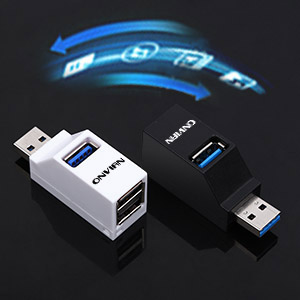
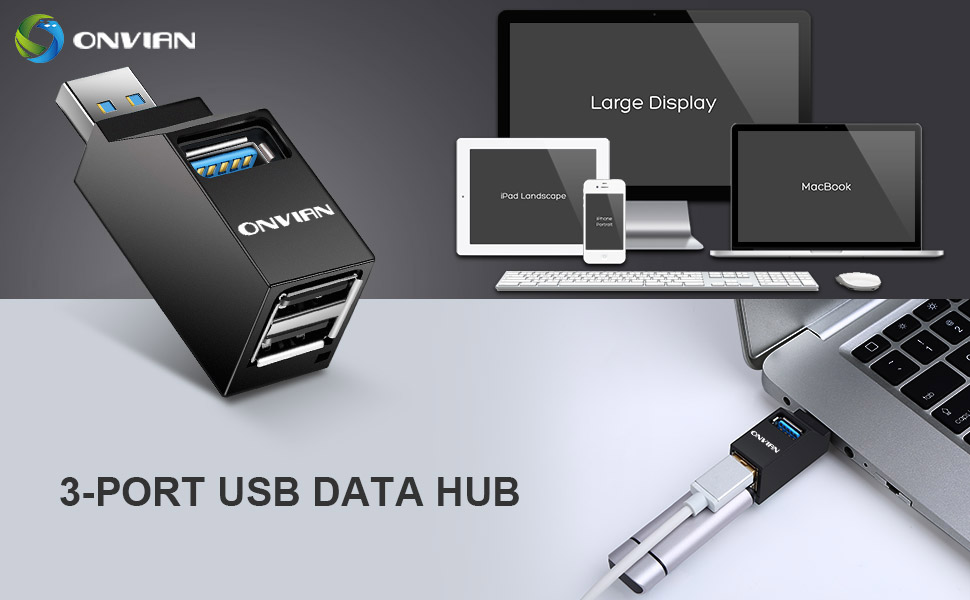
The Onvian 3 Port USB Hub is a compact and portable device designed to expand a single USB port into three, allowing for simultaneous connection of multiple peripherals. It features one USB 3.0 port for high-speed data transfer and two USB 2.0 ports for standard connectivity. This hub is ideal for users needing additional USB ports for their desktops or laptops.

The hub's design prioritizes data transfer efficiency and convenience, making it a practical solution for managing various USB-enabled devices.

2. Key Features
- Port Expansion: Expands one USB port into three (one USB 3.0, two USB 2.0).
- High-Speed Data Transfer: The USB 3.0 port offers data transfer speeds up to 5 Gbps.
- Standard Connectivity: The two USB 2.0 ports offer data transfer speeds up to 480 Mbps.
- Compact and Portable: Mini size design for easy transport and minimal desk space usage.
- Plug and Play: No drivers required for most operating systems, ensuring immediate use.
- Hot-Swappable: Devices can be connected and disconnected without restarting your computer.

3. Setup Instructions
3.1 Connecting the USB Hub
- Locate an available USB port on your computer (PC, laptop, Mac).
- Insert the Onvian 3 Port USB Hub directly into the USB port. Ensure it is firmly seated.
- The hub is plug-and-play; your operating system should automatically detect and configure it without requiring additional drivers.
3.2 Connecting Devices
- Connect your USB devices (e.g., flash drives, keyboards, mice, card readers) to the available ports on the hub.
- The USB 3.0 port, identifiable by its blue interior, supports higher speeds and is ideal for data-intensive devices like external hard drives or high-speed flash drives.
- The two USB 2.0 ports support standard USB devices such as keyboards, mice, and printers.

4. Operating Instructions
The Onvian 3 Port USB Hub operates as a standard USB hub. Once connected, devices plugged into the hub will function as if they were directly connected to your computer's USB ports. The hub supports simultaneous operation of all three ports for data transfer.
4.1 Compatibility
This hub is compatible with various operating systems, ensuring broad usability:
- Windows: 7, Vista, XP, 2000, ME, 98, 8, 10
- Mac OS: 8.6-9.2, OSX-10.6 and later
- Linux

5. Important Notes and Limitations
Please observe the following important notes regarding the use of this USB hub to ensure optimal performance and prevent potential issues:
- Data Transfer Focus: This hub is primarily designed for data transfer, not for charging devices. It does not provide sufficient power to charge three devices simultaneously.
- Apple Device Charging: When connected to a computer's USB port, this hub cannot charge Apple devices. For charging, Apple devices typically require connection to a dedicated charger.
- Power Consumption: Avoid connecting multiple high-power-consuming devices (e.g., external hard drives without their own power supply) to all three ports simultaneously, as this may exceed the power limit of your computer's USB port.
6. Specifications
| Feature | Detail |
|---|---|
| Brand | Onvian |
| Model Number | 3 Port USB Hub |
| Hardware Interface | USB, USB 3.0 |
| Total USB Ports | 3 (1x USB 3.0, 2x USB 2.0) |
| USB 3.0 Data Transfer Rate | Up to 5 Gbps |
| USB 2.0 Data Transfer Rate | Up to 480 Mbps |
| Compatible Devices | Desktops, Laptops |
| Operating System Support | Windows 7/Vista/XP/2000/ME/98/8/10; Mac OS 8.6-9.2/OSX-10.6; Linux |
| Material | Plastic |
| Special Feature | Bus Powered, Plug & Play, Hot-swappable |
7. Troubleshooting
7.1 Device Not Recognized
- Ensure the USB hub is fully inserted into your computer's USB port.
- Try connecting the device directly to your computer's USB port to verify the device itself is functioning correctly.
- Test the hub in a different USB port on your computer.
- Restart your computer to refresh USB drivers.
7.2 Slow Data Transfer
- Ensure you are using the USB 3.0 port (blue interior) for devices that support USB 3.0 speeds.
- Avoid connecting multiple high-bandwidth devices simultaneously if experiencing slowdowns.
- Verify your computer's USB port supports USB 3.0 for optimal performance with USB 3.0 devices.
7.3 Devices Not Receiving Power
- This hub is bus-powered and primarily designed for data transfer, not for charging. It may not provide sufficient power for all devices, especially multiple power-hungry devices simultaneously.
- If a device requires external power, ensure it is connected to its own power source.
- As noted, Apple devices may not charge via this hub when connected to a computer's USB port.
8. Warranty and Support
The Onvian 3 Port USB Hub comes with a one-year warranty from the date of purchase. This warranty covers manufacturing defects and ensures the product meets its specified performance standards under normal use.
For technical support, warranty claims, or any inquiries regarding your product, please contact Onvian customer service through the retailer where the product was purchased. You may also visit the official Onvian Store for additional information and resources.