
Product Overview
The DINOKA Wireless Bicycle Computer is a compact, lightweight, and waterproof device designed to provide essential cycling data. It features a large LCD display with backlight for clear readability day and night. This computer accurately measures current speed, total distance (odometer), trip distance, maximum speed, average speed, and elapsed time, along with a clock function. Its wireless design eliminates the need for complex wiring, offering convenience and durability for all your cycling adventures.

Image: The main unit of the DINOKA Wireless Bicycle Computer, showing its digital display and compact design.
What's in the Box
Please ensure all the following components are included in your package:
- 1 x Bicycle Computer Unit
- 1 x Magnetic Mount
- 1 x CR2032 Battery (for computer)
- 1 x 23A Battery (for sensor)
- 1 x Wireless Sensor
- 7 x Plastic Zip Ties
- 2 x Adhesives
- 1 x Handlebar Mount
- 1 x User Manual
Setup and Installation
Battery Installation
Install the provided batteries into both the bicycle computer unit (CR2032) and the wireless sensor (23A). Ensure correct polarity.
Mounting the Computer and Sensor
- Secure the handlebar mount onto your bicycle's handlebar using the provided zip ties or adhesives.
- Attach the wireless sensor to the front fork of your bicycle.
- Attach the magnetic mount to one of the spokes on your front wheel. Position it so that it faces the wireless sensor.
- Install the bicycle computer unit onto the handlebar mount.

Image: Diagram illustrating the placement of the sensor on the fork, the magnet on the spoke, and the computer unit on the handlebar.
Sensor and Magnet Alignment
For accurate readings, ensure the distance between the magnet on the spoke and the wireless sensor on the fork is as close as possible, ideally within 5mm. The wireless induction distance between the sensor and the computer unit should be less than 60cm.
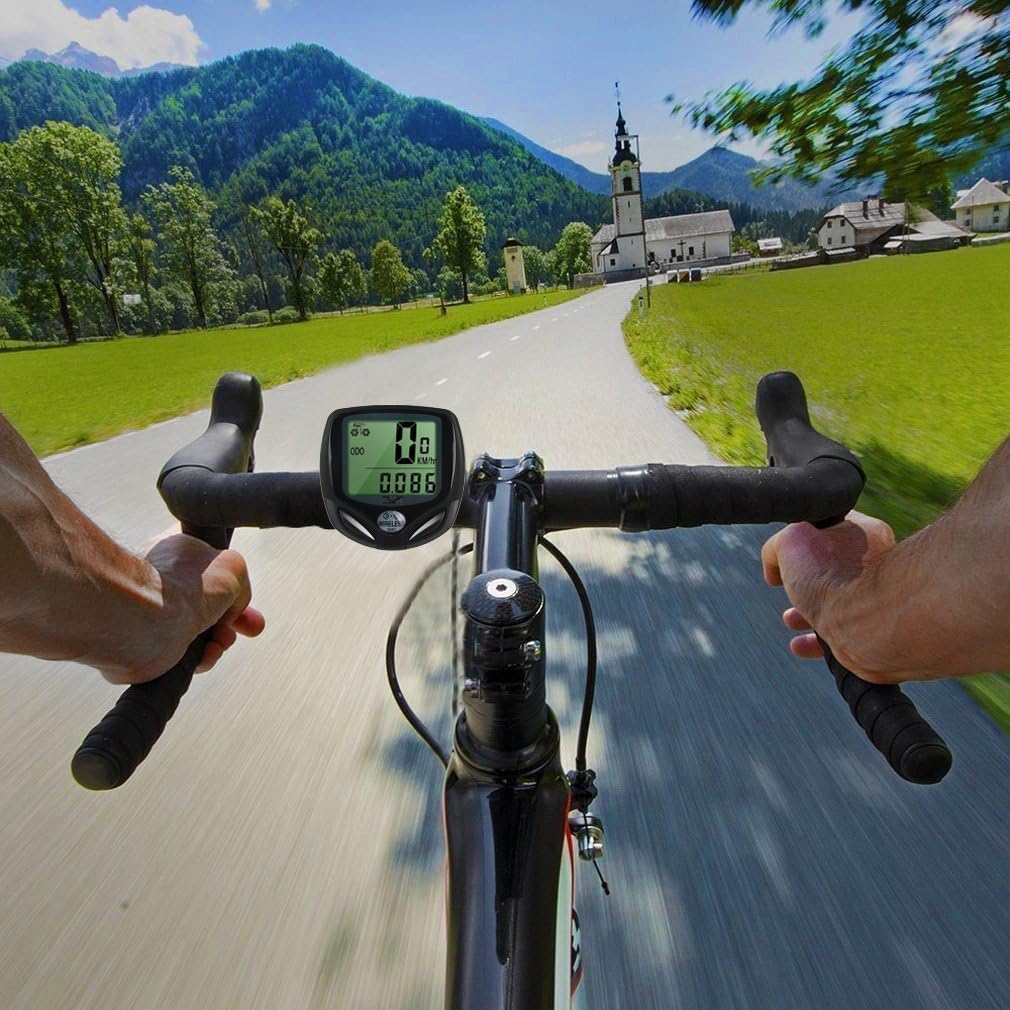
Image: Detailed diagram showing the recommended 5mm distance between the sensor and the magnet for optimal performance.

Image: Illustration of the wireless induction distance, indicating that the computer and sensor should be within 60cm of each other.
Initial Setup and Calibration
After installation, you will need to configure the computer. This typically involves setting the tire circumference for accurate speed and distance calculations, and selecting your preferred unit of measurement (km/h or mph). Refer to the included user manual for specific button functions and navigation through the setup menu.
Note: There is a protective film on the surface of the bicycle computer. Please remove it before use for optimal display clarity.

Image: A hand peeling off the protective film from the bicycle computer's screen.
Operating Instructions
Functions Overview
The DINOKA Bicycle Computer offers a range of functions to enhance your cycling experience:
- SPD: Current Speed
- ODO: Odometer (Total Distance)
- DST: Trip Distance
- MXS: Maximum Speed
- AVS: Average Speed
- TM: Elapsed Time
- CLK: Clock (12 or 24 hour format)
- SCAN: Automatic data scan function
- Speed Comparison: Indicates if current speed is above or below average (+/-)
- Unit Setting: Kilometre (km/h) or Miles (mph)
- Tire Circumference Setting: For accurate measurements
- Maintenance Reminder: Alert for scheduled maintenance
- Automatic Power On/Sleep Mode: Activates when shaken or signal received, enters sleep after 300 seconds of inactivity.

Image: A visual diagram illustrating the various functions and features of the bicycle computer.
Display Modes
The computer features a backlight with green and white lights, allowing for clear visibility during both day and night rides. The backlight can be activated as needed for improved readability in low-light conditions.

Image: A split image demonstrating the bicycle computer's display clarity in bright daylight and with its backlight activated for night use.
Maintenance
Battery Replacement
The bicycle computer uses a CR2032 battery, and the wireless sensor uses a 23A battery. When the display becomes dim or the sensor stops transmitting data, it is time to replace the batteries. Carefully open the battery compartments, remove the old batteries, and insert new ones, ensuring correct polarity. Dispose of old batteries responsibly.
Cleaning
Clean the computer unit and sensor with a soft, damp cloth. Do not use abrasive cleaners or solvents. While the device is waterproof, avoid immersing it in water or exposing it to heavy rain for extended periods to ensure longevity.
Troubleshooting
- No Speed Reading / Inaccurate Data:
- Check the distance between the magnet and the sensor. It should be within 5mm.
- Ensure the sensor and computer are within the effective wireless range (less than 60cm).
- Verify that the sensor battery (23A) is not depleted.
- Confirm the tire circumference setting is correct.
- Display Not Turning On:
- Check the CR2032 battery in the computer unit. Replace if necessary.
- The device has an automatic power-on feature. Try shaking the unit or pressing a button.
- Rattling Sound from Unit:
- A slight rattling sound is normal and is part of the automatic wireless function design. This does not indicate a defect.
- Short Battery Life:
- Ensure the device enters sleep mode when inactive.
- Use high-quality replacement batteries.
Technical Specifications
| Feature | Specification |
|---|---|
| Model Number | 368-C |
| Dimensions | 46 x 46 x 20 mm |
| Weight | 81.6 g |
| Display Type | LCD |
| Power Source | 1 x CR2032 (computer), 1 x 23A (sensor) |
| Battery Life | Approx. 6 months |
| Material | Plastic |
| Color | Green |
| Waterproof | Yes (splash-proof, not for immersion) |
Warranty and Support
For any product inquiries, technical support, or warranty claims, please contact the manufacturer or your point of purchase. Keep your purchase receipt as proof of purchase.