
1. Introduction
Thank you for choosing the SJCAM SJ4000 Action Camera. This manual provides essential information for setting up, operating, maintaining, and troubleshooting your device. The SJ4000 is a Full HD 1080p action camera designed for capturing high-quality videos and photos in various environments, including underwater with its waterproof casing.
Key features include 1080p video recording, 12-megapixel photo capture, a 2.0-inch display, and waterproof capability up to 30 meters with the included housing.
2. Package Contents
Please check the package to ensure all items are present:
- SJCAM SJ4000 Camera Body
- Waterproof Case
- Rechargeable Lithium-ion Battery
- Various Mounts and Accessories (16 pieces)
- USB Cable
- Cleaning Cloth
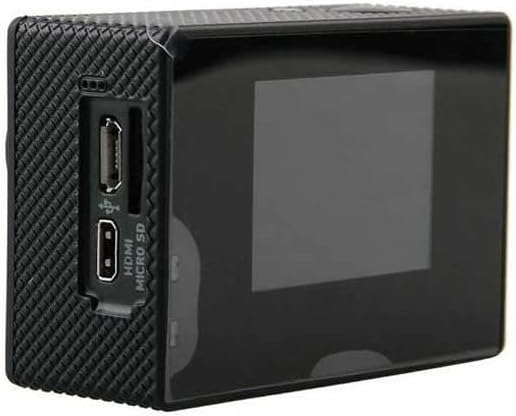
Image: SJCAM SJ4000 camera with its waterproof housing and a selection of included mounting accessories.
3. Setup
3.1 Battery Installation and Charging
- Open the battery compartment cover located at the bottom of the camera.
- Insert the Lithium-ion battery, ensuring the contacts align correctly.
- Close the battery compartment cover securely.
- To charge, connect the camera to a USB power source using the provided USB cable. The charging indicator light will illuminate.
3.2 MicroSD Card Installation
The SJ4000 requires a MicroSD card (not included) for storing recordings. Use a Class 10, UHS-3, or V60 MicroSD card with a maximum capacity of 32GB for optimal performance.
- Locate the MicroSD card slot on the side of the camera.
- Insert the MicroSD card with the contacts facing the front of the camera until it clicks into place.
- To remove, gently push the card until it springs out.
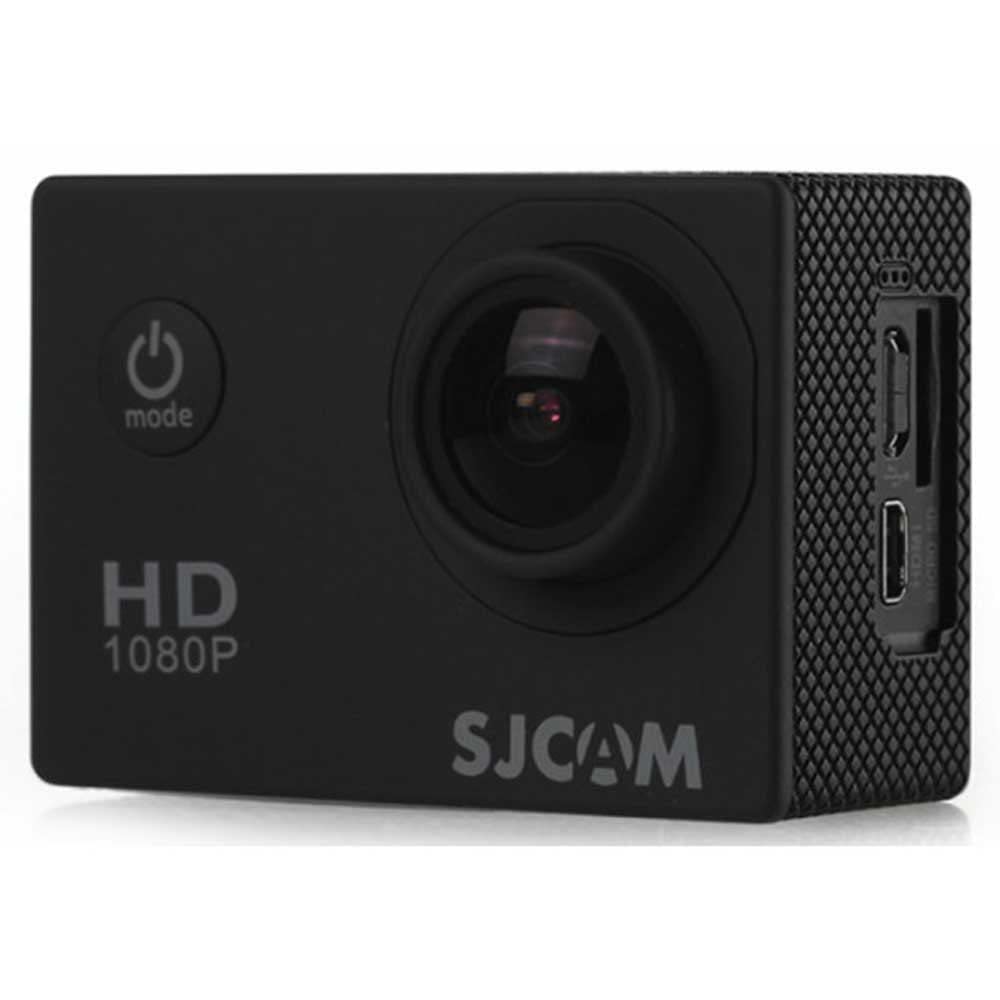
Image: Side view of the SJCAM SJ4000 camera body, highlighting the MicroSD card slot and HDMI port.
3.3 Using the Waterproof Case
The waterproof case allows the camera to be used underwater up to 30 meters. Ensure the case is properly sealed before submerging.
- Open the latch on the waterproof case.
- Carefully place the camera inside the case, ensuring it fits snugly.
- Close the latch firmly to create a watertight seal.
- Before first use, test the empty waterproof case underwater to ensure no leaks.
4. Operating the Camera
4.1 Power On/Off
- Power On: Press and hold the Power/Mode button on the front of the camera for a few seconds.
- Power Off: Press and hold the Power/Mode button again until the screen turns off.
4.2 Mode Selection
Press the Power/Mode button repeatedly to cycle through the different modes:
- Video Recording Mode: Indicated by a video camera icon.
- Photo Mode: Indicated by a camera icon.
- Playback Mode: Indicated by a play icon, for reviewing recorded content.
- Settings Mode: Indicated by a gear icon.
4.3 Recording Video
- Switch to Video Recording Mode.
- Press the OK button (top of the camera) to start recording. A red dot or timer will appear on the screen.
- Press the OK button again to stop recording.
4.4 Taking Photos
- Switch to Photo Mode.
- Frame your shot using the 2.0-inch display.
- Press the OK button to take a photo.
4.5 Menu Navigation and Settings
In Settings Mode, use the Up/Down buttons on the side of the camera to navigate through options. Press the OK button to select an option and the Power/Mode button to exit a menu.
Common settings include video resolution, photo resolution, loop recording, exposure, white balance, and date/time.
4.6 Connecting to a Computer or Mobile Device
The camera can connect to a computer via USB to transfer files. It is also compatible with Android and iOS devices for remote control and file management via a dedicated app (check SJCAM website for app availability).
5. Maintenance
- Cleaning the Lens and Screen: Use the provided cleaning cloth or a soft, lint-free cloth to gently wipe the lens and screen. Avoid abrasive materials.
- Waterproof Case Care: After using the waterproof case in saltwater, rinse it with fresh water and allow it to air dry. Inspect the rubber seal regularly for any damage or debris.
- Battery Care: Store the battery in a cool, dry place. Do not expose it to extreme temperatures. If not using the camera for an extended period, remove the battery.
- Storage: Store the camera and accessories in a protective case to prevent damage from impacts or dust.
6. Troubleshooting
- Camera not turning on: Ensure the battery is fully charged and correctly inserted. Try charging the camera for at least 30 minutes.
- Recording stops unexpectedly: Check if the MicroSD card is full or if it's a low-speed card. Format the MicroSD card (this will erase all data) or use a higher-speed card (Class 10, UHS-3, V60 recommended).
- Poor video quality: Ensure the lens is clean. Check the selected video resolution in the settings.
- Water leakage in waterproof case: Immediately remove the camera. Inspect the rubber seal for dirt, hair, or damage. Ensure the latch is securely closed. Do not use the case if the seal is compromised.
- Footage distortion from vibrations: The SJCAM SJ4000 features digital image stabilization. However, in environments with significant vibrations (e.g., mounted on a motorcycle), some distortion may still occur as it lacks advanced optical stabilization. Consider mounting the camera in locations with less vibration or using additional dampening accessories.
7. Specifications
| Brand | SJCAM |
| Model Name | SJ4000 |
| Video Recording Resolution | 1080p |
| Effective Photo Resolution | 12.23 MP |
| Screen Size | 2 Inches |
| Water Resistance Level | Waterproof (with case, up to 30m) |
| Image Stabilization | Digital (No optical stabilization) |
| Optical Zoom | 4x |
| Digital Zoom | 4x |
| Lens Type | Wide Angle |
| Memory Card Type | MicroSD / SDHC / SDXC |
| Max Memory Card Size | 32GB |
| Memory Card Speed Class | C10, UHS-3, V60 |
| Connectivity Technology | USB |
| Compatible Devices | Android, iOS |
| Battery Type | 1 Lithium-ion (included) |
| Video Capture Format | MPEG (H.264) |
| Image Format | JPEG |
8. Warranty Information
The SJCAM SJ4000 Action Camera comes with a 2-year manufacturer's warranty from the date of purchase. Please retain your proof of purchase for warranty claims. The warranty covers manufacturing defects but does not cover damage caused by misuse, accidents, or unauthorized modifications.
9. Support
For further assistance, technical support, or warranty inquiries, please visit the official SJCAM website or contact their customer service department. Refer to the packaging or the official website for the most up-to-date contact information.