
1. Introduction
This manual provides detailed instructions for the installation, operation, and maintenance of your Akuvox SP-R59P Desktop IP Phone. Please read this manual thoroughly before using the device to ensure proper functionality and to prevent damage. The Akuvox SP-R59P is a wired SIP VoIP phone designed for professional communication environments, offering reliable performance and a range of features.
2. Package Contents
Verify that all items listed below are present in your package. If any item is missing or damaged, please contact your vendor.
- Akuvox SP-R59P IP Phone Unit
- Handset
- Handset Cord (coiled)
- Ethernet Cable
- Phone Stand
- Quick Start Guide (may be included separately)
3. Product Overview
Familiarize yourself with the components and features of your Akuvox SP-R59P IP Phone.
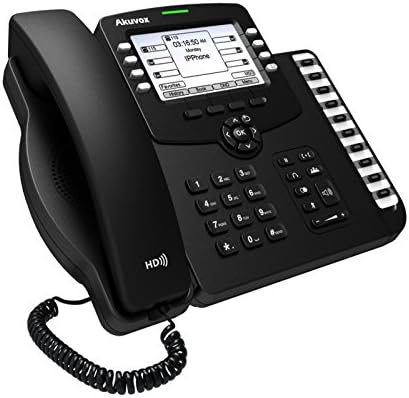
Figure 3.1: Front-left view of the Akuvox SP-R59P Desktop IP Phone, showing the display, keypad, and side-mounted programmable keys.
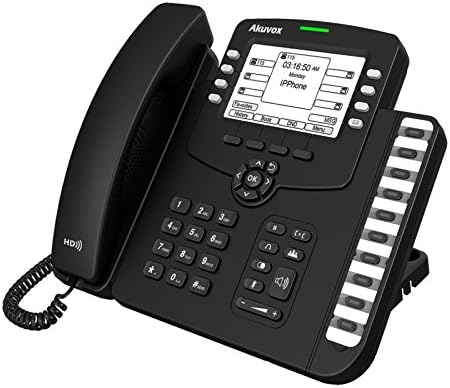
Figure 3.2: Front-right view of the Akuvox SP-R59P Desktop IP Phone, highlighting the main keypad, navigation buttons, and additional programmable keys.
3.1. Phone Components
- LCD Display: Shows call information, menu options, and status.
- Programmable Keys: Line keys or feature keys, typically located on the side or below the display.
- Navigation Keys: Used to navigate menus and lists. (Up, Down, Left, Right, OK).
- Keypad: Standard 0-9, *, # for dialing.
- Function Keys: Dedicated buttons for features like Speakerphone, Mute, Headset, Hold, Transfer, Redial, Voicemail.
- Volume Control: Adjusts handset, headset, and speakerphone volume.
- Handset: For private conversations.
- Speakerphone: For hands-free communication.
- Ports (Rear): Ethernet (LAN/PC), Handset, Power Adapter (if not using PoE).
4. Setup
Follow these steps to set up your Akuvox SP-R59P IP Phone.
4.1. Attaching the Phone Stand
- Align the tabs on the phone stand with the slots on the back of the phone unit.
- Gently push the stand into place until it clicks securely.
4.2. Connecting the Handset
- Plug one end of the coiled handset cord into the handset port on the phone unit (usually on the left side).
- Plug the other end of the coiled cord into the port on the handset.
4.3. Network and Power Connection
The Akuvox SP-R59P supports Power over Ethernet (PoE). If your network switch provides PoE, a separate power adapter is not required.
- Ethernet Connection: Connect one end of the Ethernet cable to the LAN port on the back of the phone. Connect the other end to an available Ethernet port on your network switch or router.
- Power Connection (if not using PoE): If your network does not support PoE, connect the power adapter (sold separately or included) to the power port on the back of the phone, then plug the adapter into a power outlet.
- PC Connection (Optional): If you need to connect a computer through the phone, connect an Ethernet cable from your computer to the PC port on the back of the phone.
4.4. Initial Boot-up
Once connected, the phone will automatically power on and begin its boot-up sequence. The display will show the Akuvox logo, followed by network configuration and SIP registration status. This process may take a few minutes.
5. Operating Instructions
This section covers basic operations of your Akuvox SP-R59P IP Phone.
5.1. Making Calls
- Off-hook Dialing: Pick up the handset or press the Speakerphone button. Dial the number using the keypad.
- On-hook Dialing: Dial the number first, then pick up the handset or press the Speakerphone button to initiate the call.
- Redial: Press the Redial button to call the last dialed number.
5.2. Answering Calls
- When the phone rings, pick up the handset or press the Speakerphone button.
- Alternatively, press the corresponding Line Key if multiple lines are configured.
5.3. Ending Calls
Hang up the handset or press the Speakerphone button to end an active call.
5.4. Call Features
- Hold: During a call, press the Hold button. Press it again to resume the call.
- Transfer: During a call, press the Transfer button. Dial the new number, then press Transfer again (blind transfer) or wait for the party to answer and then press Transfer (attended transfer).
- Mute: Press the Mute button to mute your microphone. Press it again to unmute.
- Speakerphone: Press the Speakerphone button to switch between handset and speakerphone mode.
- Voicemail: Press the Voicemail button to access your voicemail messages. Follow the voice prompts.
5.5. Adjusting Volume
Use the Volume buttons (usually located below the keypad) to adjust the volume of the handset, headset, or speakerphone during a call, or the ringer volume when the phone is idle.
6. Maintenance
Proper maintenance ensures the longevity and optimal performance of your IP phone.
- Cleaning: Use a soft, dry cloth to clean the phone's surface. For stubborn marks, a slightly damp cloth with mild soap can be used, but ensure no liquid enters the phone. Do not use abrasive cleaners or solvents.
- Environment: Keep the phone away from direct sunlight, heat sources, and excessive moisture. Ensure adequate ventilation.
- Handling: Avoid dropping the phone or subjecting it to strong impacts.
7. Troubleshooting
If you encounter issues with your Akuvox SP-R59P, refer to the following common problems and solutions.
| Problem | Possible Cause | Solution |
|---|---|---|
| Phone does not power on. | No power connection or faulty power source. | Check Ethernet cable for PoE connection. If using a power adapter, ensure it's securely plugged into the phone and a working power outlet. |
| No dial tone. | Network issue, SIP registration failure, or handset not connected properly. | Verify Ethernet cable connection. Check network status on the phone's display. Ensure handset cord is securely plugged in. Contact your IT administrator if SIP registration fails. |
| Cannot make or receive calls. | SIP registration failure, incorrect network settings, or service provider issue. | Check network connectivity. Confirm SIP account details with your service provider or IT administrator. Restart the phone. |
| Display is blank or frozen. | Software glitch or power issue. | Restart the phone by disconnecting and reconnecting the power/Ethernet cable. If the problem persists, contact support. |
8. Specifications
Key technical specifications for the Akuvox SP-R59P IP Phone.
- Brand: Akuvox
- Model Number: SP-R59P
- Phone Type: Wired
- Dialer Type: Keypad
- Answering System Type: Digital
- Caller ID: Not available
- Power: PoE (Power over Ethernet) support
- ASIN: B071H18BT5
9. Warranty and Support
For warranty information, please refer to the warranty card included with your product or visit the official Akuvox website. For technical support, troubleshooting assistance beyond this manual, or to inquire about replacement parts, please contact your vendor or Akuvox customer support directly.
Spare parts availability: Information unavailable.
Software updates guaranteed until: Information unavailable.


