
BOND BD-1000
BOND Bridge User Manual
Model: BD-1000
Introduction
The BOND Bridge is a smart device designed to integrate your remote-controlled ceiling fans, fireplaces, and motorized shades with your smartphone and smart home assistants like Amazon Alexa and Google Home. It allows you to activate devices, control speeds, and switch lights on or off directly from your mobile device, replicating the functions of your original remote control.

Figure 1: The BOND Bridge device, featuring a sleek black design with a prominent blue LED ring indicating its status.
Product Specifications
| Specification | Detail |
|---|---|
| Brand | BOND |
| Model Name | BD-1000 |
| Color | Black |
| Product Dimensions | 3.8"D x 3.8"W x 1.1"H |
| Item Weight | 7.2 ounces (0.45 Pounds) |
| Power Source | AC |
| Wi-Fi Connectivity | 2.4 GHz |
| RF Reach | Up to 2,500 sq. ft. |
| Device Control Capacity | Up to 30 devices per BOND Bridge |
| Control Method | App, Remote, Voice (Alexa, Google Home) |
| Included Components | BOND Bridge Unit, AC adapter, USB cable, Manual |
| Manufacturer | Olibra LLC |
| UPC | 612520601607, 860509000402 |

Figure 2: Detailed product specifications for the BOND Bridge.
Setup Guide
- Power On: Plug in the BOND Bridge device using the provided AC adapter and USB cable. The device will power on and its LED ring will indicate readiness.
- Download the App: Download the official BOND Home app from the Google Play Store (for Android) or the Apple App Store (for iOS).
- Create Account: Open the app and follow the on-screen instructions to create a new BOND account or log in if you already have one.
- Connect to Wi-Fi: The app will guide you through connecting the BOND Bridge to your home's 2.4 GHz Wi-Fi network. Ensure your Wi-Fi is working correctly.
- Add Device: Once connected, select "Add Device" in the app. Choose the type of device you wish to control (e.g., Ceiling Fan, Electric Fireplace, Motorized Shades).
- Program Remote: Point your existing remote control for the device at the BOND Bridge. The app will instruct you to press a button on your remote to allow the BOND Bridge to learn its signal. The BOND Bridge can learn and transmit both RF (radio frequency) and IR (infrared) signals.
- Test Functions: After programming, test the functions within the app to ensure all commands (e.g., fan speed, light dimmer settings) are correctly recognized and operational.

Figure 3: Simple setup process: plug in, download the app, and program your remote control.
Operating Instructions
Using the BOND Home App:
- Device Control: Open the BOND Home app. Your configured devices will be listed. Tap on a device to access its control interface.
- Fan Control: For ceiling fans, you can typically control power, fan speeds (e.g., Speed 1, 2, 3), and reverse motor direction (if supported by your fan).
- Light Control: For devices with lights, you can turn lights on/off and adjust brightness (dimmer up/down) if your original remote supports these functions.
- Scheduling: Set schedules for your devices to turn on/off or adjust settings automatically based on time or day/dusk.
- Grouping: Group multiple devices together for simultaneous control.
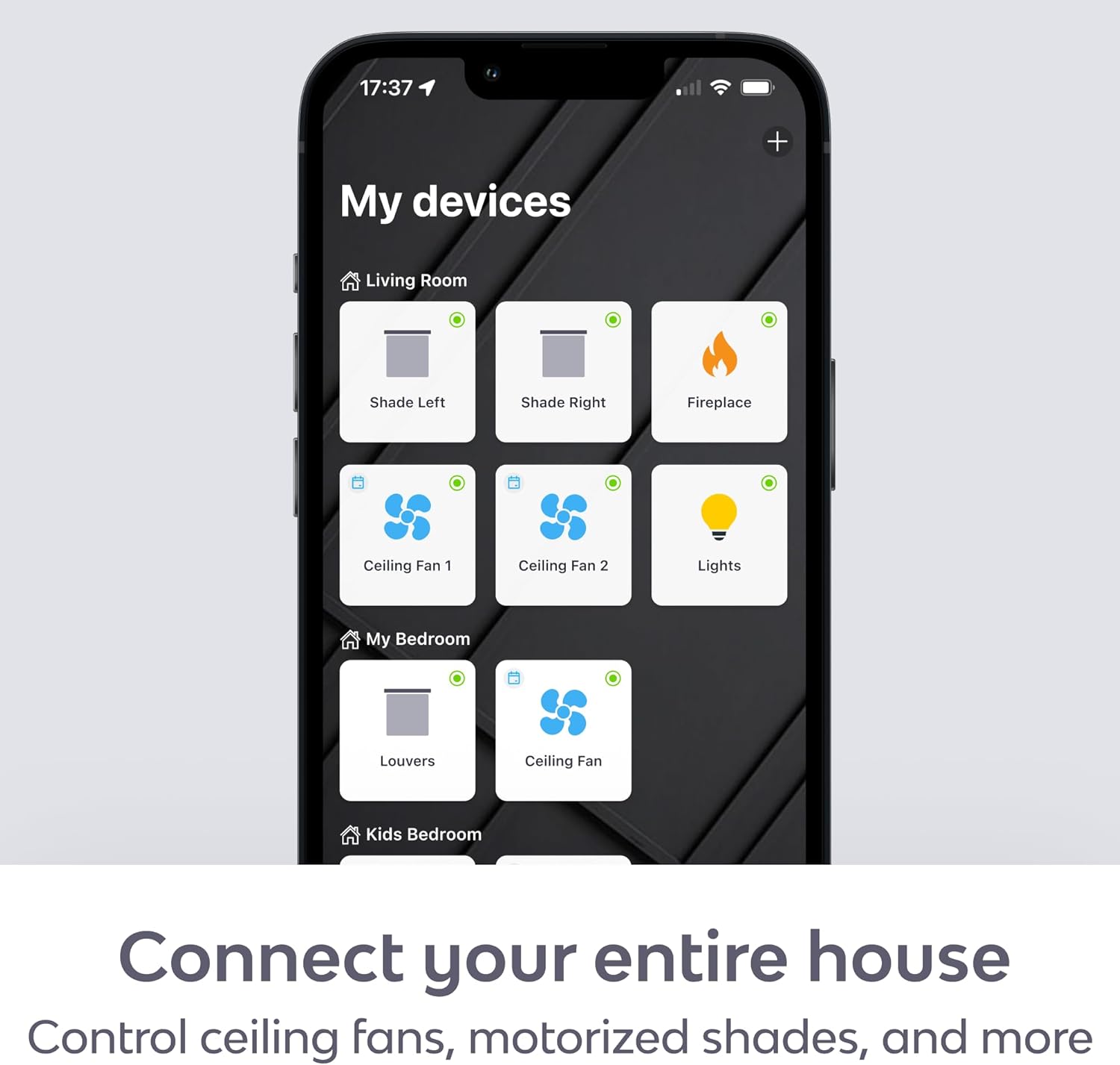
Figure 4: The BOND Home app provides a centralized interface for all your connected devices.
Voice Control (Alexa & Google Home):
- Linking Accounts: Enable the BOND skill in your Amazon Alexa or Google Home app and link your BOND account.
- Voice Commands: Use simple voice commands to control your devices. Examples:
- "Alexa, turn on the living room fan."
- "Hey Google, set the bedroom fan to speed 3."
- "Alexa, turn off the fireplace."
- "Hey Google, dim the dining room light."
Maintenance
- Cleaning: Wipe the BOND Bridge with a soft, dry cloth. Do not use liquid cleaners or aerosol sprays.
- Firmware Updates: Ensure your BOND Bridge firmware is up to date through the BOND Home app to receive the latest features and performance improvements.
- Placement: For optimal performance, place the BOND Bridge in a central location within the area where your remote-controlled devices are located. It has an RF reach of up to 2,500 sq. ft., but physical obstructions can affect signal strength. Consider adding additional BOND Bridges for extended coverage in larger homes.

Figure 5: Multiple BOND Bridges can be used to expand coverage in larger homes.
Troubleshooting
- Device Not Responding:
- Ensure the BOND Bridge is powered on and connected to your Wi-Fi network (check the LED indicator).
- Verify that the BOND Bridge is within range of the device you are trying to control.
- Re-program the remote signal for the device in the BOND Home app.
- Check if the original remote control is working correctly.
- Voice Commands Not Working:
- Confirm that your Amazon Alexa or Google Home account is correctly linked to your BOND account in their respective apps.
- Ensure your smart speaker is online and functioning.
- Try re-discovering devices in your Alexa or Google Home app.
- Wi-Fi Connectivity Issues:
- Ensure your Wi-Fi router is powered on and broadcasting a 2.4 GHz network.
- Move the BOND Bridge closer to your Wi-Fi router if signal strength is an issue.
- Restart your Wi-Fi router and the BOND Bridge.
- Fireplace Turns On/Off by Itself:
- If your fireplace turns on or off unexpectedly, try removing the batteries from its original factory remote control. This can prevent conflicting signals.
Warranty and Support
For warranty information and technical support, please refer to the official BOND website or contact Olibra LLC directly. The BOND Bridge comes with a standard manufacturer's warranty covering defects in materials and workmanship.
Online Resources:
For further assistance, you can reach out to BOND customer support through the app or their website.
Related documentsBD-1000


Ask a question about this manual
Ask about setup, troubleshooting, compatibility, parts, safety, or missing instructions. Manuals+ will review the question and use this page’s manual context to help answer it.