
Introduction
This manual provides detailed instructions for the Redlemon Cassette to MP3 Converter and Player, Model 56084. This device allows you to play audio cassettes and convert their content directly to MP3 format on a USB flash drive. It also functions as a portable cassette player.
Please read this manual carefully before using the device to ensure proper operation and to maximize its features.
Product Overview
Components and Controls
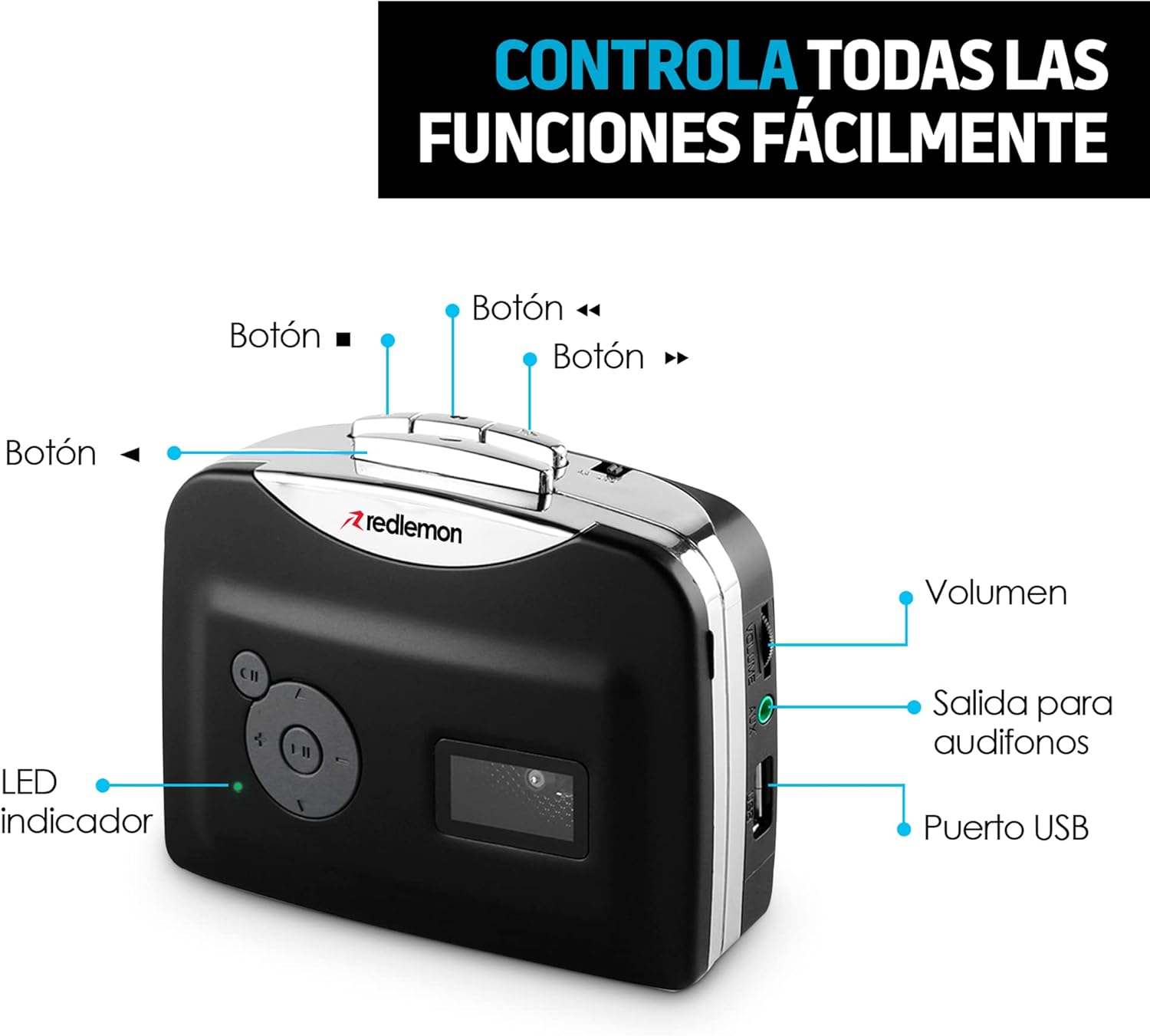
Image: Front and side view of the Redlemon Cassette to MP3 Converter with labels indicating various buttons and ports.
- Play/Stop Button (►/■): Initiates or stops cassette playback.
- Fast Forward Button (►►): Advances the tape quickly.
- Rewind Button (◄◄): Rewinds the tape quickly.
- Direction Button (CH): Changes the playback direction of the cassette.
- Record Button (●): Starts or stops MP3 recording.
- Volume Control: Adjusts the audio output level.
- 3.5mm Headphone Jack: Connects headphones for private listening.
- USB Port: Connects a USB flash drive for MP3 recording and playback, or for power supply.
- LED Indicator: Shows the device's status (e.g., power on, recording).

Image: The Redlemon Cassette to MP3 Converter with its lid open, revealing the cassette tape mechanism and internal components.
Setup
Powering the Device
The device can be powered by two AA batteries or via a USB cable.
- Battery Power: Open the battery compartment on the back of the device. Insert two AA batteries, ensuring correct polarity. Close the compartment.

Image: A Redlemon Cassette to MP3 Converter with its battery compartment open, showing two AA batteries being inserted.
- USB Power: Connect the included USB cable to the device's USB port and to a USB power adapter (not included) or a computer's USB port.
Inserting a Cassette
- Gently press the 'Open' button or slide the latch to open the cassette compartment lid.
- Insert an audio cassette with the open side facing upwards.
- Close the compartment lid until it clicks securely.
Connecting Headphones or USB Drive
- Headphones: Plug the 3.5mm jack of your headphones into the headphone port on the side of the device.
- USB Flash Drive: Insert a USB flash drive into the USB port on the side of the device. Ensure the drive is formatted to FAT32.
Operating Instructions
Playing Cassettes
- Ensure a cassette is properly inserted and the device is powered on.
- Connect headphones to the 3.5mm jack.
- Press the Play button (►). The LED indicator will light up.
- Adjust the volume using the volume control.
- To change tape direction, press the CH button.
- To fast forward or rewind, press the ►► or ◄◄ buttons respectively.
- To stop playback, press the Stop button (■).

Image: A person smiling while listening to music through headphones connected to the Redlemon Cassette Player.
Converting Cassettes to MP3
This device allows direct recording of cassette audio to a USB flash drive in MP3 format.
- Ensure a cassette is inserted and a USB flash drive is connected to the USB port.
- Press the Play button (►) to start playing the cassette.
- Immediately after starting playback, press the Record button (●). The LED indicator will flash, indicating that recording has started.
- To stop recording, press the Record button (●) again. The LED indicator will stop flashing.
- To stop cassette playback, press the Stop button (■).
- The recorded MP3 files will be saved on the USB flash drive. You can then transfer these files to a computer, tablet, or smartphone.

Image: The Redlemon Cassette to MP3 Converter positioned next to a laptop displaying music management software, illustrating the digital conversion process.
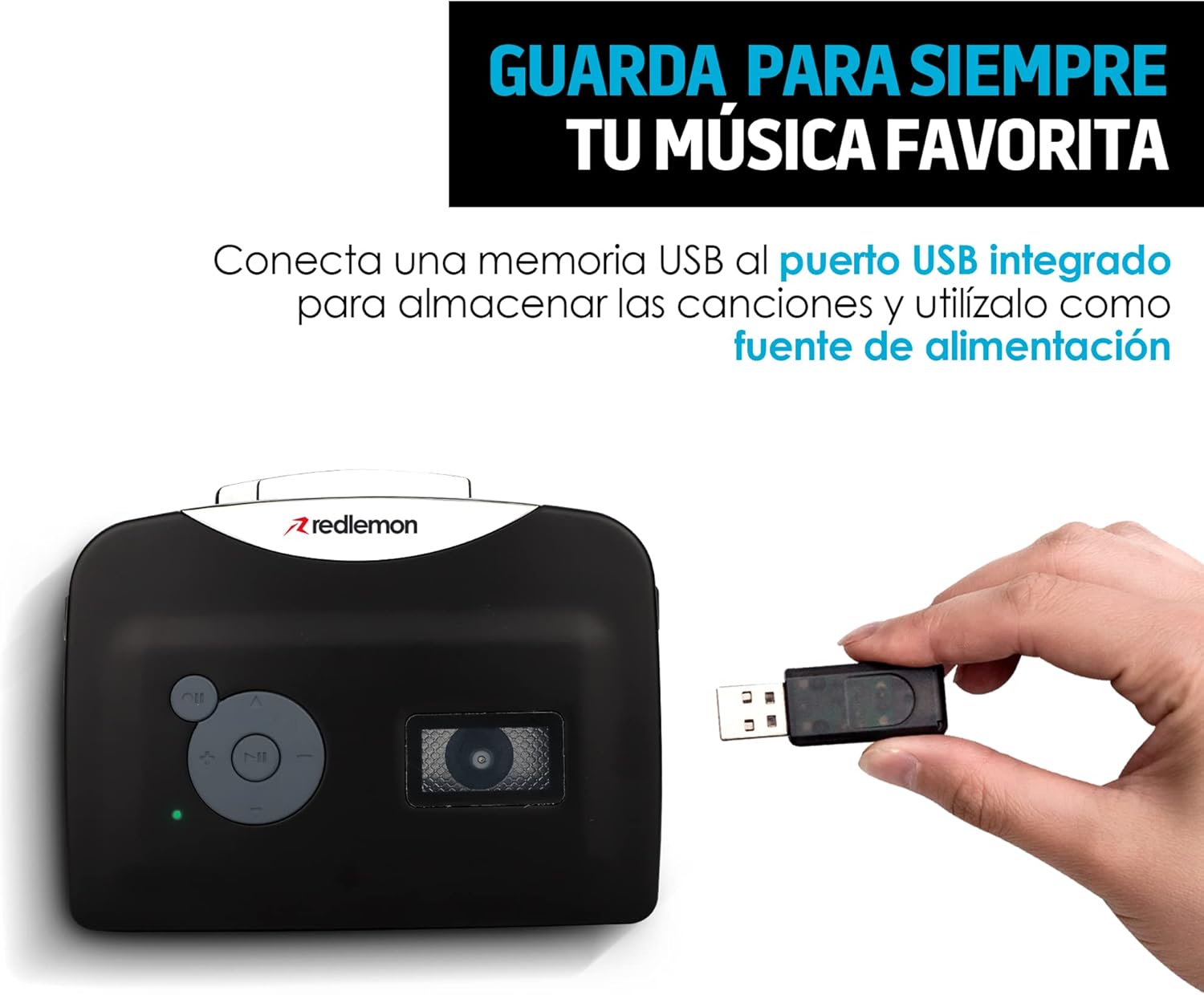
Image: A hand inserting a USB flash drive into the Redlemon Cassette to MP3 Converter, demonstrating how to save digital audio files.
Video Guide: Converting Cassettes to MP3
Video: A demonstration of how to use the Redlemon Cassette to MP3 Converter, including the recording process. (Duration: 1:20)
Video: A brief overview of the Redlemon Cassette to MP3 Converter's features and operation. (Duration: 0:30)
Maintenance
Cleaning
- Use a soft, dry cloth to clean the exterior of the device.
- Do not use liquid cleaners or aerosols.
- Periodically clean the tape heads and pinch rollers with a cotton swab lightly dampened with isopropyl alcohol to ensure optimal sound quality and prevent tape damage.
Storage
- When not in use for extended periods, remove the AA batteries to prevent leakage.
- Store the device in a cool, dry place away from direct sunlight and extreme temperatures.
Troubleshooting
Common Issues and Solutions
- Device does not power on:
- Check if AA batteries are inserted correctly and are not depleted.
- If using USB power, ensure the USB cable is securely connected to a working power source.
- No sound during playback:
- Ensure headphones are properly plugged in.
- Adjust the volume control.
- Check if the cassette tape is correctly inserted and not damaged.
- Recording to MP3 fails or produces poor quality:
- Ensure the USB flash drive is inserted correctly and has sufficient free space.
- Verify the USB drive is formatted to FAT32.
- Important Recording Sequence: First, press the Play button (►) for the cassette, then immediately press the Record button (●). Pressing Record before Play may result in unwanted ambient noise being recorded.
- Check the condition of the cassette tape. Older or damaged tapes may produce lower quality recordings or inconsistent playback.
- Ensure the device is stable during recording to avoid interruptions or pauses in the audio.
- Cassette tape is not moving:
- Check if the cassette is properly seated in the compartment.
- Ensure the tape is not tangled or damaged.
Specifications
| Brand | Redlemon |
| Model | 56084 |
| Compatible Devices | Personal computer, Headphones, USB device |
| Special Features | Lightweight, Portable |
| Display Technology | No display |
| Batteries Required | Yes (2 x AA, not included) |
| Power Source | 2 AA Batteries or USB Cable |
| Connector Type | AUX (3.5mm), USB |
| Supported Audio Formats | MP3 |
| Media Types | Cassette, MP3 |
| Rechargeable Battery Included | No |
| Remote Control Included | No |
| Dimensions | 15 x 11.5 x 4.7 cm |
| Weight | 240 g |
| UPC | 631145835990 |
Warranty and Support
For warranty information and technical support, please refer to the official Redlemon website or contact their customer service directly. Keep your purchase receipt as proof of purchase for any warranty claims.
You can visit the Redlemon store on Amazon for more information: Redlemon Store