Introduction
This manual provides detailed instructions for the eBerry Cobblestone USB Microphone, a cardioid condenser microphone designed for use with Windows and Mac desktop and laptop computers. This device offers clear audio capture for various applications, including recording, online communication, and streaming. Please read this manual thoroughly before using the product to ensure proper setup and operation.
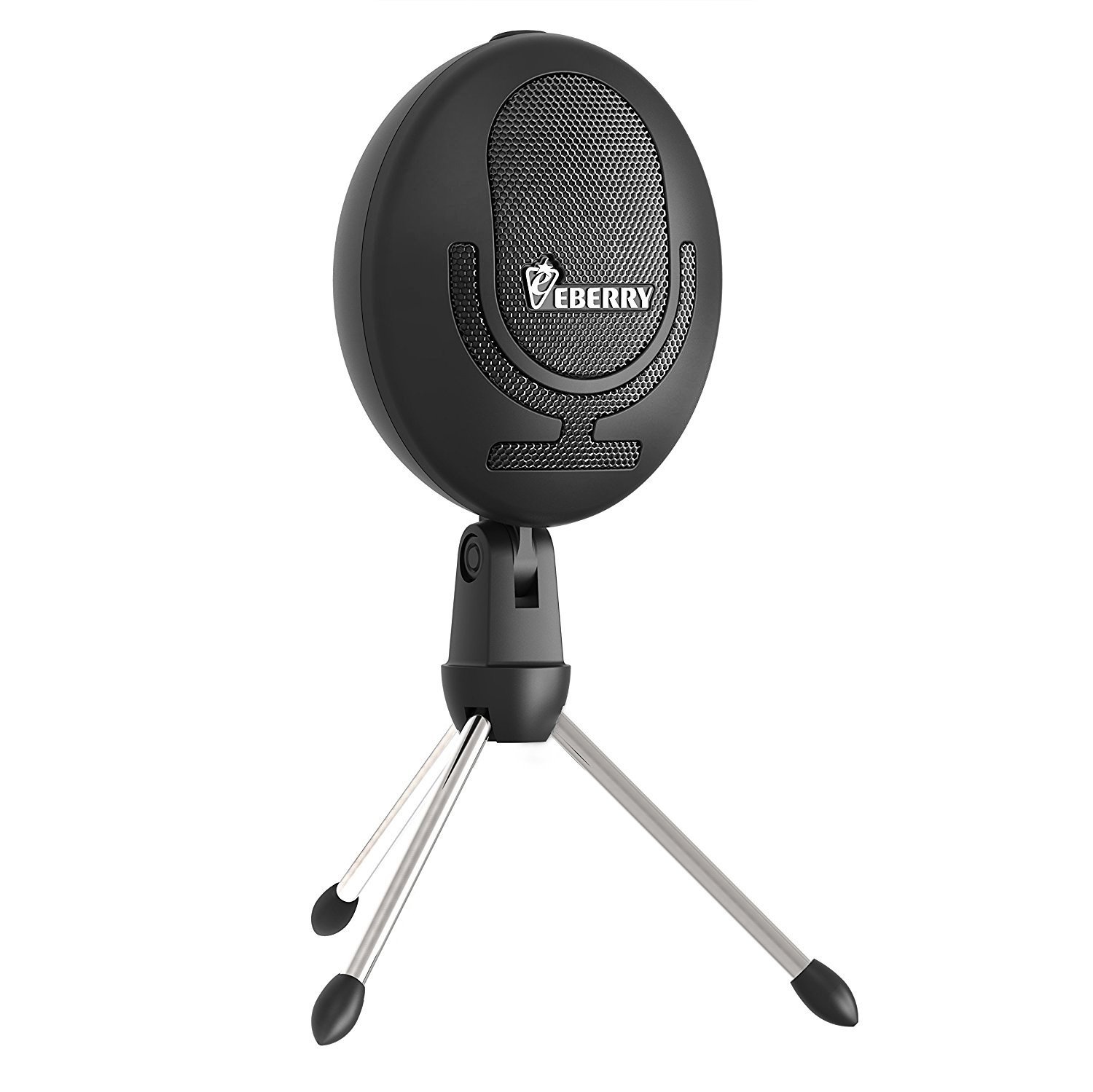
The eBerry Cobblestone USB Microphone connected to a laptop, demonstrating its use for online communication or recording.
What's in the Box
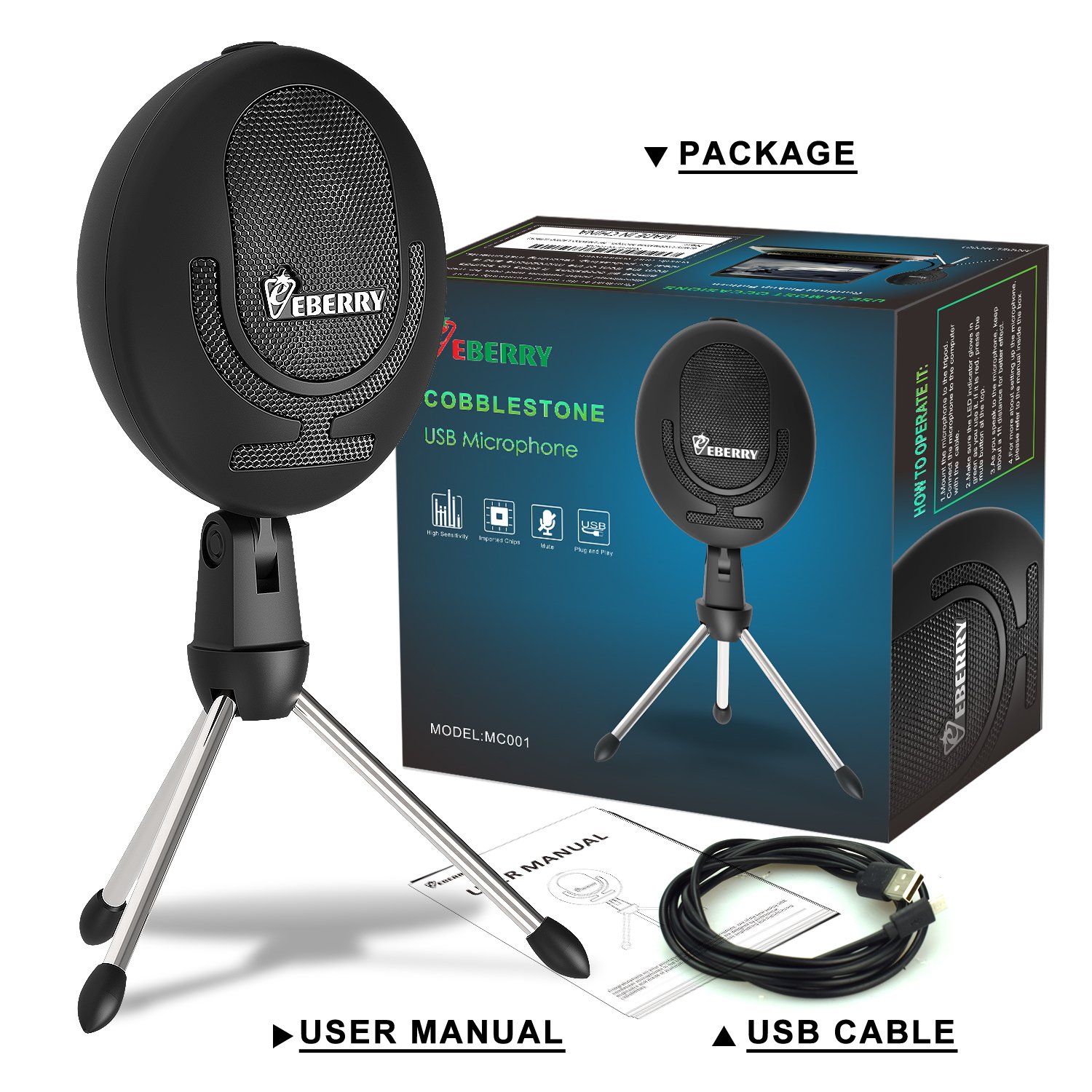
Upon unpacking your eBerry Cobblestone USB Microphone, please verify that all the following items are included:
- eBerry Cobblestone USB Microphone
- Detachable Tripod Stand
- USB Cable
- User Manual

The complete package contents of the eBerry Cobblestone USB Microphone, showing the microphone, its detachable tripod stand, USB cable, and the included user manual.
Product Overview
The eBerry Cobblestone USB Microphone is engineered for clear and reliable audio capture. It features a cardioid pick-up pattern, a professional digital chip, and a high-sensitivity condenser capsule for detailed sound recording. Its plug-and-play design ensures ease of use across compatible operating systems.
Key Features:
- Cardioid Pick-up Pattern: This directional pattern primarily captures sound from the front of the microphone, effectively reducing unwanted background noise from the sides and rear.
- Noise-Cancelling Microphone: Designed to enhance clarity by minimizing ambient sounds, making your voice or instrument stand out.
- High Sensitivity Condenser Capsule: Ensures detailed and accurate audio capture, suitable for various recording needs.
- Plug and Play USB Connectivity: Connects directly to your computer via USB, requiring no additional drivers for most Windows and Mac operating systems.
- Convenient Mute Button: Features an easily accessible button to instantly mute or unmute the microphone, indicated by an LED light.
- Detachable Tripod Stand: Provides stable positioning on any flat surface, and can be easily detached for portability.

Multiple views of the eBerry Cobblestone USB Microphone, illustrating its design and key features such as the cardioid pick-up pattern and noise-cancelling capabilities.

An illustration of the eBerry Cobblestone USB Microphone in use, emphasizing its high sensitivity, imported chips, mute function, and plug-and-play USB connectivity for personal use.
Setup Instructions
1. Assemble the Microphone
Carefully attach the eBerry Cobblestone USB Microphone to its detachable tripod stand. Ensure the microphone is securely fastened to the stand for stability during use.
An image demonstrating the detachable tripod stand of the eBerry Cobblestone USB Microphone, highlighting its easy assembly and portability.
2. Connect to Computer
Connect the provided USB cable to the microphone's USB port and then to an available USB port on your Windows or Mac computer. The microphone is designed for plug-and-play functionality and typically does not require additional driver installation.
3. Configure Audio Settings (Windows)
- Right-click the speaker icon in the system tray (usually in the bottom-right corner of your screen) and select "Sound settings" or "Recording devices".
- In the Sound settings window, navigate to the "Input" section.
- Select the "eBerry Cobblestone Microphone" as your default recording device.
- Adjust the microphone's input level using the slider to achieve your desired volume.
4. Configure Audio Settings (Mac)
- Go to "System Preferences" (found in the Apple menu or your Dock).
- Click on "Sound", then select the "Input" tab.
- Select the "eBerry Cobblestone Microphone" from the list of devices.
- Adjust the input volume slider to your desired level.
Operating Instructions
Using the Mute Button
The microphone features a convenient mute button located on its body. Press this button to toggle between mute and active modes.
- Red Light: When the LED indicator light is red, the microphone is in mute mode. No audio will be captured or transmitted.
- Green Light: When the LED indicator light is green, the microphone is active and capturing audio.

A detailed view of the microphone's mute button, indicating its red light for mute status and green light for active recording status.
Optimal Placement
For the best audio quality, position the microphone directly in front of the sound source (e.g., your mouth for vocals, or an instrument) within a few inches. The cardioid pick-up pattern is most sensitive to sounds coming from the front, which helps to isolate the desired audio and minimize ambient noise.
Software Compatibility
The eBerry Cobblestone USB Microphone is compatible with most recording, communication, and streaming software applications. This includes, but is not limited to, popular platforms like Skype, Zoom, Google Meet, OBS Studio, Audacity, and various Digital Audio Workstations (DAWs).
Maintenance
To ensure the longevity and optimal performance of your eBerry Cobblestone USB Microphone, please follow these simple maintenance guidelines:
- Cleaning: Use a soft, dry, lint-free cloth to gently wipe the microphone's exterior. Do not use liquid cleaners, solvents, or abrasive materials, as these can damage the finish or internal components.
- Storage: When not in use, store the microphone in a clean, dry place away from direct sunlight, extreme temperatures, and high humidity. Keeping it in its original packaging or a protective pouch can prevent dust accumulation and physical damage.
- Handling: Avoid dropping the microphone or subjecting it to strong impacts. Rough handling can damage the sensitive internal components and affect audio quality.
Troubleshooting
If you encounter any issues with your eBerry Cobblestone USB Microphone, please refer to the following troubleshooting steps:
Microphone Not Detected
- Ensure the USB cable is securely connected to both the microphone and an active USB port on your computer.
- Try connecting the microphone to a different USB port on your computer. Sometimes, certain USB ports may have power or connectivity issues.
- Restart your computer. A simple reboot can often resolve connectivity problems.
- Verify that the microphone is selected as the input device in your computer's sound settings (refer to the "Setup Instructions" section).
No Sound or Low Volume
- Check if the mute button is active (red light). Press it to unmute the microphone (green light).
- Adjust the input volume level in your computer's sound settings. Ensure it is not set too low or muted in the software.
- Ensure the microphone is positioned correctly and close enough to the sound source.
- Test the microphone with different recording or communication software to rule out software-specific issues.
Distorted or Unclear Audio
- Reduce the input volume level in your computer's sound settings if the audio sounds clipped or distorted. High input levels can cause signal overload.
- Ensure there are no obstructions between the sound source and the microphone.
- Minimize background noise in your recording environment. While the microphone has noise-cancelling features, excessive ambient noise can still affect clarity.
Specifications
Below are the technical specifications for the eBerry Cobblestone USB Microphone:
| Feature | Detail |
|---|---|
| Model | S1704260301A3 |
| Polar Pattern | Unidirectional (Cardioid) |
| Connectivity Technology | USB |
| Audio Sensitivity | 32 Decibels |
| Signal-to-Noise Ratio | 50 dB |
| Noise Level | 50 Decibels |
| Frequency Response | 20 KHz |
| Compatible Devices | Laptop, Personal Computer (Windows, Mac) |
| Power Source | Corded Electric (USB Powered) |
| Color | Black |
| Product Dimensions (L x W x H) | 12 x 12 x 22 Centimeters |
| Item Weight | 390 g |

A diagram illustrating the physical dimensions of the eBerry Cobblestone USB Microphone and its tripod stand, with measurements provided in centimeters.
Warranty and Support
For detailed warranty information, product registration, or technical support, please refer to the documentation included with your original purchase. You may also visit the official eBerry website or contact their customer service department directly for assistance with your eBerry Cobblestone USB Microphone.