
Linksys EA9300
Contents
Linksys EA9300 Max-Stream AC4000 Tri-Band WiFi Router User Manual
Introduction
The Linksys EA9300 Max-Stream AC4000 Tri-Band Router is engineered to deliver high-speed Wi-Fi connectivity for numerous devices simultaneously. This router incorporates Tri-Band technology, a 1.8GHz Quad-Core CPU, and MU-MIMO technology to enhance network efficiency and provide fast Wi-Fi speeds throughout your home or office.
Key features of the Linksys EA9300 include:
- Maximum Coverage: Up to 3500 square feet.
- Intelligent Tri-Band: Three dedicated Wi-Fi bands (one 2.4 GHz, two 5 GHz) for combined speeds up to 4.0 Gbps.
- Next-Gen AC Wi-Fi (MU-MIMO): Provides ultra-fast Wi-Fi speeds to multiple devices concurrently.
- Advanced Beamforming: Focuses Wi-Fi signals for stronger connections across both 2.4GHz and 5GHz bands.
- High-Gain Antennas: Six active high-gain antennas extend Wi-Fi range.
- Gigabit Ethernet Ports: Five Gigabit Ethernet ports (1 WAN, 4 LAN) for high-speed wired connections.
- USB 3.0 Ports: Two USB 3.0 ports for network storage and device sharing.
- Automatic Firmware Updates: Ensures the router is always updated with the latest features and security.
Package Contents
Verify that your package contains the following items:
- Linksys AC4000 MU-MIMO Tri-Band Router, EA9300
- Quick Start Guide
- Ethernet Cable
- Regulatory and Warranty Documentation
Product Overview
Front View
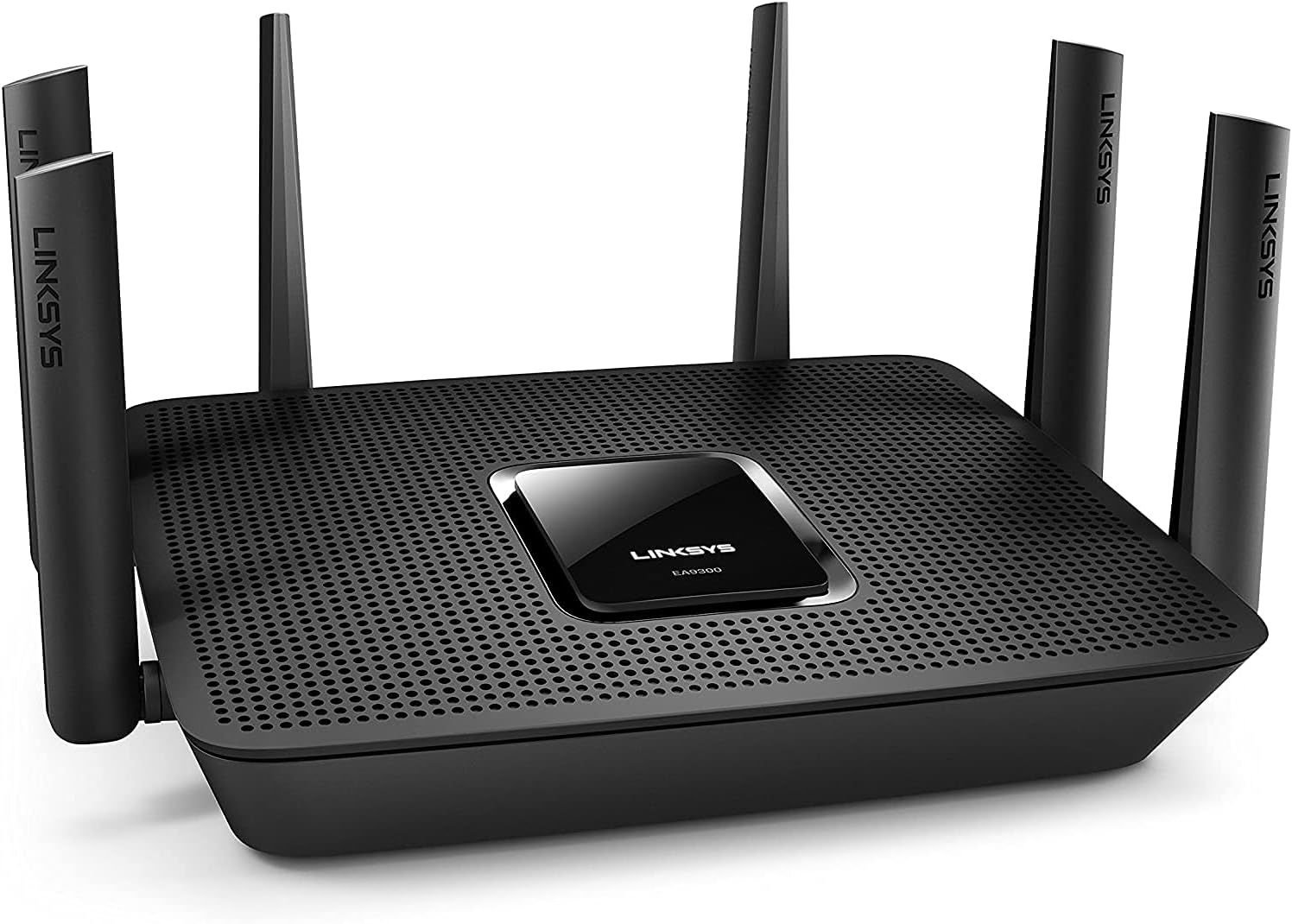
The front of the Linksys EA9300 router features a sleek design with ventilation grilles and a central Linksys logo that illuminates to indicate the router's operational status.
Back Panel

The back panel of the Linksys EA9300 router includes various ports and buttons for connectivity and control:
- Reset Button: Used to restore factory default settings.
- USB 1 (3.0) & USB 2 (3.0) Ports: For connecting external storage devices.
- Internet (WAN) Port: Connects to your modem.
- Ethernet 1-4 (LAN) Ports: For wired connections to computers, gaming consoles, and other network devices.
- 12V DC Power Input: Connects to the power adapter.
- Power On/Off Switch: Controls the router's power.
Side View

The side of the Linksys EA9300 router features a WPS (Wi-Fi Protected Setup) button, allowing for easy and secure connection of compatible wireless devices without manually entering the password.
Setup Instructions
Initial Setup
- Unpack the Router: Carefully remove the router and all included accessories from the packaging.
- Position the Router: Place the router in a central location within your home or office to maximize Wi-Fi coverage. Ensure it is not obstructed by large metal objects or appliances that may cause radio frequency interference.
- Connect the Antennas: Ensure all six external antennas are securely attached and oriented vertically for optimal signal propagation.
- Connect to the Modem:
- Power off your existing modem.
- Connect one end of the provided Ethernet cable to the yellow Internet (WAN) port on the back of the EA9300 router.
- Connect the other end of the Ethernet cable to your modem's Ethernet port.
- Power on your modem and wait for it to fully boot up, indicated by stable status lights.
- Power On the Router:
- Connect the power adapter to the 12V DC input port on the router.
- Plug the power adapter into a wall outlet.
- Press the Power On/Off switch.
- Wait for the Linksys logo on the top of the router to illuminate and become solid, indicating it is ready for configuration.
- Connect a Device for Setup:
- Wired Connection: Connect an Ethernet cable from one of the blue Ethernet 1-4 (LAN) ports on the router to your computer's Ethernet port.
- Wireless Connection: On your computer or mobile device, search for available Wi-Fi networks. Select the network name (SSID) printed on the bottom of your router or on the Quick Start Guide. Enter the Wi-Fi password (security key) when prompted.
- Complete Setup via Web Browser:
- Open a web browser (e.g., Chrome, Firefox, Edge) on the connected device.
- Type http://linksyssmartwifi.com or 192.168.1.1 into the address bar and press Enter.
- Follow the on-screen instructions to complete the router setup, which includes creating an administrator password and customizing your Wi-Fi network names and passwords.
Operating Instructions
Connecting to Wi-Fi
To connect devices to your Wi-Fi network, locate the network name (SSID) you configured during the initial setup. Enter the corresponding Wi-Fi password. The EA9300 router supports three bands: one 2.4 GHz band and two 5 GHz bands. The Smart Connect feature automatically assigns devices to the optimal band for the best performance.
Using the Linksys App
The Linksys App provides a convenient way to control and monitor your EA9300 router from your smartphone or tablet. Download the app from your device's app store. With the app, you can manage guest access, prioritize devices for specific applications, and check your network status from anywhere.
USB Storage
The router features two USB 3.0 ports. You can connect external USB storage devices to these ports to share files across your network, create a personal cloud, or set up a media server for streaming content to connected devices.
Maintenance
Firmware Updates
The Linksys EA9300 router is designed to receive automatic firmware updates. These updates are crucial for ensuring your router has the latest features, performance enhancements, and security measures. It is recommended to keep this feature enabled for optimal router health and protection.
Resetting the Router
If you encounter persistent issues or need to reconfigure your network from scratch, you may need to reset the router. There are two primary methods:
- Soft Reset (Power Cycle): Unplug the router from the power outlet, wait approximately 10 seconds, and then plug it back in. This can resolve minor connectivity issues.
- Factory Reset: With the router powered on, press and hold the Reset button on the back panel for approximately 10 seconds using a paperclip or similar pointed object. The router will restart with its original factory default settings. After a factory reset, you will need to reconfigure your network settings as if it were a new installation.
Troubleshooting
This section addresses common issues you might encounter with your Linksys EA9300 router.
No Internet Connection
- Check Cable Connections: Ensure all Ethernet cables, especially the one connecting the router to the modem, are securely plugged in.
- Power Cycle Devices: Power off both your modem and router. Wait for 30 seconds, then power on the modem first. Once the modem is fully online (indicated by stable lights), power on the router.
- Verify ISP Connection: Contact your Internet Service Provider (ISP) to confirm there are no service outages in your area.
Slow Wi-Fi Speeds
- Router Placement: Ensure the router is centrally located and not obstructed by large furniture or walls.
- Interference: Move the router away from other electronic devices that may cause interference, such as cordless phones, microwaves, or Bluetooth devices.
- Device Prioritization: Use the Linksys App to prioritize devices that require higher bandwidth for activities like gaming or streaming.
- Firmware Update: Confirm that your router's firmware is up to date, as updates often include performance improvements.
Cannot Access Router Setup Page
- Verify IP Address: Double-check that you are typing http://linksyssmartwifi.com or 192.168.1.1 correctly into your web browser's address bar.
- Wired Connection: If using Wi-Fi, try connecting your computer directly to the router via an Ethernet cable to rule out wireless connectivity issues.
- Clear Browser Cache: Clear your web browser's cache and cookies, or try using a different web browser.
For more detailed troubleshooting steps and advanced configurations, please refer to the official Linksys EA9300 User Manual (PDF) available on the Linksys support website.
Specifications
| Feature | Detail |
|---|---|
| Brand | Linksys |
| Model Name | EA9300 |
| Wireless Type | 802.11a/b/g/n/ac (WiFi 5) |
| Frequency Band Class | Tri-Band (2.4 GHz, 5 GHz, 5 GHz) |
| Speeds | Up to 4.0 Gbps (AC4000) |
| Processor | 1.8GHz Quad-Core CPU with 3 offload processors |
| Antenna Type | 6 External High-Gain Antennas |
| Ethernet Ports | 1 x WAN Gigabit, 4 x LAN Gigabit |
| USB Ports | 2 x USB 3.0 |
| Maximum Range | 3500 Sq Ft |
| Product Dimensions (LxWxH) | 11.58 x 9.01 x 2.26 inches |
| Item Weight | 3.6 pounds |
| Compatible Devices | Gaming Console, Printer, Smart Television |
| Recommended Use | Home |
Warranty and Support
Linksys provides comprehensive support for the EA9300 router. For detailed warranty information, please refer to the documentation included in your product package or visit the official Linksys support website. For additional technical assistance or customer service inquiries, you may contact Linksys directly.
A comprehensive User Manual (PDF) is available for download from the Linksys support website for detailed information and advanced configurations. You can typically find this by searching for your model number, EA9300, on the Linksys support page.
Documents and downloads
Ask a question about this manual
Ask about setup, troubleshooting, compatibility, parts, safety, or missing instructions. Manuals+ will review the question and use this page’s manual context to help answer it.