
1. Introduction
Thank you for choosing the MARVO GT-006 USB Vibration Gamepad. This manual provides essential information for setting up, operating, and maintaining your new game controller. Designed for PC gaming, the GT-006 offers a familiar button layout and comfortable handling for an immersive gaming experience.
2. Features
- Double Shock Vibration: Provides immersive haptic feedback during gameplay.
- Dual Analog Mini Sticks: For precise 360-degree control.
- Cross-shaped D-pad: For accurate directional input.
- Ergonomic Design: Soft and sweat-resistant surface coating for comfortable extended play.
- USB 2.0 Plug & Play: Simple connection without complex driver installation.
- 1.56m Cable Length: Offers flexibility and freedom of movement.
- Familiar Button Layout: Intuitive controls for easy adaptation.
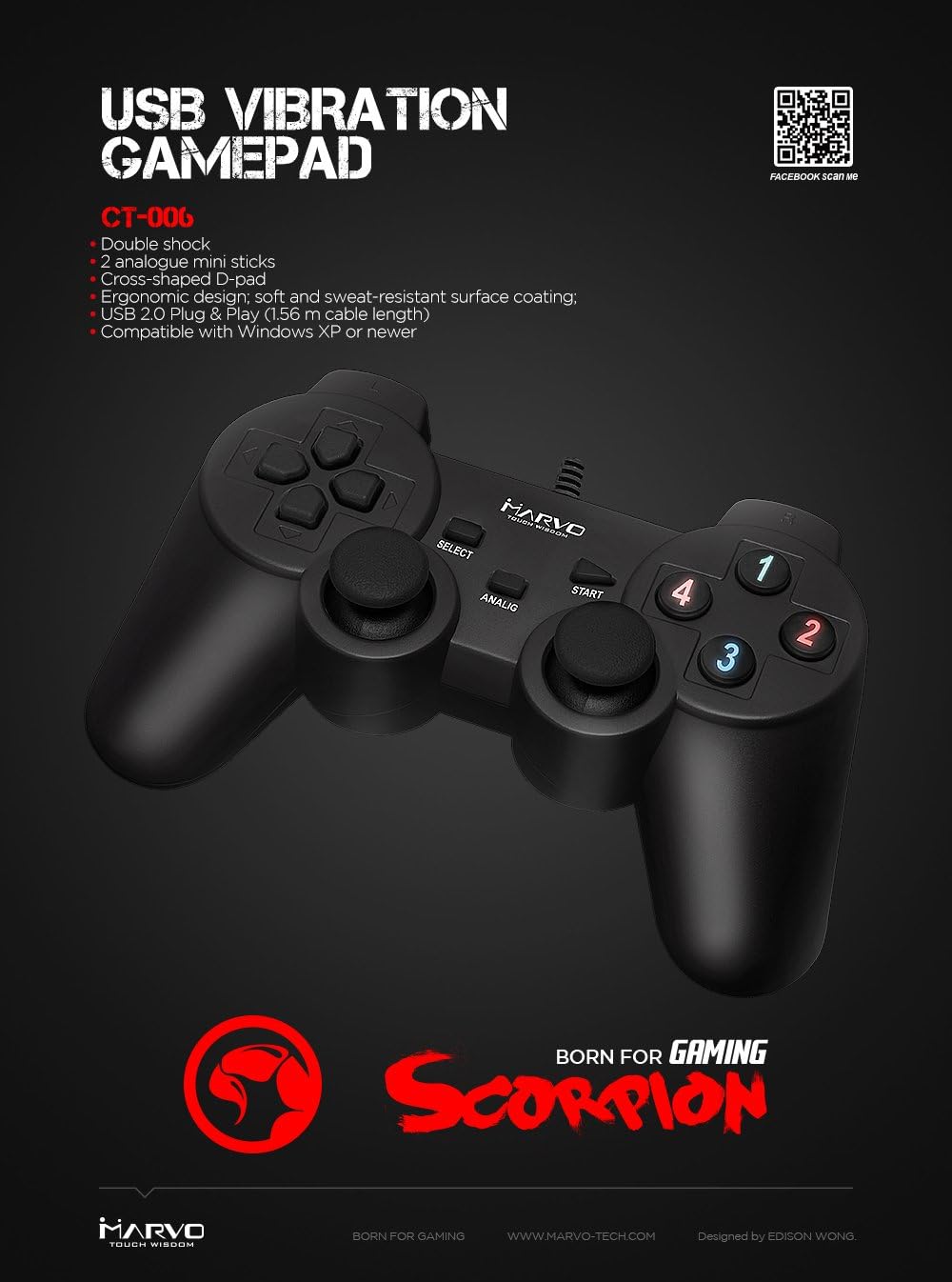
Figure 2.1: MARVO GT-006 Gamepad highlighting key features.
3. System Requirements
The MARVO GT-006 Gamepad is compatible with the following operating systems:
- Windows 98
- Windows 2000
- Windows ME
- Windows XP
- Windows NT
- Windows Vista OS
- Windows 7
- Newer Windows operating systems (e.g., Windows 8, 10, 11)
A free USB 2.0 port is required for connection.
4. Setup
Setting up your MARVO GT-006 Gamepad is straightforward:
- Ensure your computer is powered on.
- Locate an available USB port on your computer.
- Plug the USB connector of the GT-006 Gamepad into the USB port.
- Your operating system should automatically detect and install the necessary drivers. This may take a few moments.
- Once installation is complete, the gamepad is ready for use. You may need to configure the controller within your game's settings.
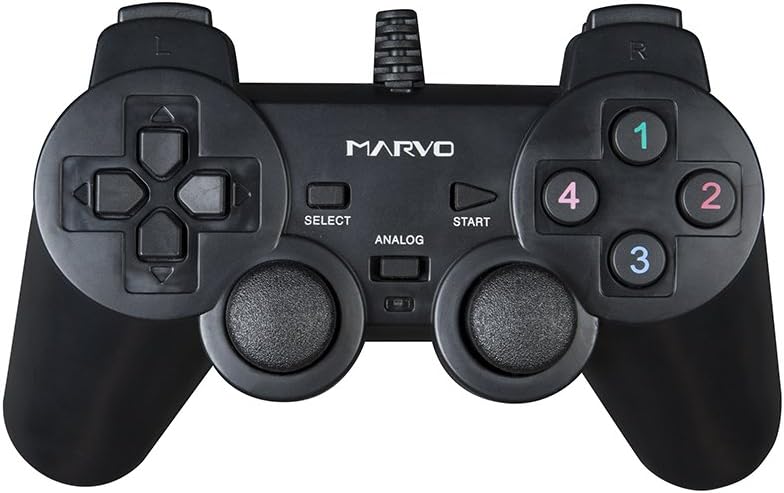
Figure 4.1: Top view of the MARVO GT-006 Gamepad, showing button layout.
5. Operating Instructions
The MARVO GT-006 Gamepad provides a full range of controls for PC gaming:
- Analog Sticks: Use the left and right analog sticks for precise movement and camera control. Pressing the 'ANALOG' button typically toggles the analog mode for the sticks, indicated by an LED.
- D-pad: The cross-shaped directional pad is ideal for menu navigation and specific directional inputs in games.
- Action Buttons (1, 2, 3, 4): These numbered buttons are typically used for primary actions like jumping, attacking, or interacting.
- Shoulder Buttons (L1, L2, R1, R2): Located on the top of the gamepad, these buttons are commonly used for secondary actions, aiming, or firing.
- SELECT/START Buttons: Standard buttons for pausing games, accessing menus, or confirming selections.
- Double Shock Vibration: The gamepad will vibrate during gameplay to enhance immersion, especially during in-game events like explosions or impacts.

Figure 5.1: Rear view of the MARVO GT-006 Gamepad, illustrating the shoulder buttons and cable connection.
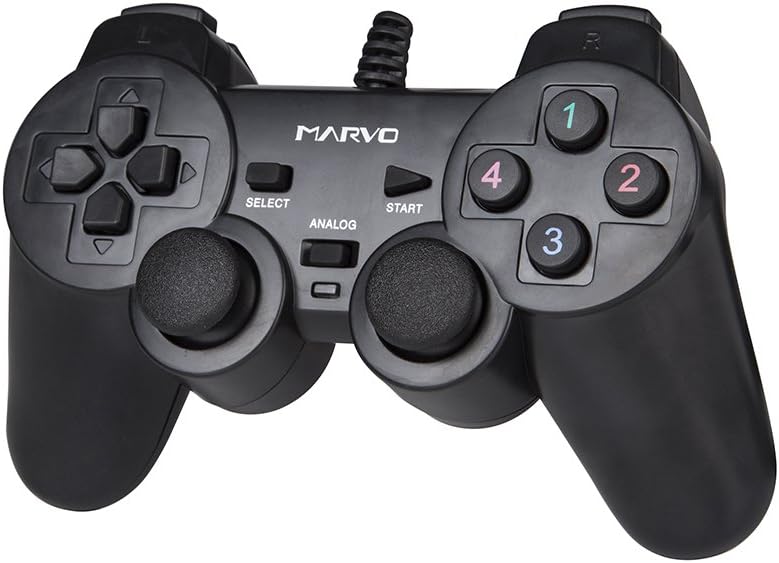
Figure 5.2: Angled view of the MARVO GT-006 Gamepad, providing a comprehensive look at its design.
6. Maintenance
To ensure the longevity and optimal performance of your MARVO GT-006 Gamepad, follow these maintenance guidelines:
- Cleaning: Use a soft, dry cloth to wipe down the gamepad. For stubborn dirt, slightly dampen the cloth with water. Avoid using harsh chemicals or abrasive cleaners.
- Storage: Store the gamepad in a cool, dry place away from direct sunlight and extreme temperatures.
- Cable Care: Do not pull or yank the cable. Always grasp the USB connector when plugging or unplugging the gamepad. Avoid bending the cable sharply.
- Avoid Drops: Protect the gamepad from drops or impacts, which can damage internal components.
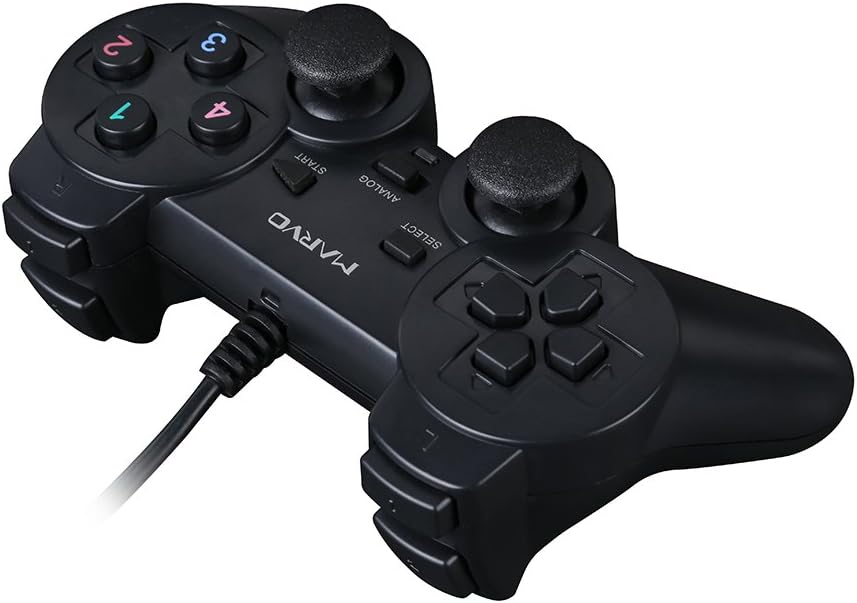
Figure 6.1: Front-left angled view of the MARVO GT-006 Gamepad, showing its ergonomic shape.
7. Troubleshooting
If you encounter issues with your MARVO GT-006 Gamepad, try the following troubleshooting steps:
- Gamepad Not Recognized:
- Try plugging the gamepad into a different USB port on your computer.
- Restart your computer.
- Check your computer's Device Manager to see if the gamepad is listed and if there are any driver issues.
- Buttons/Sticks Not Responding:
- Ensure the gamepad is securely connected.
- Test the gamepad in another game or application to determine if the issue is game-specific.
- Calibrate the gamepad through your operating system's game controller settings.
- Vibration Not Working:
- Verify that the game you are playing supports vibration feedback.
- Check the game's settings to ensure vibration is enabled.
8. Specifications
| Feature | Specification |
|---|---|
| Brand | MARVO |
| Model Name | GT-006 |
| Color | Black |
| Connectivity Technology | USB (Wired) |
| Cable Length | 1.56 meters |
| Controller Type | Gamepad |
| Compatible Devices | PC (Windows 98/2000/ME/XP/NT/Vista/7 and newer) |
| Product Dimensions | 33.6 x 1 x 20.9 cm |
| Item Weight | 200 grams |
| Power Source | Corded Electric |
| Voltage | 1 Volt |
9. Warranty and Support
Warranty information for the MARVO GT-006 Gamepad is not explicitly specified in the product details. Please refer to your point of purchase or the retailer's return policy for details regarding warranty coverage.
For additional support or inquiries, you may visit the official MARVO social media page:


